Windows 11 Task Manager: End Frozen Apps and Read CPU and Memory Use
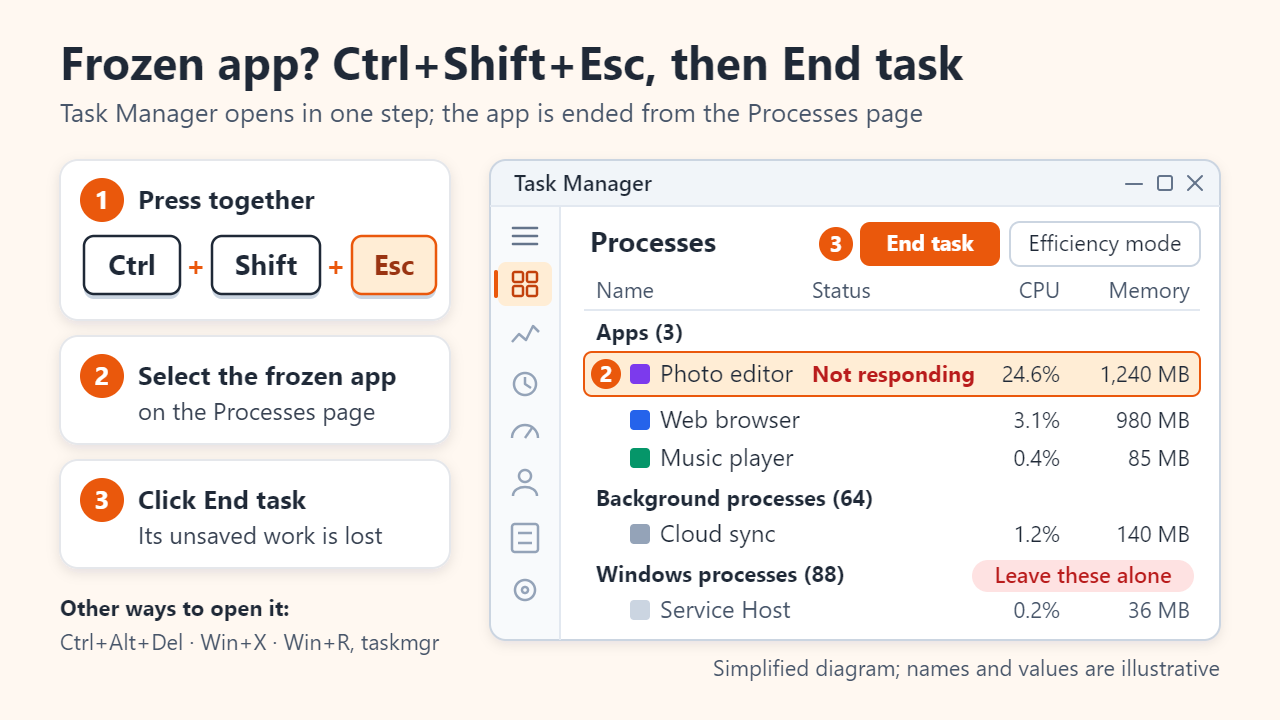
Press Ctrl+Shift+Esc to open Task Manager directly in Windows 11 and Windows 10. On the Processes page, select the frozen app and click End task (or right-click it and choose End task); anything you had not saved in that app is lost. To find what is slowing the PC down, click the CPU, Memory or Disk column header to sort by that resource, and judge memory by Available and Committed, not by how full "In use" looks.
Ways to open Task Manager
Ctrl+Shift+Esc is the fastest route because it skips every menu. Other ways:
- Ctrl+Alt+Del switches to the security screen, which offers Task Manager next to Lock, Switch user and Sign out. Windows reserves this key combination, so it usually gets through even when an app has stopped responding.
- Right-click the Start button (or press Windows key+X) and choose Task Manager.
- Windows key+R, type
taskmgrand press Enter.
Windows 11 lists the pages in a left-hand menu (select the three-line icon to show their names): Processes for live use per app and ending tasks, Performance for graphs of the CPU, memory, disks, network and GPU, and Startup apps for what launches at sign-in. Details shows one row per .exe file.
How to end a frozen app safely
Windows marks a window Not responding when the app has not checked for input for about 5 seconds, a timeout Microsoft documents and says may change. So the label means busy or stuck, not necessarily crashed: a large save, a slow network drive or a heavy calculation can trigger it, and the app may recover by itself.
- Wait a minute or two, especially if the app was saving or loading. Ending it discards unsaved changes.
- Press Ctrl+Shift+Esc and find the app in the Apps group on the Processes page.
- Select the app's top row, not one of its child processes, and click End task. Windows closes its windows and processes.
- If it still won't close, open Details, right-click its .exe file and choose End process tree.
- Reopen the app and look for an autosaved or recovered copy of your file.
What not to end
Leave the Windows processes group alone. Some of its members are critical: if csrss.exe, wininit.exe, winlogon.exe, smss.exe or services.exe terminates, Windows stops with the CRITICAL_PROCESS_DIED blue screen and restarts, taking every unsaved document with it. If Task Manager warns you before ending one, cancel. Windows Explorer is the useful exception: if the taskbar or desktop freezes, right-click Windows Explorer and choose Restart rather than End task.
How to read CPU, memory, disk and GPU figures
The Processes page shows each process's share right now, with the totals in the column headers. The Performance page plots the last 60 seconds, which makes a sustained load easier to spot than a single number.
| Figure | What it means | Worth a closer look when |
|---|---|---|
| CPU % | Share of total processor time across all cores | It stays near 100% for minutes and one process sits at the top |
| Memory: In use | RAM held by apps, drivers and Windows, including compressed memory | Only together with low Available |
| Memory: Available | Standby plus Free memory that can be handed out immediately | It stays close to zero while the disk is busy |
| Memory: Committed | Memory promised to processes, shown as used / limit; the limit is RAM plus the page file | The first number approaches the second |
| Memory: Cached | Recently used data kept in RAM in case it is needed again | Rarely; Windows releases it on demand |
| Disk: Active time | Percentage of time the drive was busy | It sits at 100% and apps stall |
| GPU | Load on the busiest graphics engine (3D, video decode and so on) | It is high when no game or video is running |
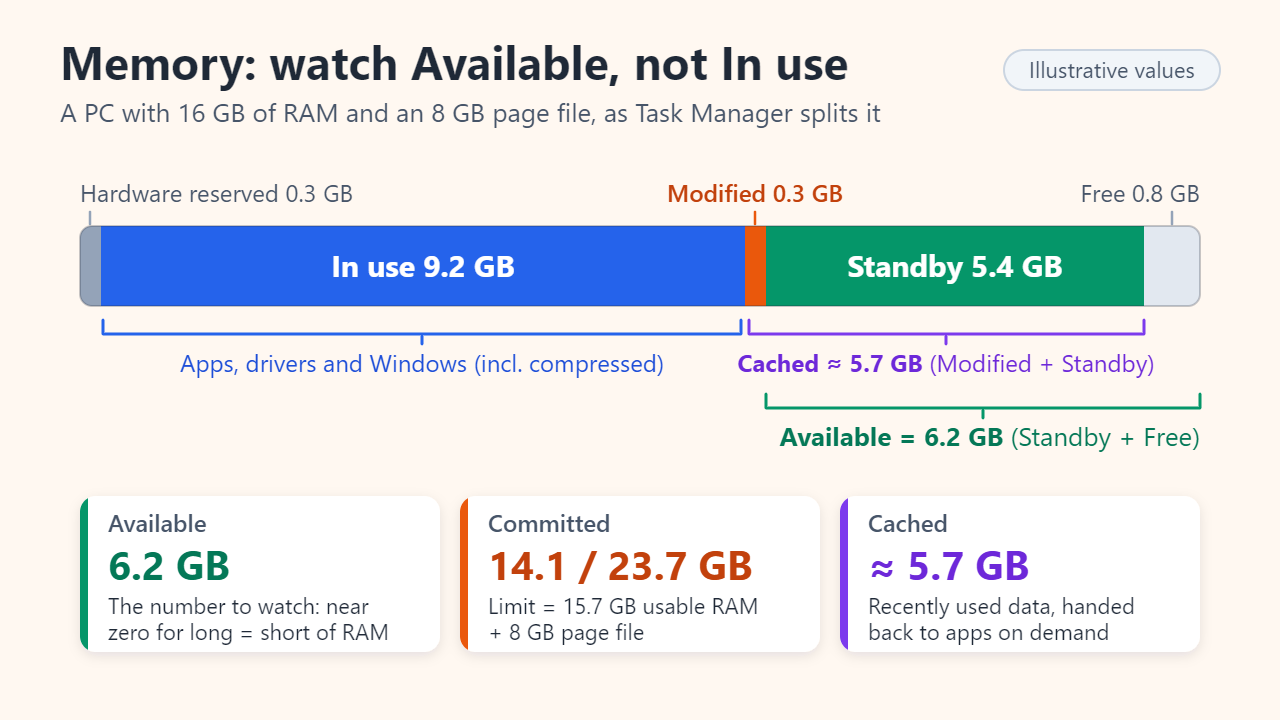
A high In use figure is not a fault. Windows fills spare RAM with recently used files and code (the standby list) and hands it back the moment an app needs it. That is why Available, not In use, tells you whether you are short. In the illustrative 16 GB PC in Figure 2, 9.2 GB is in use, yet Available is 6.2 GB (5.4 GB standby + 0.8 GB free), so there is room to spare, and most of the roughly 5.7 GB shown as Cached is that same standby memory. Committed is fine too, at 14.1 GB of a 23.7 GB limit (15.7 GB of usable RAM plus an 8 GB page file). Microsoft warns that if the commit charge reaches the limit, apps can freeze or crash.
Finding what makes the PC slow
- On the Processes page, click the CPU header to sort highest first. Repeat with Memory and Disk.
- Watch for 30 to 60 seconds. Short spikes while apps open are normal; look for a process that stays on top.
- Check the Performance page: is the CPU graph flat near 100%, or is the disk's active time pinned at 100%?
- Identify the culprit with right-click, then Search online or Open file location.
Some heavy hitters are routine and settle down on their own: Windows Update installing, Antimalware Service Executable running a scan, search indexing after you add many files, or a cloud-sync app uploading a large folder. If the slowdown is worst right after sign-in, open Startup apps. Microsoft rates an item High impact when it uses more than 1 second of CPU time or more than 3 MB of disk activity at startup, and disabling the ones you don't need shortens sign-in.
Efficiency mode, End task or restart?
Efficiency mode (Windows 11, version 22H2 and later) throttles a process instead of closing it. Select a process and click Efficiency mode on the command bar or in the right-click menu. Windows lowers the process's base priority to Low and switches it to EcoQoS, which can run that work at a lower processor frequency to save power. A leaf icon marks it. In Microsoft's tests on a PC with a busy CPU, it improved the responsiveness of tasks such as launching apps and opening Start by 14% to 76%. If the option is greyed out, the process is a core part of Windows. It targets CPU use rather than memory, and Microsoft's performance team notes the setting is not kept after a reboot.
| Option | What happens | Unsaved work | Best for |
|---|---|---|---|
| Efficiency mode | The process keeps running at low priority | Kept | A background app hogging the CPU |
| End task | The app and its processes close | Lost in that app | One frozen app |
| Restart | Windows runs a full boot cycle | Lost in every open app | Task Manager itself freezes, many apps hang, or Committed nears its limit |
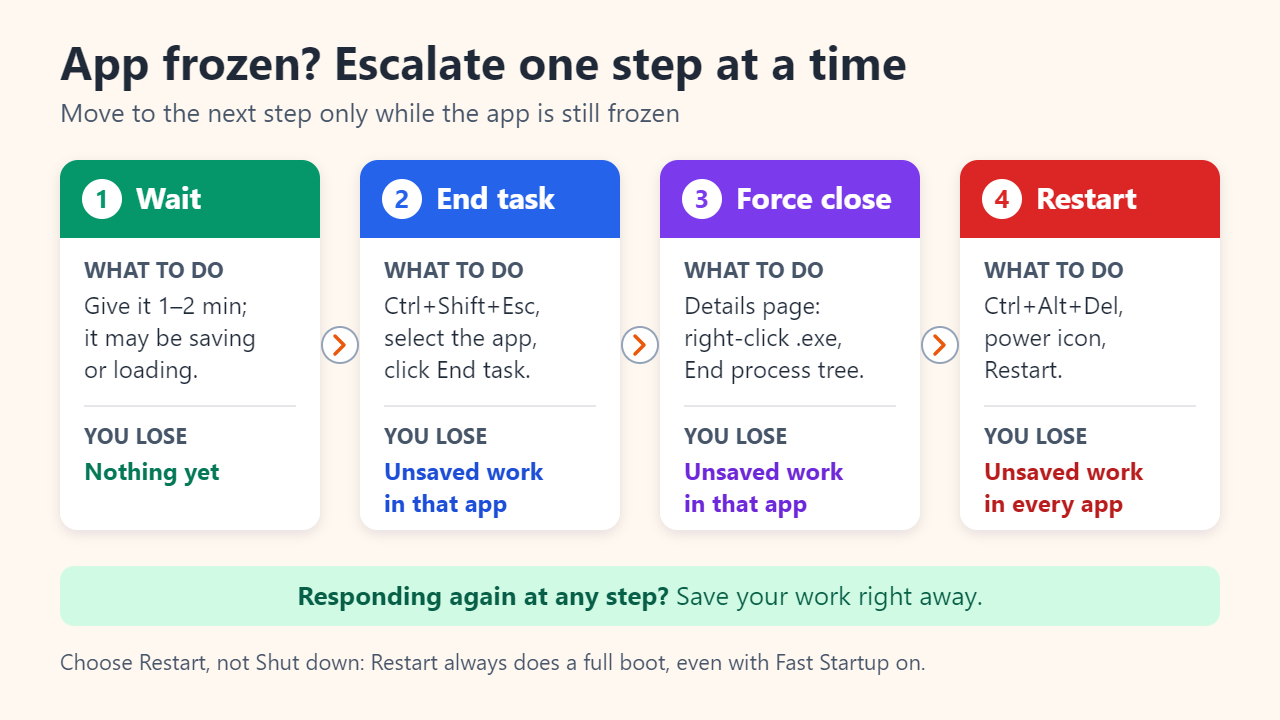
When troubleshooting, choose Restart rather than Shut down. With Fast Startup, which is on by default, Shut down saves the Windows kernel session to disk, while Restart always performs a full boot. If nothing responds, press Ctrl+Alt+Del and use the power icon in the bottom-right corner of that screen.
FAQ
Why does memory look nearly full when little is running?
Much of it is cache that Windows releases on demand. Check Available: if it stays comfortably above zero, you are not short of RAM.
What if Ctrl+Shift+Esc does nothing?
Press Ctrl+Alt+Del and choose Task Manager. If even that screen won't appear, holding the power button to force the PC off is the last resort, and all unsaved work is lost.
Can I end a task without opening Task Manager?
Windows 11 can add an End task item to the taskbar's right-click menu. It is off by default and lives among the For developers settings, whose place in Settings has moved between Windows 11 versions.
Sources: Microsoft Support: Keyboard shortcuts in Windows; Microsoft Performance blog: Task Manager Efficiency mode; Microsoft Learn: Introduction to the page file; Microsoft Learn: Bug Check 0xEF CRITICAL_PROCESS_DIED.
Related reading
Original illustrations created to help explain this article.