The Difference Between RAM and SSD: Distinguishing Between Insufficient Memory and Insufficient Storage
This article was translated from its source language with AI assistance. Please check technical terms and equations against the original.
If a laptop specification lists 16GB RAM and 512GB SSD, can I add the two numbers together to get the total memory? Will replacing the SSD with a larger one always solve the problem when document work is slow? While both RAM and SSD handle data, they perform different tasks. They are not interchangeable components simply because they use the same GB unit. In this article, we distinguish between insufficient storage space and insufficient workspace during execution, and summarize the symptoms to check and how to record them before purchasing.
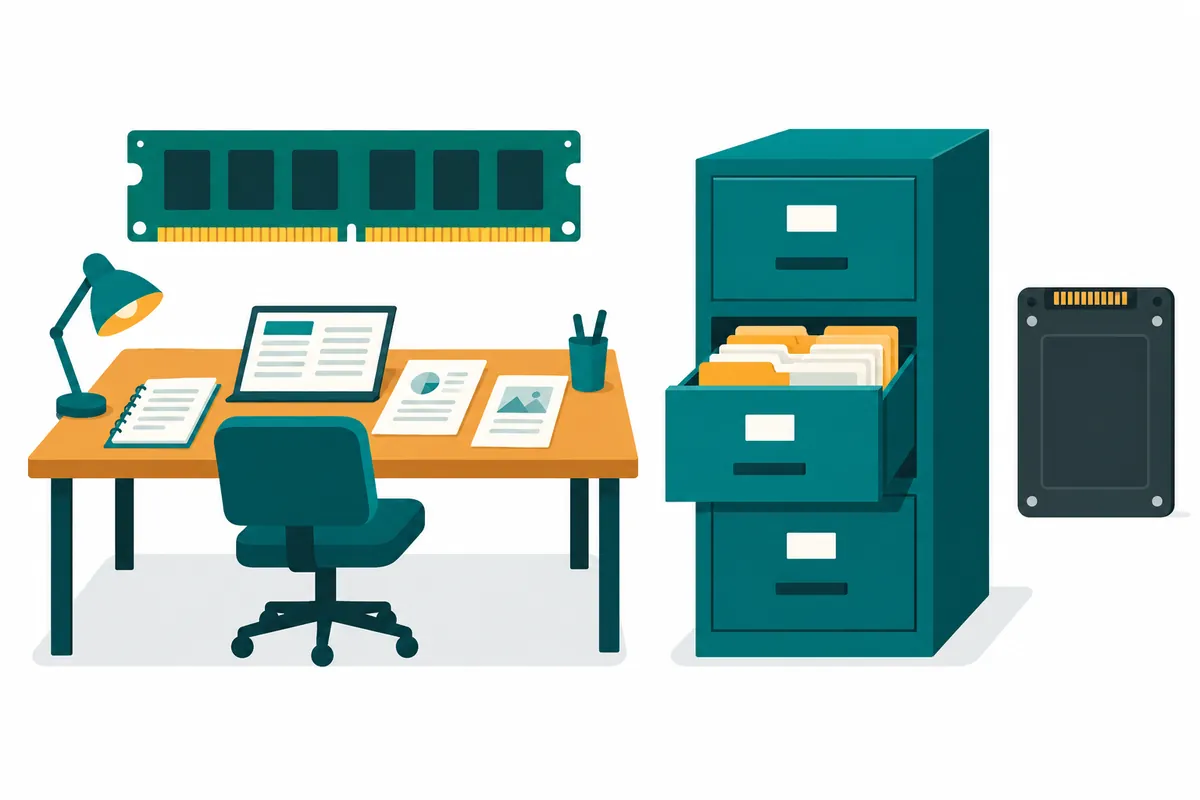
1. Distinguishing between saved files and data currently being worked on
In a typical PC, RAM is a workspace that running programs access quickly. An SSD is a storage device that maintains files such as the operating system, programs, and documents. Usually, when the power is cut off, work data stored in DRAM is not retained, but files stored on the SSD remain. You can understand the reason why unsaved documents can be lost and why saved photos remain after a reboot through this difference.
The basic distinction is the manufacturerKingston Memory & Storage Device GuideandOfficial GlossaryVerifyed at . The work examples, capacity calculations, and checklists below were created for illustrative purposes only. They do not represent actual testing of specific products or performance measurements. The starting point is to separate the “space for storing files” from the “space for current work.”
2. Comparing two parts in one table
| Question | RAM | SSD |
| Main Role | Task data of a running program | Save operating system, program, and file |
| If the power is cut off | General DRAM data is not retained | Stored data is usually retained |
| Questions for when you are short | Is the concurrently executed task too heavy? | Is there space to save new files and updates? |
| Specifications to check | Supported Specifications, Capacity, Slot, and Onboard Status | Interface · Size · Supported Capacity · Mounting Conditions |
| Things to do before replacement | Check usage status during actual operation | Check remaining space and data movement plan |
This comparison is a table designed to distinguish roles. Having sufficient RAM alone does not guarantee that all tasks will run faster, nor does installing a fast SSD automatically speed up CPU calculations. Actual slowdowns are influenced by the type of task, CPU, graphics device, network, power conditions, and program operation all working together. Avoiding conclusions based solely on the numbers of a single component helps reduce purchasing errors.
3. Please read the phrase “Insufficient capacity” carefully first.
If file copying stops and a message appears indicating insufficient drive space, check your storage space first. This is a different issue from closing a few browser tabs. Conversely, if switching slows down when opening large documents and multiple programs simultaneously, there is reason to investigate execution resources, including RAM. Since both issues can occur together, note the error message and the moment the slowdown occurred separately.
For illustrative purposes, let's assume that a drive labeled 512GB shows 470GB of total available space on the actual screen and 420GB of used space. Based on this screen, the free space is 50GB. Since numbers can vary due to differences in units between manufacturer specifications and operating system displays, as well as partitions and reserved space, calculations here are based on the total and used values on the actual screen. These virtual figures are not actual measured values of any product.
If we make the separate assumption that the following project file is 35GB and additional deliverables are needed during the work, a total of 60GB is required. Compared to the 50GB margin, this falls short of the plan by 10GB. Even installing more RAM will not eliminate this shortfall in file storage calculations. It is more realistic to calculate the required space by including temporary files and data generated during the work.
4. Record numbers and symptoms together in Task Manager
In Windows, you can open Task Manager with Ctrl+Shift+Esc and view memory and disk activity in the Performance section.Microsoft System Configuration Tool Guideexplains that Task Manager is a tool that displays CPU, memory, disk, and network usage. Menu locations may vary by version, so find it based on the name.
Instead of reading it once immediately after turning on the computer, record it at the time you perform the task that usually slows down. For example, compare using a report, browser, and video conference simultaneously with opening only a report. It is helpful to record memory figures, disk activity, slowed behavior, and the size of the files you worked on. Do not conclude that there is a malfunction simply because a single number is high; verify whether your work is actually getting stuck.
Here, disk activity percentage and storage usage percentage are different figures. An indication that the disk is busy reading and writing does not mean the drive is full. You should check storage space separately in Settings or Drive Properties. To avoid a situation where you moved all your photos after seeing “Disk 100%” but the problem persists, you must first separate these two concepts.
5. Even with virtual memory, SSDs and RAM are not the same component.
The operating system can utilize the page file of a storage device during memory management. Therefore, SSDs and RAM are not completely separate components. However, this does not mean that you can simply add the SSD capacity to the RAM capacity and say "528GB of RAM." This is because their access methods, latency characteristics, and intended uses differ. Actual performance depends on how data moves.
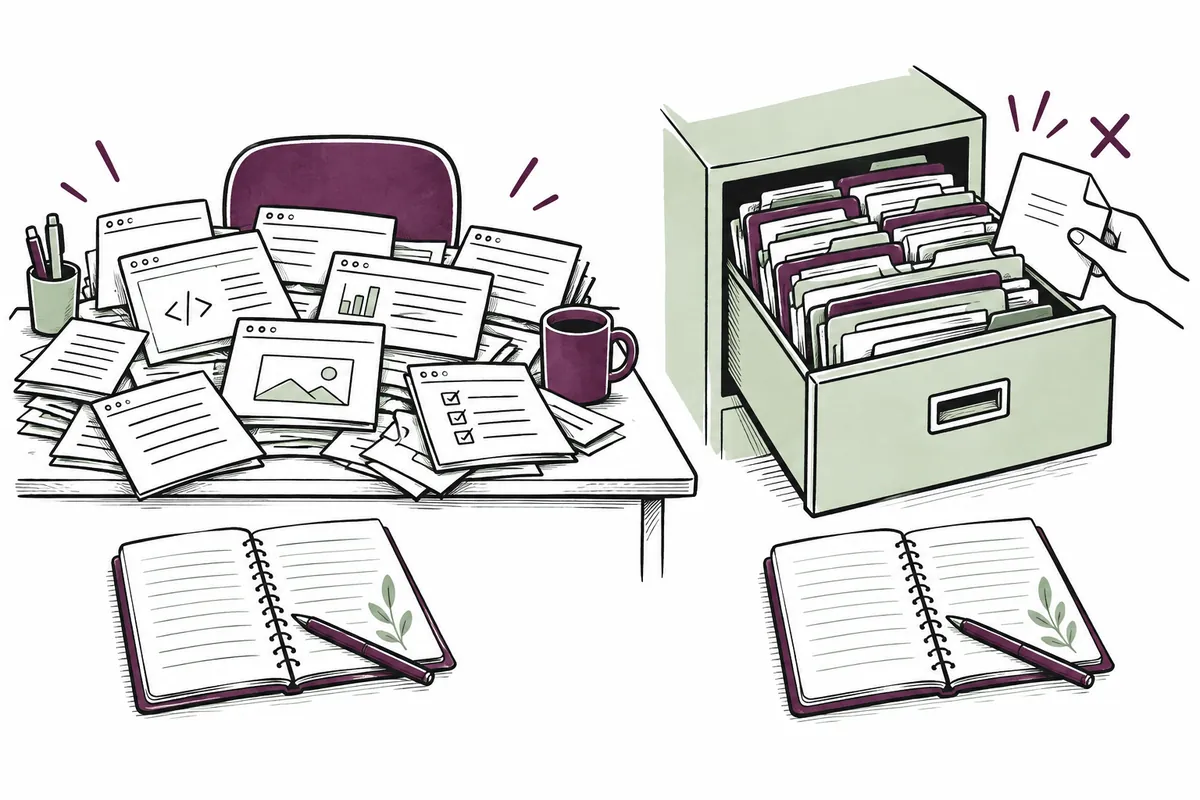
The purpose of this article is to interpret symptoms, not to arbitrarily change system settings. Do not generalize the simple tip that turning off the page file speeds things up. You must verify the memory requirements of specific programs and the management conditions of the operating system. Before changing multiple settings not covered in the support documentation, record your current configuration, save your files, and reduce concurrent tasks to see if the symptoms change.
If a single program continues to consume excessive resources, methods such as updating the program or splitting the workload may be necessary in addition to expanding hardware. Recording which apps reduce slowdowns provides a basis for determining whether purchasing parts is truly required. However, since force-closing an app can cause unsaved content to be lost, use normal shutdown and document saving first.
6. Compatibility conditions to check before capacity when buying parts
For RAM, you must check the generation, specifications, maximum capacity, number of slots, and existing installation type supported by the current device. Some laptops have configurations where the memory is attached to the motherboard and cannot be replaced. Just because the product name contains "DDR" does not mean all modules are compatible. You must rely on the device manufacturer's accurate model-specific descriptions and service documents.
For the SSD as well, check whether it is SATA or NVMe, whether the mounting space and length match, and what devices the slot supports. Do not assume that all SSDs use the same connection method simply because of the M.2 shape name. If you replace the device containing the operating system, you will need to move files and prepare for booting. You must distinguish whether you are simply adding a new storage device or replacing an existing system device to determine the scope of the work.
We do not fix prices or quality rankings for specific models in this article. This is because products and sales conditions change, and even products with the same name can vary depending on specific capacities or configurations. It is recommended to first define the problem to be solved and list the compatibility requirements, then compare candidates that meet those conditions. A list of tasks you perform simultaneously is more useful than a blanket number stating that "this capacity is sufficient for everyone."
7. Prioritizing based on three hypothetical situations
Case A involves fast document and internet loading, but lacks sufficient space to store large video files. In this case, organizing saved files, storing them on another device, and securing larger storage space are priority targets for investigation. Case B has ample free space, but slows down significantly only when multiple apps are opened simultaneously. First, record usage patterns during execution and the workload for each app. Case C allows for file saving and has sufficient memory, but only online materials are slow. Investigate the possibility that network or server response issues are the cause.
All three cases can begin with the statement “the PC is slow,” but the subsequent actions differ. Replacing only the RAM in A or only the SSD in C may not solve the objective. When applying these cases to real-world environments, distinguish between assumptions and observations. “Document switching improved after closing two apps” is an observation, while “the RAM is broken” is a claim of cause that still requires further verification.
8. One-page checklist to record before purchase
Write down the device model, operating system, installed RAM, storage capacity and free space, the task causing the problem, apps running concurrently, verified usage scenarios, and supported specifications on a single sheet. If screen captures are necessary, there is no need to include areas that reveal work documents or personal information. Attaching the recording time makes comparison easier so that the information can be verified again under the same operating conditions.
If you plan to replace a storage device or move files, determine how to preserve and recover the originals as well. Since data that has only been synchronized serves a different purpose than a separate copy, ensure that you can open important files again. Increasing RAM does not replace file backup, and replacing an SSD does not replace saving documents during work.
Finally, write the problem in a single sentence. Writing it like, “I intend to save a new 60GB video, but I only have 50GB available, so it is insufficient,” makes storage space planning clear. If you state, “Switching is slow only when running three apps simultaneously, while single-running is normal,” it gives you reason to investigate execution resources further. The knowledge of distinguishing between RAM and SSD goes beyond simply reading specifications; it allows you to spend time and money where necessary.
Official Source and Writing Standards
- Kingston Difference between memory and storage devices
- Kingston Official Glossary
- Microsoft System Configuration Tool
Data Verification Date: 2026-10-09. This explanation was generated by AI based on actual official data. Calculations, code, and verification examples marked separately are for illustrative purposes only and are not the results of direct testing or actual measurements of the user environment. We will re-verify whether there have been any changes to the functions and data on the publication date.
Original illustrations created to help explain this article.
Original on Tistory ↗