When Windows 11’s C Drive Runs Low: A Cleanup Sequence to Check Before Deleting
This article was translated from its source language with AI assistance. Please check technical terms and equations against the original.
If C-drive free space is falling, first identify what occupies it. Windows 11 Storage shows usage, and Cleanup recommendations lets you select deletion targets. Preserve needed materials while distinguishing temporary files from old personal files. Results vary by PC, so compare your own before and after rather than expecting a specific increase.
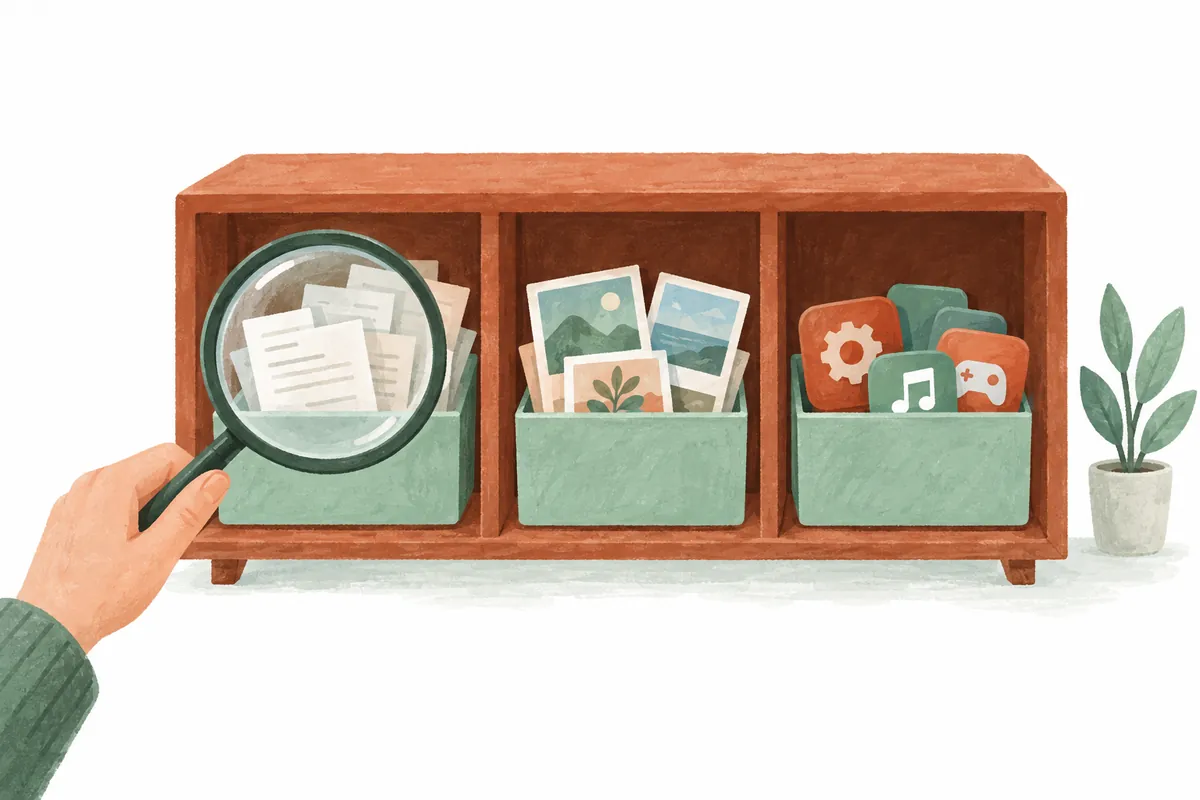
Before Starting: Separate Files to Delete from Files to Keep
Save open documents and downloading work first. Locate work documents, original photos, and irreplaceable material and prepare separate copies. “Old” does not mean “unnecessary.” Exclude material worth retaining, such as years-old contracts, even if rarely opened.
- Preparation: A device or other available location for copies to retain.
- Record: Cleanup date, C-drive free space, largest storage category, and today's target.
- Stop when: A file's purpose is unknown or its status as the only original is unverified.
Begin with inspection without deletion. Folder names and categories can suggest whether apps or personal materials need attention. The table chooses the next screen to check, not a deletion list.
| Large category | Check first | Defer |
| Installed apps | Actual purpose of long-unused apps or games | Work apps and peripheral components |
| Personal videos and documents | Sizes and originals to retain | Materials without verified copies |
| Temporary files | Each cleanup entry's explanation | Needed downloads and previous installation files |
| System and reserved | Windows Storage explanations | System folders found by name alone |
1. Find the Cause First
Open Settings → System → Storage and inspect apps, temporary files, documents, and other entries. Begin with large categories to narrow targets. If games or videos dominate, temporary-file cleanup may not suffice. If apps are few but downloaded installers numerous, inspect personal folders first.
Record free space and two large categories in Notepad. Specific targets such as “old lecture videos in Downloads and unused games” reduce accidental deletion of needed documents. Deciding what to retain matters more than pressing cleanup because a number is large.
2. Judge Cleanup Recommendations Item by Item
- Open Cleanup recommendations in Storage.
- Inspect displayed categories such as temporary files, large or unused files, and unused apps.
- Read target descriptions and estimated recovered space.
- Confirm required material is excluded, then clean the chosen item.
This path appears in Microsoft's storage-cleanup guide. Downloads or Recycle Bin candidates are not automatically unnecessary. Open the bin once more for mistakenly deleted material before emptying it.
Deleting previous Windows installation files prevents returning to the previous version and cannot be undone. Retain them if unsure whether the update works properly. Avoid manually deleting Windows or Program Files folders based on names alone.
Limit Selections on Your First Cleanup
Read checkbox names individually in Temporary files. Checked does not mean everything must be deleted. Select understood entries and capture the list before deletion for later reference. Leave unknown items for further checks.
Before selecting Downloads, open its actual folder in Explorer. If applications, receipts, and installers are mixed, move needed documents to a separate folder and inspect the remainder. Check hard-to-retrieve old material as well as recent downloads. Inspect Recycle Bin names and original locations before emptying it too.
Large estimates do not require processing every recommendation together. Clean one clearly scoped item, then recheck free space. Compare screens before and after and interpret differences only as this PC's cleanup result.
3. Copy and Verify Large Personal Files Before Cleanup
Video, archive, and old-installer purposes may be unclear from names. Classify by receipt date, availability for redownload, and whether it is the only original. Matching names do not guarantee identical content; open necessary files to check.
When transferring retained material externally, copy first, verify the copy opens, then clean originals to reduce mistakes. External devices can fail too, so do not leave important material in one place only. Uninstall apps and games through Installed apps or their own uninstallers rather than deleting folders directly.
Find Large Files in Downloads
- Open one personal folder to inspect in Explorer.
- Choose Details view and sort by size.
- Read large-file names, extensions, and modification dates together.
- Check contents and classify as retain, redownloadable, or undecided.
- Copy retained files elsewhere and verify opening.
- Decide original cleanup only after copy verification.
If lecture videos and an ongoing editing project coexist, large size alone does not justify deletion. Check whether the project references them. If final distributions and intermediates are indistinguishable, ask their creator or defer.

Check external-device free space and copy completion. For files becoming the only retained original, verify each rather than opening only samples. Do not disconnect cables before completion; record verified names and destinations.
4. Enable Storage Sense After Checking Automatic Deletion Scope
In Settings → System → Storage → Storage Sense, inspect frequency and Recycle Bin and Downloads conditions. It automatically cleans specified items such as temporary files. Understand what gets processed when rather than enabling from its name alone.
If Downloads temporarily stores work material, choose automatic-deletion conditions carefully. Contracts or applications may be forgotten there. Move retained documents to purpose-specific folders and develop regular manual Downloads inspection.
Prevent New Materials Accumulating on C Again
Settings → System → Storage → Advanced storage settings → Where new content is saved shows drives for supported content types. Refer to Microsoft's storage-settings guide and select actually connected drives. Treat this separately from moving existing files.
For example, store new videos on another spacious drive while keeping working documents in a document folder. Check actual paths in each saving dialog. Choosing another drive does not establish that browsers or every app use it; inspect frequently used apps' saving options.
If removable storage is the default, consider use while disconnected. It may be connected today but absent on your next trip. Keep daily necessities accessible and consider separating long-term material first.
5. A Simple Record to Check Cleanup Effects
Perform temporary-file cleanup, old-installer cleanup, and app removal separately. Record free space after each to identify helpful actions. Treat this as PC management records rather than performance experiments.
If space rapidly drops again, inspect apps creating files or synchronizing folders. Check whether capacity stays available days later, not just today's gain, to understand why cleanup repeats.
Checklist When Space Falls Again
| Observed change | What to check |
| Downloads grows again | Repeated video and installer downloads and browser save location |
| Apps category grows | New apps, game content, and updates |
| Many cloud files downloaded | Folders chosen for offline use and local retention state |
| Temporary files increase rapidly | Apps running during growth and Windows errors |
If Monday cleanup is followed by shortage Wednesday, record intervening downloads, installations, and copies. Check new-file creation before concluding cleanup failed. For unknown causes, collect timing and category-growth records rather than broadening deletion.
After cleanup, reread Storage Sense conditions and choose the next check date. If personal files were deleted mistakenly, stop further deletion and inspect the bin and prepared copies. Do not expect emptied-bin or previous-installation files always to be recoverable. Distinguishing reversible settings from difficult-to-reverse deletion is central to management.
6. Frequently Asked Questions
Will apps still run if I move their folders to D? Copying personal documents differs from moving installed apps. Check supported move features or reinstallation procedures. Cutting the installation folder alone does not guarantee normal operation.
Do I need another cleanup program? First inspect causes in Windows Storage and try built-in cleanup. Understanding targets comes before choosing software. “Clean everything at once” does not justify actions of unknown scope.
How many GB should remain free? Required space depends on file work and updates. Manage by Windows shortage warnings and current needs rather than a fixed number.
Official sources: Microsoft — Storage settings in Windows, Microsoft — Free up drive space in Windows, Microsoft — Manage drive space with Storage Sense. Checked: 2026-10-03. Menu names may differ with Windows updates and display language.
Original illustrations created to help explain this article.
Original on Tistory ↗