Reducing Windows 11 Startup Apps: How to Choose What to Disable
This article was translated from its source language with AI assistance. Please check technical terms and equations against the original.
Messaging apps, game launchers, and cloud apps may all open when you start your PC. Windows 11 startup settings choose which apps launch automatically at login. Disabling everything is not necessarily best. Separate daily necessities from occasional apps, change one or two, and verify.
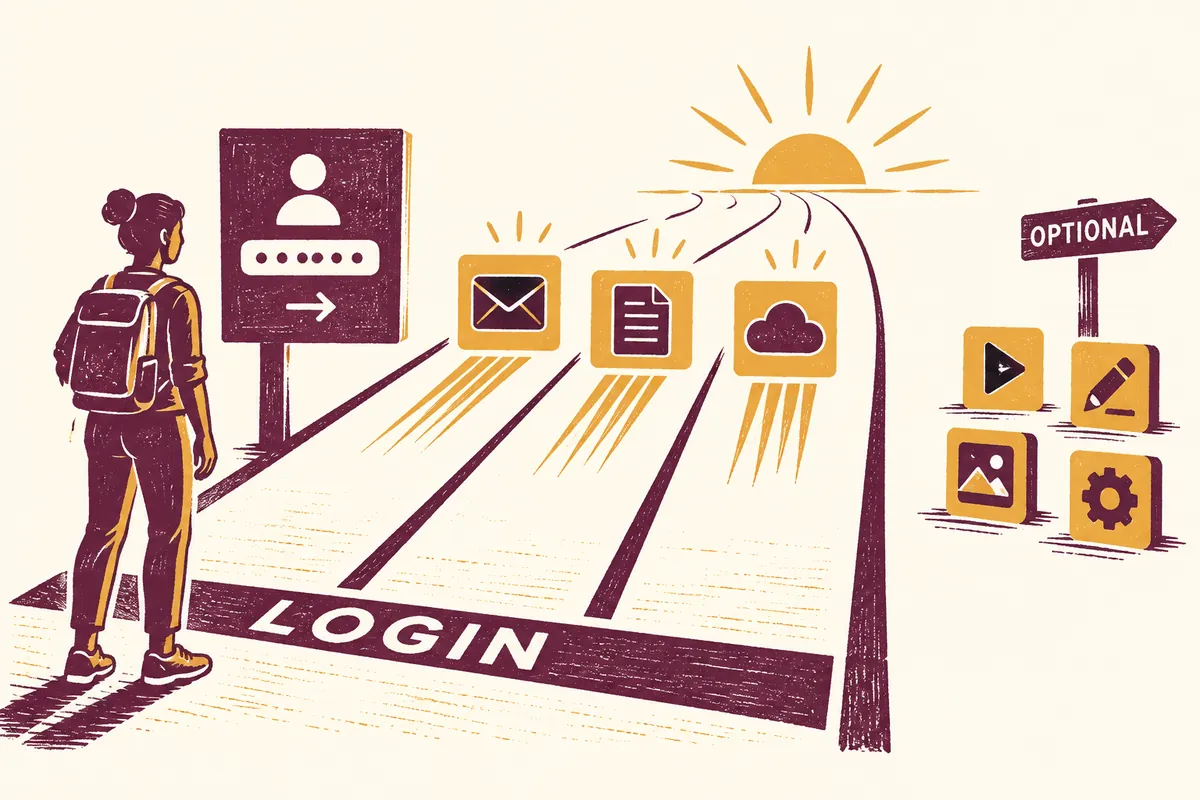
Before Starting: Record the Slow Stage and Required Features
Distinguish slowness before the login screen from slowness when apps launch afterward. Startup-app settings organize app preparation at login. They are not the same remedy for a PC that will not power on or has boot errors.
List usual post-login tasks in order to assess necessity. For “check messages → open shared documents → browser work,” identify the responsible apps. Disabling launch may require manually opening them; compare reducible work with daily necessities.
| App role | Automatic-launch criterion | Check after changing |
| Work messenger | Are immediate login notifications essential? | Do messages arrive when opened manually? |
| Cloud synchronization | Must new files from other devices arrive immediately? | Check sync status and current documents |
| Occasional launcher | Is there a reason for daily automatic launch? | Does it run normally when needed? |
| Security or company management | Was its role verified with staff or official guidance? | Check management rules instead of changing arbitrarily |
1. First Consider Why Automatic Launch Is Needed
Judge by your workflow, not app popularity. Messaging for immediate work contacts and synchronization apps may benefit from automatic launch. Weekend game launchers or occasional material managers may be opened only when needed.
For a PC used for morning documents, list immediate needs. “Receive work contacts and check today's files” makes responsible apps retention candidates. “See discounts and game updates,” if not immediately needed, suggests reducing automatic launch. Judgments differ among users even for one app.
2. Disable Startup Apps in Settings
- Open Settings → Apps → Startup.
- Read app names and check their roles.
- Turn off switches for apps not needing automatic launch.
- Note changed names and verify at next login.
Microsoft's official guide says these switches control automatic startup at login. Turning one off does not uninstall the app; launch it manually from Start or a desktop shortcut when needed.
Capture original settings or record app names and enabled states for easy restoration. If necessary notifications stop after disabling launch, reenable that app and check.
What to Record Before Changing a Switch
- Exact displayed app name and original state.
- Its role and the reason to reduce automatic launch now.
- Where to launch it manually.
- Features to check after login and restoration conditions.
One line suffices: “Material app: on to off; manual launch available; check file access.” Use separate lines for two apps. Changing similarly named entries together makes original states hard to remember.
For messengers, a restoration rule could be “reenable if notifications are delayed.” Do not keep the setting merely because startup looks tidier without checking lost functionality. Finding the app in Start beforehand prevents confusion at next login.
3. View Impact and Status in Task Manager
Right-click Start, open Task Manager, and select Startup apps. Select an app to enable or disable it and inspect startup impact. Like Settings, it manages registered startup apps, but displays different information.
“High impact” does not mean mandatory removal. Essential apps have reasons to stay. Even low-impact apps may not need launch if rarely used. Unmeasured impact does not establish zero performance effect.
This article does not claim a specific number of seconds saved. App counts, storage, login methods, and updates vary. Check whether actual inconvenience decreases under the same work conditions to judge your PC.
Change One Item in Task Manager
- Right-click Start and open Task Manager.
- Find one target in Startup apps.
- Check its name and status and select Disable.
- Leave other entries unchanged and save open work.
- At next login, check automatic launch and required functionality.
Forcibly terminating current processes differs from configuring startup. Abruptly ending document or upload apps can affect ongoing work, so use Startup apps when only automatic launch should change.
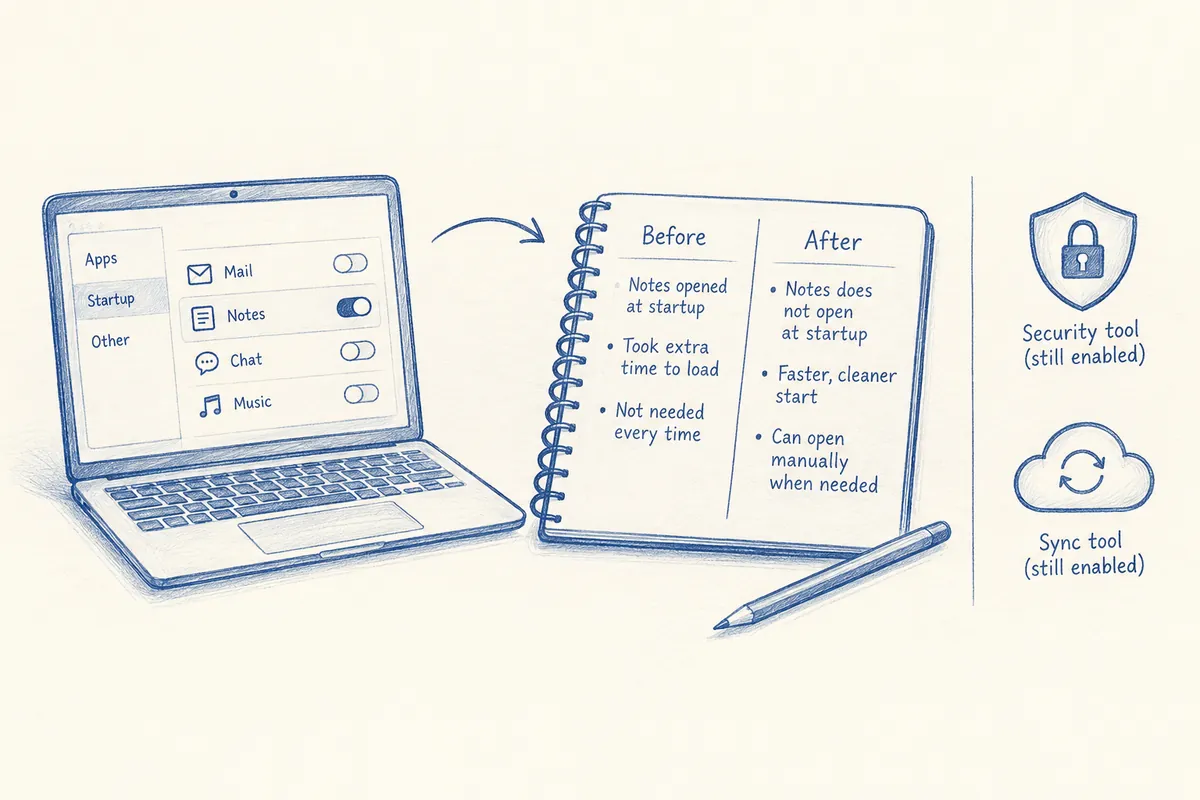
If post-login slowness persists, inspect other work rather than only counting apps. Microsoft's performance-checking guide covers storage, updates, running work, and other factors too. Startup cleanup is one diagnostic stage for overall performance.
4. Identify Unknown Entries First
Verify roles of security, backup, management, and peripheral entries before deciding. Short English or unfamiliar manufacturer names do not make apps unnecessary. They may support laptop input devices or work programs.
If an app is absent, inspect its own “run with Windows” or “run at login” settings. Official guidance also describes startup-folder shortcuts. Beginners should start with Settings and app options rather than deleting original executables or registry entries.
Apps Absent from the List: Inspect Startup Shortcuts
Open shell:startup in Run to view the current user's Startup folder. Press Windows + R, enter the following line, and press Enter. It opens a folder; it does not uninstall apps.
shell:startupIdentify which app each shortcut targets. Microsoft's Startup apps documentation describes adding app shortcuts or removing links there. Beginners can first inspect the folder and leave unknown items unchanged. Distinguish original executable files from shortcuts.
shell:common startup opens all users' Startup folder and may affect others on shared devices. For a personal-account issue, inspect current-user scope first. Get administrator guidance for work-PC common entries.
If the same app relaunches, check its own automatic-start option. Failure to find an item in the folder does not justify immediately editing registry or services. Apps register differently; consult official app settings first.
5. Example of Changing a Little at a Time
Suppose eight apps are listed. Divide them into essential, launch when needed, and role under investigation. First disable only two optional apps, then verify work messages and required files at next login. This illustrates a method, not measured results on a particular PC.
If disabling a cloud app delays new documents on another device, lighter startup alone does not make the setting good. Reenable or launch manually before work. The purpose is conveniently starting necessary tasks after login, not minimizing app count.
Ask “must it launch automatically?” instead of “is turning it on and off okay?” This also helps after installing apps. Checking Startup then limits gradual list growth.
A Week's Management Example and Restoration
This is a management plan, not measurements. On day one, disable a weekend-only launcher and check work apps and documents at next login. On day two, consider an optional material app. If inconvenience appears, reverse one step and check again. This tracks changed features more easily than disabling everything and searching for causes.
- Find the recorded app in Settings Startup or Task Manager Startup apps.
- Turn its switch on or select Enable.
- Check automatic launch at next login.
- If its internal launch option also changed, restore that original state too.
For Startup-folder shortcuts, use the retained original link or official shortcut-adding procedure. Do not delete original app folders without recovery plans. Manual launching may suffice without restoring automatic startup, but judge whether that matches the intended workflow.
For “We couldn't find this app,” check removed apps or unavailable storage locations. Do not infer malware from the name alone; read installation status and descriptions. Record the app name, settings screen, and recurrence time when explaining problems.
6. Frequently Asked Questions
Does disabling startup immediately close running apps? Automatic-start configuration differs from closing current apps. Verify effects at next login. Before closing current apps, check unsaved or ongoing work.
A disabled app became enabled again. Check app updates and internal settings. Record what triggered the change rather than repeatedly disabling blindly. Check administrator policy on company PCs too.
What if reducing startup apps does not fix slowness? Storage, updates, and post-login tasks may have other causes. Do not assume startup cleanup fixes every speed issue; record slow stages and running work together.
Official sources: Microsoft — Tips to improve PC performance in Windows, Microsoft — Configure Startup applications in Windows. Checked: 2026-10-03. Screens may differ with Windows updates and device-management policies.
Original illustrations created to help explain this article.
Original on Tistory ↗