What Is Ransomware? How It Spreads and How to Limit the Damage
Ransomware is malicious software that encrypts your files so you can no longer open them, and often steals copies first, then demands payment, usually in cryptocurrency, for a decryption key or for keeping the stolen data private. It typically gets in through phishing emails, remote-access services left open to the internet, or software that has not been updated. The habits that limit the damage most are prompt updates, multi-factor authentication and, above all, a recent backup that the malware cannot reach.
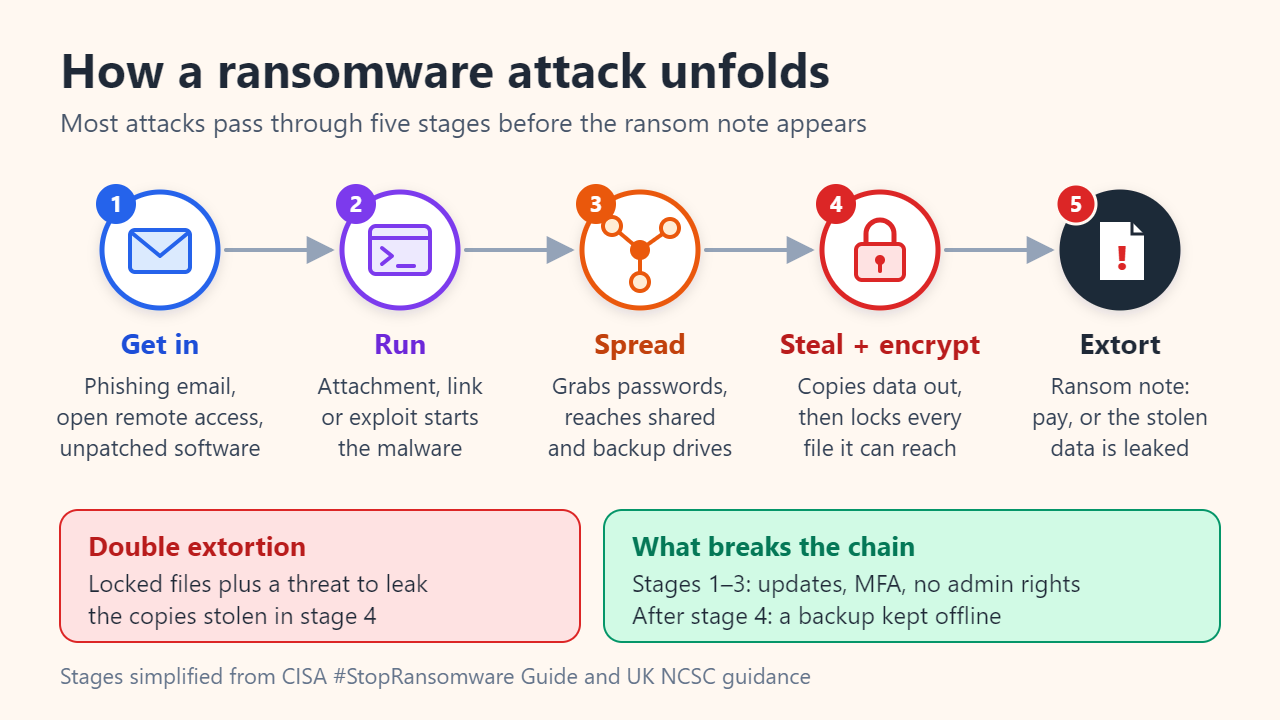
How a ransomware attack works
Most incidents follow the same chain (Figure 1). The attacker first gets a foothold, then runs the malware. Before anything is locked, the intruder often spends time moving to other computers, collecting passwords and looking for shared folders and backups. Only then does encryption start, followed by a ransom note with payment instructions.
Many gangs now pull a second lever: they copy data out before encrypting it and threaten to publish it if you refuse to pay. The US Cybersecurity and Infrastructure Security Agency (CISA) calls the combination double extortion. This matters for planning, because a good backup brings your files back but cannot undo a leak. The UK National Cyber Security Centre (NCSC) also warns about wiper malware that poses as ransomware and never decrypts anything, even after payment.
How ransomware spreads: the common entry points
Government guidance from the FBI, CISA and the NCSC keeps naming the same few doors:
| Entry point | What it looks like | Best counter |
|---|---|---|
| Phishing email or message | A fake invoice, delivery notice or shared-file link carrying a malicious attachment, a macro-enabled document or a fake sign-in page | Pause before opening; keep Office macros blocked; report suspicious mail |
| Exposed remote access | Remote Desktop (RDP, TCP port 3389) or a VPN reachable from the internet, opened by password guessing or with credentials bought on criminal markets | Close it, or require a VPN with MFA; use unique passwords |
| Unpatched software | A known flaw in a router, VPN appliance, server, browser or plugin for which a fix exists but was never installed | Automatic updates; replace devices that no longer receive them |
| Trusted third parties | A compromised IT provider or remote-management tool pushes malware to its customers | Give providers only the access they need |
None of these needs a brilliant attacker: one careless click, one reused password or one missed update is enough.
Ransomware prevention checklist
No single product stops ransomware. Layer several habits so that every stage of the attack must get past at least one of them (Figure 2).
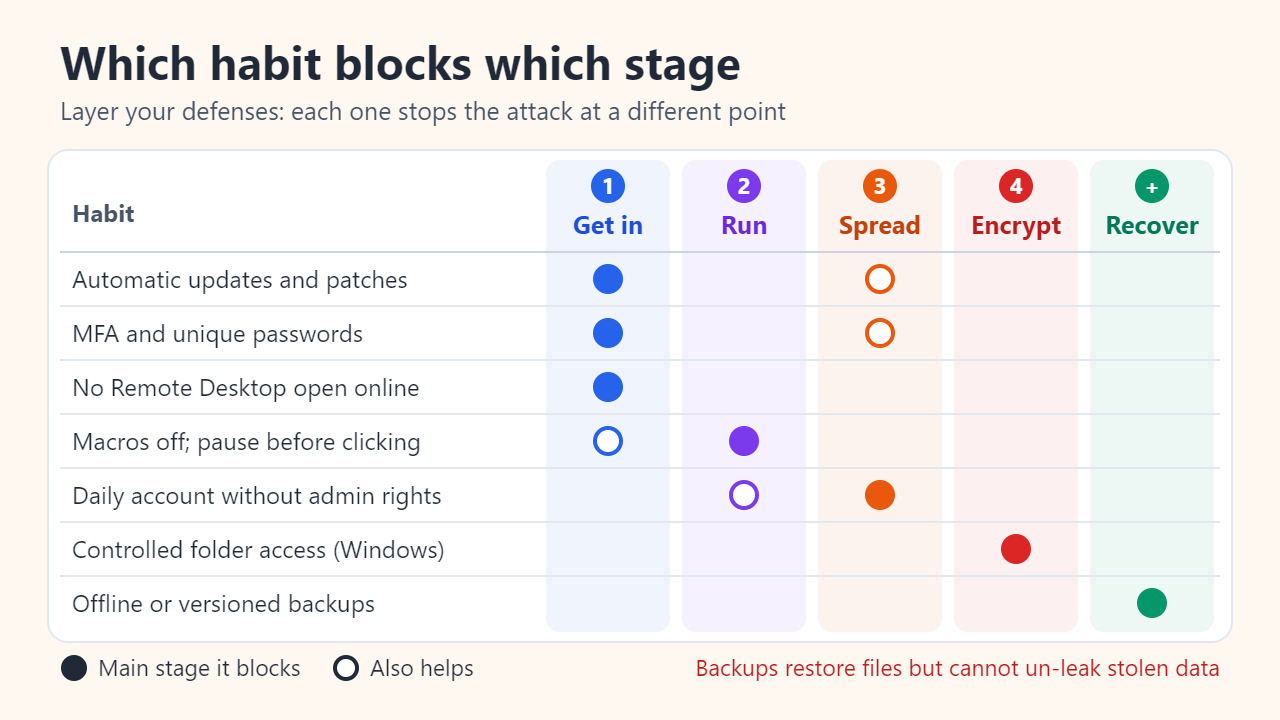
- Turn on automatic updates for the operating system, browsers, Office apps and router firmware, and install security fixes as soon as they appear.
- Use multi-factor authentication (MFA) on email, cloud storage and remote access, plus a unique password for every account. CISA recommends phishing-resistant MFA, such as a passkey or hardware security key, where it is available.
- Do not expose Remote Desktop to the internet. If you need remote access, use a VPN or remote-access service that enforces MFA.
- Keep macros off for documents that arrive by email or download. Be wary of password-protected ZIP files too; CISA notes they are often used to slip malware past scanners.
- Work in a standard (non-admin) account day to day, so malware that does run has fewer rights to spread or switch off protections.
- Turn on Controlled folder access on Windows under Windows Security > Virus & threat protection > Ransomware protection. It lets only trusted apps change files in protected folders; if it blocks a legitimate app, allow that app individually.
- Keep an offline or versioned backup and practice restoring from it, as described below.
Offline backup: designing backups that survive ransomware
Ransomware actively hunts for backups, because destroying them raises the odds that you will pay. That is why CISA's #StopRansomware Guide recommends keeping offline, encrypted backups of important data and testing them regularly. Two popular setups fail this test (Figure 3).
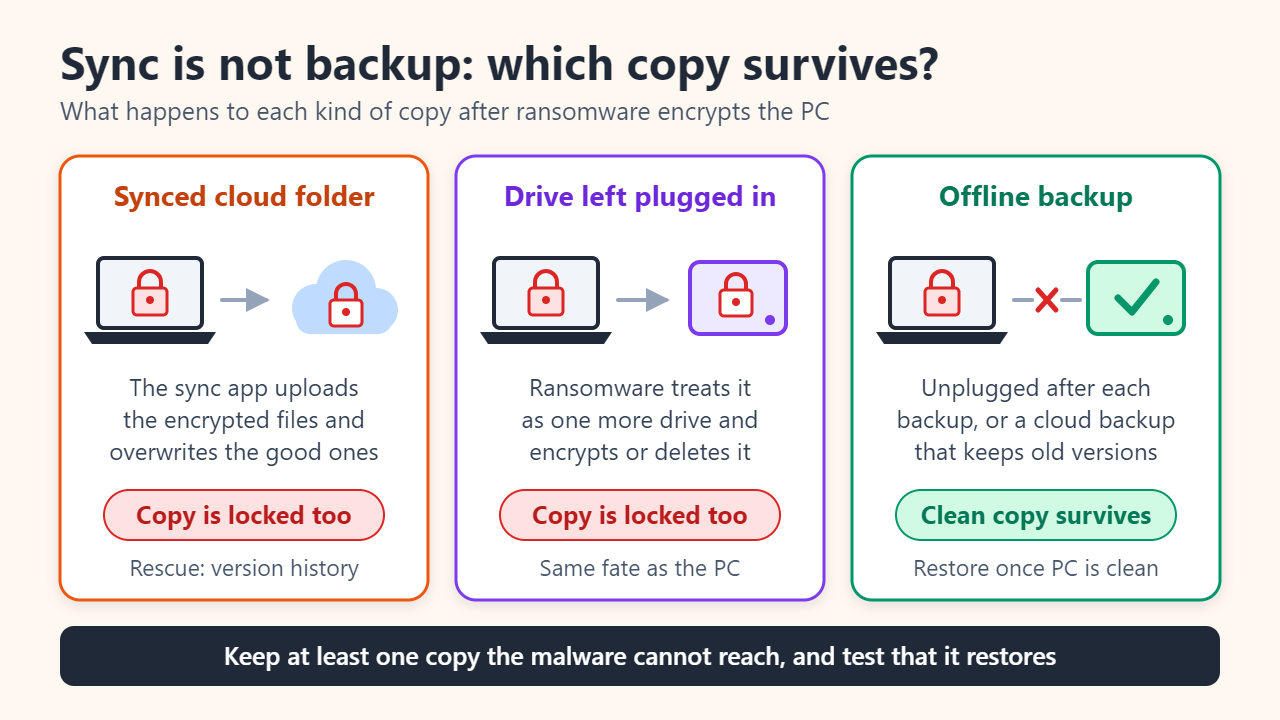
A sync service such as OneDrive, Google Drive, Dropbox or iCloud Drive mirrors every change. When the files on your PC are replaced by encrypted versions, the service dutifully uploads those as well, as the NCSC points out. You can recover only if the service keeps earlier versions and lets you roll back to them. A USB drive left plugged in is, to the malware, just one more drive to encrypt or wipe. A design that holds up looks like this:
- Keep at least two backup copies made in different ways, such as an external drive plus a cloud backup service, rather than two copies on one drive or in one cloud account.
- Unplug the external drive as soon as each backup finishes and store it away from the computer.
- For cloud copies, confirm that version history or a restore-to-earlier-date option is switched on, and check how far back it goes.
- Protect the backup account with its own strong password and MFA, so stolen PC credentials cannot be used to delete it.
- Test a restore every few months. A backup you have never restored is only a hope.
- Scan backups before restoring after an attack: the malware may have been hiding for a while and been copied into them.
What to do after a ransomware attack
If a ransom note appears or your files suddenly have strange extensions, act quickly and in this order:
- Disconnect the device. Unplug the network cable and turn off Wi-Fi. CISA advises powering the device down only if you cannot disconnect it, since shutting down erases evidence held in memory.
- Keep your backup away. Do not connect a backup drive to any machine that might be infected.
- Record the evidence. Photograph the ransom note and note the new file extension and when you first noticed the problem.
- Report it. In the US, file a complaint with the FBI's Internet Crime Complaint Center at ic3.gov; elsewhere, contact the police cybercrime unit or your national cybersecurity agency. Organizations that lost personal data may also have legal notification duties.
- Look for a free decryptor. The No More Ransom project (nomoreransom.org), run by Dutch police, Europol and security companies, publishes decryption tools for some ransomware families.
- Rebuild, then restore. Wipe and reinstall the affected system, change passwords from a clean device, and restore files from a backup you have scanned.
Should you pay? Law enforcement in both the US and the UK advises against it. The FBI points out that paying does not guarantee you get your data back: some victims never received a key, and flaws in the malware's encryption can leave files unrecoverable even with one. The NCSC adds that your computer is still infected after you pay, the money funds criminal groups, and payers are more likely to be targeted again. Paying also cannot make stolen data un-stolen.
FAQ
Can antivirus alone stop ransomware?
No. Antivirus helps, mainly at the "run" stage, but new variants and attackers using stolen passwords can get past it. Treat it as one layer alongside updates, MFA and backups.
Does OneDrive or Google Drive protect my files from ransomware?
Only partly. Syncing copies the encrypted files too, so you are protected only if you can restore earlier versions and an intruder cannot delete them. Turn on MFA for the cloud account and learn its restore feature before you need it.
Can encrypted files be recovered without paying?
Sometimes. If researchers have broken a particular ransomware family, a free tool may exist on No More Ransom. Many families have no such tool, though, so an offline backup remains the dependable way back.
Sources: CISA #StopRansomware Guide; UK NCSC, Mitigating malware and ransomware attacks; FBI IC3 public service announcement on high-impact ransomware attacks; Microsoft Support, Virus and threat protection in the Windows Security app.
Related reading
Original illustrations created to help explain this article.