Cloud sync versus backup: test recovery with one disposable file
This article was translated from its source language with AI assistance. Please check technical terms and equations against the original.
A file visible on your laptop, in the cloud and on your phone can look like three backups. If all three locations follow the same changes, an accidental deletion may reach all of them. Test “available on another device” separately from “recoverable to an earlier state.” They solve different problems.
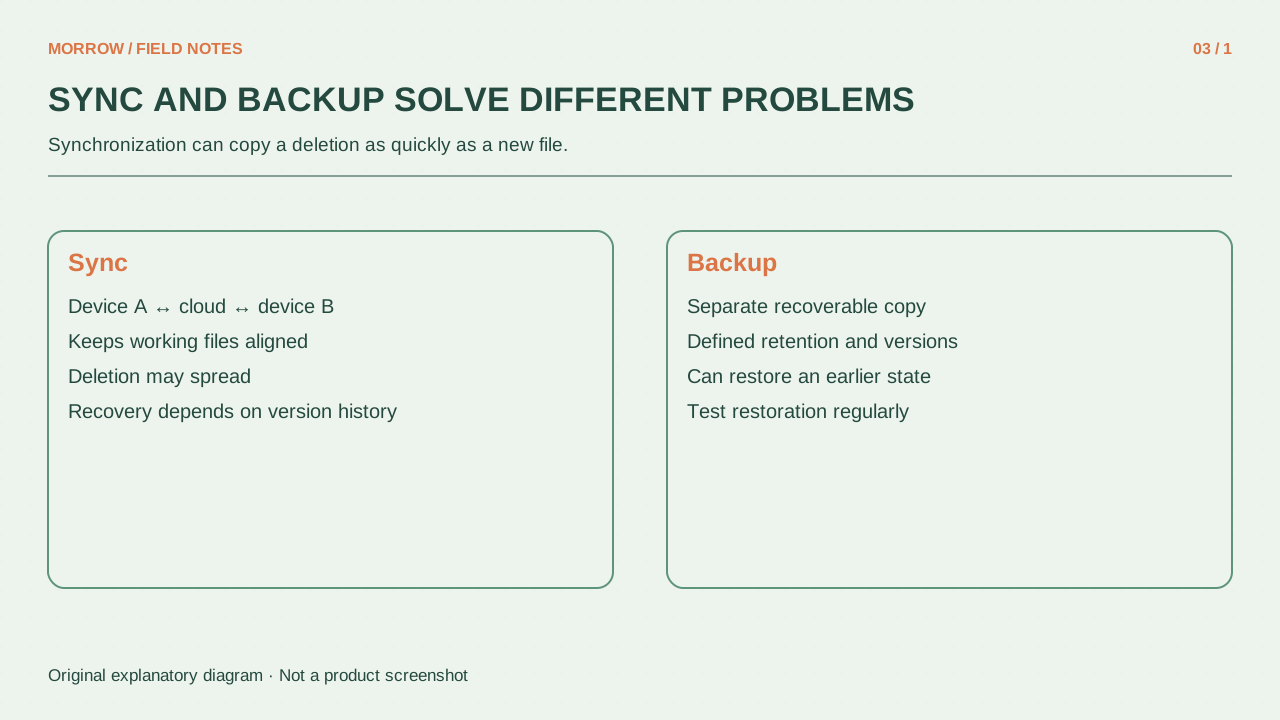
Sync keeps the current state aligned
In a OneDrive sync folder, additions, changes and deletions are reflected between the device and online storage. That is useful when continuing work elsewhere, but mistakes can travel too. Microsoft's sync explanation describes this two-way behavior. Cloud presence alone does not prove that an independent historical copy exists.
Ask four questions about a backup
| Question | Evidence to inspect |
|---|---|
| What is included? | Important folders actually selected |
| Which past state is available? | Dates of versions or recovery points |
| Where is it stored? | Separation from the active working copy |
| Can it be opened? | Restored content and application compatibility |
A cloud report with no earlier version may not help after a bad overwrite. A dated archive can also fail your needs if the photo folder was excluded or the archive password was lost. These questions turn a vague “backup complete” indicator into evidence about the files you care about. Consider a single representative document first; you do not need to redesign every folder in one evening.
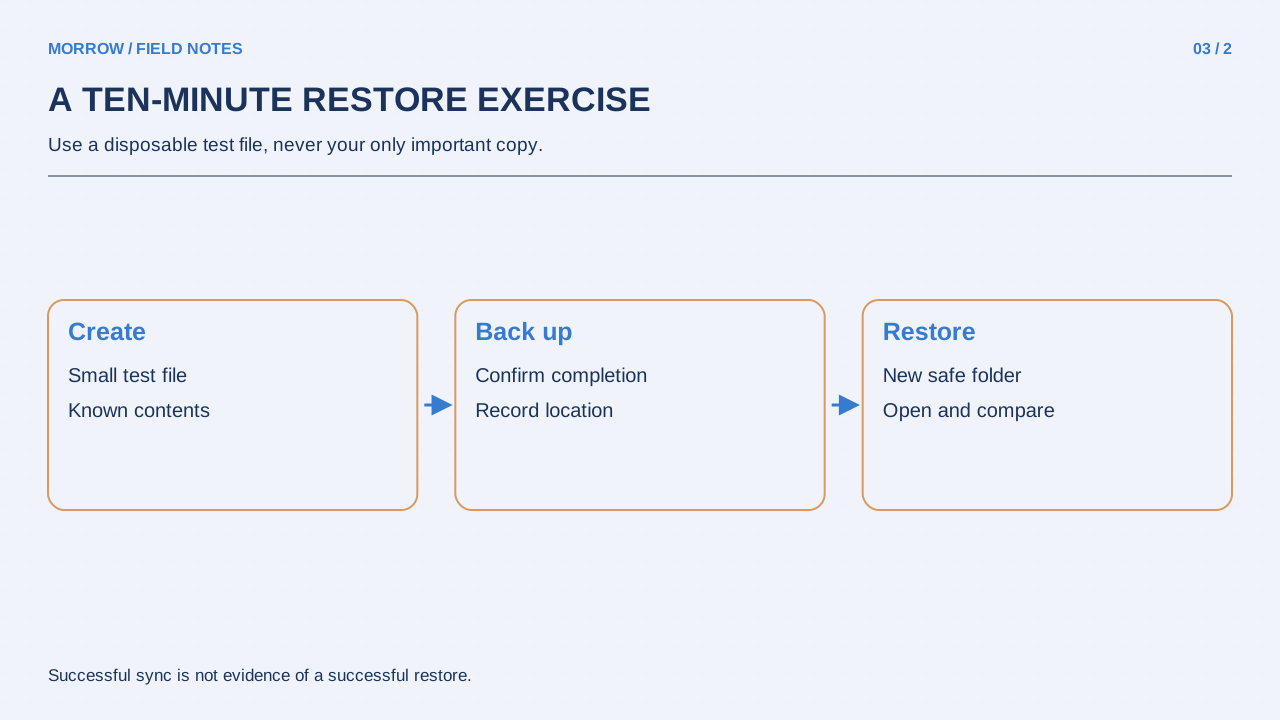
Practice with a disposable file
- Create a small text file containing “Recovery practice 1” and confirm that it finishes syncing.
- Change the contents to “Recovery practice 2.” Check whether an earlier version can be restored; availability depends on the service, file type and account.
- Delete only that practice file, then look for it in the service's web recycle bin.
- Restore it and open it. Compare the contents and destination with your expectations.
- Record the account used, menu path and time needed.
Microsoft provides OneDrive recycle-bin recovery instructions, with conditions that can differ between personal and work or school accounts. Permanently deleted items are not guaranteed recoverable. Check your own conditions in the official restoration guide. Do not delete real work or shared folders just to run an exercise.
Let the result guide your next copy
If deletion recovery worked but the overwritten version was unavailable, your next backup should cover overwrites. Also ask how you would reach essential material if account access itself failed. Keep an independent copy separate from the continuously changing work folder, and periodically open a few restored files. Continue using sync for convenience. Assign a specific recovery route to deletion, overwrite and device loss, and you will see which gaps still need attention.
Include one line describing the restored contents in your practice record, not only the filename. This catches a file that returns under the expected name but contains the wrong version, and gives your next exercise a clear comparison point.
Related practical guides
Original illustrations created to help explain this article.