Audit cloud sharing links: check the parent folder before the file
This article was translated from its source language with AI assistance. Please check technical terms and equations against the original.
Copying a link does not always make a file public, and not sending a link does not always make it private. Access can come from named people, general link settings and the parent folder. Audit all three routes instead of relying on one file's invitation list.
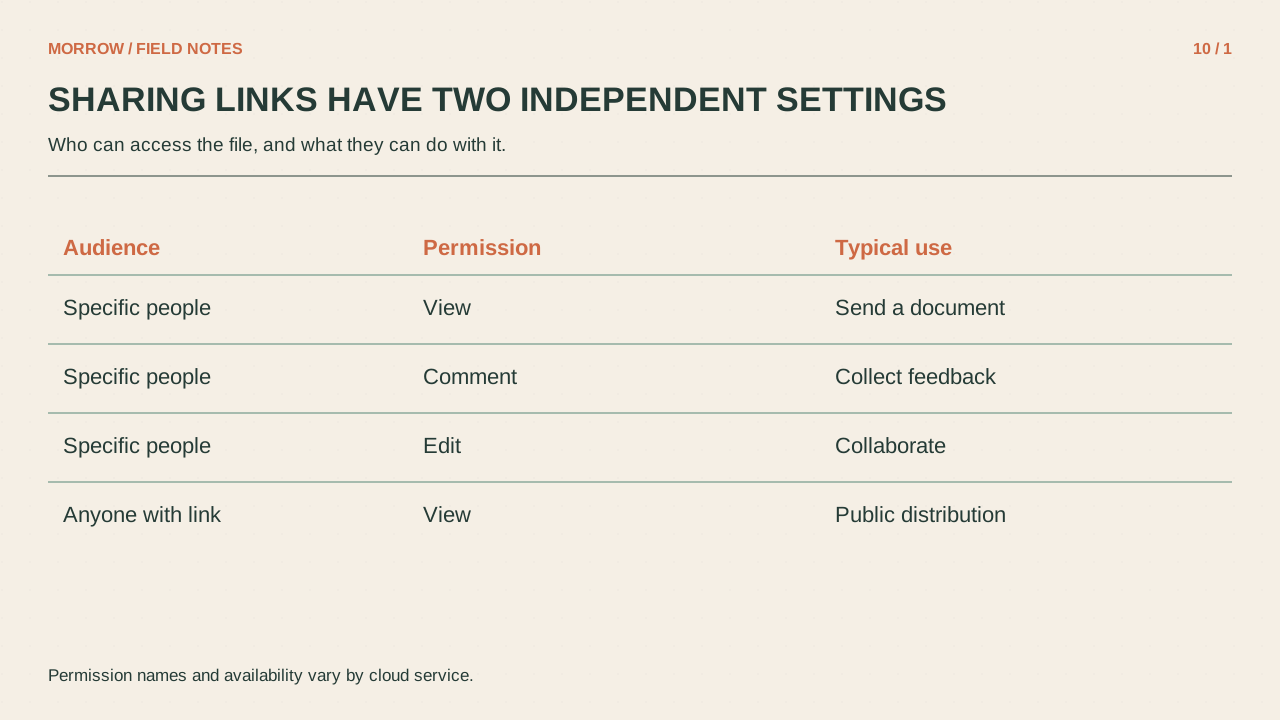
Separate who can open it from what they can do
Google Drive's sharing view distinguishes specific recipients and general access. Roles can include viewing, commenting and editing. “Who can open this?” and “What can they do after opening it?” are different questions. Review the current options in the official sharing guide. Work and school policies can affect external sharing and account-dependent features such as expiration.
| Situation | Choice to review |
|---|---|
| Reading material for a few people | Named recipients with viewing access |
| A collaborative working document | Required collaborators with editing access |
| Public information for anyone | Deliberately chosen general link access and role |
Inspect inherited folder access
Permissions from a parent folder can apply to its files. Removing a person's direct file access may therefore be insufficient. Google's current instructions say that attempts to give an individual file less access than its parent can require managing permissions at the folder level. Read the page's own messages alongside the sharing restriction guide.
Imagine an event organizers' folder shared for editing. A contact document inside it is later intended for viewing only. Cleaning its direct invitations can leave folder-derived access intact. Materials for different audiences are easier to review when they are organized into an appropriate folder structure instead of sharing one broad parent and assuming every child is independent.
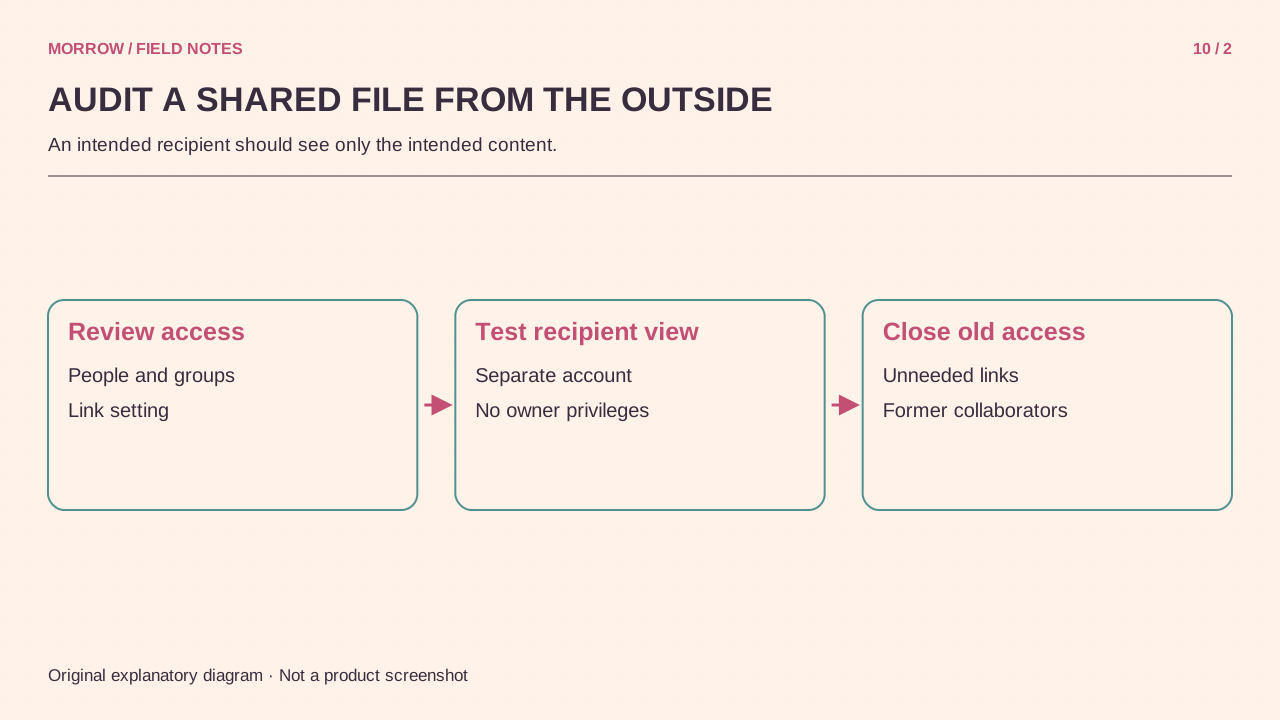
Build a five-field link inventory
- Record the file name and link.
- Inspect directly invited people and groups.
- Note whether general access is restricted or available to anyone with the link.
- Record roles and inherited access from parent folders.
- Set a review date after the project ends.
Start with five important files shared recently. A small list that explains the purpose of each permission is more useful than rushing through your entire storage account. Look for external editors who no longer need to modify content and links still open after a finished project. A file's audience should follow its current purpose rather than the broadest access it ever needed.
Verify the intended result
Opening a file in your own account does not prove another recipient can open it. Check that the recipient is using the intended account; genuinely public material can also be tested without signing in. Named invitations, however, need the invited account for a meaningful test. Download or copy restrictions are not a guarantee against every form of redistribution: earlier downloads and screenshots can remain. When closing a project, review both ongoing permissions and material already distributed. That gives you a clearer record of what access was stopped and what cannot be recalled simply by changing a link setting.
Related practical guides
Original illustrations created to help explain this article.