Photo location privacy: check EXIF and the copy you actually publish
This article was translated from its source language with AI assistance. Please check technical terms and equations against the original.
Covering a house number in a photograph does not necessarily remove the location stored inside its file. Conversely, a picture without GPS metadata can still reveal a place through shop signs, a window view or its filename. Review three layers separately: visible content, embedded information, and the context of sharing. Preserve your original for your personal archive and adjust a separate public copy.
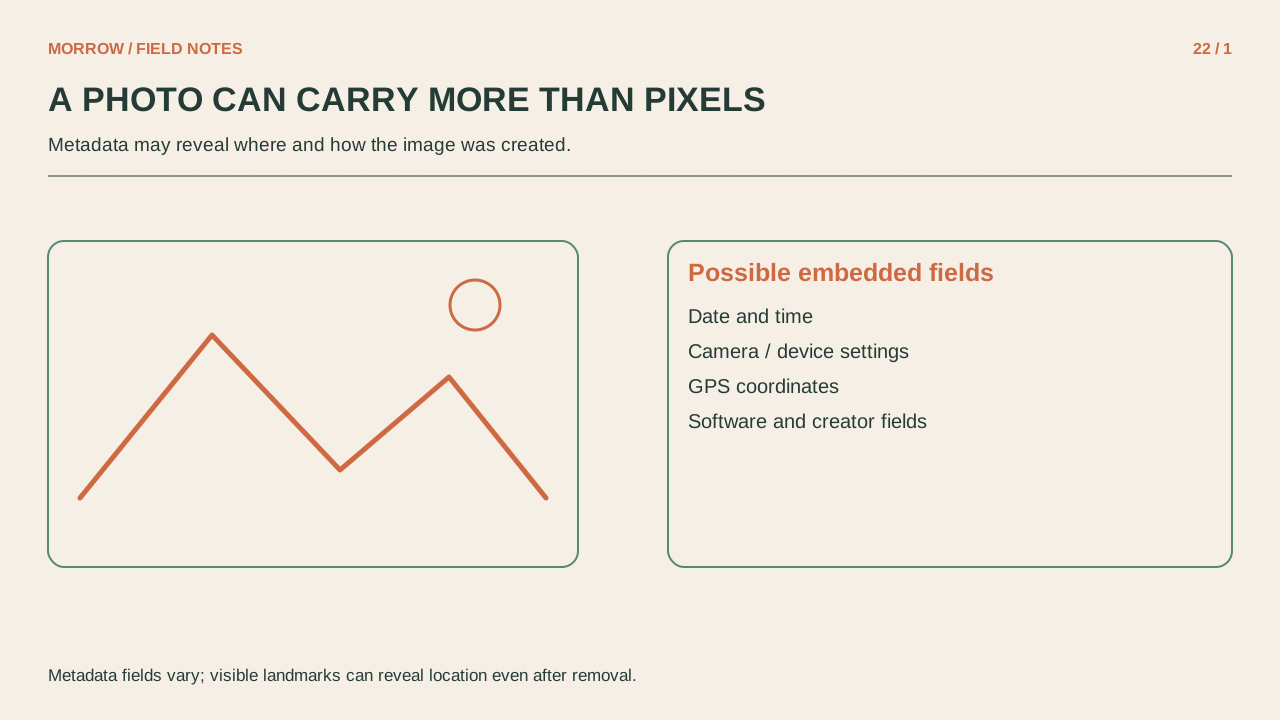
Where can location information appear?
Apple's location metadata guidance explains that recipients may access the location embedded in shared photos. In Photos on iPhone, the sharing options let you turn off Location. A map in the photo's information panel is a useful first check, but an empty panel does not prove that every possible metadata field is absent.
EXIF is one of several systems for image information. Depending on the file and device, information may include capture time, camera details and coordinates. Not every photo contains GPS data, and services process uploads differently. Checking the file you are sending is more reliable than assuming an app always removes everything.
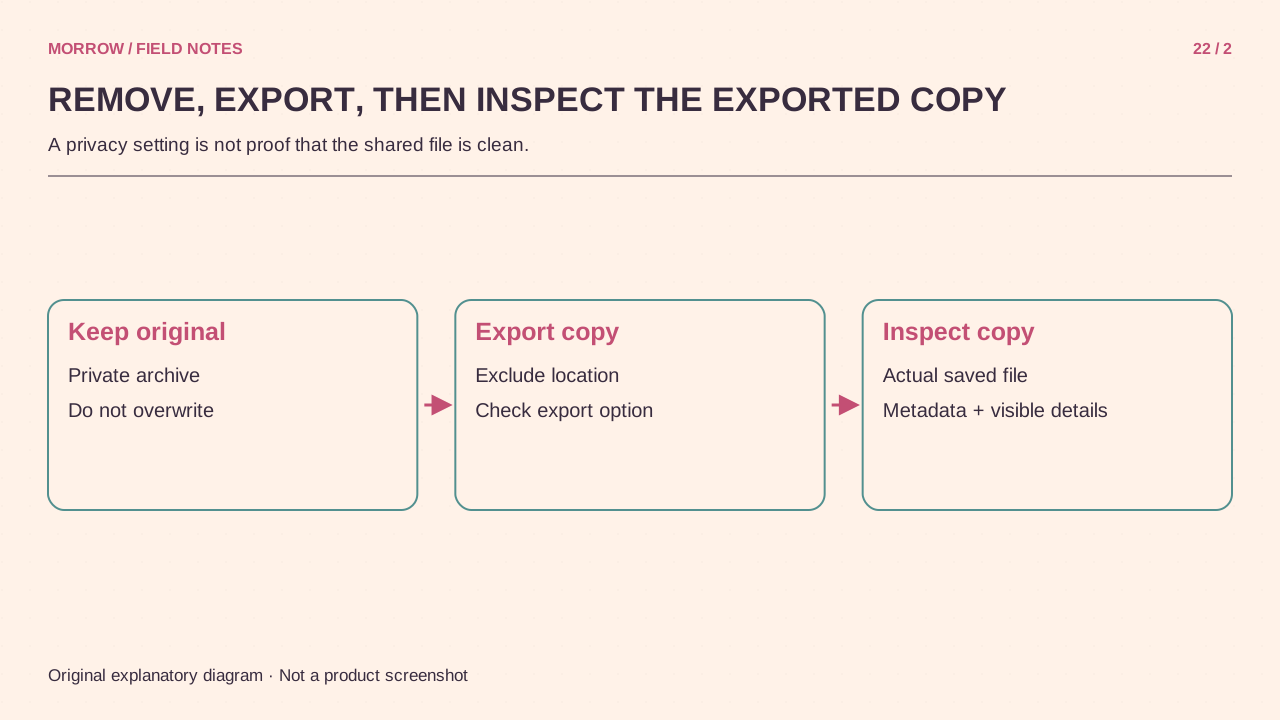
Make and verify a public copy
- Keep the original and create a copy in a publishing folder.
- Review location, dates, captions and creator information.
- Check whether the sharing option includes location, or remove the relevant location fields from the copy.
- Open the exported copy again and inspect its metadata.
- Test a downloadable file from the published page as well.
Consider two ordinary cases. A travel photograph may deliberately identify a destination. A photograph of an item you are selling from home probably does not need precise coordinates. A date is not automatically sensitive either. Decide what the reader needs before removing useful information indiscriminately. Record which export you checked so that an unreviewed original does not accidentally replace it later.
Why “remove everything” needs care
The ExifTool official FAQ notes that metadata is needed to display or convert some formats, including proprietary RAW files. It also advises preserving relevant color information in JPEG. A blanket operation on camera originals is therefore a poor substitute for preparing a public export. Inspect a JPEG or another suitable publishing copy, then confirm its color and orientation remain correct.
If the result rotates unexpectedly or changes color, fix it before publishing. Successful removal of a field and a correctly rendered image are separate checks. A smaller file size is not evidence that location information disappeared. Screenshots and format conversions are also not universal guarantees about every device or sharing path.
Inspect information already drawn into the picture
- Look for addresses, vehicle plates, delivery labels and identification cards.
- Check mirrors and glass for reflected screens or people.
- Remove unnecessary personal or internal-project names from filenames.
- Consider whether captions and nearby photos reveal more when combined.
Removing metadata reduces disclosure through hidden file information; it does not promise complete anonymity. Put the original and reviewed public copy side by side. Confirm that the intended visual explanation survived, unnecessary clues were removed, and the exact file you will upload is the one you inspected. This small verification habit is more dependable than relying on the name of an export preset.
Related practical guides
Original illustrations created to help explain this article.