OneDrive Sync Versus Folder Backup: Does Deleting on Your PC Also Delete from the Cloud?
This article was translated from its source language with AI assistance. Please check technical terms and equations against the original.
Deleting a file in a OneDrive folder also deletes it from the cloud when synchronization occurs. To reduce only PC storage use, choose Free up space instead of Delete. Even a feature named “backup” may propagate changes and deletions, so understand its structure. This article first checks file locations and status in Windows 11, then explains choosing actions for your purpose.
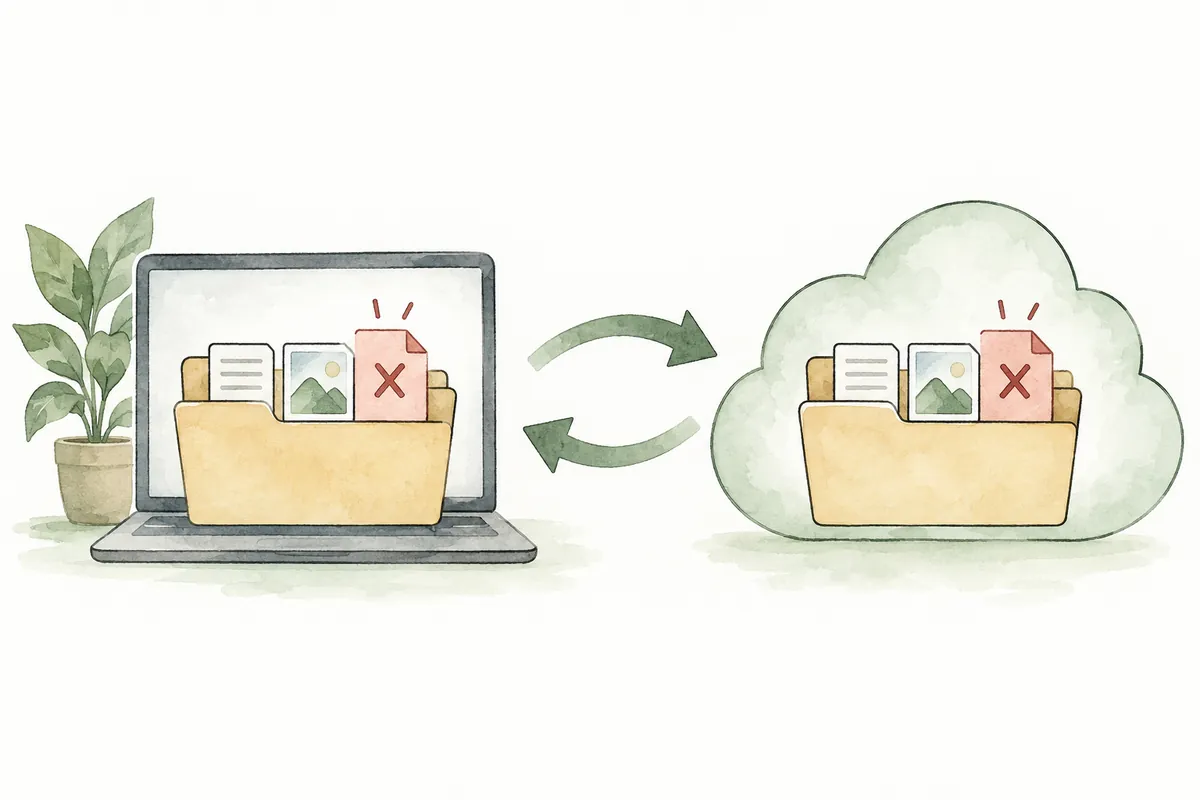
1. First Identify the Account and Folder
Select the file in File Explorer and check its actual path in the address bar. If under OneDrive or OneDrive - CompanyName, determine that account's sync scope. Desktop and Documents may connect under OneDrive when folder backup is enabled, so do not assume desktop files exist only on the PC.
For PCs using personal and work accounts together, compare Explorer folder names, the account shown by the notification-area cloud icon, and the web login account. Identically named documents may belong to different accounts; record folder locations and modification times, not just filenames. No moving or deleting is needed while checking paths.
Microsoft's sync guide explains that additions, edits, and deletions in OneDrive folders propagate to the web, and web changes to the PC. This is convenient across PCs, but a duplicate inside the same sync folder is difficult to regard as an independent backup.
2. Different Goals Require Different Menus
| Desired result | Feature to check first | Check after completion |
| Keep cloud files while reducing PC usage | Right-click file → Free up space | Online-only status and the web file |
| Open without internet | Right-click file → Always keep on this device | Download completion and actual opening |
| Exclude a folder from this PC's list | OneDrive Settings → Account → Choose folders | Whether the folder remains on the web |
| Change Desktop or Documents connections | Sync and backup → Manage backup | Storage location selected when stopping |
| Retain a separate copy before cleanup | Copy outside sync scope | Copy's path and contents |
| Remove from PC and OneDrive | Delete the synchronized file | Deletion target and recycle bin |
Free PC drive space and the OneDrive account's storage limit are separate. Online-only status does not reduce cloud-stored file size. First identify which side reported insufficient space. Deleting all cloud files to address PC capacity produces an unintended result.
3. Read Cloud and Check Icons and Free Up Space
Files On-Demand guidance describes a blue cloud as online-only, an outlined green check as locally available, and a white check in a solid green circle as always retained. Online-only content has not yet downloaded to the PC and cannot open without internet. Distinguish downloaded-once files from Always keep files.
- Find the target in OneDrive using File Explorer. Initially select one folder with little material.
- Right-click and choose Free up space. Check status after completion.
- Find the file on the same account's OneDrive web and check necessary contents.
- To restore offline availability, right-click → Always keep on this device and wait for downloading to finish.
If the option is absent, first check OneDrive login and target path. Also inspect Files On-Demand items in Sync and backup → Advanced settings. Depending on version, Free up disk space and Download all files buttons may replace a switch, so do not change settings randomly while searching for an old switch.
Before traveling, marking only needed schedules or presentations Always keep is easier to manage. Marking an entire folder downloads its files too, so check free space. Reopening a freed file may download it, meaning browsing a folder and opening content can have different results.
4. What to Read When Enabling or Disabling Folder Backup
Open Settings from the notification-area OneDrive cloud, then Sync and backup → Manage backup. Check supported folders and status, enable unbacked-up folders, and save changes. Do not interpret this as backing up every drive entirely. Recording important material's original paths and separate-copy locations first helps later comparisons.
Microsoft's current Windows stopping guidance explains choosing to leave files only in OneDrive or only on the PC after turning off a folder's switch. Read the choices and select the intended location. If online-only files prevent moving, download them using Always keep before proceeding again.
For example, to keep Documents synchronized but Desktop only on the PC, change only Desktop rather than disabling both. Afterward, inspect PC Desktop and OneDrive paths separately. Once you understand where files remain, reenable in Manage backup if needed. Before restarting backup, also check for identically named files on both sides.
5. Choose Folders and Manage Backup Are Different Settings
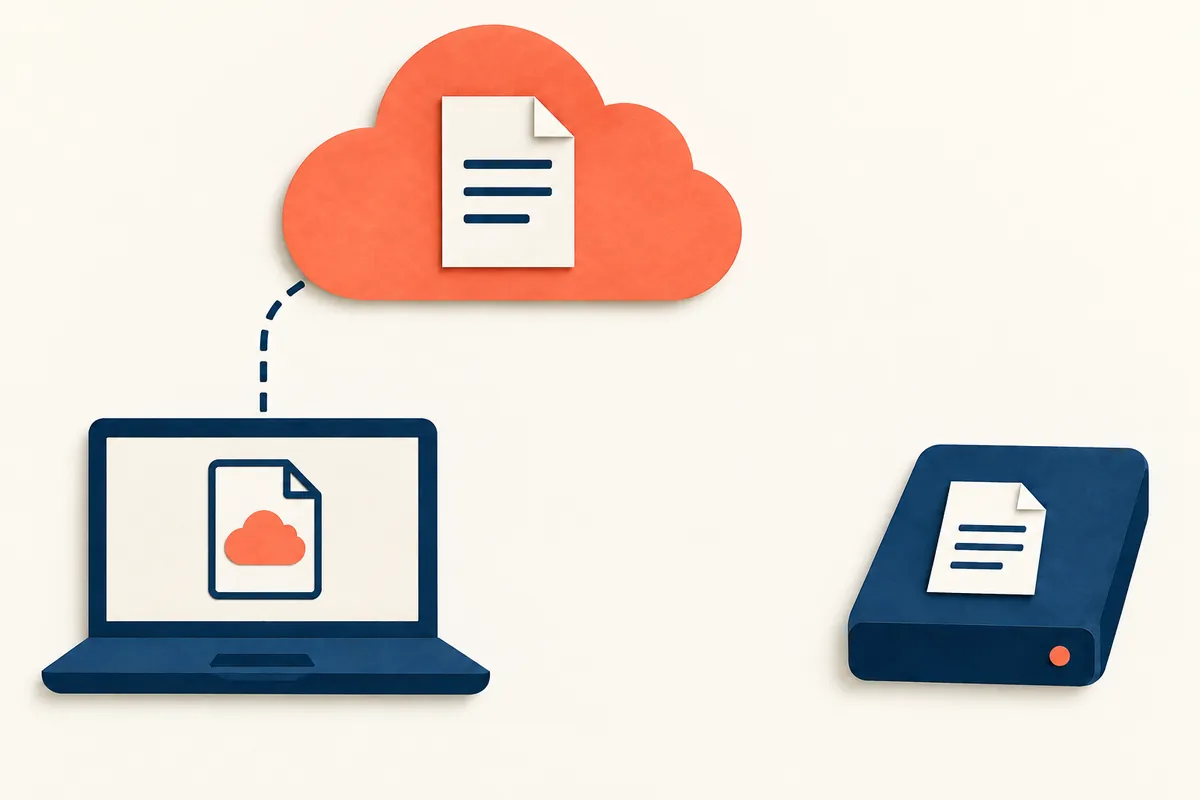
Settings → Account → Choose folders selects which already-included OneDrive folders synchronize with this PC. According to the official Choose folders documentation, unchecked folders are removed from the PC but remain on the web. Settings apply per PC and account; some important folders such as Documents and Desktop cannot be unchecked here.
Consider Free up space to retain filenames in Explorer and open as needed, or Choose folders to exclude the folder itself from this PC's list. This does not directly add arbitrary external-USB folders to sync. To show an excluded folder again, check it in the same account's Choose folders screen.
6. Practice Distinguishing Results with a Fictional File Collection
The following is an illustrative example, not actual PC test results. Assume three short practice files rather than important originals, in a folder named OneDrive-Practice to distinguish work material. You can learn each feature's purpose without practicing deletion.
| Fictional file | Use situation | Management choice |
| travel_schedule.txt | Check offline while traveling | Mark Always keep and open before departure |
| past_event_photos.zip | Large material consulted occasionally | Verify upload, then Free up space |
| submission_20261003.pdf | Preserve separately from later edits | Copy to a device outside sync scope |
- Note the practice files' OneDrive path and login account.
- Check the same folder and content on the web. Resolve sync errors before continuing.
- Mark travel_schedule Always keep and past-event material Free up space. Record which files are for offline use.
- Copy the submission using Ctrl + C and paste with Ctrl + V to external storage outside sync scope. Distinguish this from moving the original.
- Open the external copy and verify pages, filename, and retention date. Label original and copy folders distinctly afterward.
When creating an independent copy, check whether its destination is also under OneDrive. If Documents or Desktop is backed up, a “backup” folder there may belong to the same sync flow. The independent-backup example uses copying outside OneDrive sync scope. Moving or cutting can remove the original-location file, so distinguish copying from moving when retaining copies before cleanup.
A fictional record needs only “original location / copy location / last copy date / opening checked.” Matching file counts do not establish matching contents; check important final versions first. Later manuscript edits do not automatically update the copy, so manage a newly dated copy separately.
For dated submissions, use names indicating timing, such as submission_20261003, rather than repeatedly overwriting one folder. Note included materials too. When later using a copy, check whether its date is current and distinguish it to avoid editing an old copy instead of the working original.
7. When Results Differ from Expectations
- File missing on the web: Compare web and PC accounts first. Check sync status and errors through the cloud icon, and do not delete an original not yet uploaded.
- File cannot open after freeing space: Check internet and access to the correct account. For offline use, connect, select Always keep, and finish downloading.
- PC folder disappeared: Check whether Choose folders was unchecked and locate it online. If folder backup stopped, check the PC or OneDrive location selected then.
- Less space recovered than expected: Check other local files and whether opening the newly freed file downloaded it again. Inspect PC capacity separately from cloud limits.
If accidentally deleted, stop further cleanup and check Recycle bin → select target → Restore on the same account's OneDrive web. The restoration documentation generally describes recovery within 30 days for personal accounts and 93 days for work/school accounts unless administrators change it. Online-only files may be absent from the PC recycle bin, and permanently deleted files cannot be restored from that bin.
8. Frequently Asked Questions
Does pausing sync make deletion safe? Do not treat pausing as independent backup. For cleanup, first check a copy outside sync scope and its contents before changing anything.
How do I remove a file from the cloud but keep it on the PC? Microsoft's deletion and retention guide explains moving outside the OneDrive folder. For copy retention, first copy outside and open it, then decide separately whether cloud removal is necessary.
Does Desktop backup restore apps and Windows too? This feature manages files in selected folders. List apps to install, account logins, and application settings separately for a new PC.
What if a work-account menu is blocked? Organization-managed settings may apply. Record the message and ask the responsible person about storage locations and permitted backup methods. Do not arbitrarily transfer material to a personal account.
Official sources are the Microsoft sync, Files On-Demand, folder-backup, folder-selection, deletion, and restoration documents linked at each step. Checked: 2026-10-03. Menu names and options vary by app version, account type, and organization policy, so read current onscreen guidance too.
Original illustrations created to help explain this article.
Original on Tistory ↗