Passkeys, passwords and two-step verification: a practical switching checklist
This article was translated from its source language with AI assistance. Please check technical terms and equations against the original.
A fingerprint prompt and a password followed by a code can both open the same account, but they are different login flows. Before switching to passkeys, answer three questions: where will the credential live, what authorizes its use, and how will you regain access if that device disappears? A convenient everyday login still needs a recovery plan.
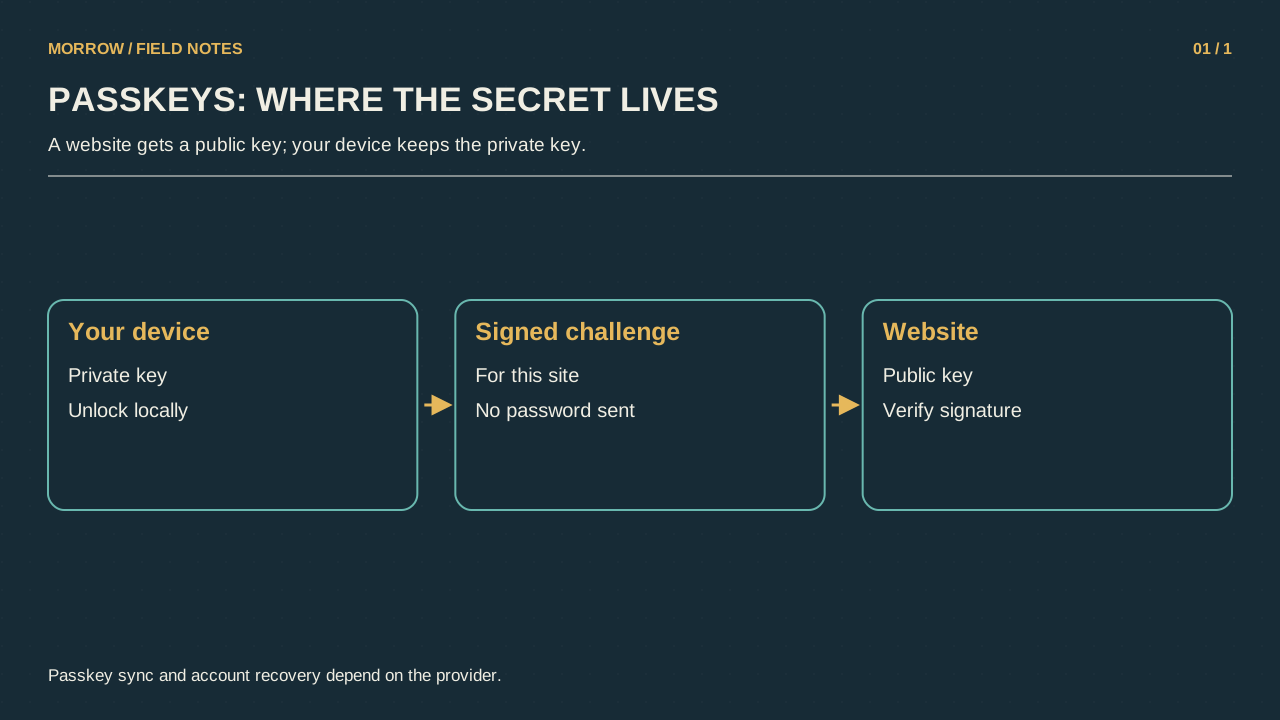
Compare the flows, not just the buttons
A password is a secret string you enter. Password-based two-step verification asks for another check after that string. A passkey uses a cryptographic credential associated with a service, with your device or a supported credential manager handling its use. Unlocking the device authorizes the operation; your fingerprint is not a replacement password sent to the website. Google says biometric data stays on the device. Check the supported setup in its passkey guide.
| Flow | Your action | Preparation |
|---|---|---|
| Password | Enter a secret string | Unique password and recovery route |
| Password plus second step | Enter the string and approve another check | Second method and alternatives |
| Passkey | Authorize use on a device | Supported device, storage and recovery plan |
Understand what Google changes
For a Google Account, a passkey login can bypass a separate second authentication step because the login verifies possession of the device and the ability to unlock it. That does not mean two-step verification was simply disabled. Adding a passkey also does not automatically remove your existing authentication or recovery factors. Work and school policies may restrict the available choices. Use the account's own prompts together with the two-step verification instructions.
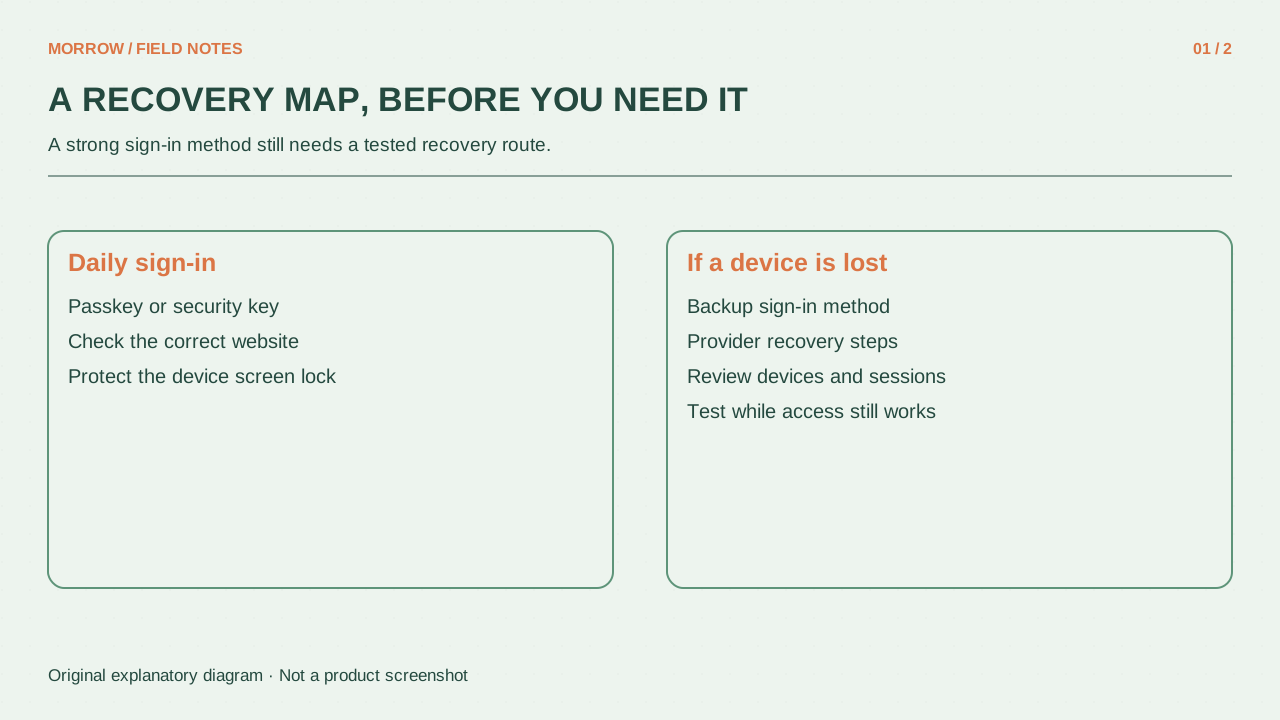
Run a ten-minute preparation check
- Update the operating system and browser on a device you control, and enable its screen lock.
- Record which device or manager stores the passkey. Synchronization depends on the product; do not assume every credential travels automatically.
- Confirm that your existing recovery contact details still belong to you.
- Try the new login without immediately wiping your other signed-in device.
- Choose when to remove credentials belonging to retired devices.
Someone with one phone needs a clear lost-phone route. Someone alternating between a company computer and a personal laptop should first check which credential is available in each environment. Write those two situations on paper; a plan that only says “use my fingerprint” does not explain either failure.
Make troubleshooting specific
Instead of noting “login failed,” record the account, device, browser and missing option. Being able to sign in with a password while the passkey selector is absent is a different problem from losing every account recovery route. Avoid creating personal credentials casually on a shared computer. Test access on the replacement device before retiring the old one. The useful measure of success is not fewer clicks: it is whether you can explain both today's login and tomorrow's recovery without guessing.
Related practical guides
Original illustrations created to help explain this article.