Separate work and personal Chrome profiles to reduce account mix-ups
This article was translated from its source language with AI assistance. Please check technical terms and equations against the original.
Opening a work document with a personal account or uploading company material into personal storage becomes easier when several accounts share one browsing environment. Separate Chrome profiles give different logins and tools visibly different windows. The goal is not more profiles; it is making the right account easier to recognize before an important action.
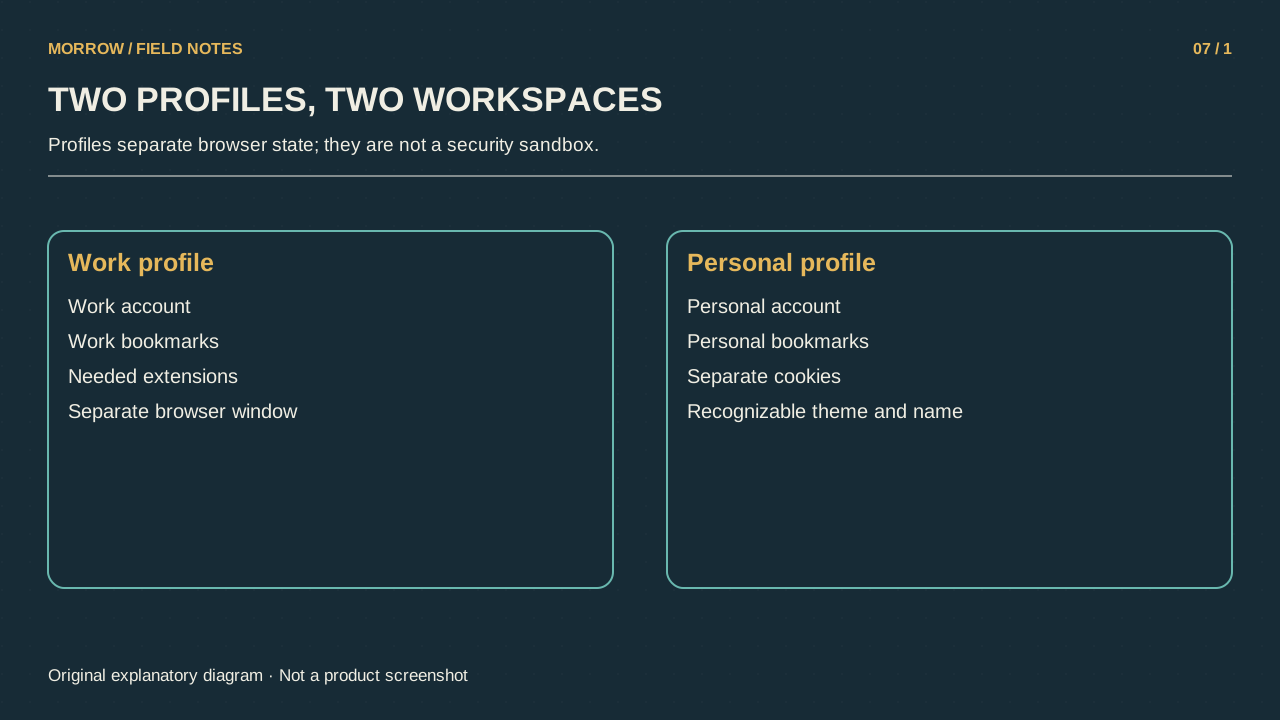
Account switching is not profile switching
Changing a Google account inside one window may leave other website sessions and extensions unchanged. Chrome profiles separate information such as bookmarks, history, passwords and settings. They are not equivalent to an operating-system security boundary. Google warns that someone with access to your device can switch to another Chrome profile in its profile management guide. Use profiles for organization and mistake prevention; preventing another person from accessing the device is a separate problem.
Start with two clearly different profiles
- Add a new profile from Chrome's profile menu.
- Name the profiles for their purposes, such as Work and Personal, and choose contrasting colors.
- Sign in to the appropriate websites with the intended account in each window.
- Place the relevant mail, storage and document services in each profile's bookmark area.
- Review which extensions each workflow actually needs.
A new profile does not mean you must synchronize every kind of data. Inspect Chrome sign-in and the account-saving options presented to you. Follow your organization's policies on managed work or school devices; creating a personal profile does not erase those policies. Google's profile creation guide covers names, photos and colors.
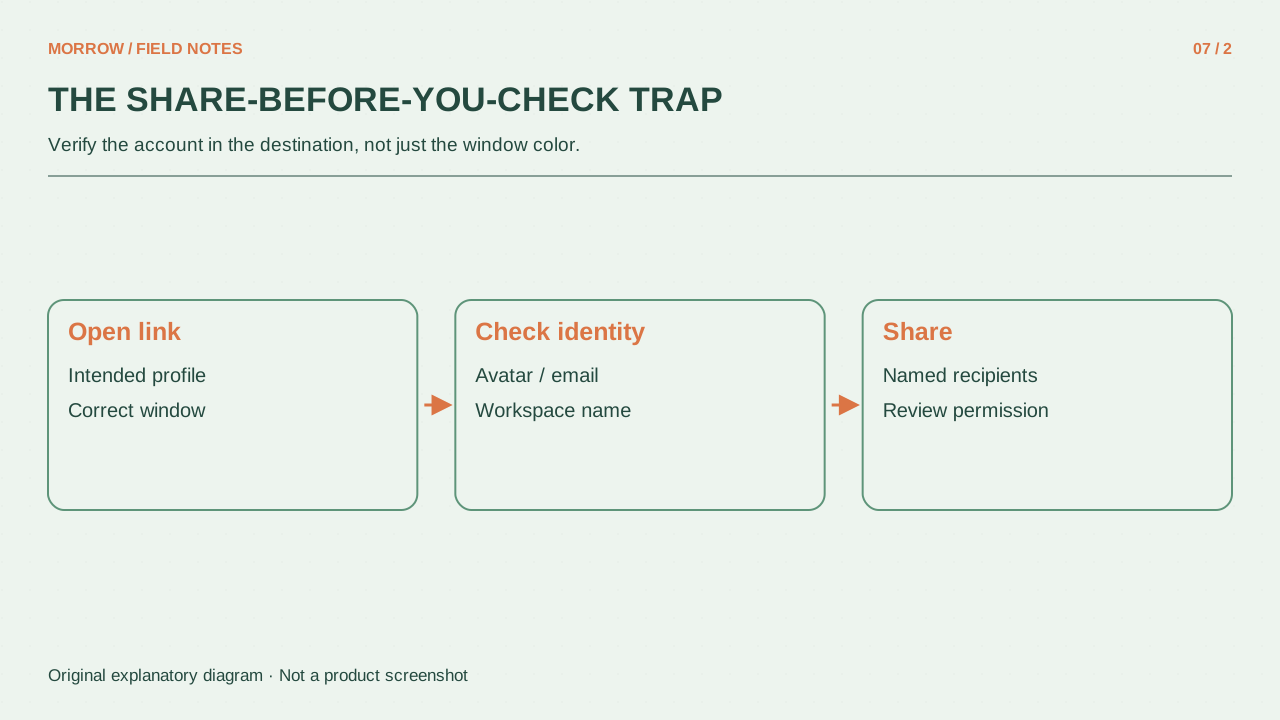
Test separation with three harmless actions
| Test | Success condition |
|---|---|
| Open mail | Account matches the window's purpose |
| Create a practice document | Saved in the intended account's storage |
| Open the sharing dialog | Ownership and account can be verified |
Create a disposable document in the work window and inspect its owner and sharing view. You need not send it to anyone. Then check that the same service opens with the personal account in the personal window. This catches an environment whose colors changed while its actual website logins remain mixed.
Use a three-second check before sending
Before sharing, uploading or publishing, inspect the window profile, the account shown inside the service and the destination folder. If an external link opens in the wrong window, reopen it in the right profile before starting work. Group windows by the current task instead of depending only on color while keeping everything open. Before deleting an old profile, confirm what you still need: local bookmarks, history, passwords and settings can be erased. The practical success measure is whether you can stop a wrong-account action before it leaves your computer.
For screen sharing, choose the intended profile window before starting the presentation. Check whether personal bookmarks or unrelated open tabs are visible too. Account separation helps organize the session, but selecting what the audience sees remains a separate task.
Related practical guides
Original illustrations created to help explain this article.