Gmail filters and labels: organize mail without hiding important messages
This article was translated from its source language with AI assistance. Please check technical terms and equations against the original.
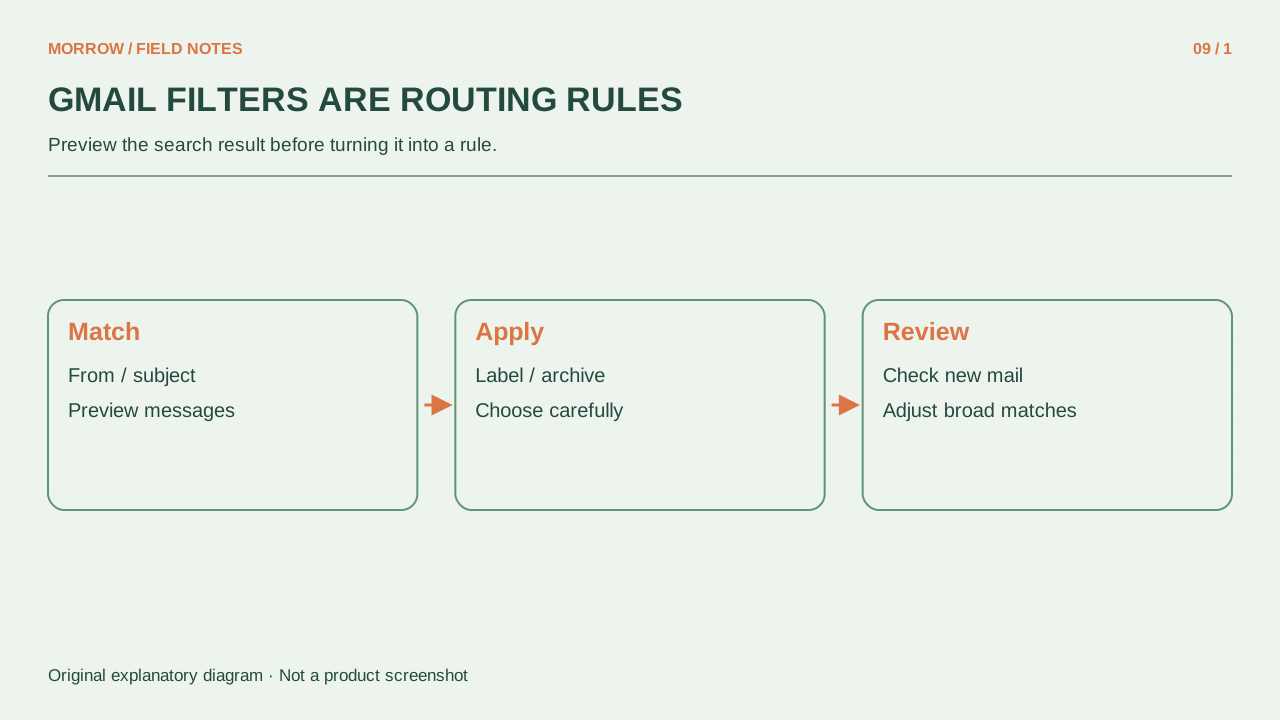
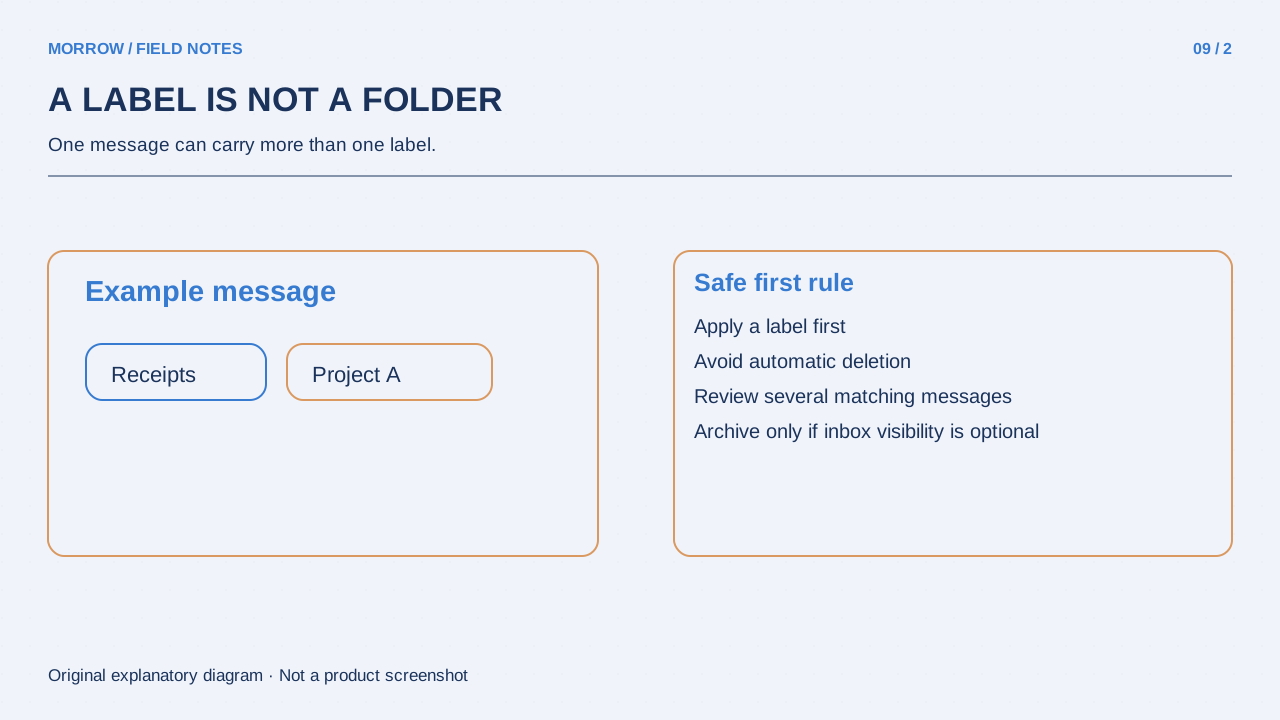
A good mail rule starts with “find what matters” rather than “empty the inbox.” A filter applies actions to messages that match conditions. A label helps classify and retrieve them. Begin with a label-only rule instead of automatic deletion or forwarding; it gives you a visible trial without immediately hiding new mail.
A label is not a backup copy
Gmail labels differ from ordinary folders. Deleting a labeled message removes the message from the inbox and its other labels too. Classification does not create another protected copy. Google's label management guide explains this distinction. Start with a few labels reflecting how you will search later, such as Work, Reading and Needs review, rather than inventing a category for every sender.
Test the search before creating the rule
To collect a particular newsletter, inspect its actual sender and try from:newsletter@example.com. The example.com address here is illustrative. A broad subject word such as “Update” can also match an important work message. Open several desired and undesired results before turning the query into an automatic rule. The Gmail search operator guide documents sender, subject, attachment and other criteria.
| Goal | Condition to test | First action |
|---|---|---|
| Collect one sender's material | Exact sender address | Apply a label only |
| Find a particular topic | Sender combined with subject criteria | Apply a label only |
| Reduce routine updates | Criteria matching only the routine messages | Consider archiving after a trial |
Create one small desktop filter
- Open search options in Gmail and enter the criteria.
- Run the search to verify the result.
- Create a filter using the same criteria.
- Apply the target label while initially keeping messages in the inbox.
- If applying it to existing conversations, inspect that scope before confirming.
Actions and editing are covered by the official filter instructions. A reply is filtered only if it meets the same criteria. One matching message at the start of a conversation does not guarantee every future reply will meet the rule.
Review after a week before skipping the inbox
Look through the labeled messages and check whether important mail would have disappeared from your attention. Once the condition consistently matches routine information, consider automatic archiving. Keep work requests or schedule changes outside overly broad rules. You can edit or remove filters under Filters and blocked addresses in Settings. Separate the future rule from actions already applied to existing mail: removing a filter is not a promise that archived or deleted messages will return to their old locations. Record one condition, one action and one review date. That makes the system easier to maintain than a large set of rules you cannot explain.
Practice retrieving an archived message as well. Open its label or search for its exact sender and confirm you can find it again. Automatic archiving is easier to trust when retrieval is a task you have actually tried.
Related practical guides
Original illustrations created to help explain this article.