USB 3.0 vs 3.1 vs 3.2 vs USB4: Confusing Names and Real Speeds
USB 3.0, USB 3.1 Gen 1 and USB 3.2 Gen 1 are the same 5 Gbps speed under three names, and USB 3.1 Gen 2 and USB 3.2 Gen 2 are both 10 Gbps. USB 3.2 Gen 2x2 runs at 20 Gbps, USB4 at 20 or 40 Gbps, and USB4 Version 2.0 at up to 80 Gbps. Because version numbers were reused, the only reliable label is the Gbps figure, which is why USB-IF now brands products simply as USB 5Gbps, USB 10Gbps and so on. A USB-C plug, on its own, says nothing about speed.
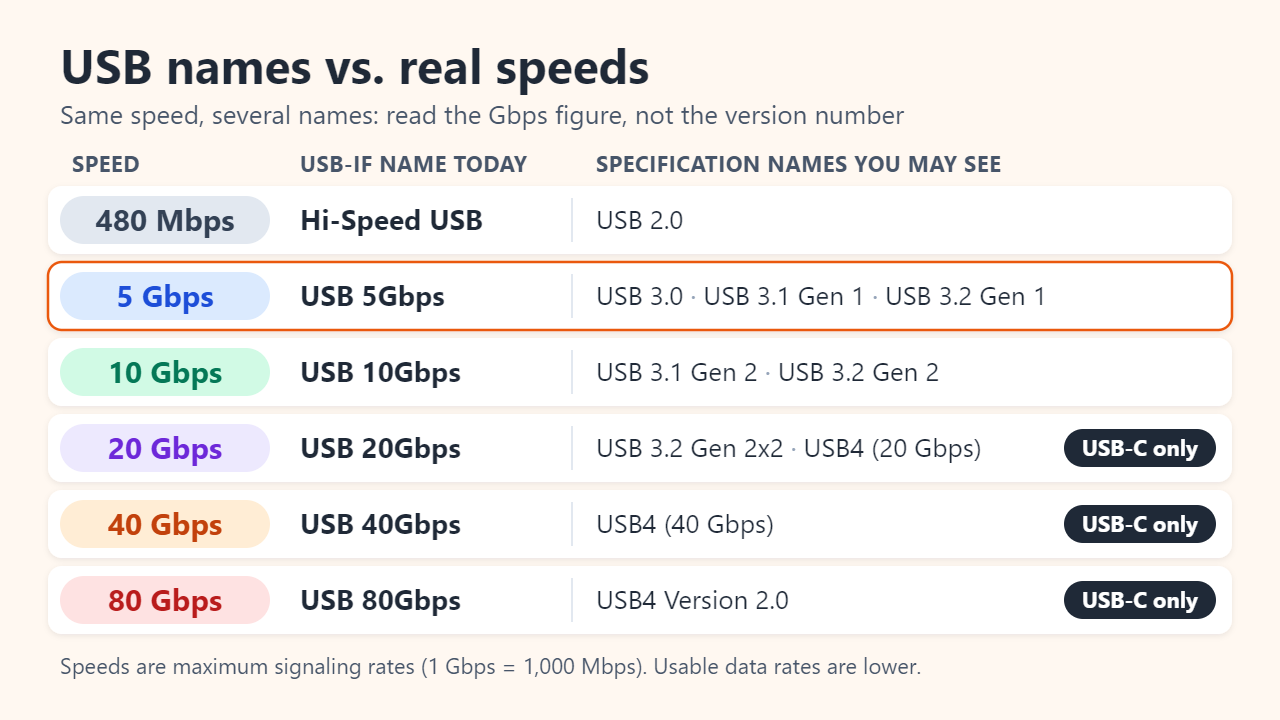
Why USB 3.0, 3.1 Gen 1 and 3.2 Gen 1 are the same thing
USB-IF, the group that publishes the USB specifications, replaced each USB 3.x document with a new one that kept the old speeds but renamed them as “generations.”
- 2008, USB 3.0: introduces 5 Gbps SuperSpeed USB.
- 2013, USB 3.1: adds 10 Gbps. The old 5 Gbps mode becomes USB 3.1 Gen 1 and the new one is USB 3.1 Gen 2.
- 2017, USB 3.2: adds a two-lane 20 Gbps mode. In USB-IF’s words it “absorbed all prior 3.x specifications,” so the speeds become USB 3.2 Gen 1 (5 Gbps), Gen 2 (10 Gbps) and Gen 2x2 (20 Gbps).
- 2019 and 2022, USB4: USB4 brings 20 and 40 Gbps; USB4 Version 2.0 adds 80 Gbps.
So a product sold as “USB 3.2” may be a 5 Gbps device: the version number names the document it follows, not its speed. USB-IF now tells manufacturers to keep specification names such as USB 3.2 off packaging. Shoppers should see USB 5Gbps, USB 10Gbps, USB 20Gbps, USB 40Gbps or USB 80Gbps, and Hi-Speed USB for 480 Mbps USB 2.0. Older boxes may say SuperSpeed USB (5 Gbps), SuperSpeed USB 10Gbps or SuperSpeed USB 20Gbps.
USB speed chart: every name mapped to Gbps
| Speed | Current USB-IF name | Specification names you may see | Connector |
|---|---|---|---|
| 480 Mbps | Hi-Speed USB | USB 2.0 | USB-A, Micro-B, USB-C and others |
| 5 Gbps | USB 5Gbps | USB 3.0, USB 3.1 Gen 1, USB 3.2 Gen 1 | USB-A, USB 3 Micro-B, USB-C |
| 10 Gbps | USB 10Gbps | USB 3.1 Gen 2, USB 3.2 Gen 2 | USB-A or USB-C |
| 20 Gbps | USB 20Gbps | USB 3.2 Gen 2x2, or USB4 at 20 Gbps | USB-C only |
| 40 Gbps | USB 40Gbps | USB4 at 40 Gbps | USB-C only |
| 80 Gbps | USB 80Gbps | USB4 Version 2.0 (optionally 120 Gbps one way) | USB-C only |
Two details matter when buying. First, everything from 20 Gbps up needs USB-C: the two-lane modes rely on extra wire pairs that USB-C cables were designed with, and USB4 is defined only for USB-C. Second, “USB 20Gbps” covers two different technologies. A USB 3.2 Gen 2x2 drive and a 20 Gbps USB4 port share the label, but USB4 hosts are not required to support Gen 2x2, so such a drive on a USB4 or Thunderbolt port can fall back to 10 Gbps.
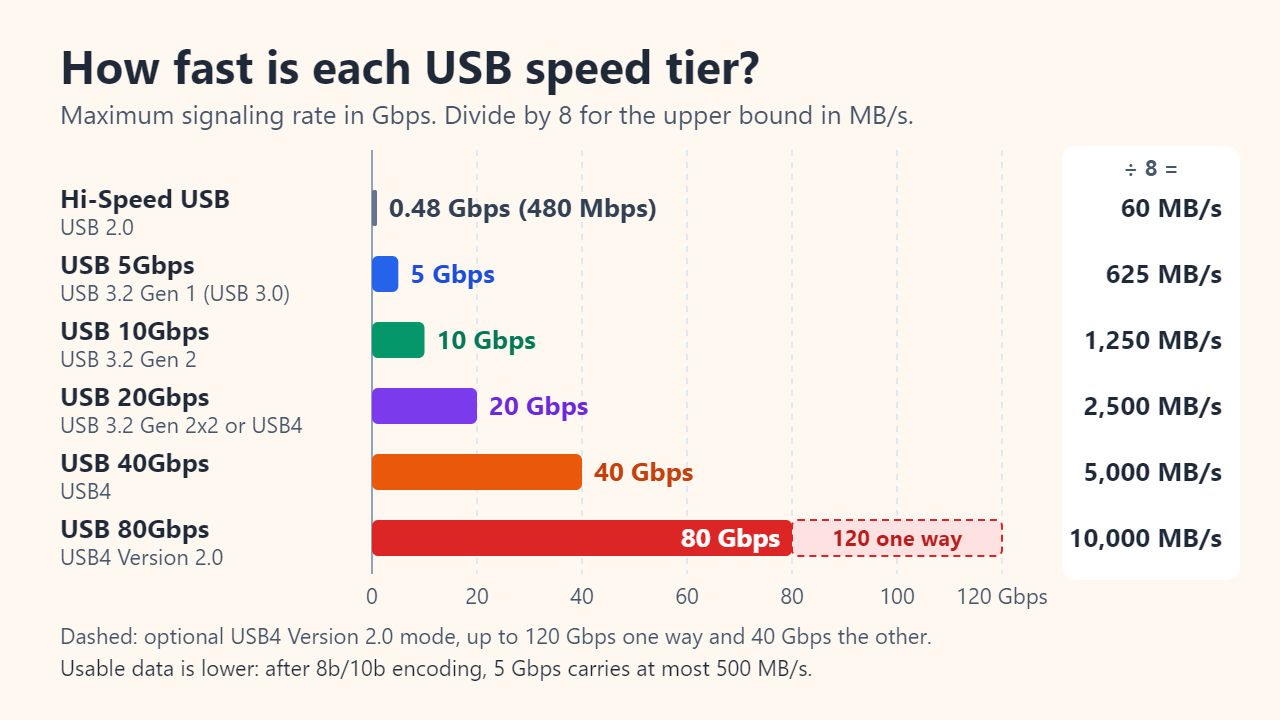
From Gbps on the box to MB/s in a file copy
The Gbps figure is the signaling rate on the wire. File Explorer and drive benchmarks count megabytes per second, so divide by 8 first, then allow for line encoding, the extra bits that keep the signal reliable:
- Hi-Speed USB (USB 2.0): 480 Mbps ÷ 8 = 60 MB/s at most; protocol overhead keeps real copies well below that.
- 5 Gbps (Gen 1): 8b/10b encoding sends 10 bits for every 8 bits of data, a 20% overhead. 5 Gbps × 0.8 = 4 Gbps, a ceiling of 500 MB/s.
- 10 Gbps (Gen 2): 128b/132b encoding costs only about 3%. 10 × 128/132 ≈ 9.7 Gbps, about 1,212 MB/s.
- 20 Gbps (Gen 2x2): two such lanes, about 2,424 MB/s.
At those ceilings, a 10 GB file takes at least 167 seconds over USB 2.0, 20 seconds at 5 Gbps and about 8 seconds at 10 Gbps. Real copies take longer because of protocol overhead and, above all, the device itself: a flash drive that writes at 100 MB/s (an illustrative figure) copies at roughly that speed on any USB 3 port.
USB-C is a connector, not a speed
USB-C describes the shape of the plug and port. The same oval connector can carry anything from 480 Mbps USB 2.0 to 80 Gbps USB4, and USB-IF’s guidelines state plainly that USB 3.2 is a transfer rate, not a connector. Cables work the same way: USB-IF lists Hi-Speed USB cables rated 60W or 240W among its USB-C to USB-C categories, so a cable that charges a laptop may still move data at only 480 Mbps. Conversely, USB-A tops out at 10 Gbps: USB 10Gbps is the fastest label USB-IF lists for cables with a non-USB-C end.
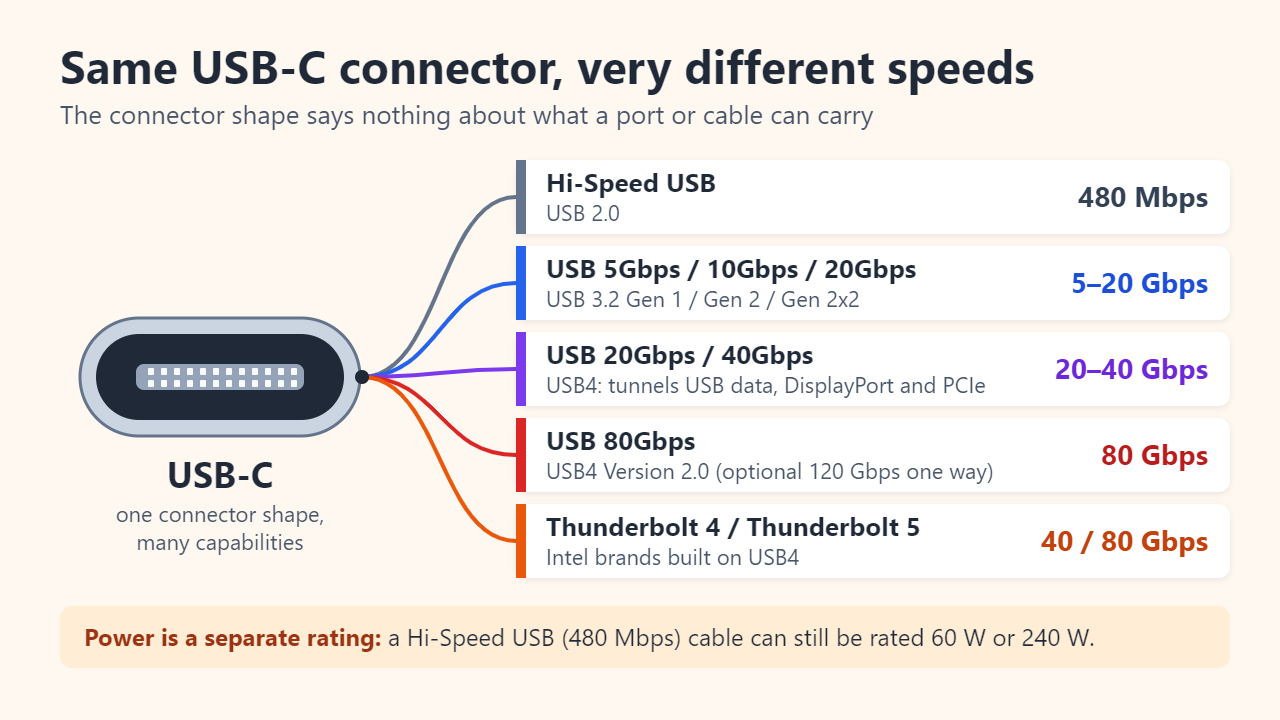
Where USB4 and Thunderbolt fit
USB4, published in 2019, is based on the Thunderbolt protocol that Intel contributed to the USB Promoter Group. Unlike USB 3.2, it tunnels several kinds of traffic, such as USB data, DisplayPort video and PCI Express, over one shared link. USB4 Version 2.0, published in October 2022, adds 80 Gbps over existing 40 Gbps passive cables and new 80 Gbps active cables, plus an optional mode for demanding displays that sends up to 120 Gbps one way and 40 Gbps the other.
Thunderbolt is Intel’s brand built on USB4 with stricter minimums. Intel lists 40 Gbps as the minimum for Thunderbolt 4 and 80 Gbps for Thunderbolt 5 (up to 120 Gbps with its Bandwidth Boost), while a USB4 port on a PC only has to reach 20 Gbps. The connector is identical, so check the Thunderbolt logo or spec sheet.
How to check what a port, cable or device supports
A connection runs at the best speed that the port, the cable and the device all share. In Figure 4’s illustrative setup, a Hi-Speed-only cable holds a 10 Gbps SSD on a 40 Gbps port to 480 Mbps; a cable rated USB 20Gbps lets it reach 10 Gbps. Check all three parts:
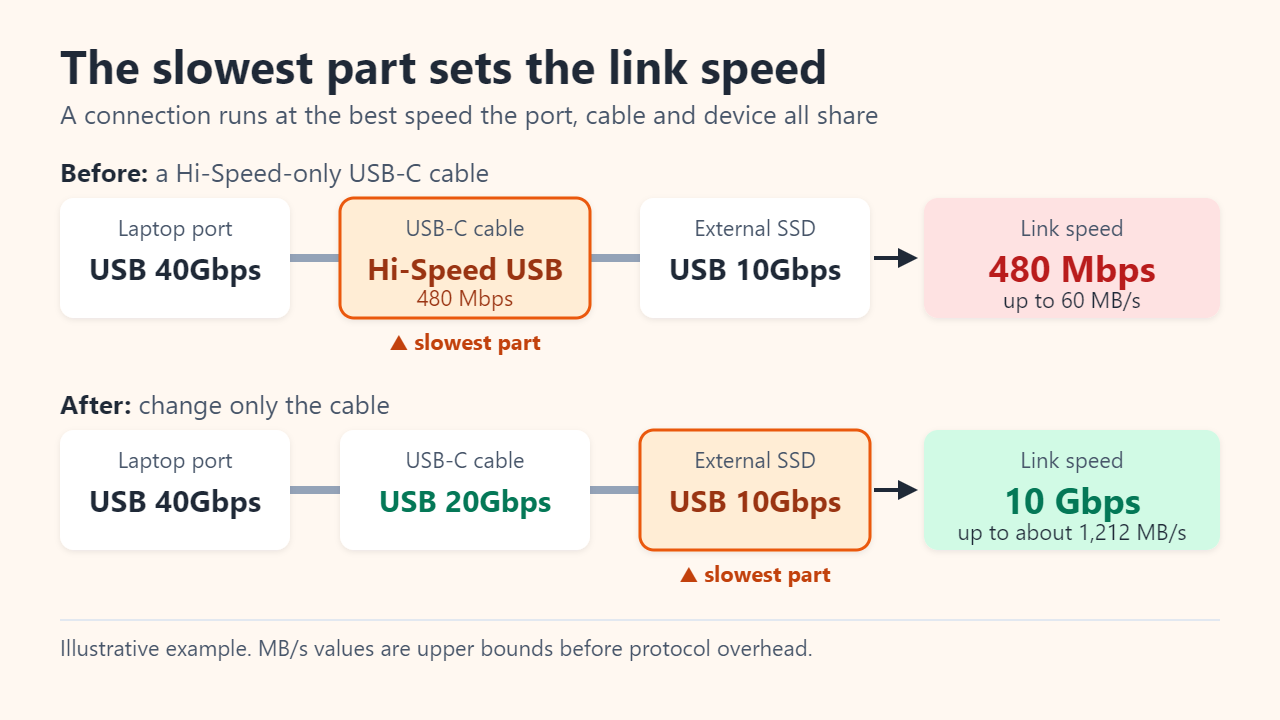
- Read the logo or label. Certified products show the speed, from USB 5Gbps to USB 80Gbps; certified USB-C cables may add a power rating such as 60W or 240W.
- Check the spec sheet port by port. Laptops often mix speeds, so find the figure for the exact port you will use.
- Open Device Manager in Windows. Under Universal Serial Bus controllers, an entry with “xHCI” or “eXtensible Host Controller” in its name means USB 3.x support, though not which speed.
- Look for the USB4 page in Windows 11. On USB4-capable PCs, Settings > Bluetooth & devices > USB > USB4 Hubs and Devices lists attached USB4 hubs and devices and their capabilities. On other PCs the page does not appear.
- Don’t trust an unlabeled cable. A USB-C cable may be Hi-Speed USB only. For 10 Gbps or faster, use one rated for at least that speed.
FAQ
Is USB 3.1 faster than USB 3.0?
Only USB 3.1 Gen 2 (10 Gbps) is. USB 3.1 Gen 1 is the same 5 Gbps as USB 3.0.
How fast is USB 3.2?
It can be 5, 10 or 20 Gbps (Gen 1, Gen 2 or Gen 2x2). The name USB 3.2 alone does not tell you which.
Will an old USB 3.0 drive work in a USB4 port?
Yes. USB4 is backward compatible with USB 3.2 and USB 2.0; the drive runs at its own 5 Gbps.
Which cable do I need for a 10 Gbps USB-C port?
One rated for at least 10 Gbps. USB-IF’s labels for USB-C to USB-C cables jump from USB 5Gbps to USB 20Gbps, so a cable marked USB 20Gbps or higher covers a 10 Gbps port.
Sources: USB-IF, USB 3.2 Specification Language Usage Guidelines; USB-IF, USB Data Performance Language Usage Guidelines; USB-IF, USB4 Version 2.0 announcement (October 18, 2022); Microsoft Learn, USB in Windows FAQ.
Related reading
Original illustrations created to help explain this article.