Why a USB-C cable charges your laptop but cannot drive a monitor
This article was translated from its source language with AI assistance. Please check technical terms and equations against the original.
A USB-C connection can charge a laptop while leaving its external monitor black. That is a useful clue, rather than proof that every part of the connection works. The connector fits, but the required capabilities may not line up. Separate power, data, and video before replacing equipment or assuming that the monitor has failed.
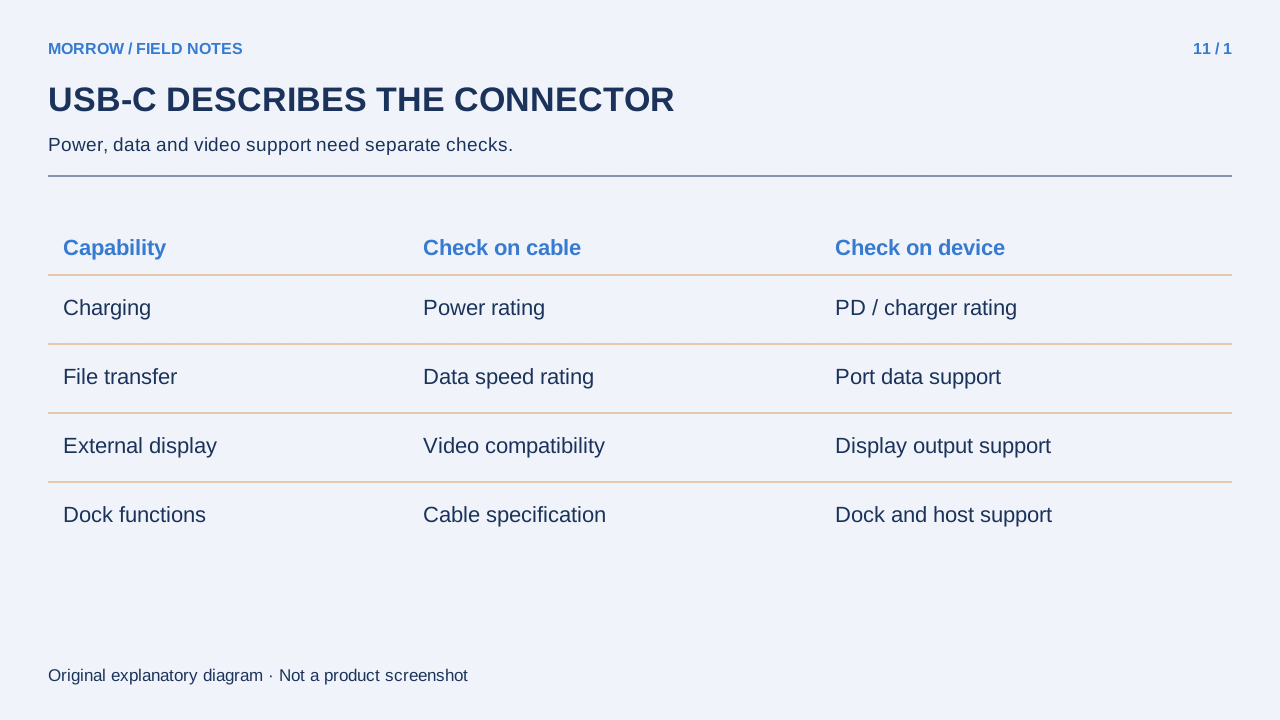
Read three specifications, not one connector shape
USB-C describes the connector. A marking such as 60W or 240W describes a power rating, while 5Gbps or 20Gbps describes data capability. A high power rating does not establish fast file transfer or monitor support. USB-IF publishes power-rating logos; those labels answer a different question from a data-speed label.
| Task | Check | Insufficient evidence |
|---|---|---|
| Charge a laptop | Charger, cable, and laptop power support | The plug fits |
| Copy files to an SSD | Both ports and the cable's data capability | A 240W marking |
| Connect a monitor | Host video output and cable or adapter support | Charging works |
Check the ends of a monitor connection first
A common USB-C video path uses DisplayPort Alt Mode. The computer port must support that path. An excellent cable cannot create video output from a port that does not provide it. Find the exact port in the laptop documentation, then check whether the monitor's USB-C socket is a video input. Do not assume that every socket on the monitor has the same purpose.
- Confirm video-output support for the computer port you actually used.
- Select the matching input on the monitor.
- Use a cable or adapter explicitly documented for the video connection.
- Remove the dock and try a direct connection when possible.
- After direct connection works, reinsert the dock and compare.
For USB-C-to-HDMI adapters, also check signal direction and supported resolution and refresh rate. This workflow concerns DisplayPort Alt Mode. Other display technologies that transport video as USB data may require their own drivers and troubleshooting steps.
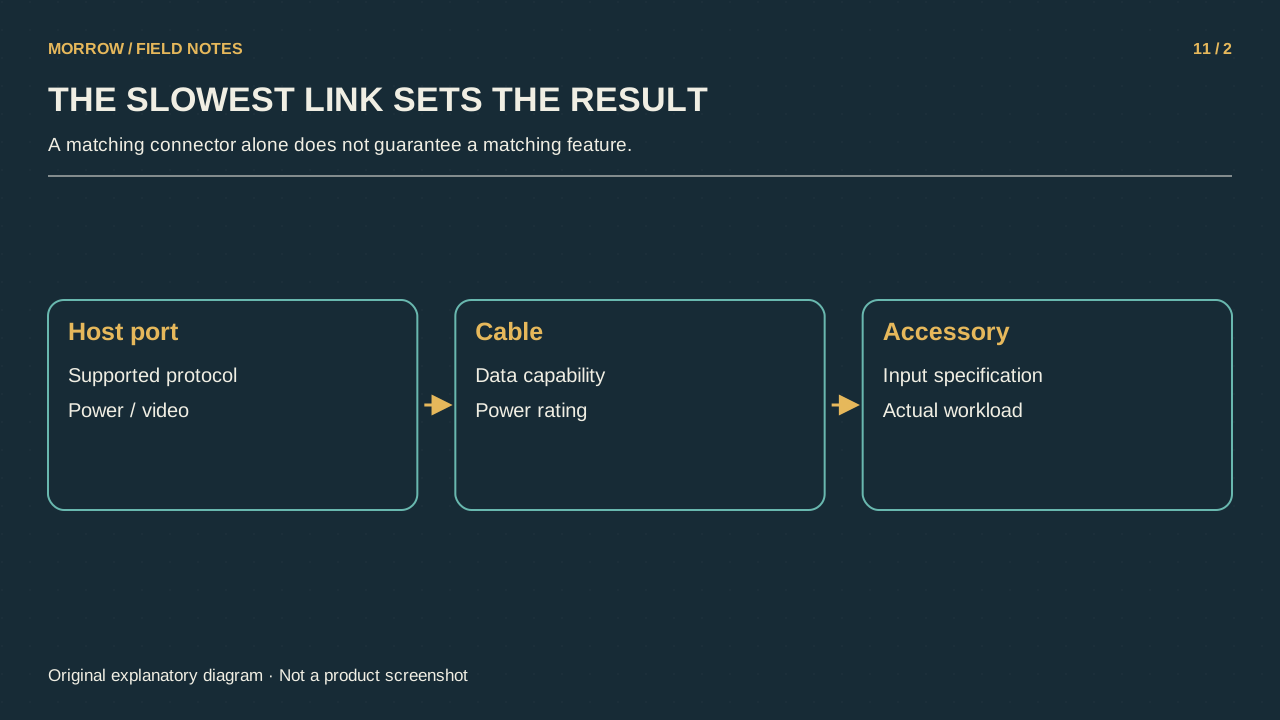
Investigate slow SSD copying with one controlled change
Thousands of small photographs are a poor first benchmark. File-management overhead makes that workload different from copying one large file. Keep the same computer port, SSD, and source file, and change only the cable. Record the elapsed time and the port used. Repeat the comparison rather than trusting a momentary speed indicator.
For example, copy a disposable 10GB test file and retain a short note of the setup. The result measures the whole connection, not the cable's certified maximum. Source-drive speed, SSD write conditions, and temperature can still affect it. A repeatable difference helps narrow the problem; it does not identify every bottleneck automatically.
Label the cable after it passes the task
Keep a proven monitor cable at the desk and label it by purpose: monitor, phone charging, or SSD. That is more useful than repeatedly guessing from identical connectors. If a cable's specifications are unknown, use a documented one for the demanding connection before drawing conclusions about the device. Record what failed and what still worked; charging success and video failure are separate observations.
Primary references: USB-IF power-rating logo announcement and VESA DisplayPort Alt Mode FAQ. The checklist and test scenario are original explanatory examples.
Related practical guides
Original illustrations created to help explain this article.