Why a 1TB SSD shows about 931GB: capacity, units, and free space
This article was translated from its source language with AI assistance. Please check technical terms and equations against the original.
A new 1TB SSD may appear as roughly 931GB in a storage window. Before concluding that capacity is missing, check which quantity the window reports. Product capacity, the size of a formatted volume, and remaining free space answer different questions. Reading them in order prevents a normal unit difference from turning into an unnecessary repair.
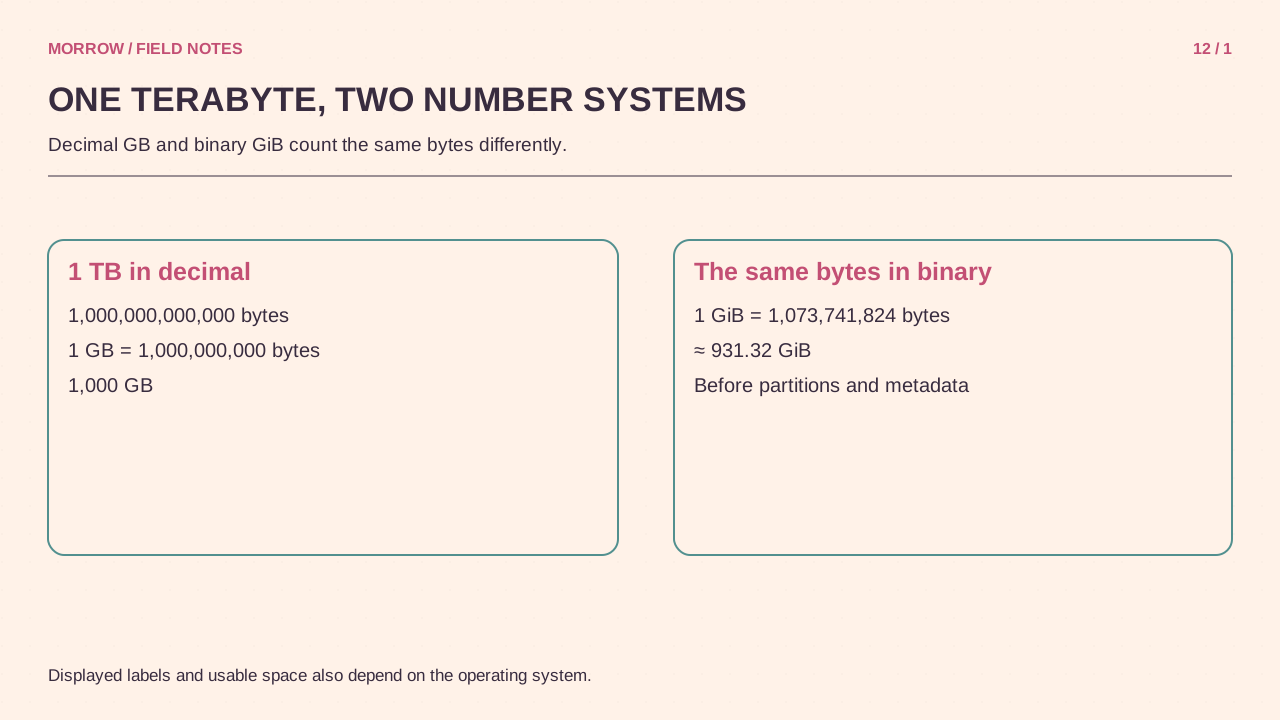
Divide the same bytes by a different unit
In decimal units, 1GB is 1,000,000,000 bytes and 1TB is 1,000,000,000,000 bytes. The binary unit GiB contains 1,073,741,824 bytes. Some Windows capacity displays calculate using binary units while showing a GB label. The resulting number is smaller without implying that the underlying bytes disappeared.
1,000,000,000,000 / 1,073,741,824 ≈ 931.32 GiB| Product label | Unit conversion only |
|---|---|
| 500GB | About 465.66GiB |
| 1TB | About 931.32GiB |
| 2TB | About 1862.65GiB |
This is a change in the measuring unit, like expressing one distance in metres or feet. Formatting and other storage functions can also affect available space, so unit conversion should be the first explanation to test, not a universal explanation for every shortfall.
Compare the disk, the volume, and free space separately
The physical disk is the whole device. A volume is an area managed with a file system. Free space is what remains after existing files and other uses within that volume. Looking only at the C drive can miss another partition or unallocated space on the same disk. A smaller volume is not necessarily a smaller physical device.
- Confirm the model and capacity printed on the product.
- Read the size of the relevant physical disk in the disk-management view.
- Look for other partitions or unallocated areas without changing them.
- Record the volume's capacity, used space, and free space separately.
- Convert units before comparing expected and observed values.
You do not need to delete partitions or format the drive to perform these checks. If files already exist, changing the layout simply to make a displayed number look larger can turn a harmless misunderstanding into data loss.
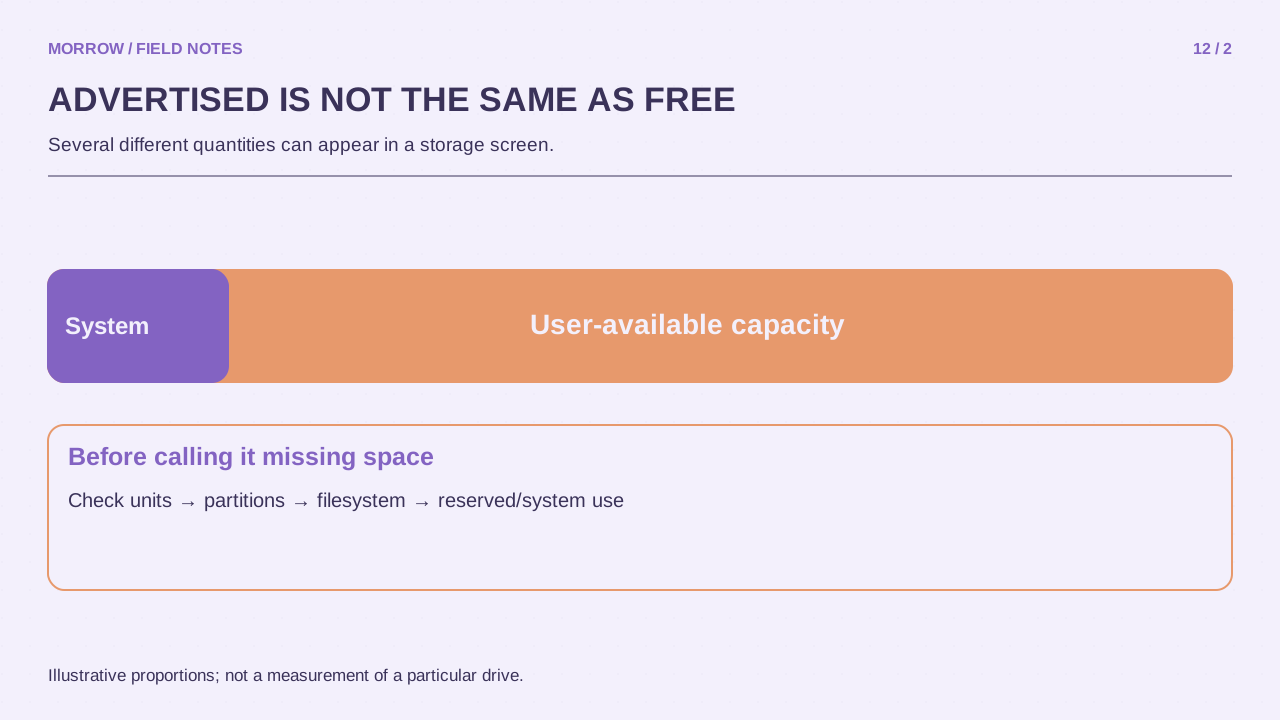
Know when the unit explanation is insufficient
Consider an illustrative case: the complete 1TB disk shows about 931GiB, but only 800GiB is free. Investigate occupied space and the partition layout. If the entire physical device appears near 100GiB instead, the decimal-to-binary conversion cannot explain that difference. Collect the model, connection details, and manufacturer diagnostics before contacting support.
There is no single free-space number that every healthy 1TB drive must show. An installed operating system, recovery partitions, and stored files change it. Also avoid subtracting a guessed SSD reserve twice: internal reserves may already be excluded from the advertised user capacity.
Make a useful capacity report
Save a photograph of the capacity label, the model name, a view of the whole disk, and the volume's used/free figures. A report stating the observed disk and volume sizes is easier to investigate than simply saying that a terabyte is missing. Keep the original data intact while establishing what the numbers actually mean.
Primary references: Seagate on reported capacity and NIST binary prefixes. Conversion examples above are calculated directly from the stated byte counts.
Related practical guides
Original illustrations created to help explain this article.