Mbps vs MB/s: How Fast Is 100 Mbps Internet, Really?
Mbps means megabits per second and MB/s means megabytes per second. One byte is 8 bits, so divide Mbps by 8 to get MB/s: a 100 Mbps connection delivers at most 12.5 MB/s, meaning a 1 GB file takes at least 80 seconds. Real downloads come in lower because packet headers take about 5%, Wi-Fi and busy servers take more, and Windows counts a megabyte as 1,048,576 bytes rather than 1,000,000.
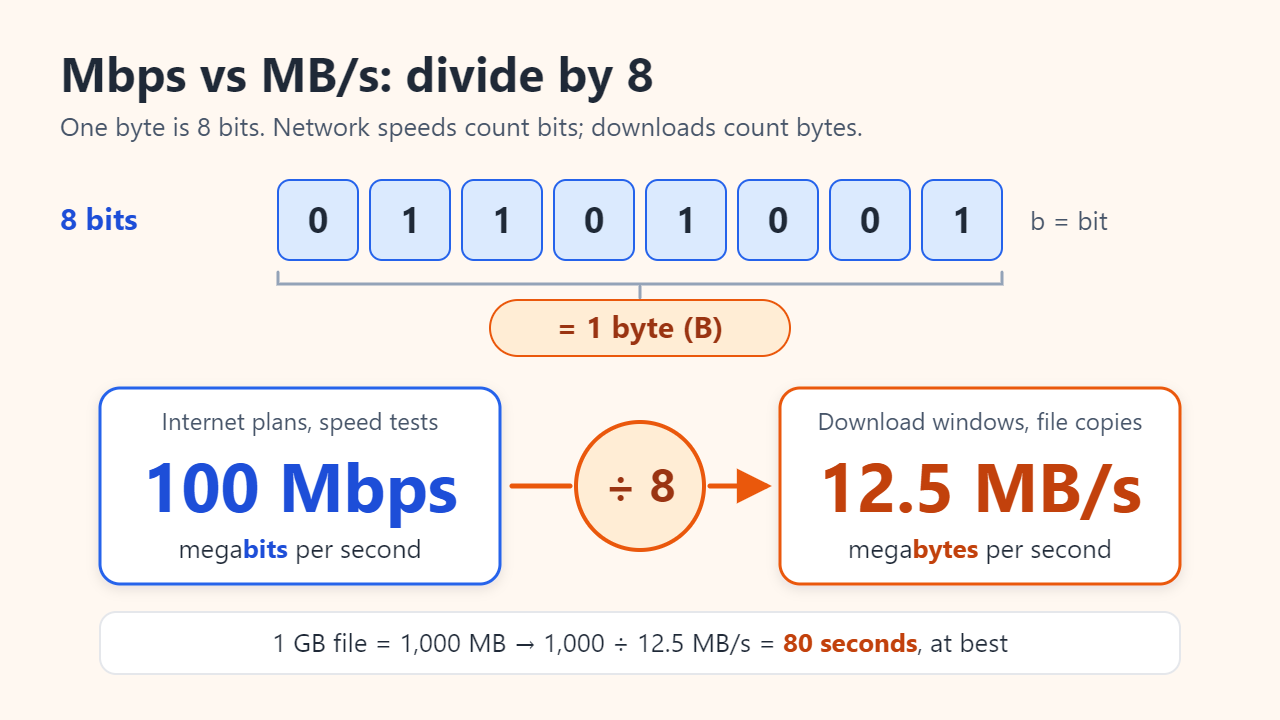
Bits vs bytes: why one letter changes the number
A bit is a single 0 or 1. A byte is a group of 8 bits and the unit used for files, memory and storage (NIST's reference on unit prefixes lists 1 B = 8 bit). Network links send data as a stream of bits, so internet plans, routers and speed tests quote bits per second, while browsers, game launchers and file-copy dialogs report bytes per second. On screen, the only difference is a lowercase b or a capital B.
- Mbps or Mb/s: megabits per second (lowercase b). Used for plan speeds, speed tests and router specs.
- MB/s or MBps: megabytes per second (capital B). Used in download windows and file transfers.
- Gbps: gigabits per second. 1 Gbps = 1,000 Mbps, not 1,024.
Network speeds use decimal prefixes: 100 Mbps means exactly 100,000,000 bits per second. As long as both sides use the same decimal mega, converting between them really is just a division by 8.
How to convert Mbps to MB/s and estimate download time
- Divide the speed by 8. 100 Mbps ÷ 8 = 12.5 MB/s.
- Express the file size in megabytes. In decimal units 1 GB = 1,000 MB, so a 50 GB game is 50,000 MB.
- Divide the size by the speed. 50,000 MB ÷ 12.5 MB/s = 4,000 seconds, about 1 hour 7 minutes.
The table applies the same steps to common plan speeds. Treat the results as ceilings: they assume the connection runs flat out with zero overhead.
| Plan speed | Max MB/s (÷ 8) | 1 GB file | 50 GB file |
|---|---|---|---|
| 50 Mbps | 6.25 MB/s | 160 s (2 min 40 s) | 8,000 s (about 2 h 13 min) |
| 100 Mbps | 12.5 MB/s | 80 s (1 min 20 s) | 4,000 s (about 1 h 7 min) |
| 300 Mbps | 37.5 MB/s | 26.7 s | 1,333 s (about 22 min) |
| 500 Mbps | 62.5 MB/s | 16 s | 800 s (13 min 20 s) |
| 1 Gbps | 125 MB/s | 8 s | 400 s (6 min 40 s) |
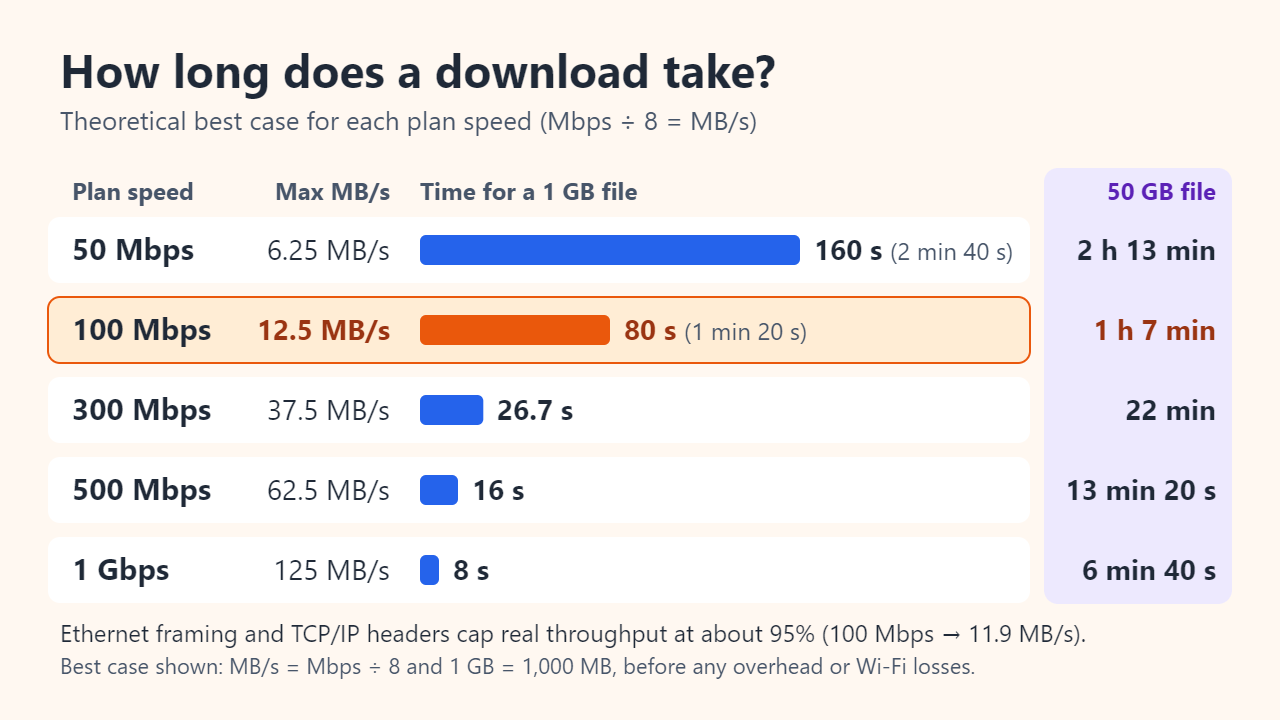
For a quick real-world planning figure, a common shortcut is to divide by 10 instead of 8. That is a rule of thumb rather than a standard, but it leaves a 20% margin for the losses described below: 100 Mbps becomes roughly 10 MB/s, so a 50 GB download is budgeted at about 83 minutes.
Why real download speeds are lower than Mbps ÷ 8
Dividing by 8 gives the ceiling. Several things sit between that ceiling and the number in your download window.
Protocol overhead takes about 5%
Every packet carries Ethernet, IP and TCP headers, and Ethernet also spends a preamble and an idle gap on each frame. RFC 6349, the IETF framework for TCP throughput testing, works through a standard 1,500-byte packet: each frame occupies 1,538 bytes on the wire but carries only 1,460 bytes of your data. That caps TCP over 100 Mbps Ethernet at about 94.9 Mbps (11.9 MB/s), and over gigabit Ethernet at about 949 Mbps (118.7 MB/s).
Wi-Fi
Wireless links lose speed to distance, walls, interference and neighboring networks, and every device on the same channel shares the airtime. The "Link speed" Windows shows for a Wi-Fi connection is the negotiated radio rate, not the data rate you will actually get.
The server and the distance
A download can only be as fast as the server sending it, and some servers limit the speed per user. Distance matters too: RFC 6349 notes that a single TCP connection cannot exceed its receive window divided by the round-trip time, so a far-away server can be slow even on a fast line.
Sharing and your own hardware
Other devices streaming, backing up or updating take their share of the line, and provider networks can get busier in the evening. Old hardware sets limits as well: a laptop or TV with a 100 Mbps Ethernet port cannot exceed about 94.9 Mbps even on a gigabit plan, and a slow USB stick or hard drive may not write as fast as the network delivers.
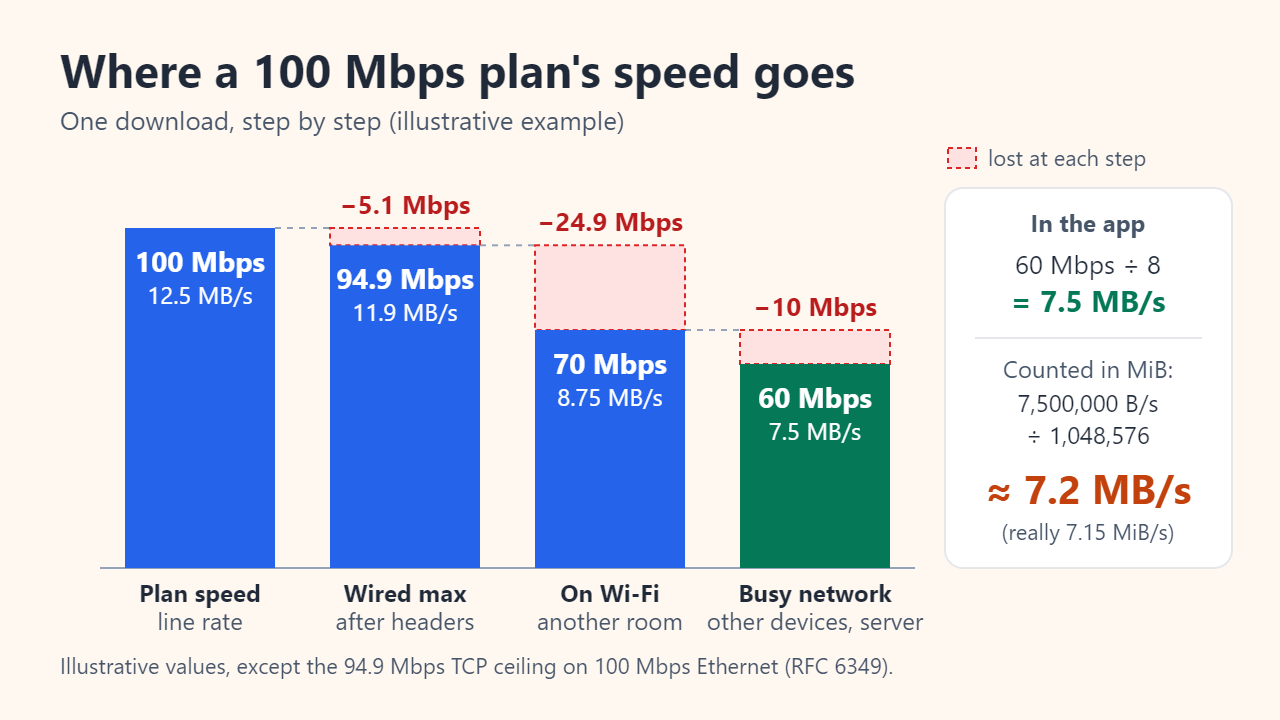
Figure 3 traces one illustrative case. Overhead brings 100 Mbps down to 94.9 Mbps; Wi-Fi from another room drops it to 70 Mbps (8.75 MB/s); a TV streaming at the same time and a busy server take it to 60 Mbps. That is 7.5 MB/s, and an app that counts in binary megabytes would show about 7.2 MB/s.
MB vs MiB: why Windows shows smaller numbers
The last gap is purely about labels. The SI prefix mega means 106, so 1 MB = 1,000,000 bytes. For powers of two, the IEC approved separate binary prefixes in 1998: 1 MiB (mebibyte) = 1,048,576 bytes and 1 GiB (gibibyte) = 1,073,741,824 bytes. Windows File Explorer has long followed the older habit of calling 1,024 bytes a "KB", so the sizes Windows labels MB and GB are really MiB and GiB.
| Quantity | Decimal (SI) | Binary (what Windows calls MB/GB) |
|---|---|---|
| A 60 Mbps download | 7.5 MB/s | 7.15 MiB/s (shown as about 7.2 MB/s) |
| A 1 GB file | 1,000 MB | 953.7 MiB (0.93 GiB) |
| A 1 TB drive | 1,000 GB | 931.3 GiB |
The gap is about 4.6% at the mega level and 6.9% at the giga level. Nothing is missing: the same bytes are simply measured with a different ruler.
How to test your internet speed accurately
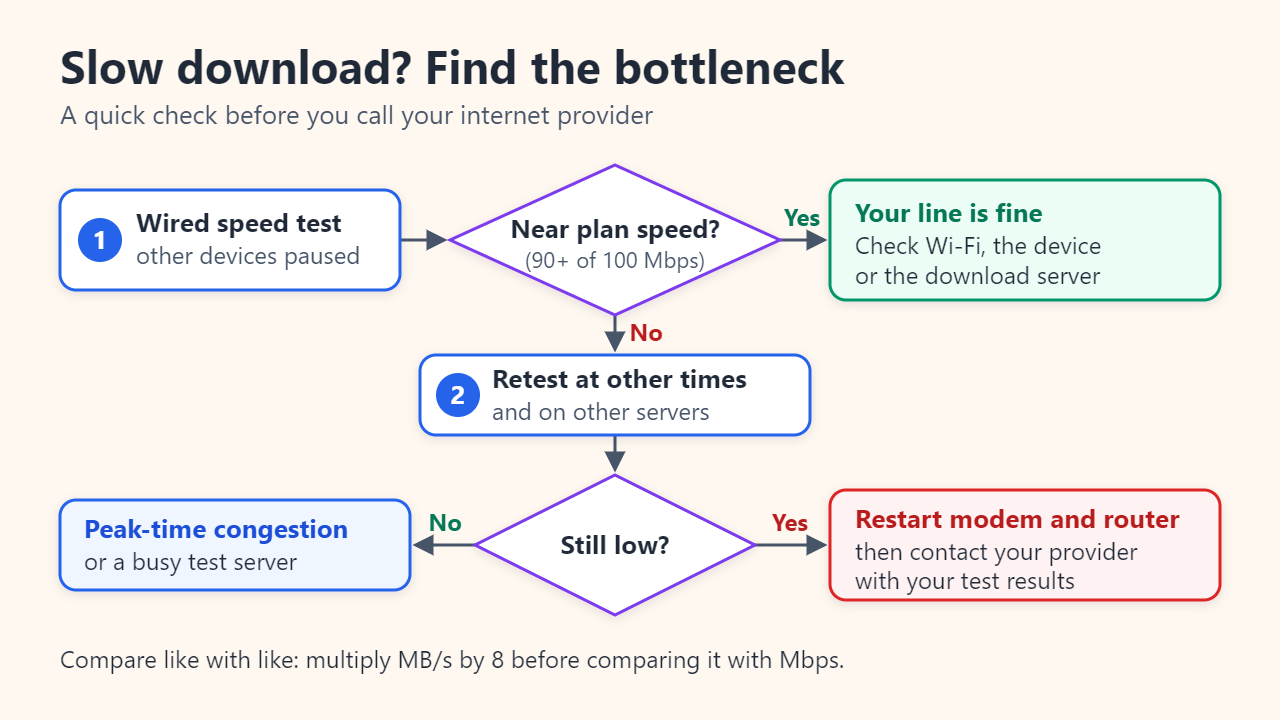
- Start wired. Connect a computer to the router with an Ethernet cable, ideally through a gigabit port, so Wi-Fi is out of the picture.
- Quiet the network. Pause downloads, cloud backups, game updates and streaming on every device.
- Repeat. Run several tests against different servers and at different times of day, including the evening.
- Compare like with like. Speed tests report Mbps; downloads report MB/s. Multiply MB/s by 8 before comparing, or watch the Performance tab in Task Manager, which shows live network throughput in Kbps or Mbps.
- Then test Wi-Fi from where you actually use the device. The gap between the wired and wireless results is your Wi-Fi loss.
As a practical guide, a wired result of 90 Mbps or more on a 100 Mbps plan means the line is delivering close to the 94.9 Mbps TCP ceiling. Some providers provision a little above the advertised speed, so a result slightly over 100 Mbps is normal too. If wired results stay well below the plan at different times and on different servers, restart the modem and router, then contact your provider with your results.
FAQ
Is 1 Gbps internet 1 GB per second?
No. 1 Gbps ÷ 8 = 125 MB/s at most, and about 118.7 MB/s after Ethernet and TCP/IP overhead. A 1 GB file therefore takes about 8.4 seconds at best, and only if Wi-Fi, ports and storage all keep up.
My speed test shows 94 Mbps but my download says 11.2 MB/s. Is something wrong?
Probably not. 94 ÷ 8 = 11.75 MB/s, and an app that counts in binary megabytes displays that as about 11.2 MB/s. Both readings describe the same speed.
Does the same math work for upload speed?
Yes. A 20 Mbps upload moves at most 2.5 MB/s, so a 1 GB video needs at least 400 seconds (6 minutes 40 seconds) to upload.
Sources: NIST: Prefixes for binary multiples; IETF RFC 6349: Framework for TCP Throughput Testing; Microsoft, The Old New Thing: Why does Explorer use the term KB instead of KiB?
Related reading
Original illustrations created to help explain this article.