When Windows 11 Wi-Fi Fails: Distinguish No Connection from No Internet First
This article was translated from its source language with AI assistance. Please check technical terms and equations against the original.
Not every laptop internet failure is the same Wi-Fi problem. First distinguish a missing network list, inability to connect to the router, and an established connection without internet. This guide checks basic Windows 11 settings and other devices in sequence. Consider network reset last, because it can affect existing connection settings.
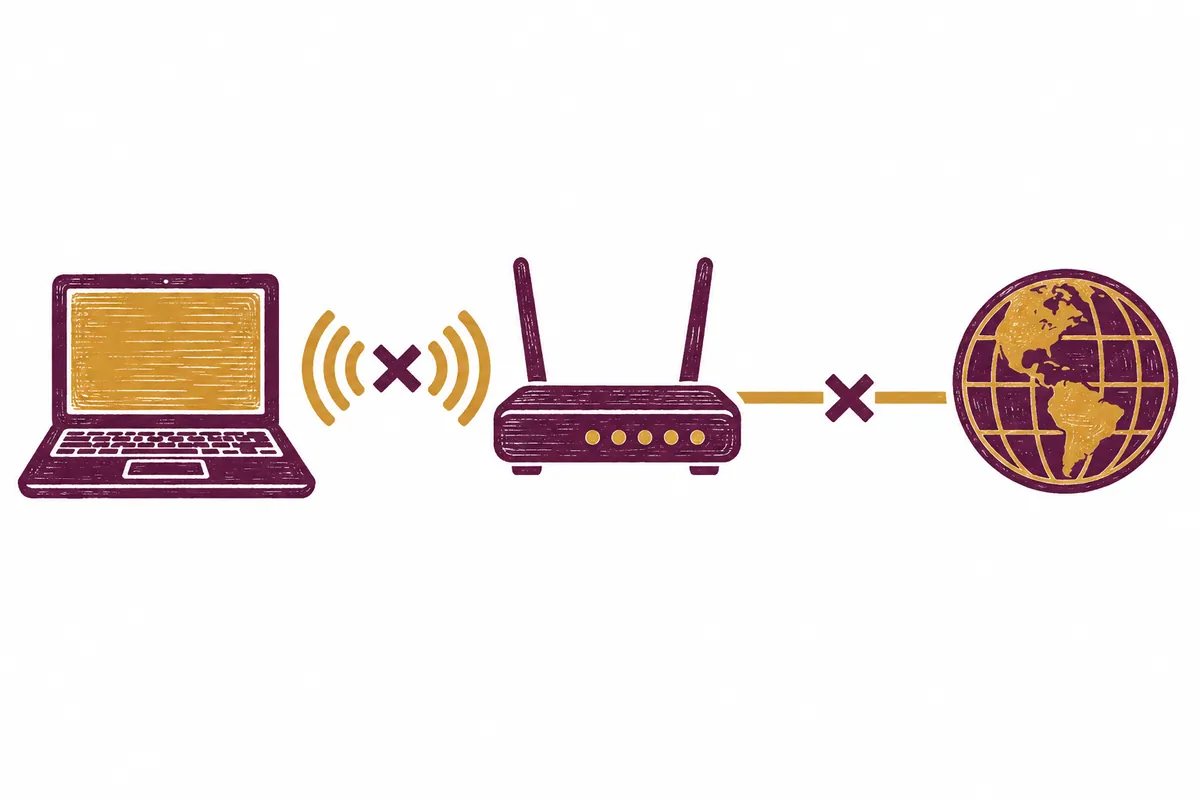
Before Checking: Choose One of Four Situations
| Visible symptom | First check | Do not immediately assume |
| Wi-Fi option itself absent | Wireless switch and device status | Password error |
| Network name absent | Signal range and other devices' lists | Complete Windows failure |
| Name visible but connection fails | Selected name and authentication information | Internet-line failure |
| Connected but no internet | Compare other devices on the same Wi-Fi | Wireless hardware failure |
Before checking connections, determine whether file transfers, remote work, or online meetings are ongoing. Reconnecting or switching off routers can interrupt them. Note intended setting changes and the current network name, and prepare another device for viewing instructions.
Personal home routers and workplace, school, or accommodation networks permit different checks. You can inspect a personal router using its manual, but public equipment may require staff guidance. Check for separate login or authentication beyond passwords. Do not invent unknown access information.
1. Record the Current Symptom First
Check the taskbar network area and Settings → Network & internet → Wi-Fi. Look for the Wi-Fi button, nearby network names, and status beneath the usual network. “Connected” and “No internet” are different states.
Also distinguish one inaccessible website from all webpages and apps failing. If other sites work, consider that service or app rather than the entire wireless connection. This stage chooses the next check, not a definitive cause.
“My home Wi-Fi name appears and says connected, but webpages do not open” is more specific than “Wi-Fi doesn't work.” If the Wi-Fi menu is absent entirely, reentering a password is not a logical first step.
2. Check Wi-Fi and Airplane Mode
- Check that Wi-Fi is enabled.
- Check that Airplane mode is off in Settings → Network & internet → Airplane mode.
- Select your network name from the list.
- If necessary, verify the password and try connecting.
These checks follow Microsoft's Wi-Fi troubleshooting guide. Some laptops have physical wireless switches or separate keys, so check device instructions if the Wi-Fi option disappeared.
With multiple similar names, first confirm the usual network. A number in its name does not establish the same router. Follow designated networks and access methods in cafés or workplaces rather than randomly choosing unknown networks.
Checks When a Wi-Fi Name Is Missing
- Compare with your recorded usual network name.
- Check whether it appears near the router.
- Compare whether another device sees the same name.
- Check router power and indicators against its manual.
- Check whether an administrator renamed it or provided another access method.
One home's frequency bands may appear under separate names. Microsoft describes comparing connections using another available band. First verify that listed names actually belong to the same router. Do not test a neighbor's network merely because its name is similar.
If problems occur only far from the router, record changes after moving closer. This does not establish an exact cause, but distinguishes location-specific from universal problems. Record original and new locations, list visibility, and web-access results.
3. Compare the Same Wi-Fi with a Phone
Connect another laptop or phone to the same Wi-Fi and check webpages. Phones may use mobile data, so verify the actual wireless network. Different comparison conditions do not help distinguish PC from router problems.
If other devices on the same Wi-Fi also lack internet, inspect the router or internet line. If they work and only your PC fails, focus on PC settings and wireless-device status. Neither comparison alone identifies the exact failed component.
Restarting a router can interrupt others' calls, meetings, or transfers. Even at home, choose a time without ongoing work and restart normally according to its manual. Arbitrarily switching off workplace or public routers is inappropriate.
How to Read Phone Comparison Results
| Phone on the same Wi-Fi | Windows PC | Next investigation direction |
| Internet works | Cannot access | PC connection information and diagnostic results |
| No internet | Cannot access | Router, internet line, and service notices |
| Works only on mobile data | Cannot access | Compare again under matching conditions |
| Only one site fails | The same site fails | That service's status and address |
Even a phone showing a Wi-Fi icon may load pages over mobile data, so exclude that possibility. Verify the same network and compare two or three general pages without personal information. One failing site alone does not justify proceeding to router reset.
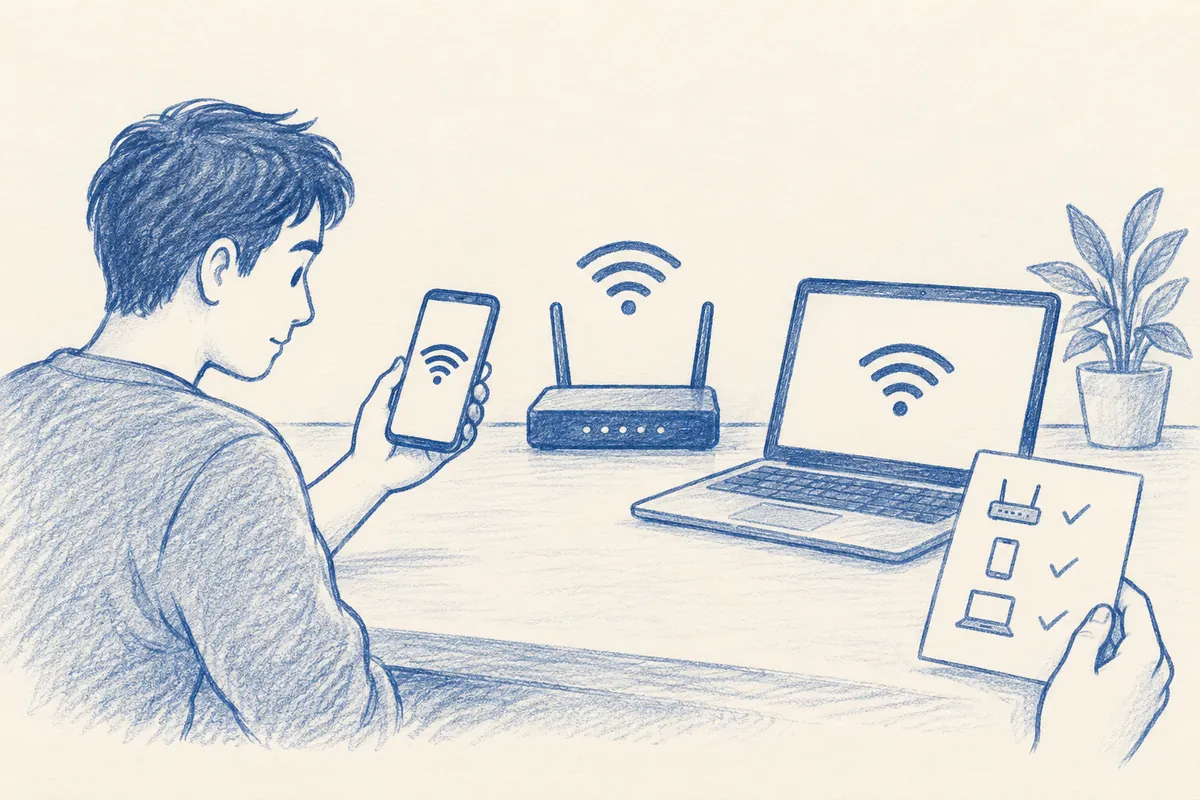
Distinguish normal router restart from pressing factory reset. For restart, follow manufacturer instructions including power and preparation times. Factory reset may require rebuilding network names and access settings, so keep it separate from basic checks.
4. Reconnect and Use Official Troubleshooters
If connection fails only for a specific network, consider deleting its saved connection and reconnecting. In Settings → Network & internet → Wi-Fi → Manage known networks, forget the network and enter its password again. Proceed only when the information needed for reentry is ready.
Workplace or school networks may require authentication beyond a password. Check staff guidance before deleting connections there. Change one step at a time and inspect whether status changes.
Windows 11 offers the Network and Internet troubleshooter in Get Help. Follow its questions and recommendations and record results. Saving work and restarting the PC normally to recheck status can also be part of basic diagnosis.
Preparation and Practice Before Forgetting a Saved Connection
- Check the currently connected network name.
- Ensure you can retrieve its password or organizational access procedure.
- Save online work and check ongoing transfers.
- Select exactly one network in Manage known networks.
- Forget it, then enter required information for the same name.
- Check connection status and general webpages separately.
This resets saved access information. If required details for corporate or separately authenticated networks are unknown, get responsible staff's guidance first. Forgetting other connections simultaneously is unnecessary. Verify that the reconnected name is the originally intended network.
Find Network and Internet issues in Get Help, run diagnostics, and record the results. “No problem found” may differ from “internet works,” so finish by opening an ordinary page yourself. Retain new error messages with previous records.
5. Network Reset Comes Last
Microsoft presents network reset as the final step when earlier measures do not resolve the issue. In Windows 11, use Settings → Network & internet → Advanced network settings → Network reset. Do not press it immediately merely because the button exists.
Reset removes network adapters and their settings and restores them during restart. VPN clients or virtual networks may need reinstalling or reconfiguration, and network profiles need checking too. Prepare access information and recovery methods first.
Driver removal and network commands have broader effects than checking basic buttons. You may need manufacturer drivers obtained on another device, so read official guidance and identify your model. In work environments, consulting the administrator first helps restore later connectivity.
Checklist Before Pressing Reset
- Have basic switches, other-device comparison, reconnection, and official diagnostics been checked?
- Can network names and access information be prepared again?
- Do you use VPN or virtual networks, and know how to rebuild them?
- For a work PC, has an administrator confirmed reset is allowed?
- Is online work saved, and can instructions be viewed on another device?
If information is missing, prepare it before resetting. This reduces the risk of needing VPN installers or drivers while offline. Recording network profiles and connection status makes post-reset checks easier to choose.
Checking IP Information and Keeping Support Records
View connection information such as IPv4 addresses through connection properties under Settings → Network & internet or the connected Wi-Fi screen, as official settings guidance describes. This collects information; it does not arbitrarily change addresses or DNS values. Especially avoid changing fixed work settings without staff guidance.
PC 모델과 Windows 버전:
네트워크 이름(공유 가능한 범위):
Wi-Fi 옵션과 목록 표시 여부:
연결됨/인터넷 없음 등 현재 문구:
같은 Wi-Fi의 다른 기기 결과:
특정 사이트만 안 되는지:
최근 업데이트 또는 설정 변경:
Get Help 진단 결과:
이미 확인한 항목과 아직 하지 않은 항목:
For public-forum questions, remove unnecessary passwords, account information, and internal addresses, and describe required symptoms only. Recording changes also identifies settings to restore. Rather than concluding a router needs replacement or a PC is broken from one comparison, check recurrence under the same conditions before choosing the next action.
6. Frequently Asked Questions
Wi-Fi is connected but says No internet. Separate the PC-to-router connection from the router-to-internet connection. Comparing another device on the same Wi-Fi narrows the next target.
My phone works, but my PC does not. First confirm the phone actually uses the same Wi-Fi. If conditions match, check PC Airplane mode, connection information, and troubleshooter results in order.
Will changing DNS fix everything? Internet failures have various causes. Do not change DNS, drivers, and reset everything together without distinguishing symptoms. Knowing which step changed the status helps choose the next action.
Official sources: Microsoft — Fix Wi-Fi connection issues in Windows, Essential Network Settings and Tasks in Windows, Windows troubleshooters. Checked: 2026-10-03. Network names and cases are illustrative examples, not diagnostic results from actual devices.
Original illustrations created to help explain this article.
Original on Tistory ↗