2.4, 5, or 6GHz Wi-Fi? Start with placement and a repeatable test
This article was translated from its source language with AI assistance. Please check technical terms and equations against the original.
If Wi-Fi is fast beside the router but unreliable at your bedroom desk, inspect the wireless path before changing your internet plan. The 2.4, 5, and 6GHz bands are different radio options. Their usefulness depends on distance, walls, interference, and device support. A larger frequency number does not guarantee a better connection in every room.
Separate the radio band from the Wi-Fi generation
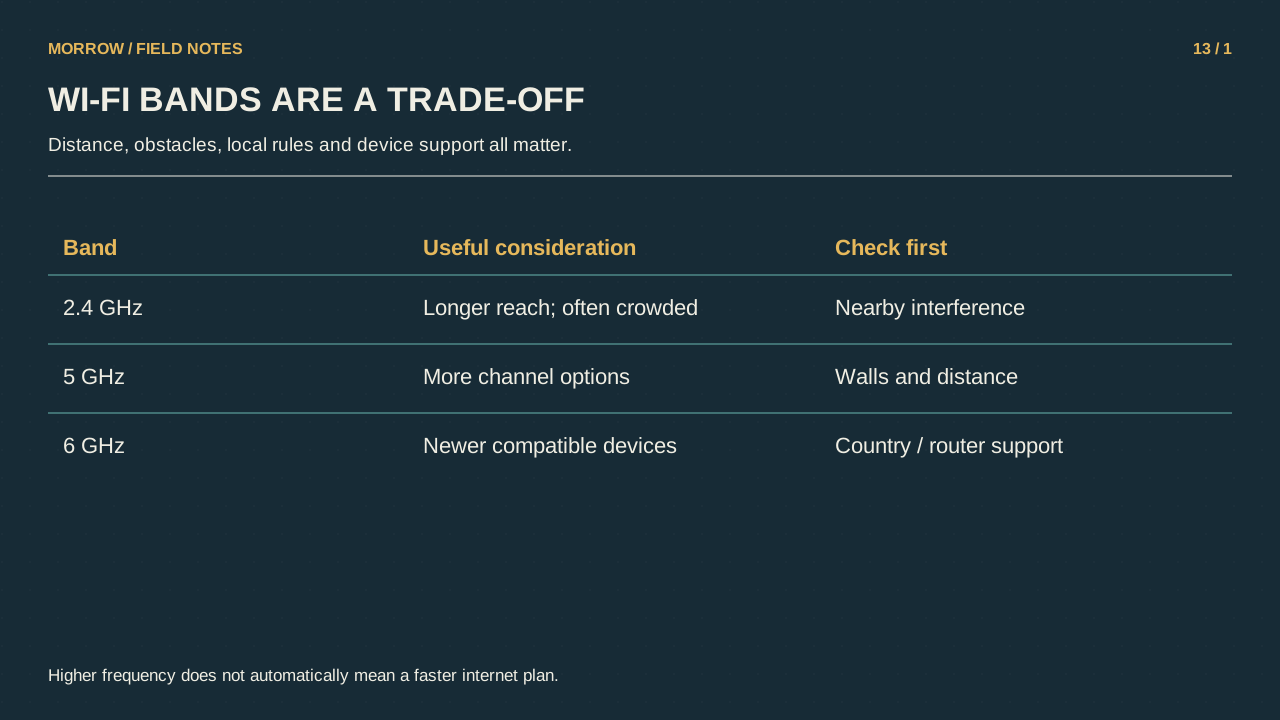
As a general tendency, 2.4GHz can maintain coverage farther away and through obstacles, while 5 and 6GHz can offer useful high throughput nearby. Actual results depend on the building and network configuration. Treat those tendencies as starting hypotheses rather than fixed speed promises.
The 6 in Wi-Fi 6 does not mean 6GHz. Wi-Fi 6E extends Wi-Fi 6 into the 6GHz band. Both the network equipment and the client need compatible support. Available spectrum also depends on country rules and the product's configuration.
| Situation | First experiment | Avoid assuming |
|---|---|---|
| Several walls away | Improve placement and compare 2.4GHz | 5GHz is always better |
| Large transfer near the router | Compare supported 5/6GHz using one task | Link speed equals internet speed |
| Older smart device | Check its supported bands | 6GHz must appear in its list |
Shorten the path instead of hiding the router
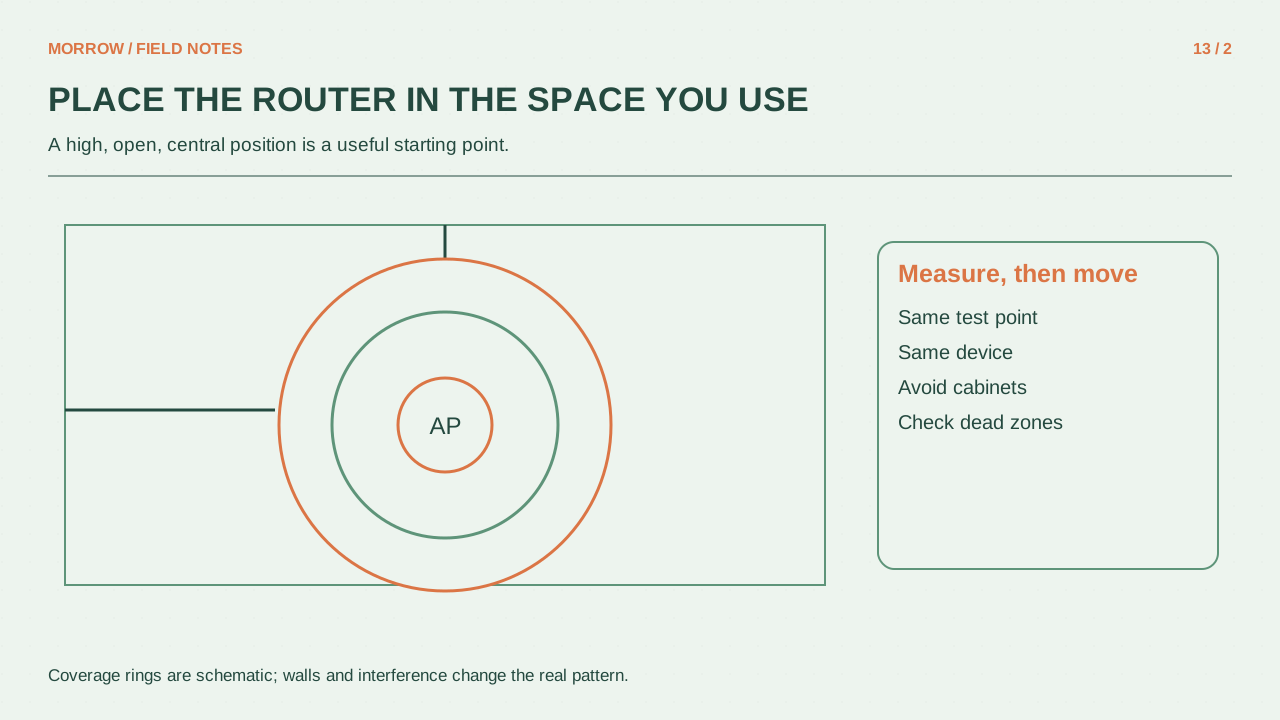
Try moving a router out of a closed cabinet or off the floor into a clear position. Start near the areas where you actually use the network. Avoid large metal obstacles and consider the walls between the router and each working position. Move one thing at a time so that you can tell what helped.
Google publishes placement guidance for its Nest products, including product-specific spacing. Do not convert those distances into a universal range guarantee. The transferable principle is that a wireless intermediate node needs a good upstream connection. Putting it at the far end of a room where the original signal is already unusable can simply relay a weak connection.
Build a ten-minute comparison log
- Choose one phone or laptop and one consistent task.
- Test beside the router, at the room entrance, and at the actual desk.
- Record time, connected band, result, and interruptions.
- Move the router once and repeat at the same points.
- Compare another device at the same time to check for a client-specific problem.
An internet speed test also measures the external connection and its test server. If possible, record local file-transfer results separately from internet results. A high displayed wireless link rate cannot remove a bottleneck outside your home. Stable service at the place you work is more useful than one unusually high result beside the router.
Check automatic band selection before splitting names
Some routers use one network name across bands and select automatically. The absence of separate 2.4GHz and 5GHz names does not mean a band is missing. Inspect the manufacturer's controls and the client's connection information first. Try separate names or band restrictions only when the product supports them, and record your starting settings so you can restore them.
Primary references: Google band operation, Google placement guidance, and Intel Wi-Fi 6E overview. The test plan does not promise a particular router's speed.
Related practical guides
Original illustrations created to help explain this article.