What Incognito actually hides: history, downloads and signed-in activity
This article was translated from its source language with AI assistance. Please check technical terms and equations against the original.
An Incognito window often opens without your usual website logins, but that does not make you an unnamed person on the internet. Its main purpose is to limit what the browser leaves on your device. Separate local history, a website's records and network observation before deciding whether it fits your task.
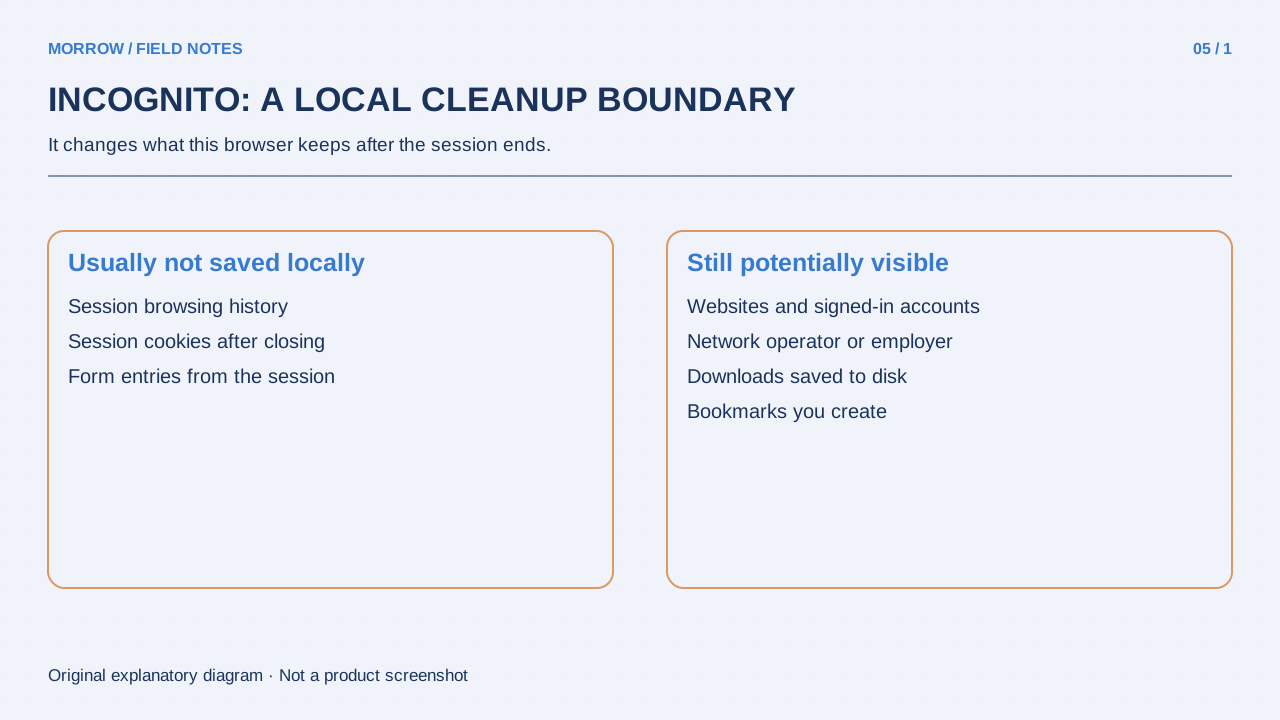
What remains after closing the session?
Chrome says it does not retain the session's browsing history and site data after the Incognito session ends. Downloaded files and saved bookmarks remain, however. If you have several Incognito windows open, you must close all of them to finish the session. Closing one window is not the same event. These details are documented in the official Incognito guide.
| Item | What to remember |
|---|---|
| Local history and session site data | Not retained after the session ends |
| Downloaded files | Can remain in the save location |
| Added bookmarks | Remain available in regular browsing |
| Activity in a signed-in service | A separate question from local history |
Signing in identifies you to that service
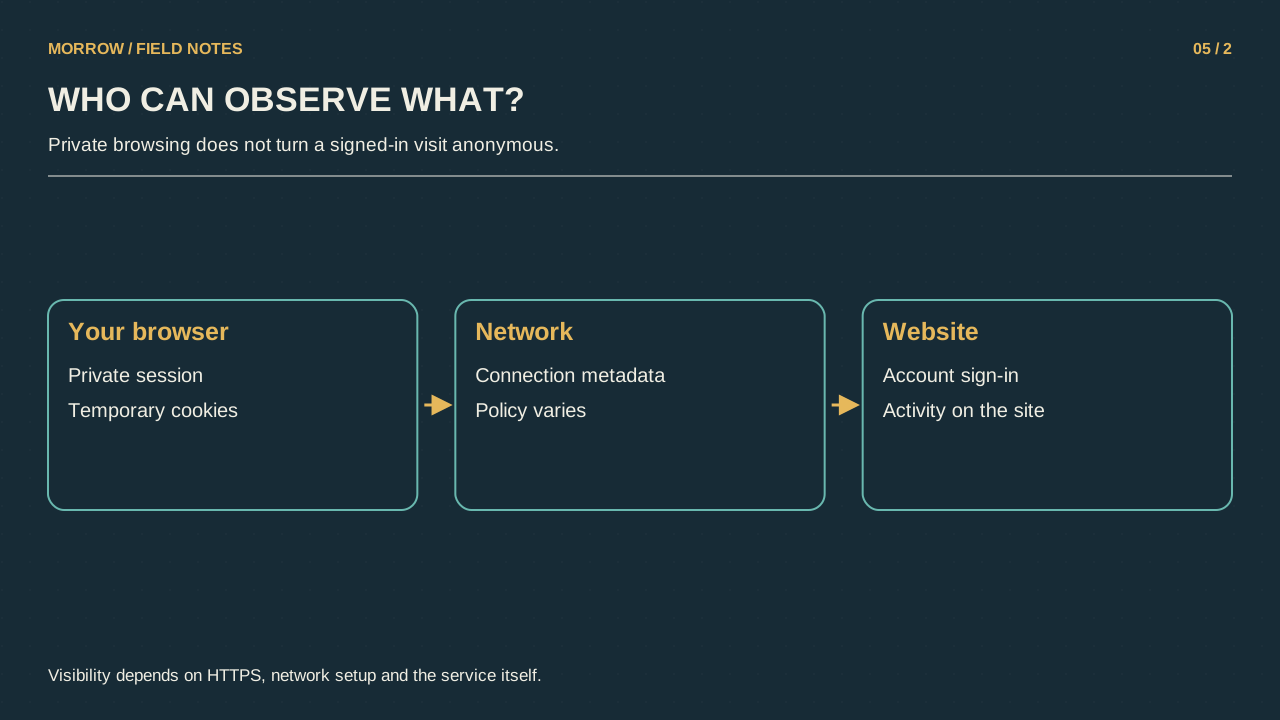
If you sign in to an email account inside Incognito, the email provider can recognize that account. A browser not storing local history and a website processing your activity are different things. Network operators such as an employer, school or internet provider may also observe activity. The precise information available depends on the connection and environment; there is no need to replace one myth with a claim that they necessarily see every page's content.
Choose a useful, bounded purpose
- Search for a gift on your own computer without adding it to your normal browser history.
- Temporarily check how a site looks when you are not already signed in.
- Perform a short task in a login session separate from your regular window.
Remember that third-party cookies are blocked by default in Chrome Incognito. A site behaving differently may therefore reflect cookie conditions rather than a special level of anonymity. If you are testing a page, record both login state and cookie conditions. “The ad changed” or “the sign-in button disappeared” is not sufficient evidence that the website cannot identify any activity.
Borrowed computers need another decision
Guest mode is a separate environment that does not expose or change another Chrome profile's information. Google's Guest mode guide explains its shared-computer use and limits. Neither Guest nor Incognito turns an untrusted device into a trusted one. Use sensitive accounts on devices you trust.
At the end, check for downloads, remaining windows and account sign-out. First state your goal: avoid local history, keep temporary sessions separate, or protect a different boundary. That makes choosing the right tool easier. Incognito has a clear purpose; knowing that purpose is more helpful than expecting its icon to hide every kind of activity.
Related practical guides
Original illustrations created to help explain this article.