Clear cookies for one site while keeping other sessions intact
This article was translated from its source language with AI assistance. Please check technical terms and equations against the original.
A login loop or broken cart on one website does not require erasing every browser session. Start with the affected site's stored data. Clearing it can sign you out and reset temporary state, so protect unfinished work before pressing a delete button. The aim is a controlled test, not a general browser clean-up.
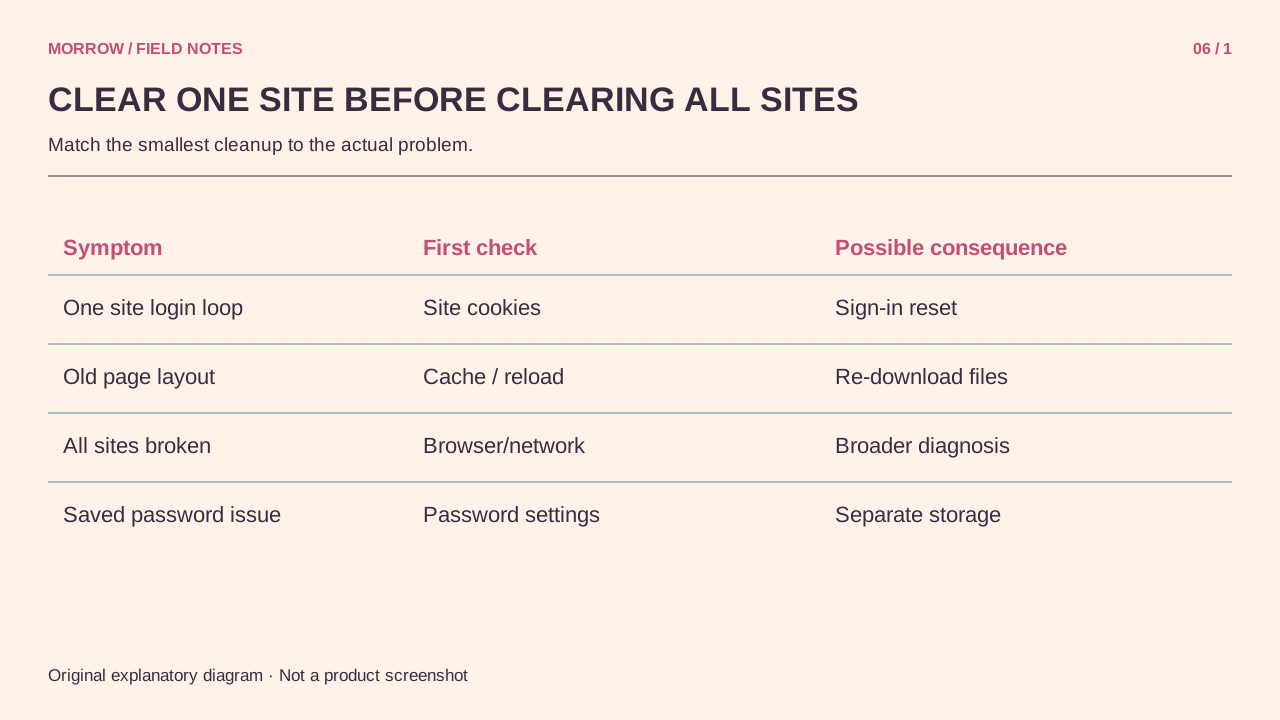
Data deletion is different from resetting permissions
Cookies and site data can maintain a login or cart. Camera and notification permissions authorize access to particular features. Do not treat “delete data” and “reset permissions” as the same operation. Chrome explains site-specific controls in its site settings guide. Choose the setting related to the problem you are testing.
Prepare three things first
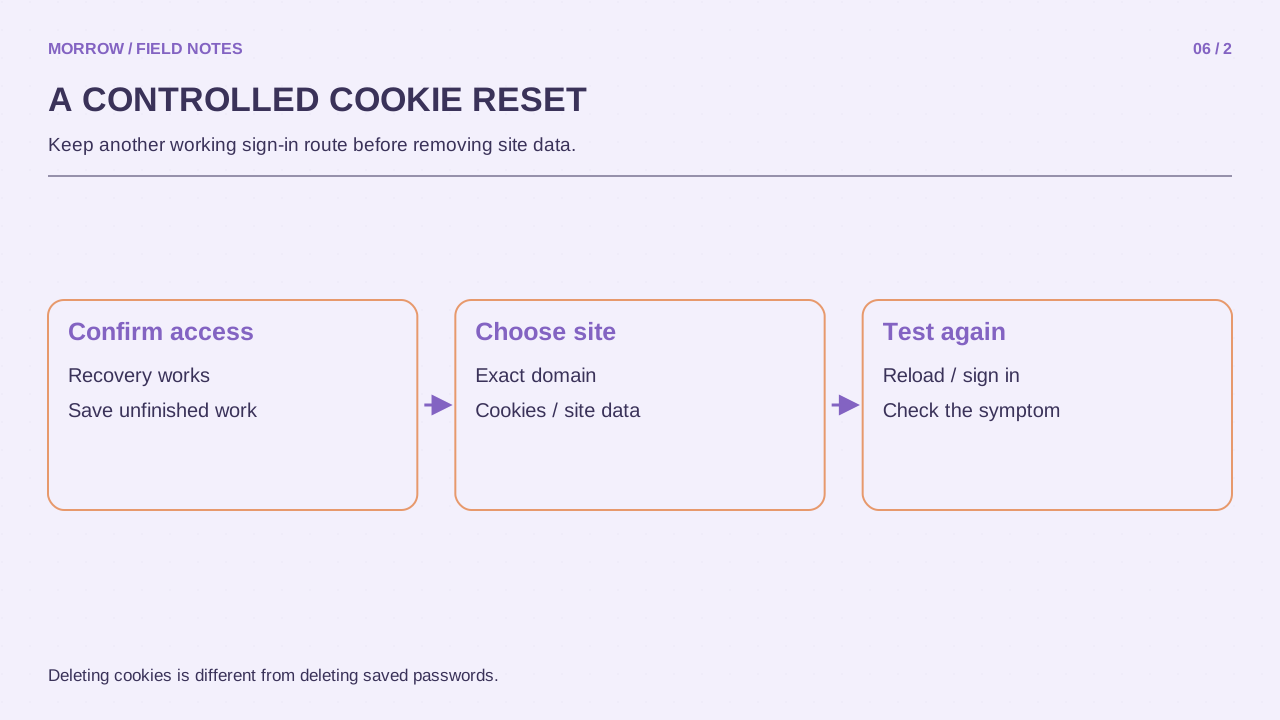
- Save unfinished writing, queued uploads and unsaved form information in a safe place.
- Confirm you can use the account's password and normal additional authentication method.
- Write down the affected address. If the service and its login provider use different domains, distinguish them before deleting anything.
For example, investigating a shop's cart does not automatically justify clearing every Google session. List the service address and the login-provider address separately. A narrow change reduces disruption and makes the result easier to interpret. You should know which session you expect to lose before making the change.
Find only the target site in Chrome
On desktop Chrome, open Settings, then Privacy and security, and find the view of site data and permissions. Google's cookie management guide documents viewing and deleting site data. Menu labels can vary with versions; the settings search for cookies or site data can help locate the equivalent control.
- Search the site list for the affected address.
- Verify the exact domain and any grouped related entries.
- Remove that site's stored data rather than selecting a delete-all command.
- Reopen the site's tab and sign in from its official address.
- Repeat the failing action once under the same conditions.
Use the outcome to choose the next test
| Outcome | Next check |
|---|---|
| Works normally | Record that stored site state may have been involved |
| Only sign-in fails | Review authentication and cookie restrictions |
| Same error remains | Investigate extensions, network or service problems |
Working in Incognito does not prove cookies were the only cause: extensions and account state may differ too. If the same failure returns immediately, record its message, time and address instead of repeatedly clearing everything. Likewise, do not broadly allow every cookie as your first fix. Change one relevant setting, repeat one action and keep the result. That gives you a small, useful troubleshooting record rather than a browser full of unrelated resets.
Repeat the original button sequence rather than merely refreshing until something changes. If the reproduction steps differ, you cannot easily distinguish the effect of clearing data from the effect of following another path through the website.
Related practical guides
Original illustrations created to help explain this article.