Stop browser notification spam by identifying the sending site
This article was translated from its source language with AI assistance. Please check technical terms and equations against the original.
An alarming message in the corner of your screen may be a website notification rather than a genuine system warning. If it comes from a browser, a site's notification permission may be involved. Identify the sending app and address before interacting with the message. Closing a tab and revoking notification access are different operations.
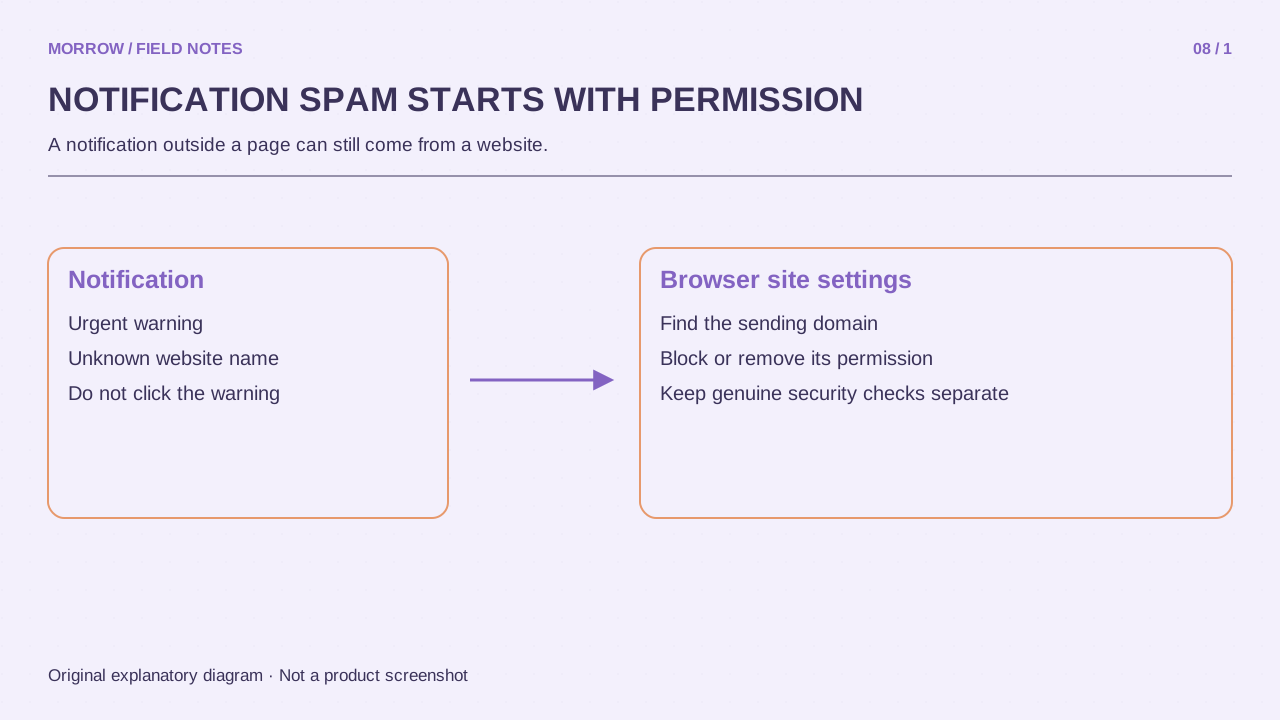
Separate notifications from pop-ups
Web notifications use permission granted to a website. Pop-ups and redirects create windows or move a page elsewhere. Both can look like advertising, but their controls differ. Chrome documents notifications in its notification guide. A familiar logo, urgent wording or a claim that your device is infected does not authenticate the sender.
Find the sender without clicking the warning
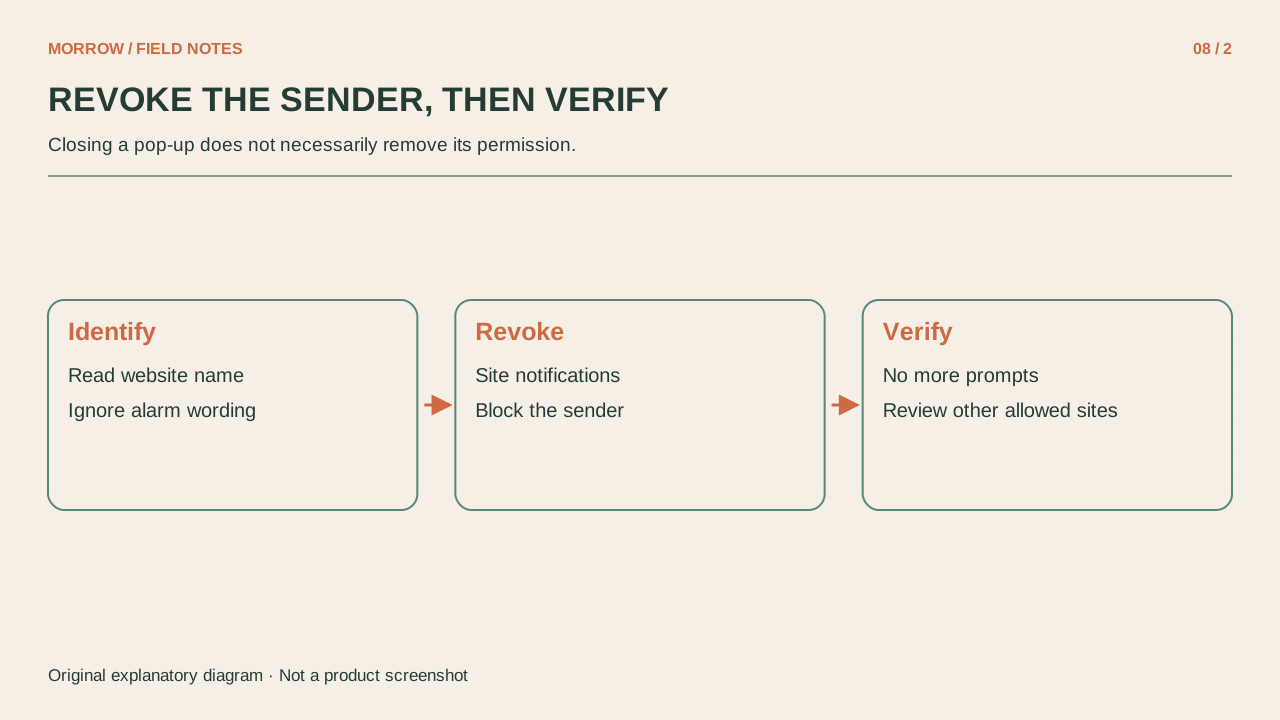
- Read the application name and website address shown on the notification. Your operating system's notification list may also expose them.
- In Chrome Settings, open Privacy and security, Site settings, then Notifications.
- Find the address among sites allowed to send notifications.
- Block the unwanted site's notifications. Simply removing an entry can let the site ask again, so confirm whether it is blocked.
- Decide separately which useful mail or calendar sites should retain permission.
Work and personal profiles can have different settings even in the same browser. If messages continue, compare the sending app, profile and address again. You may have changed the wrong profile or a different browser. This is a more targeted next step than resetting all browser settings. Keep one known, useful notification source as a reference if you rely on reminders.
Use the other control for pop-ups
If a webpage opens a new window or redirects you to another address, changing notification permissions may not address it. Review Pop-ups and redirects in Site settings. Google's pop-up guide explains the controls. Distinguish a necessary sign-in window from unwanted advertising and make the smallest suitable change.
| Observed behavior | First place to inspect |
|---|---|
| Corner notification showing a site address | That browser's notification permissions |
| A webpage opens a window or changes address | Pop-up and redirect settings |
| A different application is named | That application's notification settings |
Confirm that new messages stopped
Record the blocked address and time, then continue normal work and check for new messages from that sender. Old notification cards already stored by the operating system are different from newly delivered ones. Their presence does not necessarily mean blocking failed. Also question requests to enable notifications “to continue.” If a simple article or video cannot explain why ongoing alerts are needed, there is no reason to rush approval. When investigating installed apps or extensions, keep following the actual sender rather than the wording of the advertisement.
If you prefer no website notifications by default, you can choose that policy and make deliberate exceptions for services you need. First list any meeting reminders you rely on, so the cleanup does not quietly remove a useful part of your day.
Related practical guides
Original illustrations created to help explain this article.