Audit Chrome extension permissions without breaking your workflow
This article was translated from its source language with AI assistance. Please check technical terms and equations against the original.
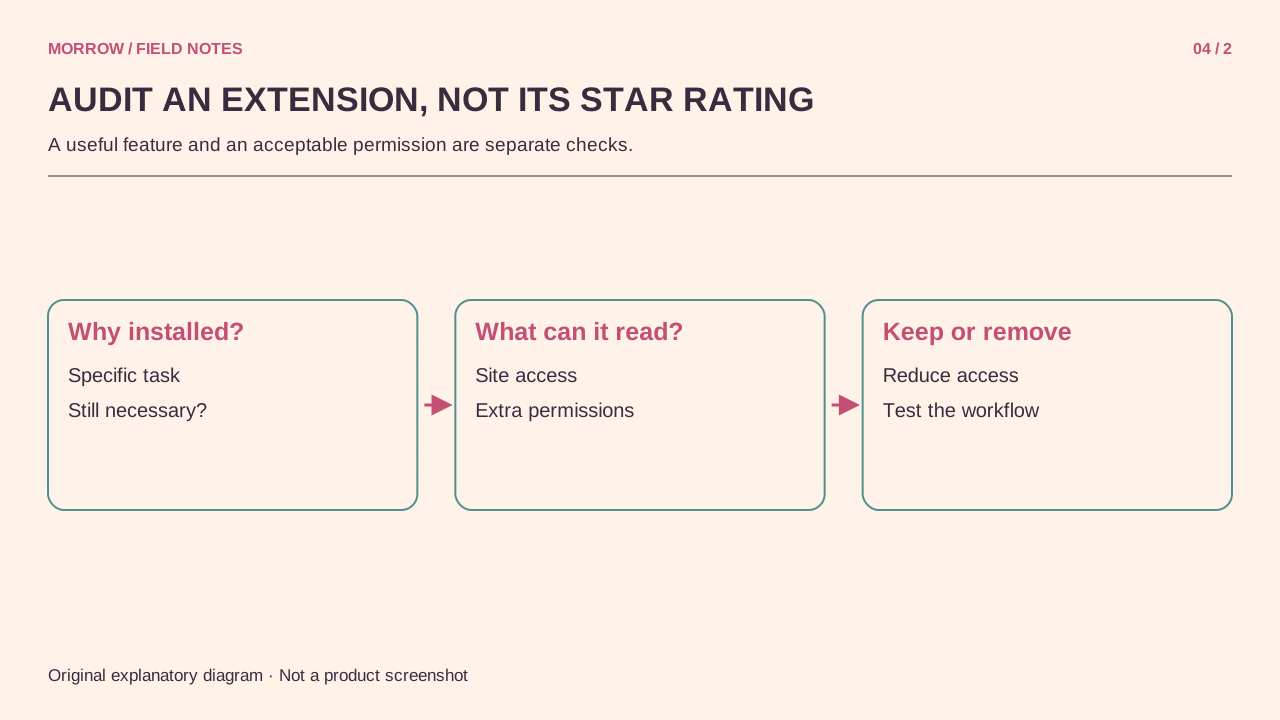
Spelling, translation, screenshots and comparison tools can accumulate until you no longer remember what your browser runs. Before counting extensions, write down which task each one serves and which access you granted for that task. An installed tool and its permission scope belong in the same audit.
Describe a real use, not a vague benefit
Open Chrome's extension management view and list the name, provider, purpose and last use of each item. “Translate selected paragraphs in meeting material” is more useful than “might be handy.” This is a necessity check rather than a made-up risk score. If an entry is unfamiliar, investigate its origin and provider before using it as an experiment. Start with a tool you understand so you can recognize whether your change affects its normal job.
Match site access to the job
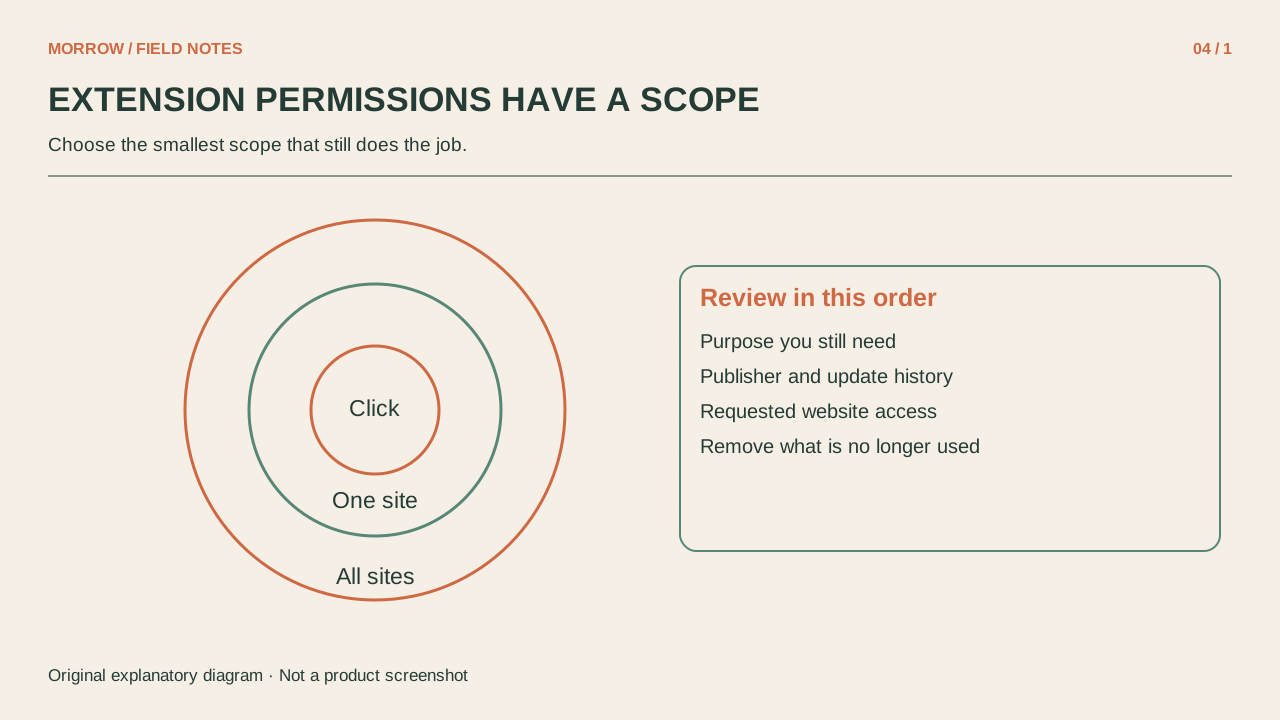
An extension may request permission to read or change data on websites you visit. The permission describes its possible reach, not every detail of how the provider processes data. Review the Chrome Web Store permission explanations and compare the requested scope with the function you actually use. A tool for one service deserves a different question from a tool you deliberately run across many sites.
| Your use | Setting to review |
|---|---|
| Occasional manual operation | Whether access on clicking is available |
| One particular service | Whether specific-site access is available |
| Continuous operation across websites | Whether broader access is necessary for that function |
Change one item and run one real task
- Open extension management from Chrome's menu.
- Inspect Site access in the item's Details view.
- Select the narrowest suitable option offered. Not every extension exposes identical choices.
- Perform one normal task on your usual website.
- If it fails, determine whether that particular site needs access before restoring access everywhere.
Google explains installation, removal and site-access changes in its extension management guide. Extensions that alter lower-level networking through VPN or proxy settings may not be affected in the same way. Managed work or school browsers can also restrict changes.
Review the additional switches
Allowing Incognito use and file-URL access are separate decisions from ordinary website access. A local-document feature may need file access; a tool you use only on a website may not. Check the provider and processing behavior before enabling it. Keep the date of your change and the task that still worked. That small record helps diagnose future problems. A tool whose purpose you still cannot explain next month becomes a sensible removal candidate, rather than a permanent passenger in every browsing session.
When two tools appear to do the same job, explain why both are enabled. Temporarily disable one and repeat a representative task. That provides a concrete way to discover overlap before removing something your workflow still depends on.
Related practical guides
Original illustrations created to help explain this article.