PDF search does not work? Five checks that matter after OCR
This article was translated from its source language with AI assistance. Please check technical terms and equations against the original.
A PDF can display perfectly legible words and still return no search results. The visible page may be a photograph rather than text. Optical character recognition, or OCR, turns characters in an image into searchable text. Successful search is useful, but it does not prove that the recognized document is accurate.
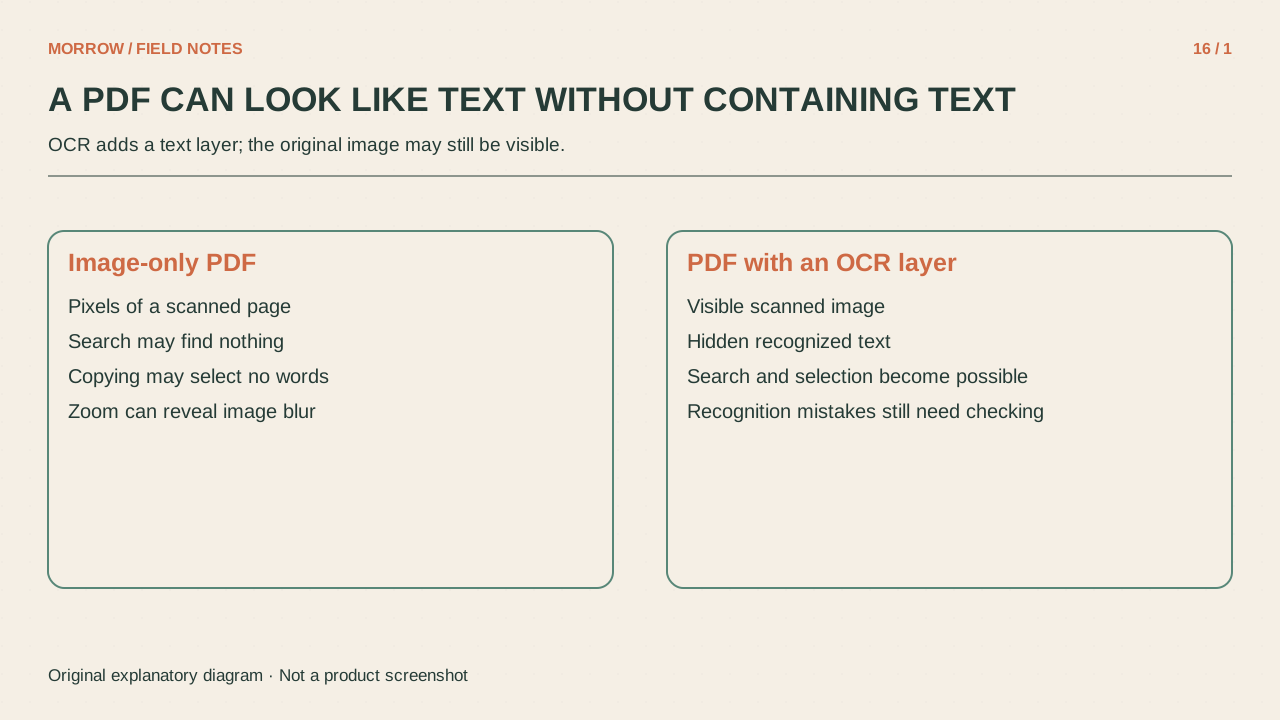
Test selection and search before processing
Select a short known phrase, copy it, and paste it into a plain-text editor. Search for a known title and a word in the body. If some pages work and others do not, the document may mix original text with scanned pages. Copying restrictions can also affect selection, so one failed copy is not conclusive evidence of an image-only PDF.
Preserve the original and run OCR on a separate copy. Acrobat desktop provides Scan & OCR controls for page range and recognition language. Available features and menu names can vary with the version and account; consult the documentation for the product you are actually using.
Separate a clean-looking page from correct text
OCR can retain the scanned page image while adding text used for searching. That means a clean visual page can conceal incorrectly recognized text. Check what you can copy as well as what you can see.
| Check | Test | Possible failure |
|---|---|---|
| Key words | Search known terms | Missing word fragments |
| Numbers | Compare digit by digit | 0/O or 1/l confusion |
| Units and symbols | Compare copied text with the scan | Lost decimal or minus sign |
| Tables | Copy one row and inspect relationships | Columns become detached |
| Multiple columns | Copy a paragraph and read the sequence | Text from different columns mixes |
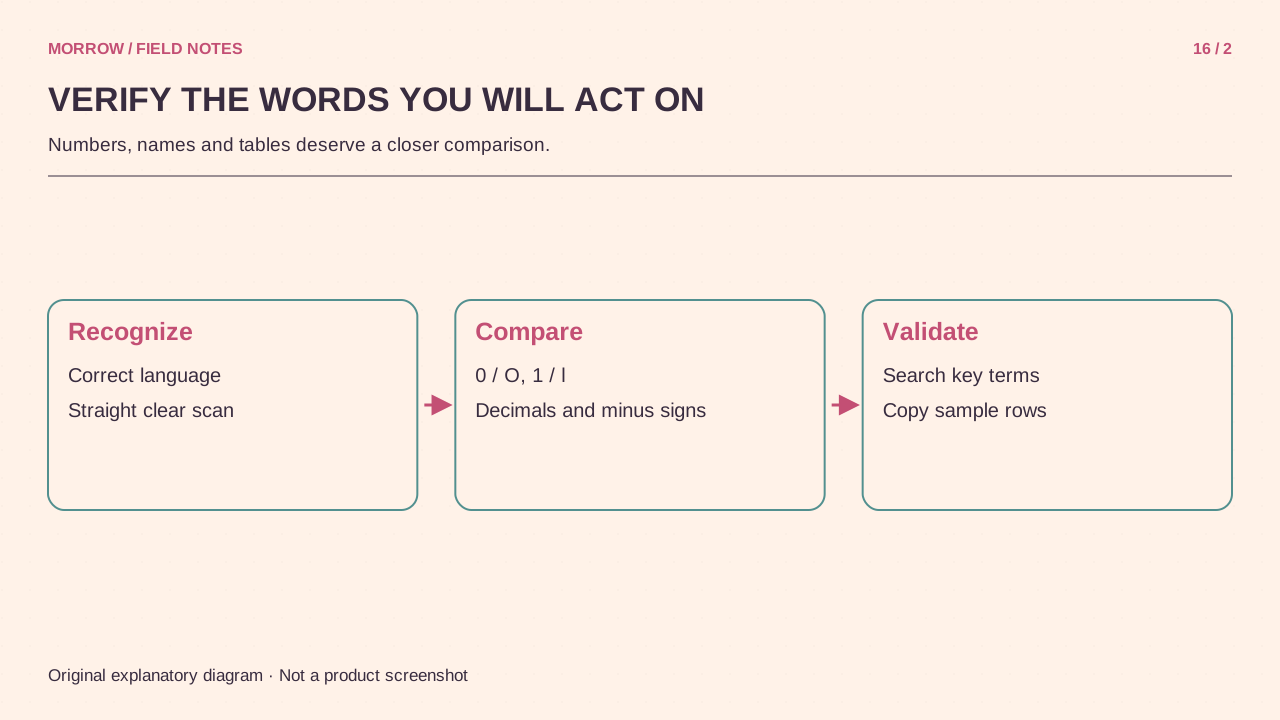
Improve the failing page instead of rerunning everything
Locate the pages with errors. Inspect skew, blur, shadows, cropped margins, and small text. Flatten the paper and use even lighting for a replacement scan. Increasing the display zoom does not recover character information absent from the source image.
For example, if only the table on page eight of a twenty-page guide is unreliable, rescan that page, use the appropriate recognition language, and compare the resulting rows. Decide on the checks before repeating the process. A small verification log shows whether the replacement actually improved the information you need.
Use different standards for search and extraction
Finding a chapter heading and transferring a numeric table into a spreadsheet require different levels of verification. For data extraction, compare every important value and unit you transfer against the original. A searchable PDF does not guarantee correct table structure or reading order. OCR creates characters; it is not an automatic certification of document accessibility or structure.
Do not aggressively compress the only original simply to make the searchable copy smaller. Keeping both the original scan and the processed version leaves an evidence source when an error is discovered later. Record the page range, language, reviewed pages, and remaining problems. That is more useful than reporting that OCR completed successfully.
Primary references: Adobe text recognition guidance and Adobe on hidden searchable OCR text. The verification checklist is an original practical example.
Related practical guides
Original illustrations created to help explain this article.