Hiding the Windows 11 and 10 Taskbar: Auto-Hide Settings and Shortcuts
This article was translated from its source language with AI assistance. Please check technical terms and equations against the original.
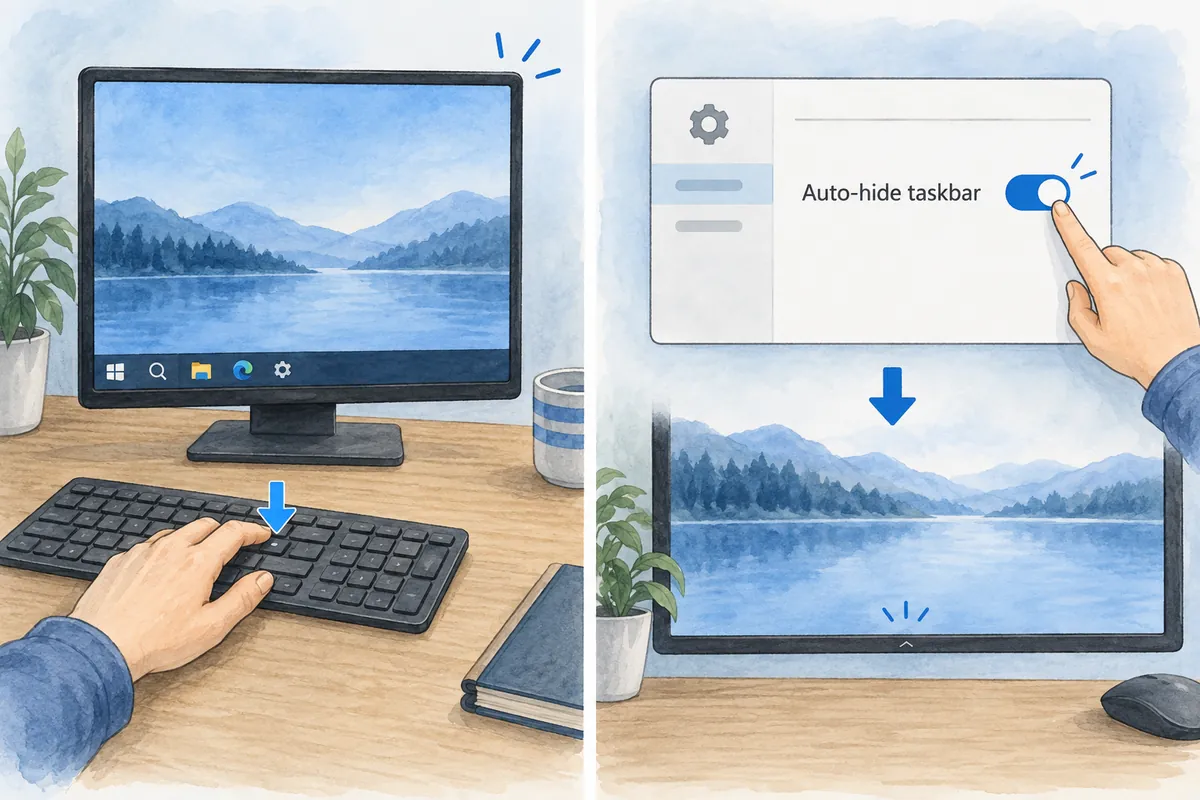
To hide the Windows taskbar, enable “Automatically hide the taskbar.” Change it under Taskbar behaviors in Windows 11 or Taskbar settings in Windows 10. Default shortcuts include no dedicated taskbar-hiding toggle: Win+D shows the desktop and Ctrl+Esc opens Start. If a separate shortcut is needed, you can optionally use the AutoHotkey v2 example below.

1. Automatically Hide the Windows 11 Taskbar
- Right-click an empty taskbar area and open Taskbar settings.
- Taskbar behaviors: expand this section.
- Automatically hide the taskbar: select this option.
- Move the pointer away and check that the taskbar hides. Move to its screen edge to reveal it again.
To find it directly in Settings, go to Win+I → Personalization → Taskbar. Uncheck the same option to keep it visible again.
2. Automatically Hide the Windows 10 Taskbar
- Settings → Personalization → Taskbar: open this page.
- Automatically hide the taskbar in desktop mode: turn this on.
- If using tablet mode, separately inspect its auto-hide option.
Reappearing at the screen edge is normal auto-hide behavior. This setting does not delete the taskbar.
3. Taskbar-Related Shortcuts: Distinguish Actual Actions
| Shortcut | Action |
| Win+I | Open Windows Settings |
| Win+R | Open Run |
| Win+D | Show desktop or return to existing windows |
| Ctrl+Esc | Open Start |
| Ctrl+Shift+Esc | Open Task Manager |
Win+D and Ctrl+Esc do not enable or disable taskbar auto-hide. Use auto-hide settings or create a custom shortcut as below.
4. Create Hide and Restore Shortcuts with AutoHotkey v2
The following is an optional AutoHotkey v2 example, not a built-in Windows shortcut. It works only while AutoHotkey runs and targets the primary screen's taskbar window.
- AutoHotkey official website: install v2 from here.
- Save the code below in a text editor and use the extension .ahk.
- Run the file, then use Ctrl+Alt+H to hide and Ctrl+Alt+S to restore.
- Press the restore shortcut before exiting. The script also attempts restoration on normal exit.
#Requires AutoHotkey v2.0

^!h:: {
    try WinHide("ahk_class Shell_TrayWnd")
}

^!s::RestoreTaskbar()

RestoreTaskbar(*) {
    try WinShow("ahk_class Shell_TrayWnd")
}

OnExit(RestoreTaskbar)
The example follows official WinHide, WinShow, and OnExit documentation, but was not verified in every Windows configuration. Secondary taskbars on multiple monitors may need separate handling; Explorer restart may clear hidden state. Forced process termination may not run OnExit restoration, so use both hide and restore shortcuts.
5. Checks When the Taskbar Will Not Hide
- Verify auto-hide is enabled and move the pointer away from the screen edge.
- Close open Start menus, taskbar menus, or notifications and check again.
- Open apps requiring notification or attention and inspect them.
- If still stuck, choose Windows Explorer → Restart in Task Manager and check settings. Finish ongoing work such as file copying first.
These procedures do not include arbitrarily editing registry bytes or working with Explorer terminated to resolve auto-hide problems.
6. Frequently Asked Questions
Can the taskbar be removed completely?
Auto-hide conceals it when unused and reveals it when needed. The script similarly changes visibility, not permanent removal of Windows components.
How do I show the hidden taskbar again?
For auto-hide, move to the screen edge or disable the setting. For the script, press Ctrl+Alt+S.
Is there a built-in Windows hide shortcut?
Microsoft's default shortcut list gives no dedicated taskbar-hide toggle. Win+D shows the desktop and must be distinguished from custom shortcuts.
7. Related Articles and Official References
Windows tips collection contains other settings and troubleshooting guides.
- Microsoft: Windows taskbar settings
- Microsoft: Default Windows shortcuts
- AutoHotkey v2: WinHide · WinShow · OnExit
For step-by-step Windows 11 settings screens, also check Windows 11 Taskbar Hiding and Restoration: Screen Guide. Existing screen examples explain from Start through the auto-hide checkbox.
Original illustrations created to help explain this article.
Original on Tistory ↗