Hide or Show the Windows 11 Taskbar: How to Configure Auto-Hide
This article was translated from its source language with AI assistance. Please check technical terms and equations against the original.
You can hide the Windows 11 taskbar at the bottom of the screen using auto-hide. Right-click an empty area of the taskbar, then enableTaskbar settings → Taskbar behaviors → Automatically hide the taskbar. It appears again when you move the mouse to the bottom of the screen.
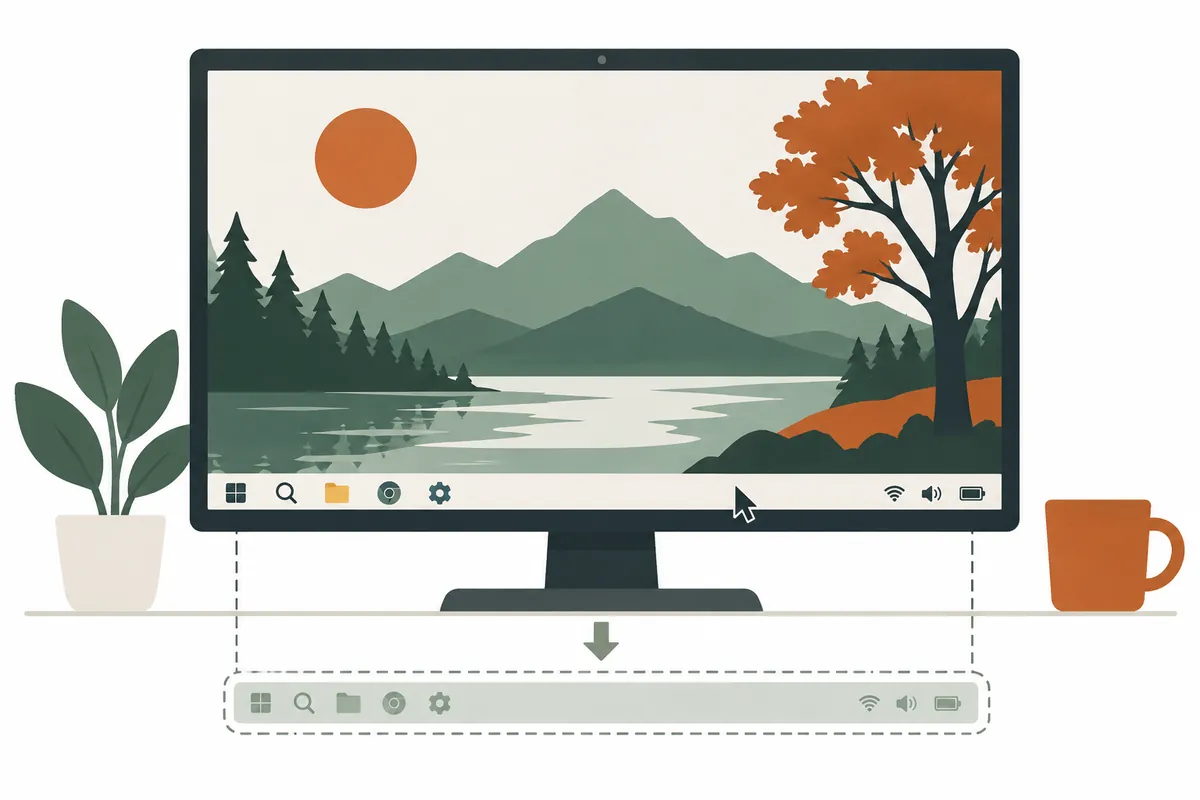
This article explains how to hide the taskbar and disable hiding using Windows 11's built-in settings, following the screens in order. For differences involving Windows 10 settings or keyboard shortcuts, seethe guide to hiding the taskbar and keyboard shortcuts.
Follow the Screens to Configure Windows 11 Auto-Hide
Today, I would like to introduce a tip that any computer user may need.. It concerns, 'hiding the taskbar/and showing it' .. This feature is useful when you want to make more space available on your screen..
Let us look at how to do it..
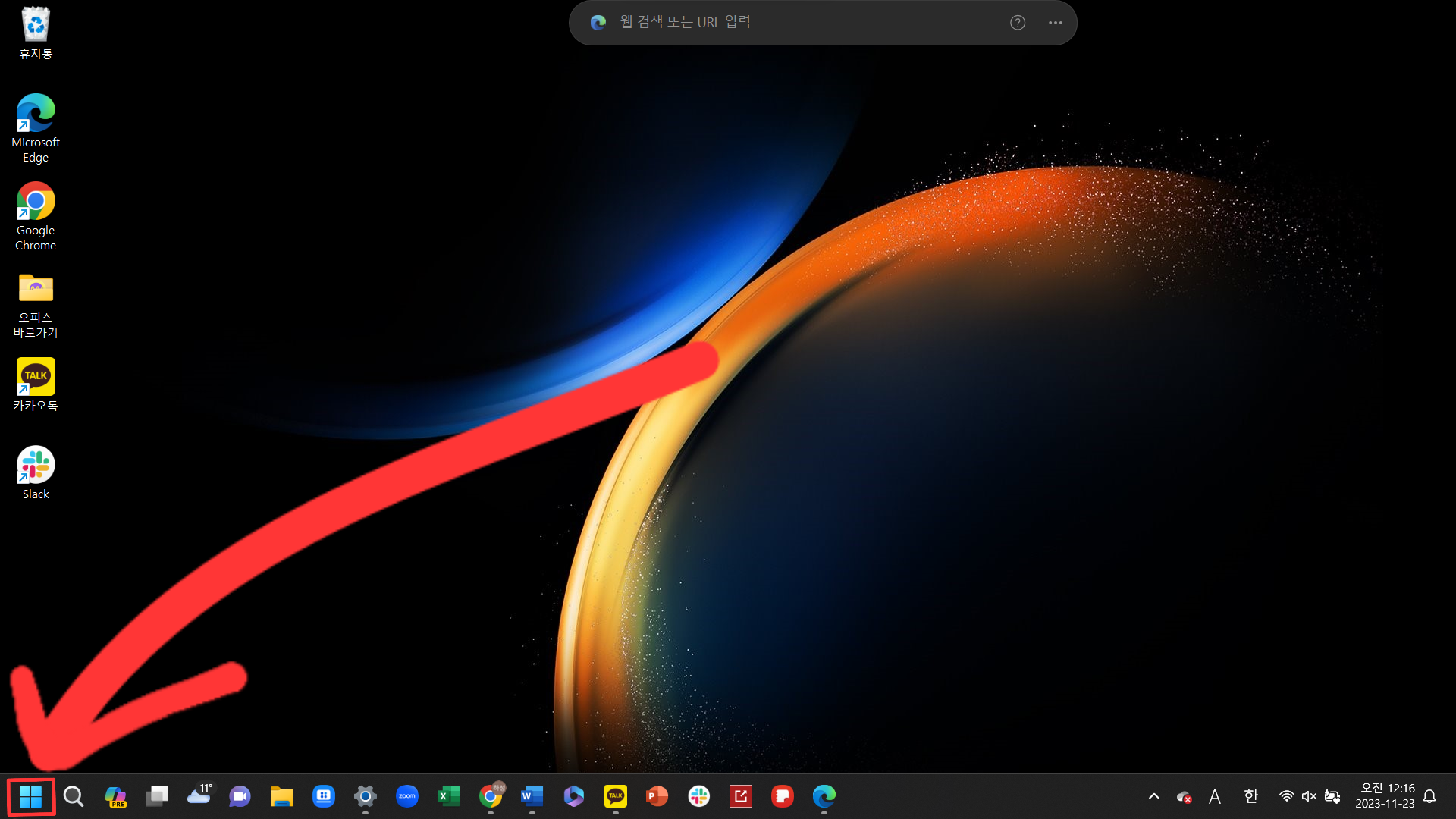
1. First, as shown below,click your computer's 'Start' button (the Windows button)to begin..
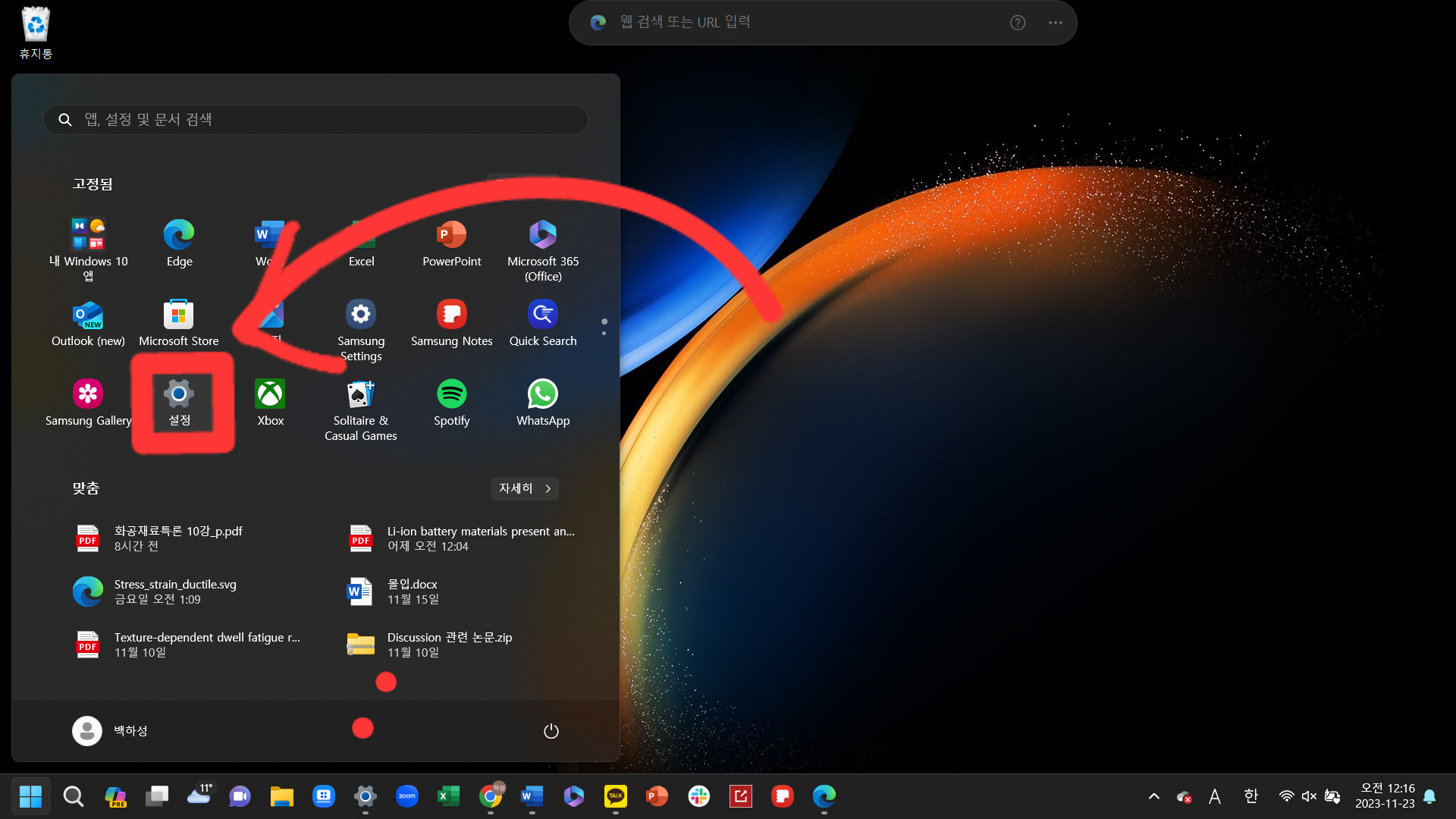
2. As shown below, clicking the 'Start' button (the Windows button)displays several options., Among them, choose 'Settings'.
3. 'Settings' displays a variety of configuration options when clicked.. Among these, find 'Personalization'and select it..
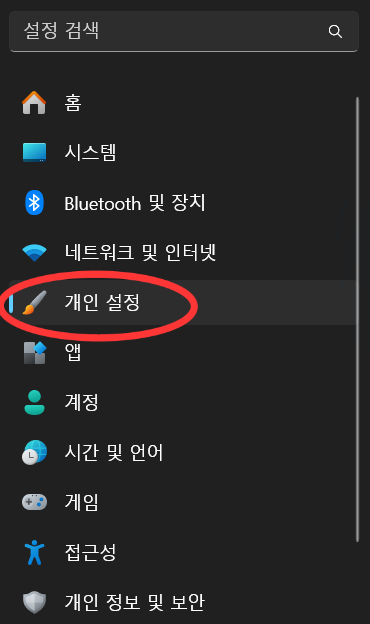
'Personalization' contains, when you scroll down, 'Taskbar'as one of its options.. Select it.
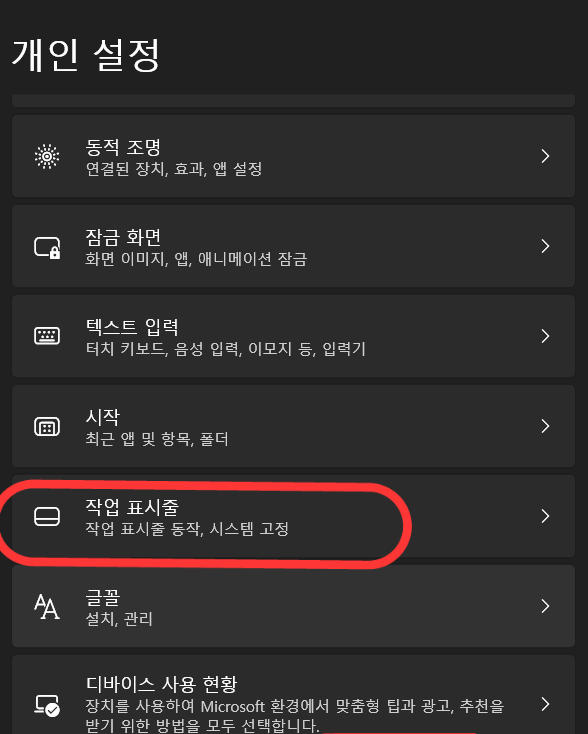
'Taskbar'displays various taskbar-related settings when selected., Scroll down to find 'Taskbar behaviors' .
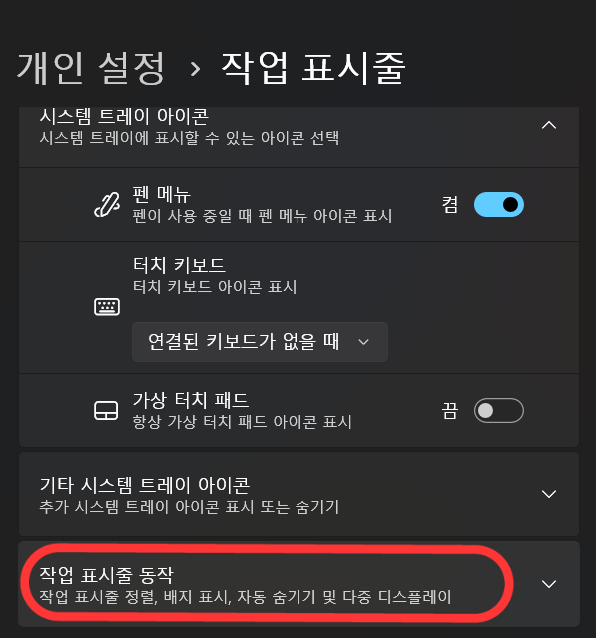
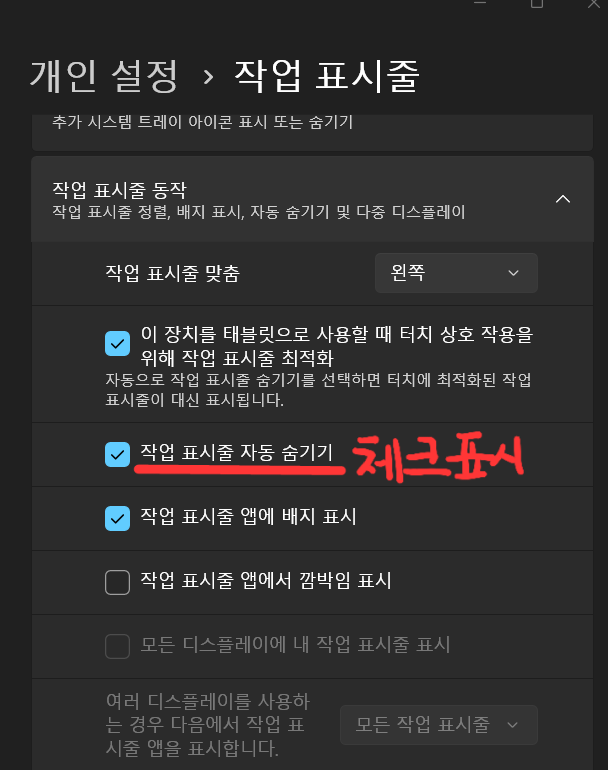
'Taskbar behaviors' contains several options.. Find 'Automatically hide the taskbar' and select or clear its checkbox.. This makes it easy to changewhether the taskbar is shown/or hidden..
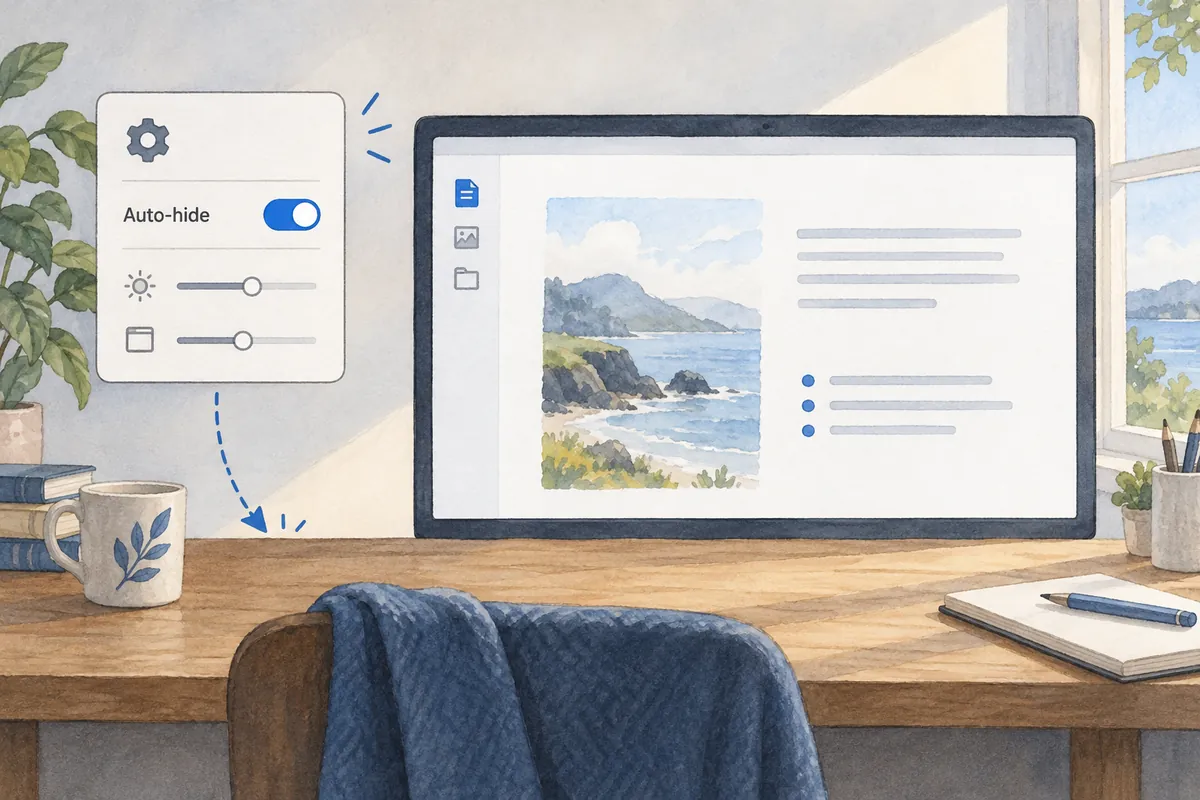
Finally, the illustration below shows the taskbar with hiding enabled.
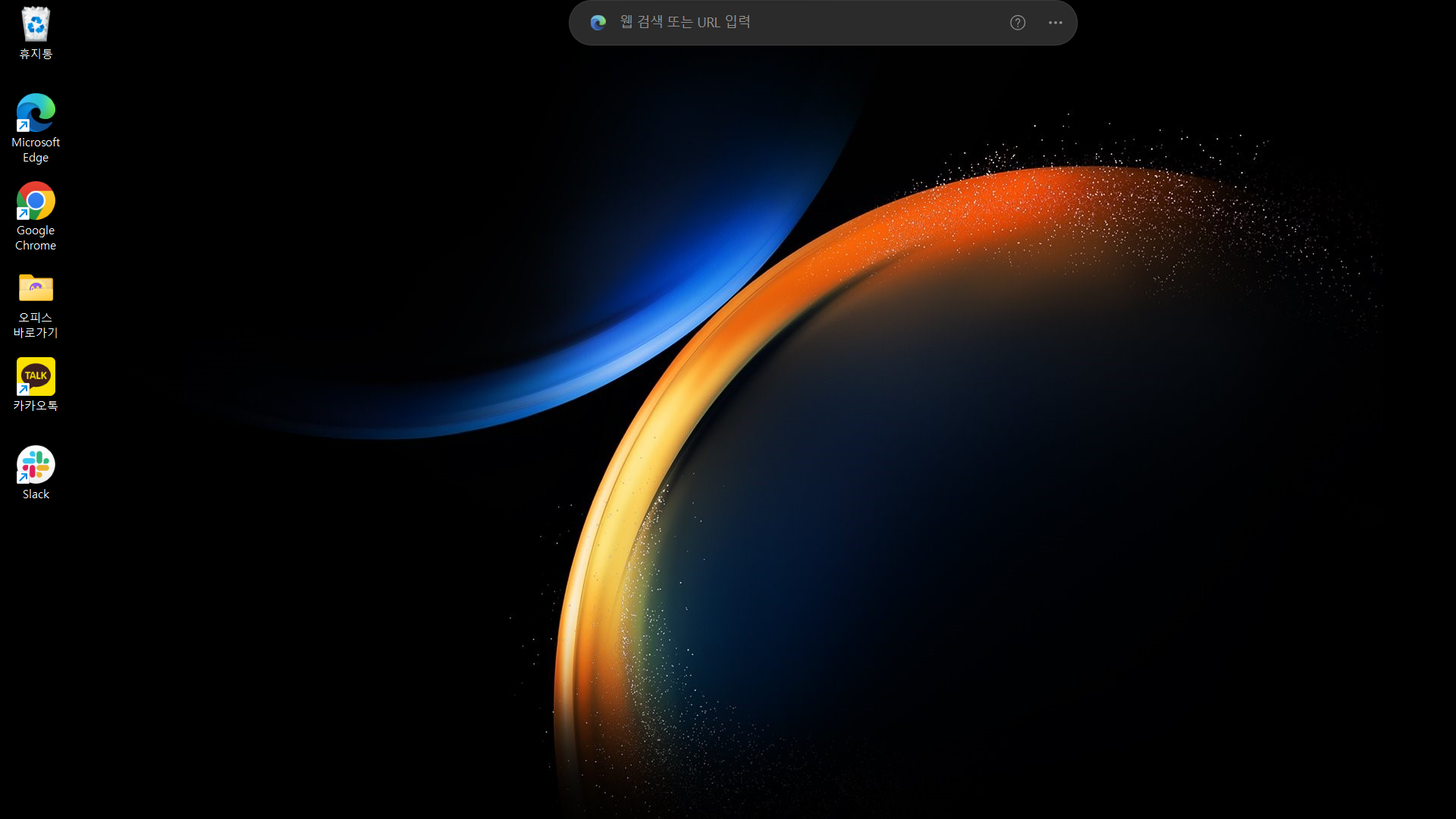
That concludes our guide to 'hiding the taskbar/and showing it' . I willreturn with more useful information next time..
Disable Auto-Hide: Keep the Taskbar Always Visible
Settings → Personalization → Taskbar → Taskbar behaviorscontainsAutomatically hide the taskbar. Clear its checkbox. The taskbar will remain visible regardless of mouse movement. If it is difficult to open Settings while the taskbar is hidden, pressWindows key + Ito open Settings.
Frequently Asked Questions
Does This Permanently Remove the Taskbar?
No. Auto-hide does not delete the taskbar; it is a setting that shows it again when needed. It appears when you move the mouse to the bottom of the screen, and clearing the checkbox restores the original behavior.
Does Pressing Windows + D Hide the Taskbar?
Windows + D is a shortcut for showing the desktop or returning to your previous windows. It is different from turning taskbar auto-hide on or off. Change built-in auto-hide through the settings above.
Related Reading
Settings path reference:Microsoft's Official Guide to Customizing the Taskbar. Screen layouts and wording may differ slightly depending on Windows updates.
Original illustrations created to help explain this article.
Original on Tistory ↗