SUMIFS by month and category: a date-range formula that includes the last day
This article was translated from its source language with AI assistance. Please check technical terms and equations against the original.
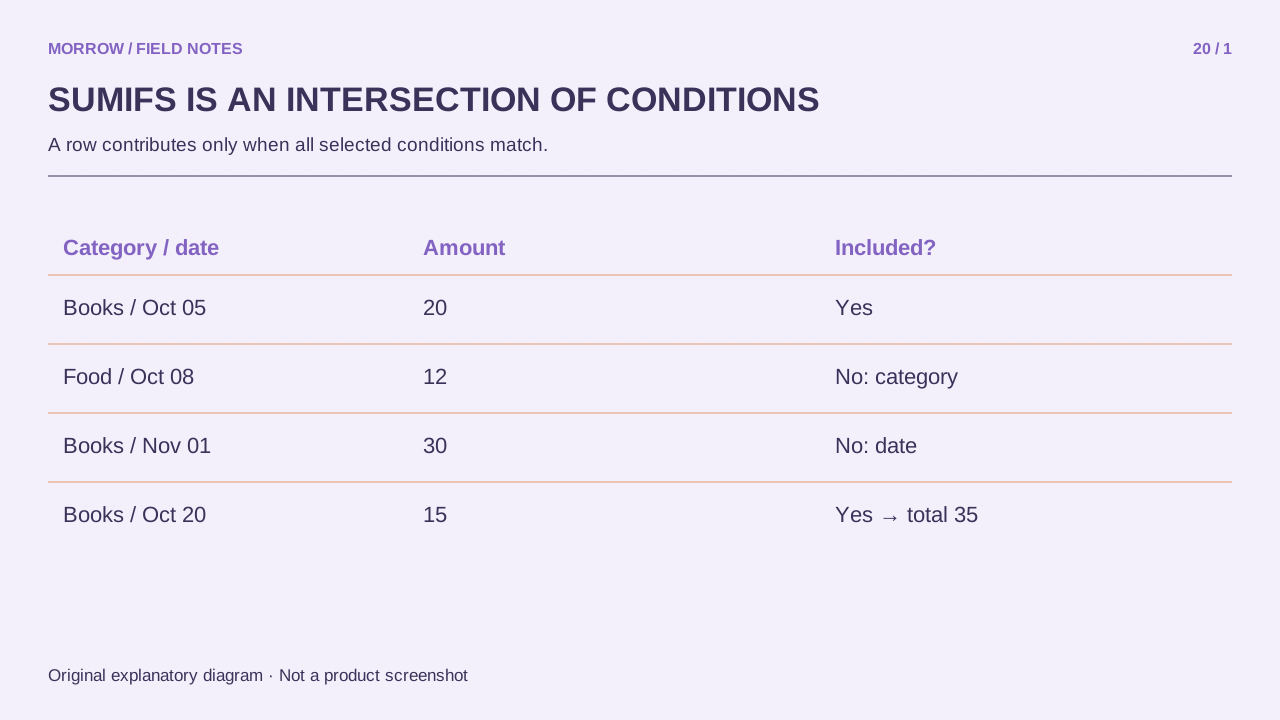
To total only the Books entries in October, test both the category and the date range. SUMIFS adds values from rows meeting multiple conditions. A four-row example makes the result easy to check manually, then lets us build a monthly boundary that still works when dates include times.
Start with the range to add
Put Date in A1, Category in B1, and Amount in C1. Enter column A as actual Excel dates, not date-looking text; DATE(2026,10,5) can create the first example. These records are fictional practice data, not real transactions.
| Row | A: Date | B: Category | C: Amount |
|---|---|---|---|
| 2 | 2026-10-05 | Books | 20 |
| 3 | 2026-10-08 | Food | 12 |
| 4 | 2026-11-01 | Books | 30 |
| 5 | 2026-10-20 | Books | 15 |
=SUMIFS($C$2:$C$5,$B$2:$B$5,"Books",$A$2:$A$5,">="&DATE(2026,10,1),$A$2:$A$5,"<"&DATE(2026,11,1))The result is 35: row two contributes 20 and row five contributes 15. Food fails the category test, and the November entry fails the date test. SUMIFS puts the sum range first. Its argument order differs from SUMIF, so do not extend a familiar SUMIF formula without checking the order.
Use less than the next month, not the last day at midnight
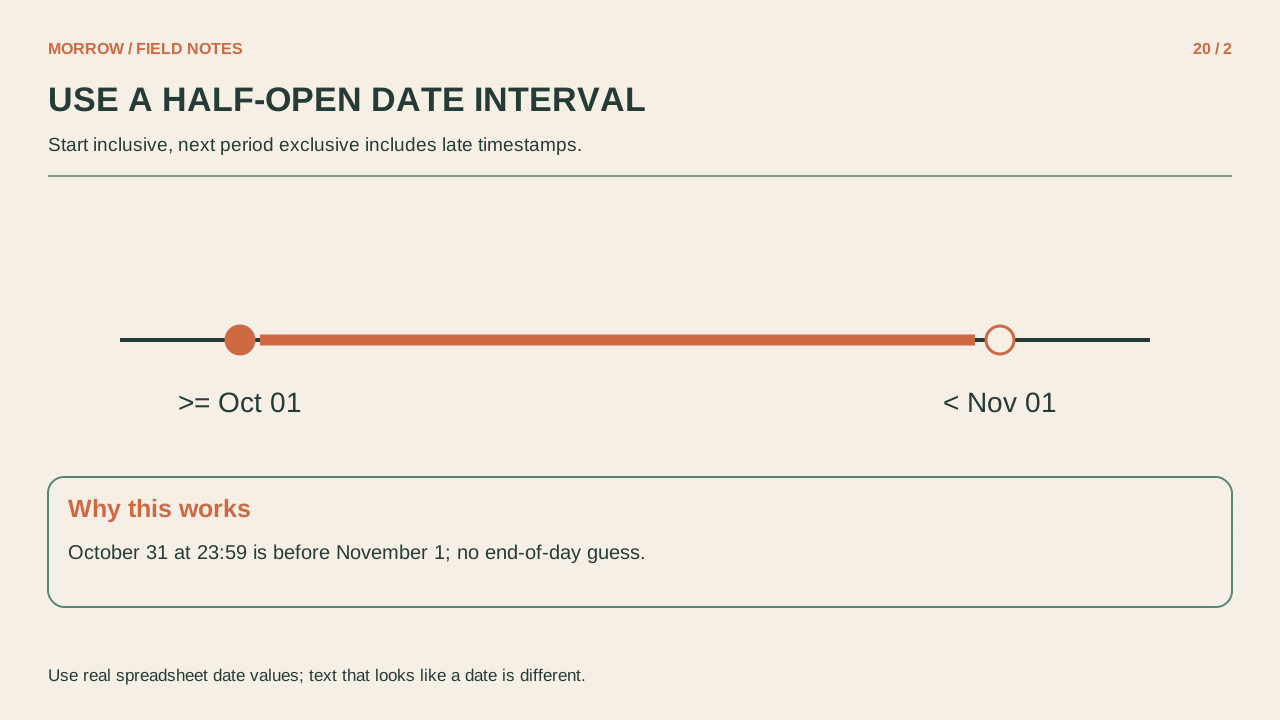
A condition ending at October 31 looks natural when records contain dates only. But a value on October 31 in the afternoon exceeds an end boundary of midnight at the start of that day. Use at least October 1 and less than November 1 to include the whole last day.
Excel stores dates as serial numbers and time as a fraction of a day. Changing a text cell's visual format does not automatically create a real date. Inspect the type and understand the source's date convention and regional settings before converting imported records.
Move report conditions into cells
Enter the actual start date in E2, the next period's start in F2, and Books in G2. The formula becomes:
=SUMIFS($C$2:$C$5,$B$2:$B$5,$G$2,$A$2:$A$5,">="&$E$2,$A$2:$A$5,"<"&$F$2)Now review three input cells instead of editing several fragments within the formula. Keep the report title consistent with those conditions. Expand all ranges when records are added, or manage them with an Excel table. A new row outside the formula can leave a plausible-looking but incomplete total.
Audit zeros and surprising totals in order
- Filter the data to inspect rows meeting the same conditions.
- For this example, verify 20 + 15 = 35 by hand.
- Check that dates and amounts are numeric and categories have no unwanted spaces.
- Check matching start and end rows for every range.
- Test month boundaries and a timed record on the final day.
SUMIFS is not a visible-rows-only total and does not automatically exclude hidden rows. Do not confuse a screen filter with formula criteria. Microsoft documents it for versions including Excel 2016, 2019, 2021, 2024, and Microsoft 365. Argument separators may differ by regional settings.
Primary references: Microsoft SUMIFS, Date/time functions, and Date/time serial representation. The result is independently checked by adding the two included rows.
Related practical guides
Original illustrations created to help explain this article.