HTTP vs HTTPS: What the Padlock Guarantees and What It Doesn’t
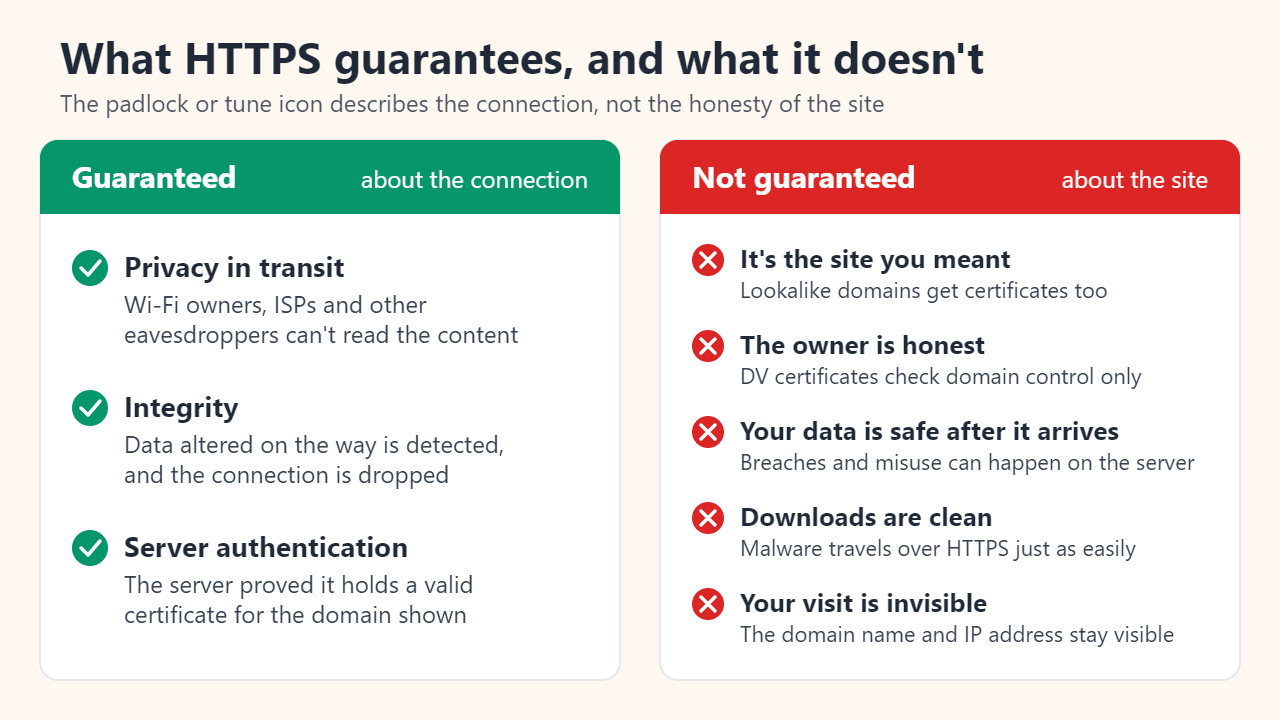
HTTPS is ordinary HTTP sent through an encrypted TLS connection. It guarantees three things about that connection: people on the network cannot read what you send or receive, they cannot change it without being detected, and the server has proved it holds a valid certificate for the domain in the address bar. It does not guarantee that the site is honest. The padlock (or Chrome’s newer “tune” icon) describes the connection, not the people behind the site, and nearly all phishing sites use HTTPS too.
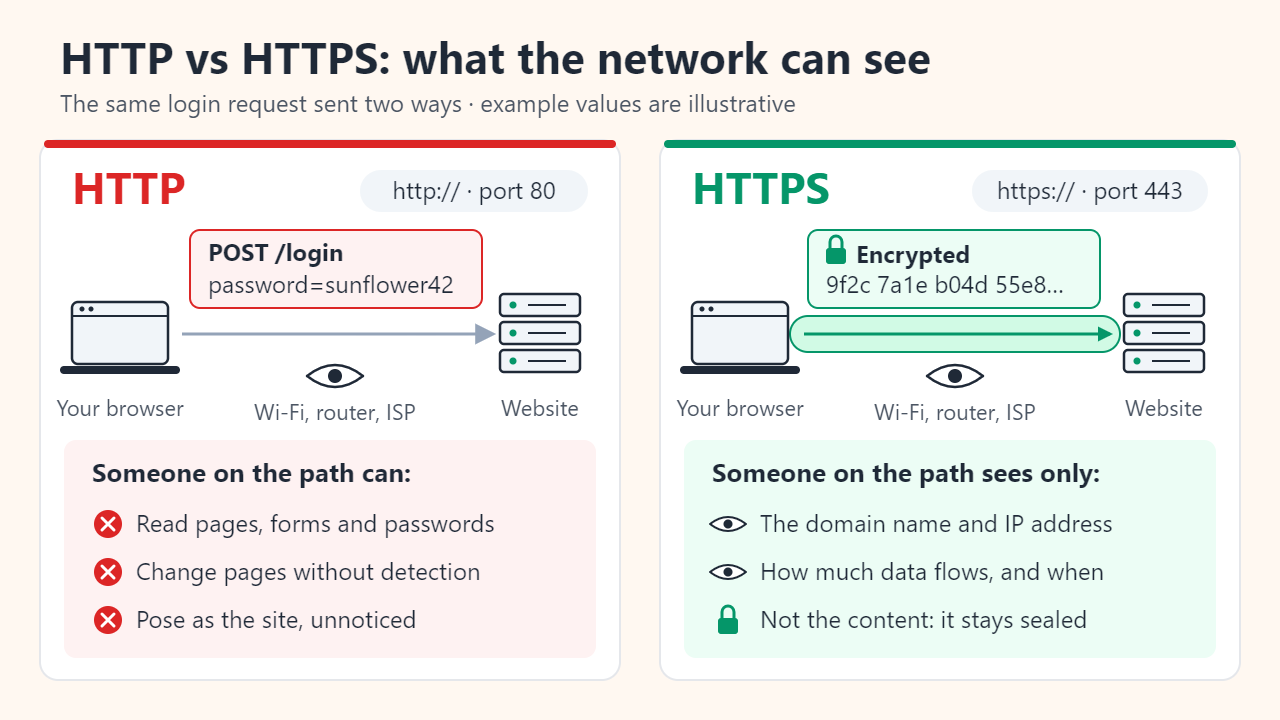
HTTP vs HTTPS: what the “S” adds
HTTP is how browsers and servers request and deliver pages, and on its own it travels as plain text. HTTPS sends the same requests and responses inside TLS (Transport Layer Security). TLS replaced the older SSL protocol, which is why people still say “SSL certificate”; SSL 3.0 was formally deprecated in 2015, and TLS 1.0 and 1.1 followed in 2021, leaving TLS 1.2 and 1.3 in use.
| Feature | HTTP | HTTPS |
|---|---|---|
| Address starts with | http:// | https:// |
| Default port | 80 | 443 |
| Content on the network | Readable by anyone on the path | Encrypted |
| Tampering in transit | Goes unnoticed | Detected; the connection fails |
| Server identity check | None | Valid certificate for the domain required |
| Chrome address bar | “Not secure” | Neutral tune icon |
The TLS 1.3 specification (RFC 8446) states the guarantees precisely:
- Confidentiality: once the connection is set up, only your browser and the server can read the data, including the page path after the domain, form fields, passwords and cookies.
- Integrity: nobody can modify data in transit without detection, so a café router cannot quietly inject ads or malware into a page.
- Authentication: the server always proves its identity with a certificate; your browser usually does not.
Two limits remain. TLS does not hide how much data you send, and the domain name usually stays visible: your device looks it up through DNS and names the site in the first handshake message. Encrypted DNS and the newer Encrypted Client Hello extension can hide it, but only when both sides support them.
How an HTTPS connection is set up
Before the page itself is requested, the browser and server run a TLS handshake. With TLS 1.3 it takes one round trip:
- ClientHello. The browser names the site it wants, lists the TLS versions and ciphers it supports, and sends its half of a key exchange.
- ServerHello. The server picks the options and sends its half. Both sides now compute the same session keys, which never cross the network; everything after this is encrypted.
- Certificate and signature. The server sends its certificate and signs the handshake with the matching private key, proving it holds that key rather than a copied certificate.
- Browser checks. The certificate must chain up to a certificate authority (CA) your browser or device trusts, name the domain you are visiting, and be within its validity dates.
- Encrypted HTTP. Both sides confirm nothing in the handshake was altered, and normal requests and responses flow through the encrypted channel.
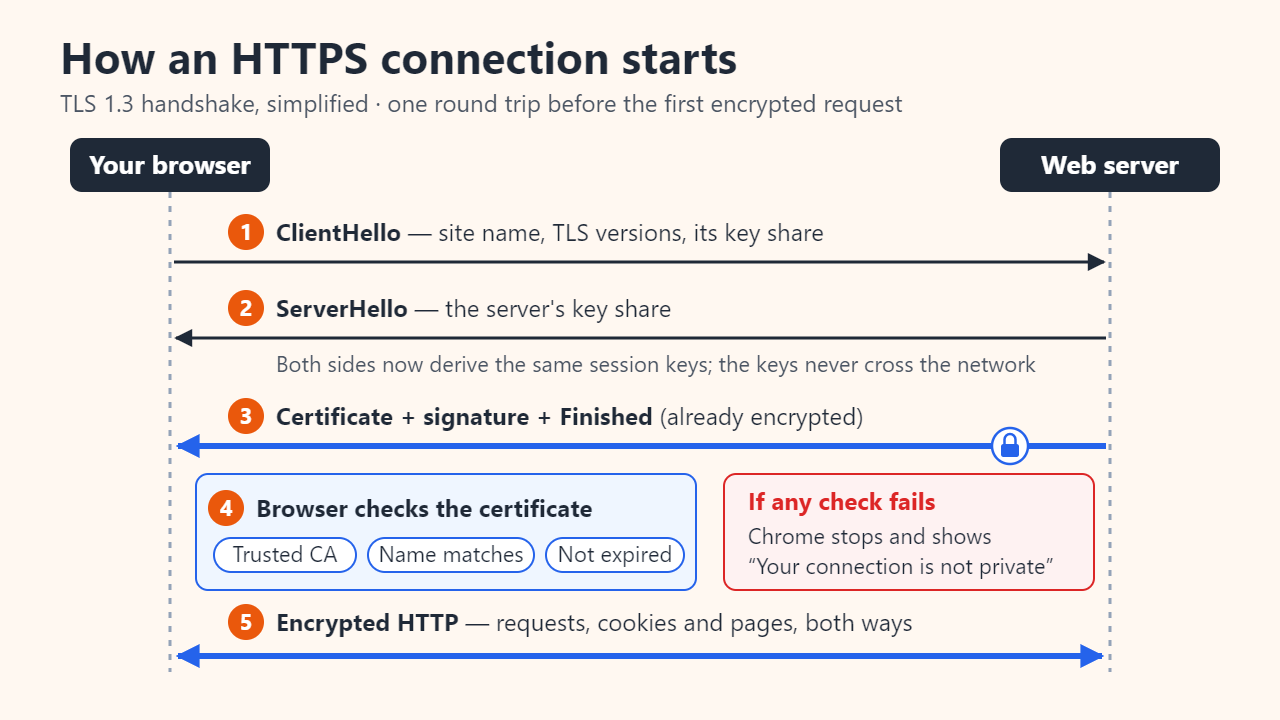
If step 4 fails, the browser stops and shows a full-page warning such as Chrome’s “Your connection is not private.” That is HTTPS catching a possible impostor, not a glitch to click past.
What the padlock does not tell you
A certificate proves who controls a domain name, not who runs the business or whether they are honest. The basic kind is domain-validated (DV): the CA only checks that the applicant controls the domain, for example by asking them to publish a specific file or DNS record. Let’s Encrypt, a free and automated CA, issues only DV certificates, valid for 90 days by default. That helped HTTPS spread, and it also means a phishing page at a made-up address such as yourbank.com.verify-login.net can get a perfectly valid certificate. The browser will correctly report a secure connection, to the wrong site.
| Certificate type | What the CA checks | What it tells you |
|---|---|---|
| DV (domain validated) | Control of the domain | The server is authorized for this name, nothing more |
| OV (organization validated) | Domain control plus the organization’s registration | A company name in the certificate details |
| EV (extended validation) | Stricter checks of the organization’s legal identity | Same as OV; Chrome moved the company-name badge out of the address bar in version 77 (2019) |
HTTPS also does not scan downloads for malware, protect your data once the server stores it, or help if your own device is already compromised.
Why Chrome replaced the padlock with a tune icon
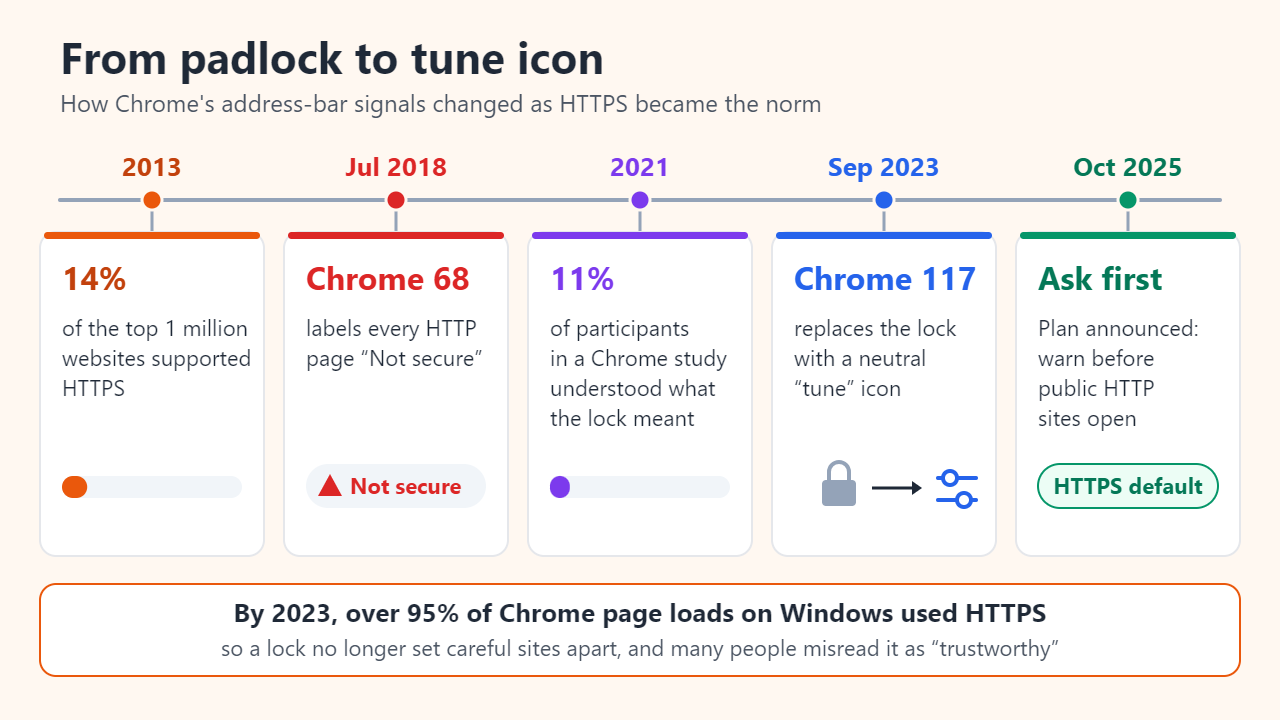
The padlock dates from an era when HTTPS was rare. Google notes that in 2013 only 14% of the top million websites supported it, while by 2023 more than 95% of page loads in Chrome on Windows used HTTPS. Its 2021 research found that only 11% of study participants correctly understood what the lock meant; many read it as “this site is trustworthy.” Because nearly all phishing sites display the same lock, that misunderstanding is dangerous, and the FBI had already warned in 2019 against trusting a site because of the lock or “https.”
Chrome 117, released in September 2023, swapped the lock for a neutral tune icon (two sliders) that opens site information and controls. Plain HTTP pages are still labeled “Not secure,” as they have been since Chrome 68 in July 2018. In October 2025 Google announced the next step: turning on the “Always use secure connections” setting by default (planned for Chrome 154), so Chrome asks before opening a public site that lacks HTTPS.
Checks before you type a password or card number
- Read the real domain. Find the part just before the first single slash and read it from the right: in yourbank.com.verify-login.net the site is verify-login.net, not yourbank.com.
- Arrive the safe way. Type the address or use a bookmark instead of following links in emails, texts or QR codes.
- Never click through certificate warnings on sites where you sign in or pay. Close the tab instead.
- Let a password manager or passkey check the domain. They offer your credentials only on the site where they were saved, so a lookalike page gets nothing.
- Treat “Not secure” as a stop sign for anything sensitive: on HTTP pages, whatever you type crosses the network as plain text.
- Look past the icon. Unexpected urgency, a login prompt you did not ask for, or prices that are too good are better warning signs than any address-bar symbol.
FAQ
Is HTTPS enough on public Wi-Fi?
It protects the content of your traffic from other users and the hotspot operator; they still see which domains you visit. A fake hotspot cannot read HTTPS traffic without triggering a certificate warning, but it can steer you toward lookalike sites, so check the domain.
Is a free certificate less secure than a paid one?
Not for the connection. Encryption strength depends on the TLS version and settings the server uses, not on what the certificate cost. Paid OV and EV certificates add organization vetting, but Chrome and Safari no longer highlight them in the address bar.
Can my employer or school see my HTTPS traffic?
Normally they see domains, not content. On devices they manage, however, an organization can install its own root certificate and inspect HTTPS through a security gateway without triggering browser warnings. On a device you do not control, assume inspection is possible.
Sources: IETF RFC 8446: The Transport Layer Security (TLS) Protocol Version 1.3; Chromium Blog: An Update on the Lock Icon (2023); FBI IC3: Cyber Actors Exploit “Secure” Websites in Phishing Campaigns (2019); Let’s Encrypt FAQ.
Related reading
Original illustrations created to help explain this article.