Keep leading zeros and 16-digit IDs in Excel: store identifiers as text
This article was translated from its source language with AI assistance. Please check technical terms and equations against the original.
If product code 00123 becomes 123, or the last digits of a long identifier become zeros, widening the column may not fix the problem. A value that looks numeric but is never calculated is an identifier. Store it as text before entering or importing it. Changing a display format afterward is different from preserving the original data.
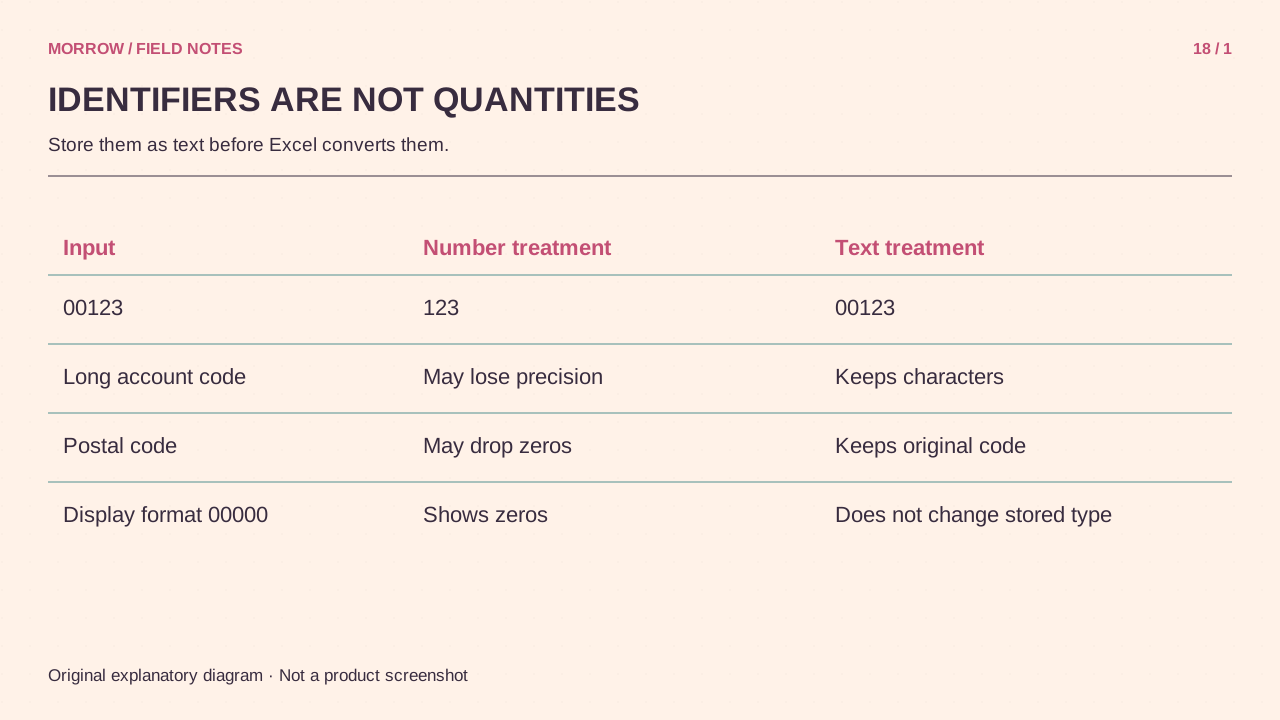
Ask whether the value belongs in arithmetic
Quantity and price are numbers used for calculation. Product codes, postal codes, and order IDs are more like names that must match character for character. If the source system distinguishes 00123 from 123, numeric conversion is inappropriate. Identifiers with sixteen or more digits can exceed Excel's numeric precision and should be managed as text.
| Value | Storage choice | Reason |
|---|---|---|
| Quantity 125 | Number | Used in totals and arithmetic |
| Product code 00123 | Text | Leading zeros are part of the identity |
| Sixteen-digit order ID | Text | Every character must survive exactly |
Prepare direct entry and CSV import separately
For direct entry, format the empty column as text first, then enter the values. A leading apostrophe can also mark an individual entry as text. For bulk CSV data, set the relevant import column to text. Changing cells to text after numeric conversion does not recover lost characters.
Inspect Power Query's automatic type steps so that an earlier step does not convert the identifier to a number. Read the source as text from the beginning and reload it. Recent Microsoft 365 and Excel 2024 versions also offer controls for selected automatic data conversions. Do not assume that an older version has the same options.
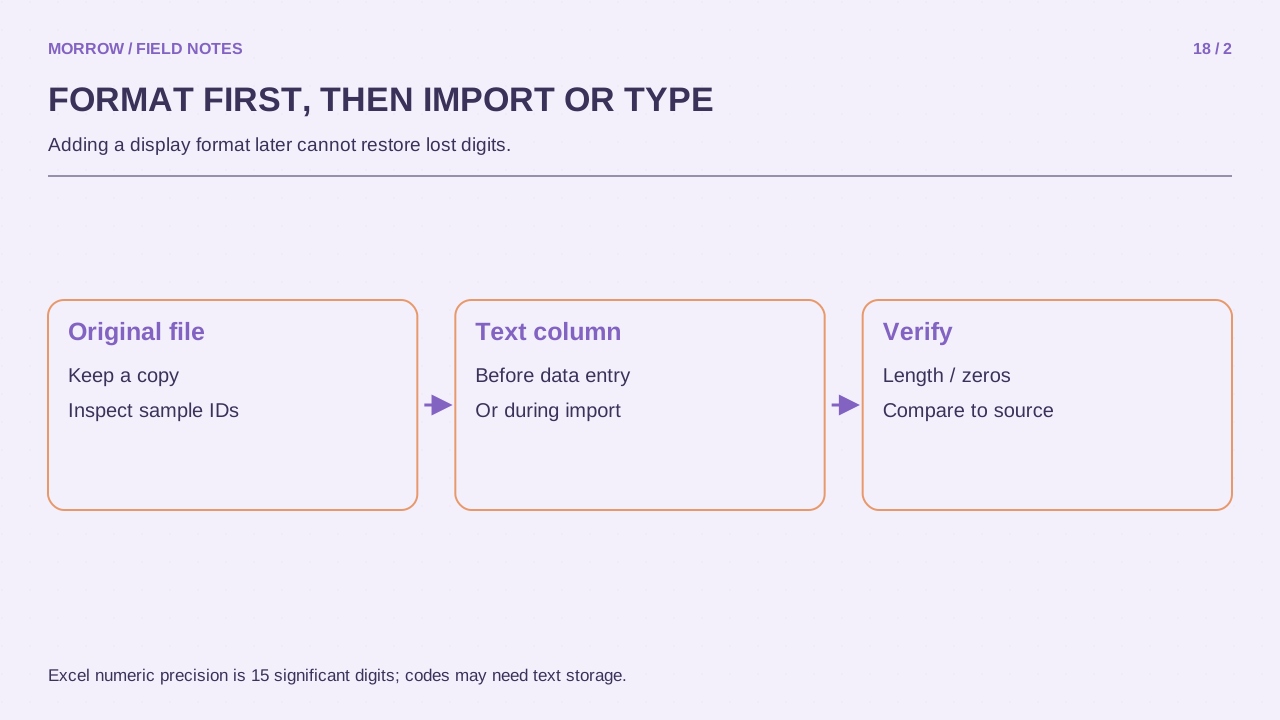
A 00000 display format is not original-data protection
A custom format of 00000 can make the number 123 look like 00123. The stored value is still numeric. That can be useful when the goal is a five-digit display within the workbook, but it should not be confused with preserving an identifier for another system.
The TEXT function can create a formatted string when the original width is known. It cannot reconstruct digits lost from a long number or determine how many unknown zeros were originally present. Return to the original source instead of guessing a replacement.
Test saving and reopening with three examples
- Enter 00123, 1234567890123456, and A00123 as text in a disposable workbook.
- Check every character in the formula bar.
- Save and reopen the workbook, then compare again.
- If CSV export is required, inspect the actual characters in the exported file.
- Reimport that CSV into a fresh workbook with the ID column set to text.
A CSV does not retain Excel's cell-format settings. The file may contain 00123 correctly, yet a recipient's automatic numeric import can turn it into 123 again. Include a note identifying which columns must be imported as text. Scientific notation alone can be a display issue, so distinguish appearance from actual lost digits before reporting corruption.
Primary references: Microsoft identifier preservation, Import and conversion controls, and CSV import/export. Example identifiers are fictional, not personal data.
Related practical guides
Original illustrations created to help explain this article.