Fix garbled CSV text in Excel: encoding and column types are separate
This article was translated from its source language with AI assistance. Please check technical terms and equations against the original.
If double-clicking a CSV turns Korean, Japanese, or Chinese names into strange characters, do not overwrite the original. Excel may have interpreted the bytes with the wrong character encoding. Even after the names look correct, identifiers can lose leading zeros or dates can change. Character decoding and column types need separate checks.
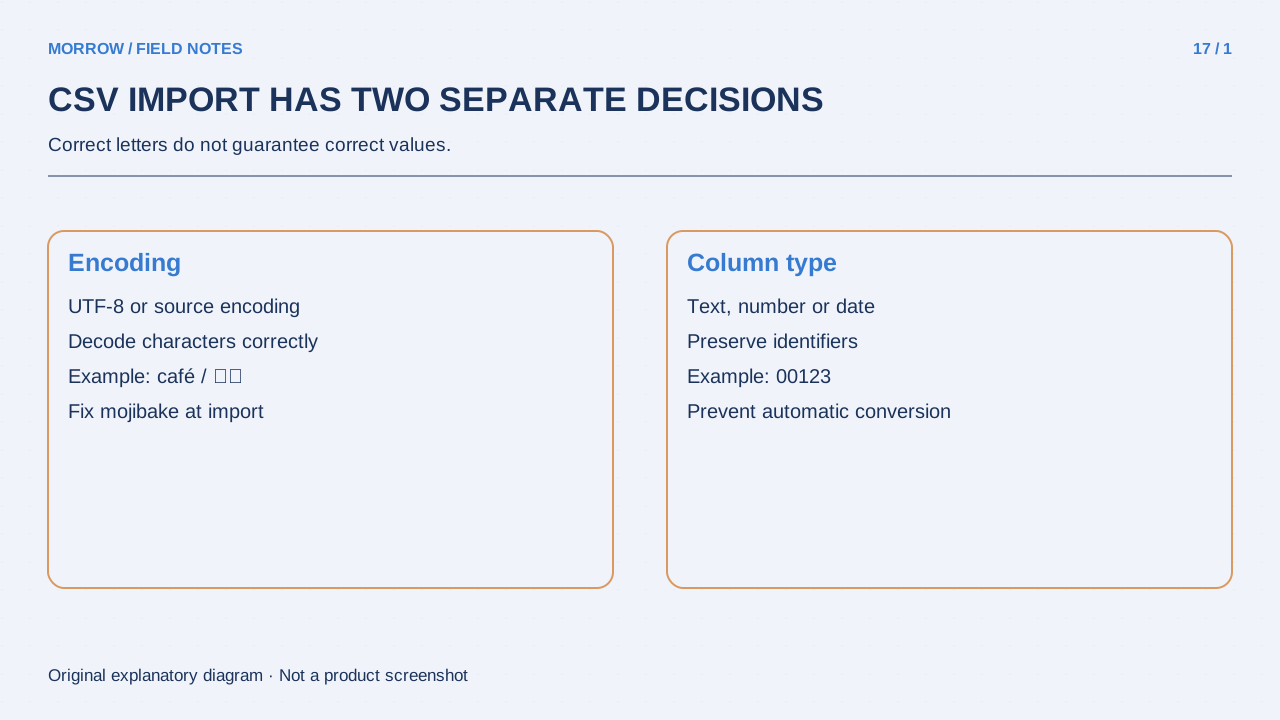
Distinguish encoding from delimiter problems
UTF-8 describes how characters are represented as bytes. A delimiter, such as a comma or semicolon, separates fields. Investigate encoding when characters look wrong; investigate the delimiter when an entire row lands in one cell. Use the import preview to change one condition at a time.
| Symptom | First check | Separate check |
|---|---|---|
| Names contain strange characters | Actual source encoding | An intact original remains |
| All columns collapse into one | Delimiter | Quoted delimiters remain part of fields |
| 00123 becomes 123 | Column data type | The source before numeric conversion |
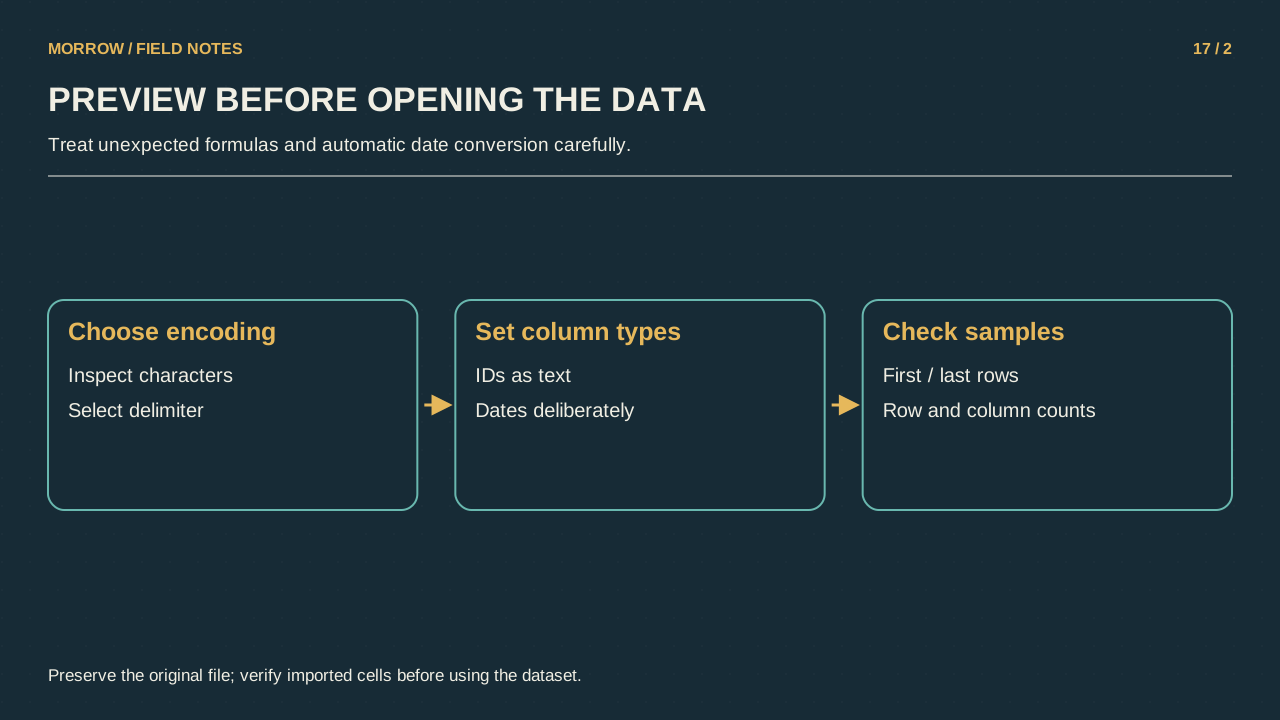
Use an import preview instead of guessing
Microsoft documents normal opening for UTF-8 CSV files saved with a byte order mark, or BOM, and data/text import routes for UTF-8 files without one. Whether a BOM is present depends on how the source was created. The useful workflow is an import route that lets you inspect decoding and types before loading.
- Keep a separate untouched copy of the CSV.
- Choose the Data tab's text/CSV import route.
- Check the actual encoding and delimiter in the preview.
- Inspect names, addresses, and non-ASCII characters.
- Set code and long-identifier columns to text before loading.
- Load the reviewed data into a new workbook.
Inspect automatically added type-conversion steps in Power Query too. Converting a column to text after zeros have already been removed does not restore them. Adjust the import so that the column is read as text from the source, then reload the original.
Use a small set of varied verification rows
For a multilingual contact list, check examples containing each language, an address containing a comma, and an identifier such as 00123. A comma inside a quoted CSV field can be content, rather than a separator. Globally replacing every comma can damage such an address instead of fixing the file.
Start with total row and column counts, then inspect the first, middle, and last records. Compare important identifiers character by character with the source. A correct-looking first preview is not proof that every record has been imported accurately. Keep a short note of the encoding, delimiter, and identifier columns so another person can repeat the same import.
If you saved damaged text, return to the original
Saving a misinterpreted result may replace original characters. Repeatedly saving that damaged result with different encoding options is not a reliable recovery method. Start again from the original download or backup. When exporting a new CSV, agree on the encoding, delimiter, and field expectations with its recipient, then reimport the exported file to test it.
Primary references: Microsoft UTF-8 CSV guidance, Text/CSV import and export, and Preserving zeros and long numbers. Menu details vary by Excel version and operating system.
Related practical guides
Original illustrations created to help explain this article.