Pinning Apps to the Windows 11 Taskbar: Checking Missing and Duplicate Icons
This article was translated from its source language with AI assistance. Please check technical terms and equations against the original.
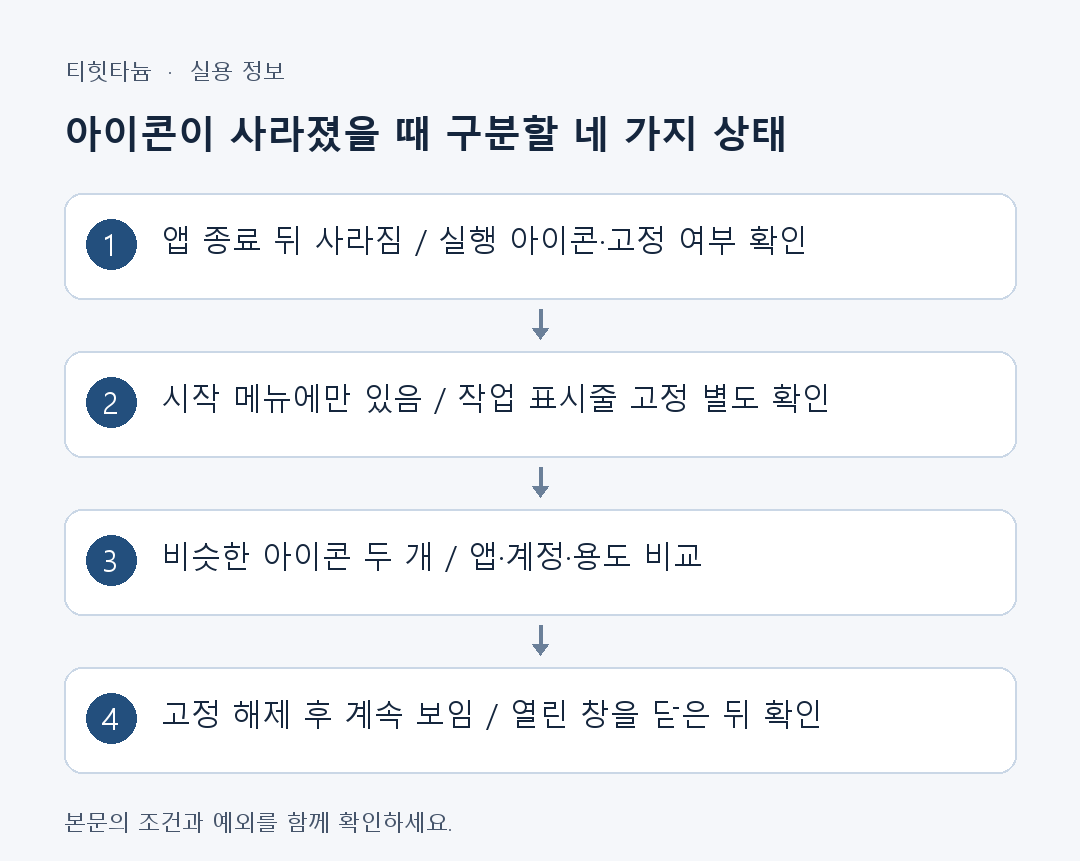
A missing taskbar icon does not mean the app was uninstalled. An icon appearing only while running differs from a pinned icon and may disappear when the app closes. To keep frequently used apps in the same place, identify the actual app, pin it, then verify by closing and reopening it.
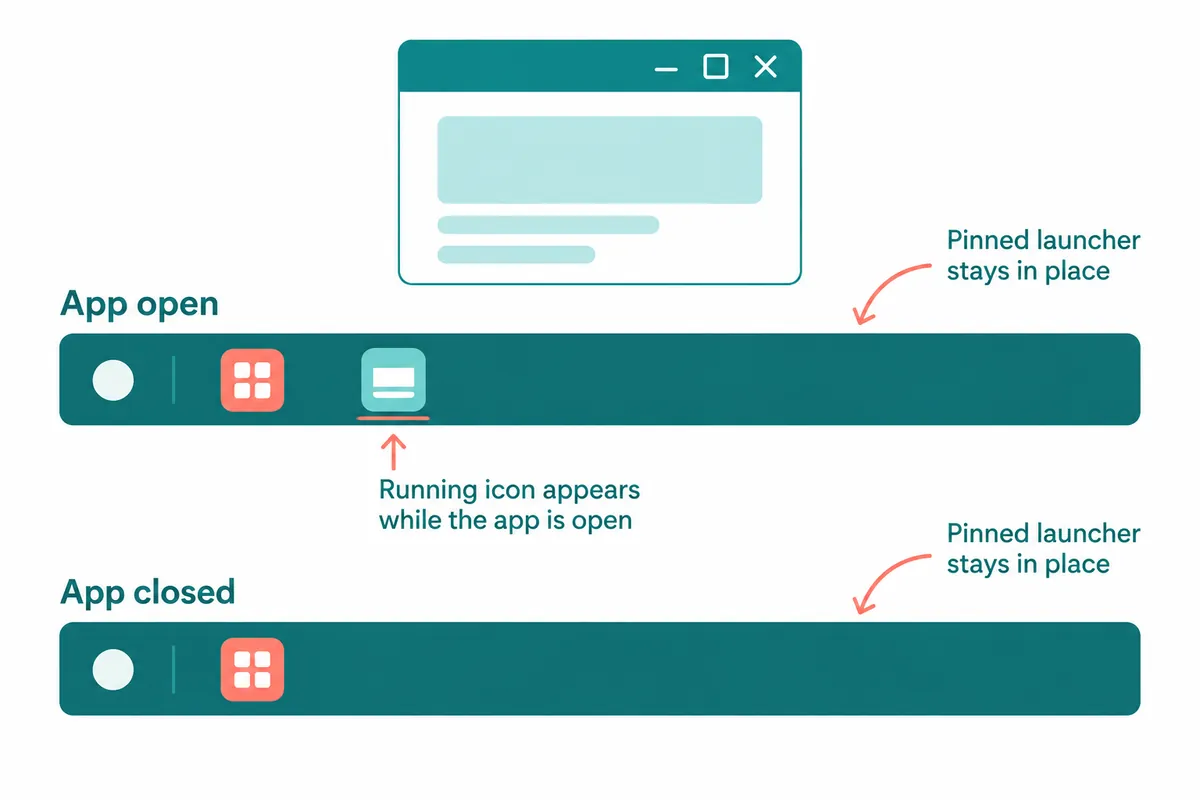
This article focuses on finding and organizing a particular app icon. A hidden entire taskbar and one app's pinning state require different checks. Observing whether Start and other apps are visible narrows unnecessary overall setting changes.
1. Pinned icons versus running icons
Running apps appear on the taskbar. If unpinned, disappearing after closing is normal. Pinned icons remain as launch shortcuts even when not running. Running indicators and active emphasis can help, but details vary by Windows version.
| Visible state | Possible meaning | How to check |
| Icon disappears when the app closes | May be a running, unpinned icon | Relaunch and check pin state in its menu |
| Icon stays after closing | May be a pinned launcher | Check whether Unpin appears |
| Two similar icons | May be different apps, versions, or shortcuts | Open each and check app, account, and purpose |
| Icon only in Start | May be pinned only to Start | Choose taskbar pinning separately |
Identical artwork does not establish identical apps. Work/personal apps, web/installed apps, or old/new versions may coexist. Removing an icon without checking its name can make the desired environment harder to find; record roles first.
2. The simplest method: pin a running app
- Launch the intended app from Start or search.
- Right-click its taskbar icon.
- In the menu, selectPin to taskbar.
- Save open documents and close the app window.
- Check that the icon remains and relaunch through it.
Opening the app helps avoid pinning a similarly named search result. Documents and apps can share names, making their shortcuts easy to confuse. When reopening, verify the intended app, account, and working folder.
If Unpin appears instead, it may already be pinned. Rather than clicking repeatedly, close the app and check persistence. Read actual item names if they are nested or differ by app.
3. Checks when pinning from search
Press Windows, enter the app name, and select its result. Right-click the correct app and find taskbar pinning. Microsoft describes both search-result and running-icon methods.
If search shows only webpages or documents, use a more exact app name or Start's All apps. An app remembered as installed may not appear for the current account; failed search alone does not establish uninstallation.
If company-installed apps are missing or pin changes revert, management policy may be involved. Explain the app name and observed state to the administrator instead of forcing unregistered shortcuts. Conditions such as “pin disappears after restart” help checking.
4. Start pinning and taskbar pinning are separate
Start pinning makes the app easy to find when pressing Windows. Taskbar pinning launches it directly from the desktop bottom. Setting one does not automatically pin the other.
| Location | Typical purpose | Example organization criterion |
| Taskbar | Frequently launched apps and window switching | Tools used repeatedly each day |
| Start pins | Occasional apps with hard-to-remember names | Easy-to-find positions by work area |
| Start All apps | Browse installed apps | Check installation separately from pinning |
| Recent items and jump lists | Open recent documents or frequent functions | Consider displayed content on shared PCs |
These are usage examples, not measured time savings. More pins do not guarantee shorter work. If frequent apps become hard to distinguish, retain essential taskbar apps and use Start for others.
5. Reorder icons and unpin
Drag taskbar app icons to reorder them. Right-click a pinned app and unpin to remove its launcher. Unpinning differs from uninstalling; use separate installed-app procedures to remove the app itself.
Arrange according to workflow. An illustrative order places browser, document editor, and File Explorer together, followed by messaging. If messaging is central to your work, place it first. Ease of finding and avoiding mistaken clicks matters more than one universal order.
A running app may remain visible after unpinning while its window stays open. Do not assume failure because the icon remains immediately. Save documents, close the app, and check afterward.
6. Compare duplicate icons' roles before removing
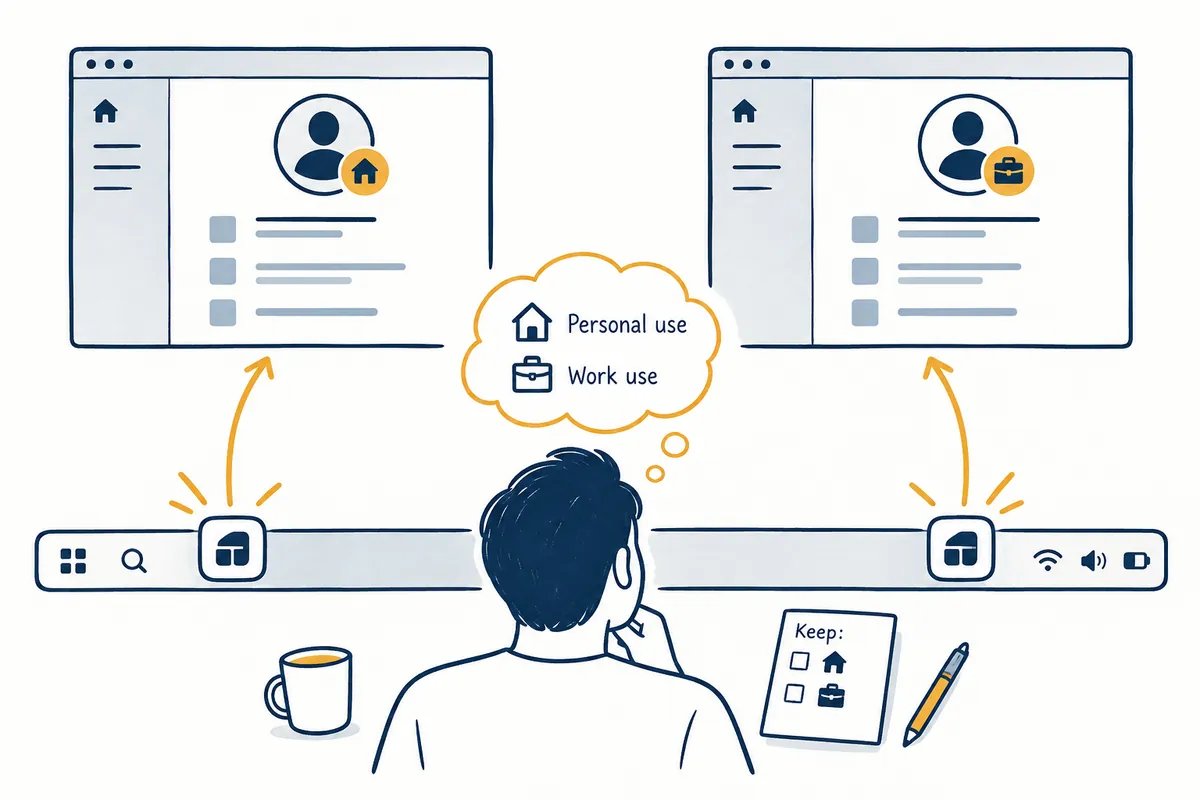
Open similar icons and check window titles and app information. A browser website and installed app for the same service may behave differently. Determine which supplies the required account and functions first.
An illustrative record is “First icon: personal-account web app; second: company-account installed app.” Both may be needed despite apparent duplication. For an unused old version, unpin it and decide installation cleanup separately.
| Comparison item | Icon A | Icon B |
| App name after launch | Check in the current window | Check in the current window |
| Account and work purpose | Record personal/work use and similar distinctions | Record personal/work use and similar distinctions |
| How documents open | Compare a needed document | Compare the same document |
| Pinned icon to retain | Keep or unpin | Keep or unpin |
Blank cells are for your own checks. This does not determine privacy practices or performance from app names and versions. Check provider guidance for specific feature differences.
7. Keyboard access instead of the mouse
Open Start, search, and use Shift + F10 on the selected app to open its menu. Microsoft accessibility guidance describes pinning through Start and app-list menus. Navigation varies by screen reader and Start layout, so verify selected items as you proceed.
In keyboard work, carefully verify that an app result is selected. A document or web result may not show expected pinning. After pinning, close Start with Windows and access the taskbar to check relaunch.
8. Records for recurring disappearance
If pinning works immediately but disappears at next login, note when it changes: app update, account switch, or restart. Check whether one app disappears or multiple arrangements change to narrow scope.
- Did the icon remain after closing the app?
- Did you distinguish Start pins from taskbar pins?
- Did you check duplicate icons' apps, accounts, and purposes?
- Did you distinguish unpinning from uninstalling?
- Did you record changes after logging in again?
If problems persist, there is no need to start with bulk deletion of system-folder shortcuts or registry changes without verification. Give support app names, change times, and current pin-menu states to explore simpler approaches. Recording organization dates also helps compare before and after app updates.
Official sources and writing basis
- Microsoft — Customize the taskbar
- Microsoft — Customize Start
- Microsoft — Navigate Start with keyboard and screen reader
Sources checked: October 3, 2026. Written by AI using official Microsoft guidance, with content and sources reviewed. Cases and inspection records help readers assess their situation; they are not measurements or tests on a particular PC. Screens and menu names may differ with the Windows build, manufacturer, and management policy.
Original illustrations created to help explain this article.
Original on Tistory ↗