Installing Codex CLI on Windows: Choosing PowerShell or WSL2
This article was translated from its source language with AI assistance. Please check technical terms and equations against the original.
Summary: Current Codex guidance covers native Windows and WSL2. Check which environment contains your existing development tools, then install and run in that same environment.
1. Why You Should Not Follow Outdated Windows Instructions Unchanged
OpenAI's current Windows documentation describes native Windows workflows for the CLI and IDE extension, along with the Windows sandbox. Saying WSL is mandatory for everyone therefore does not match current support. When reading installation articles, check both their date and the environments currently described by official documentation.
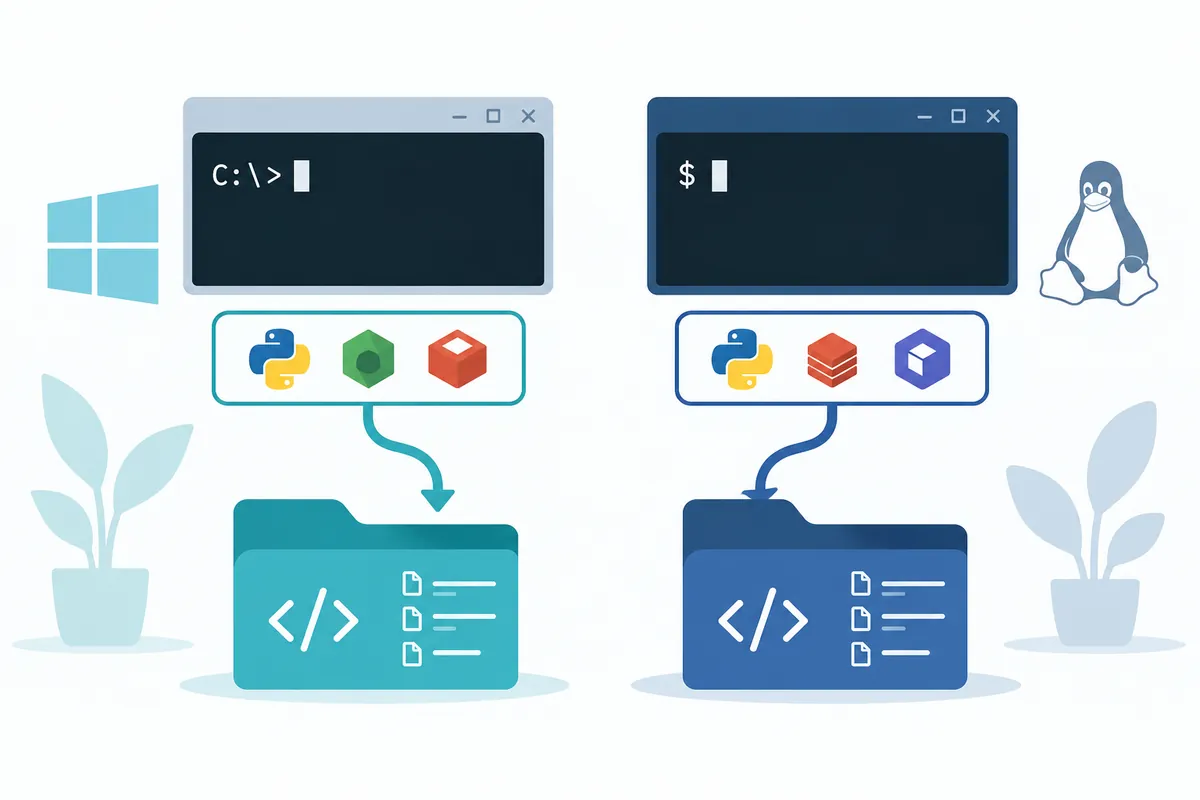
Your project determines the choice. For projects running normally in PowerShell, consider native Windows first. If tools and repositories are already in Linux or require Linux utilities, WSL2 may be natural. The following procedure checks the current environment and opens a first project.
2. Start with the Official Windows Installation Command
OpenAI's official CLI documentation provides a standalone installation command for Windows. For native Windows, open PowerShell, compare the following command with official guidance, and execute it. Consider this method first; readers already using Node.js can choose the npm alternative below.
powershell -ExecutionPolicy ByPass -c "irm https://chatgpt.com/codex/install.ps1 | iex"This command downloads and executes the installation script from the official address. Distinguish completion from errors in its output, then check recognition of Codex using the command below in a new terminal. If workplace or school policies apply, verify that the installation method is allowed.
codex --versionAlternative for environments with Node.js and npm already installed: The official CLI documentation also describes npm installation. If choosing it, check the tools in the current terminal before installing. Choosing one method and recording its result makes installation status clearer than running both consecutively.
node --version
npm --version
npm install -g @openai/codex
codex --version
Version checking determines whether the current terminal recognizes the tool. After installation, run codex in the working project's folder. For first-run login, follow available methods in official CLI documentation. Successful installation and account availability are separate checks; this article guarantees no particular plan or usage limit.
3. What to Check First in PowerShell
Open the terminal, check the current folder, and move to the project. The path below is an example. Selecting the actual code folder rather than an entire user Documents folder without a repository makes work scope easier to understand.
Get-Location
Set-Location -LiteralPath 'C:\code\my-project'
Get-Command codex
codex
If codex is not found, distinguish installation errors from PATH recognition errors. Check a new terminal too, and record the method and environment used for installation. If workplace policy blocks installation or sandbox settings, read the error message first. Do not begin troubleshooting by disabling security settings wholesale.
4. If Choosing WSL, Check WSL2 and Paths
The official WSL guide describes WSL2 and specifies that WSL1 is unsupported starting with Codex 0.115. Do not treat Windows-installed tools and Linux tools as identical. Check tools inside the shell that will run your project.
If already using WSL, first read the distribution list using the following command in Windows PowerShell or Windows Terminal. Confirm that your distribution's VERSION column shows 2. If it shows 1, stop installing Codex in that distribution, complete WSL2 preparation, and check again. This command queries distribution information.
wsl --list --verboseOfficial documentation recommends keeping WSL repositories in the Linux home directory. Windows file paths and paths under /home differ in display and access. The following checks current location and installation status in a Linux shell; do not mix it with PowerShell commands.
pwd
command -v codex
codex --version
With VS Code too, determine whether the terminal runs in Windows or WSL. If a command works on one side but not the other, check environment differences before repeatedly reinstalling.
5. First Request and Failure Checks After Installation
이 프로젝트의 실행 방법과 테스트 명령을 찾아 설명해 주세요.
현재 작업 경로와 사용 중인 셸도 확인해 주세요.
아직 파일을 수정하거나 새 패키지를 설치하지 마세요.
실행할 수 없는 확인은 그 이유를 표시해 주세요.- Command not found: Check installation method, current shell, and PATH recognition.
- Project not visible: Check current path and Windows/WSL file locations.
- Cannot log in: Distinguish authentication-stage errors from installation problems.
- Command execution blocked: Check sandbox and organizational policy restrictions.
6. Practical Criteria for Choosing PowerShell or WSL2
The choice is about matching your project's runtime, execution scripts, and paths, not ranking performance. If development servers and tests already run well on Windows, start there instead of creating Linux anew. For projects centered on shell scripts and Linux tools, WSL2 may make existing instructions easier to follow.
| Current situation | Starting environment | First check |
| Project and tools on the C drive | Consider native Windows | Do existing commands work in PowerShell? |
| Repository and runtime in Linux home | Consider WSL2 | Are tools recognized inside the WSL shell? |
| Organization policy restricts sandbox settings | Consider permitted settings or WSL2 | Which stage fails, and what management policy applies? |
| No development environment yet | Decide from the project README | Are there OS-specific preparation steps? |
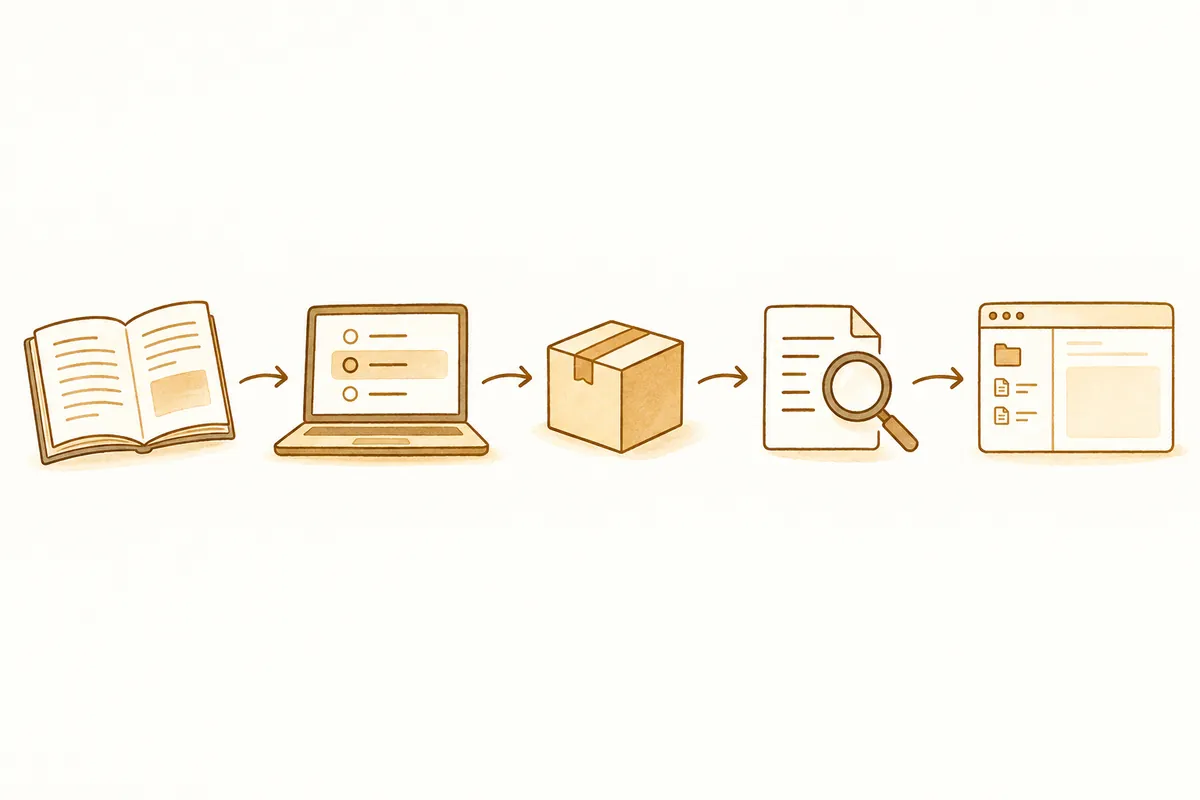
Once chosen, record paths and tools together. A brief combination such as “Windows, PowerShell, C:/Projects/demo” or “WSL2, Linux shell, ~/code/demo” is enough. Providing this combination and the failed command identifies execution location more directly than “Codex won't install.” If matching project copies exist on both sides, identify the one currently being edited.
7. Check Installation, PATH, and Authentication Separately
Post-install errors arise at different stages. If no version prints, investigate command recognition; if a version prints but login stops, investigate authentication. If Codex starts but cannot read the project, inspect working paths and access scope. The following PowerShell checks read location and currently recognized commands.
Get-Location
Get-Command codex -All
Get-Command node -ErrorAction SilentlyContinue
Get-Command npm -ErrorAction SilentlyContinue
codex --version
Paths in Get-Command results identify which installation is invoked. Multiple results may indicate old executables from another installation method; decide the method to use rather than reinstalling both blindly. If only the current terminal cannot find it, open a new PowerShell window and check. If it still fails, read installation completion output and PATH guidance before choosing the next action.
If node and npm are missing when using npm, runtime preparation has failed before Codex package installation. Standalone installation does not require additionally installing npm. Follow official CLI first-run instructions for login, and check workspace access for organizational accounts. Login screens may contain secrets, so share only the failure stage and message.
Windows PowerShell에서 Codex를 시작하려고 합니다.
선택한 설치 방식: [독립 설치 / npm]
현재 작업 경로: [경로]
실행한 명령: [명령]
관찰한 결과: [버전 출력 / 명령 없음 / 인증 오류]
오류 메시지: [비밀값을 제외한 원문]
같은 설치를 반복하기 전에 실패한 단계부터 구분해 주세요.
8. Installation Sequence for WSL2 Users
Distinguish preparing WSL for the first time from using an existing installation. Official WSL guidance describes installing WSL in Windows, opening its shell, and installing Codex inside that Linux shell. The Windows command for necessary WSL installation follows. Initial WSL installation requires administrator privileges, followed by the distribution's initial setup instructions.
wsl --installRestart if the installer requests it and finish distribution setup. Then run wsl --list --verbose in a Windows shell, confirm VERSION 2 for your default distribution, and open the Linux shell. Users of existing distributions should not repeat initial installation.
wslRun the commands below in the open WSL Linux shell, not PowerShell. Existing WSL users can open their distribution and project without repeating initial setup. Even if Codex was installed on Windows, WSL's PATH and runtime environment are separate, so check command recognition inside it.
curl -fsSL https://chatgpt.com/codex/install.sh | sh
codex --version
mkdir -p ~/code
cd ~/code
pwd
If the project is under ~/code, run codex in that project folder. Follow the project's repository-fetching guide and do not clone a placeholder URL as if real. Before moving a project previously under /mnt/c, retain unsaved changes and local settings, then verify execution in its new location. Moving alone does not prepare dependencies or environment settings automatically.
To open a WSL project in VS Code, refer to the official workflow of moving to the project in WSL and using code . First verify that editor and terminal use the same environment. Editing Linux-path files while viewing a Windows development server can make actual changes seem unapplied.
9. Finish Windows Sandbox Setup and First Run
Current official Windows documentation describes elevated and unelevated native sandbox modes. Elevated is recommended; unelevated is an alternative to consider where initial setup is restricted. This is separate from the CLI installation method. If installed files exist but commands are blocked, investigate this stage separately.
[windows]
sandbox = "elevated"
The above illustrates official config.toml syntax. If configuration already exists, review its entries rather than adding a duplicate [windows] section. Organization-managed allowed modes may override personal settings. Investigate errors and policy when elevated setup fails, and choose unelevated only if permitted. Running every task in an administrator terminal differs from initial sandbox preparation.
- Record the Codex version in the selected shell.
- Move to the actual project folder, start codex, and finish login.
- Send a small request to read structure and execution commands without editing.
- If current path, read files, and validation tools match expectations, proceed to a small edit.
- If execution is blocked, distinguish installation, authentication, sandbox, and project preparation stages and resolve the relevant one.
Manage updates according to the original installation method too. Official CLI guidance describes updates by rerunning the standalone script and by npm install -g @openai/codex. Afterward, check the version and a simple exploration request in a new terminal to identify the tool now running. This article does not guarantee successful installation of any specific version; inspect actual output in your own environment.
10. Frequently Asked Questions
Must I always move to WSL2? Current official documentation also covers native Windows. Choose according to project tools and your existing environment.
Must I keep running as administrator? Distinguish permissions needed for installation or initial setup from those for each task. Check the chosen installation method and official sandbox guidance for specific requirements.
What if commands change after an update? Record the current version and recheck official CLI installation instructions. Do not assume an old blog's commands match the latest environment.
Official Sources and Date Checked: OpenAI official documentation: Codex CLI · OpenAI official documentation: Windows sandbox · OpenAI official documentation: WSL. Checked October 3, 2026. Check current environment and permissions before using commands and features.
Original illustrations created to help explain this article.
Original on Tistory ↗