Changing Windows 11 Default Apps: Open PDFs, Photos, and Web Links in Your Preferred Apps
This article was translated from its source language with AI assistance. Please check technical terms and equations against the original.
If PDFs launch an unexpected app or web links open an unfamiliar browser, inspect default-app settings. Windows 11 lets you choose apps by file or link type. First define the behavior to change, change one type, and verify it. No file renaming or app removal is needed.
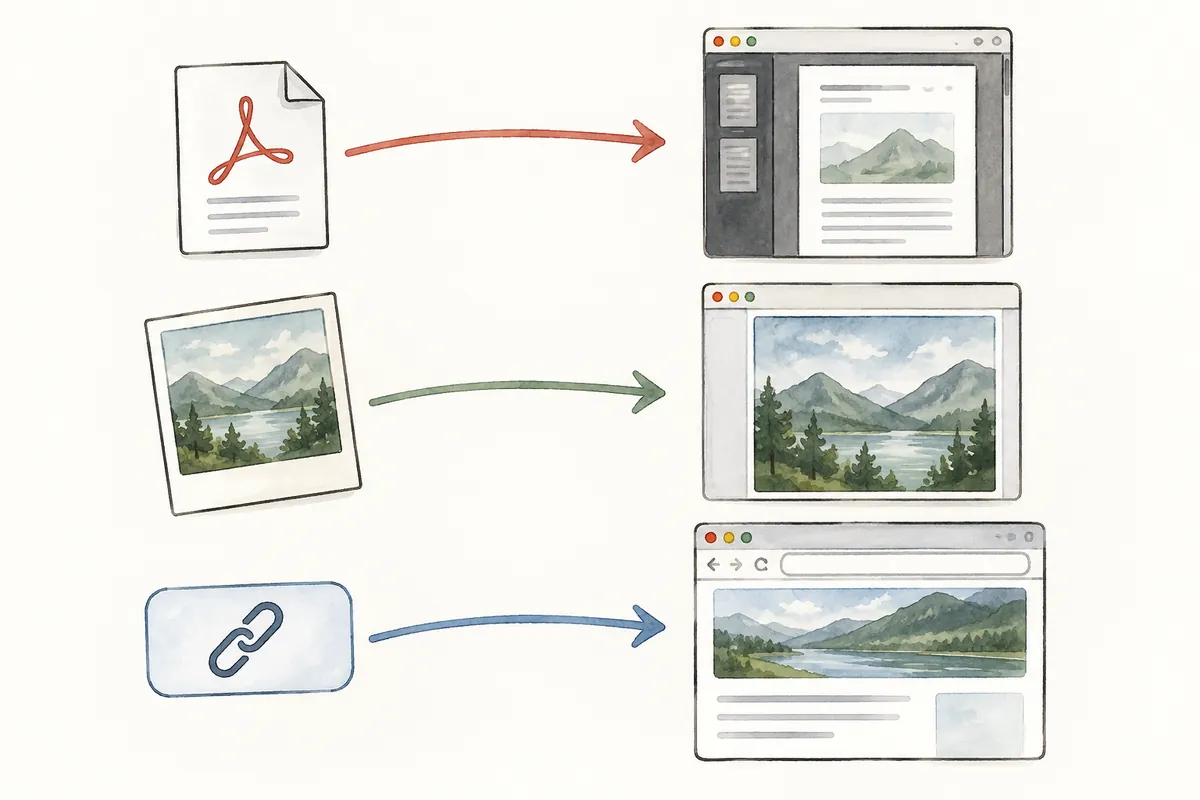
Before Changing: Choose One Test File
Prepare a practice file that opens correctly: one PDF without personal information or a small image. This is not editing an important original, but without test material it is difficult to judge whether settings applied.
| Problem | Target to change | Verification action |
| Saved PDF opens in another app | .pdf association | Open anew from Explorer |
| Only one photo type opens elsewhere | That image's extension | Compare two files of the same format |
| Want a different text-document app | .txt association | Open without changing contents |
| Web addresses open another browser | Web-link types and default browser settings | Open a web link from another app |
Record the current app, intended app, and test-file location: for example, “guide.pdf in Downloads, current app A, new app B.” A and B are fictional placeholders. First check that the new app supports the format and is already installed.
1. Define Exactly What to Change
“Change the app used when double-clicking jpg files” is more precise than “change the photo app.” PDFs, images, and text may have separate associations; links are separate too. Changing one does not make every document and link use that app.
You may want downloaded PDFs in another app while retaining your usual web-search browser. Start with the PDF association then. If web links in emails are the issue, inspect browser-related link types instead.
Record the current app before changing. This helps restore it if the new app is unfamiliar or lacks necessary features. Defaults fit your workflow; no one app is correct for everyone.
2. Change Default Apps by Extension
- Open Settings → Apps → Default apps.
- Enter the extension to change, such as .pdf, in the file or link type search box.
- Select the type shown in results.
- Choose the app and complete the onscreen confirmation.
- Open a file of that type again to verify the new app launches.
This procedure follows Microsoft's default-app guide. Wording may change with updates, so read search-item descriptions. Opening a file anew distinguishes changes more clearly than inspecting an already-open document.
Example: Change and Verify PDFs Only
- Record the test PDF's filename and location.
- Search .pdf in Default apps.
- Record the current app and select your preferred one.
- Close Settings and return to File Explorer.
- Open the prepared PDF anew and check the actual app name.
- Check another valid PDF of the same type too.
Do not verify only by looking at an existing PDF window: it may remain in the old app. New opening separates settings results from existing-window state. If needed, check for unsaved content before closing the old window.
For photos, verify the exact extension too. Do not change jpg then judge failure by opening png. Start with the actual file format rather than the broad category “photo.” Once one format works, examine other needed types in sequence.
3. Inspect Associated Formats by App Name
Default apps also lets you select an app to view supported file or link types. If the desired installed app should handle multiple kinds of material, find its name and inspect entries. Select each format to change its association.
Start with types actually used rather than changing the entire list. An appealing photo viewer may have unexpected editing or format support. Begin with one frequently used type, try it enough, then expand.
If work requires reading PDFs and adding simple notes, prepare a file to check both. This illustrates selection criteria, not a guarantee of particular app features. Check needed functions against official app descriptions and actual screens.
How to Read an App's Available Formats
Opening defaults by app name is useful for multiple formats. First verify each association relates to the intended task. Changing web links and other images while intending only document reading may cause unexpected behavior.
If choosing an image editor as the default photo app, check whether opening its editing interface for viewing suits you. Convenience depends on whether viewing, editing, or printing is primary. Test your own work with a usual file instead of comparing feature names alone.
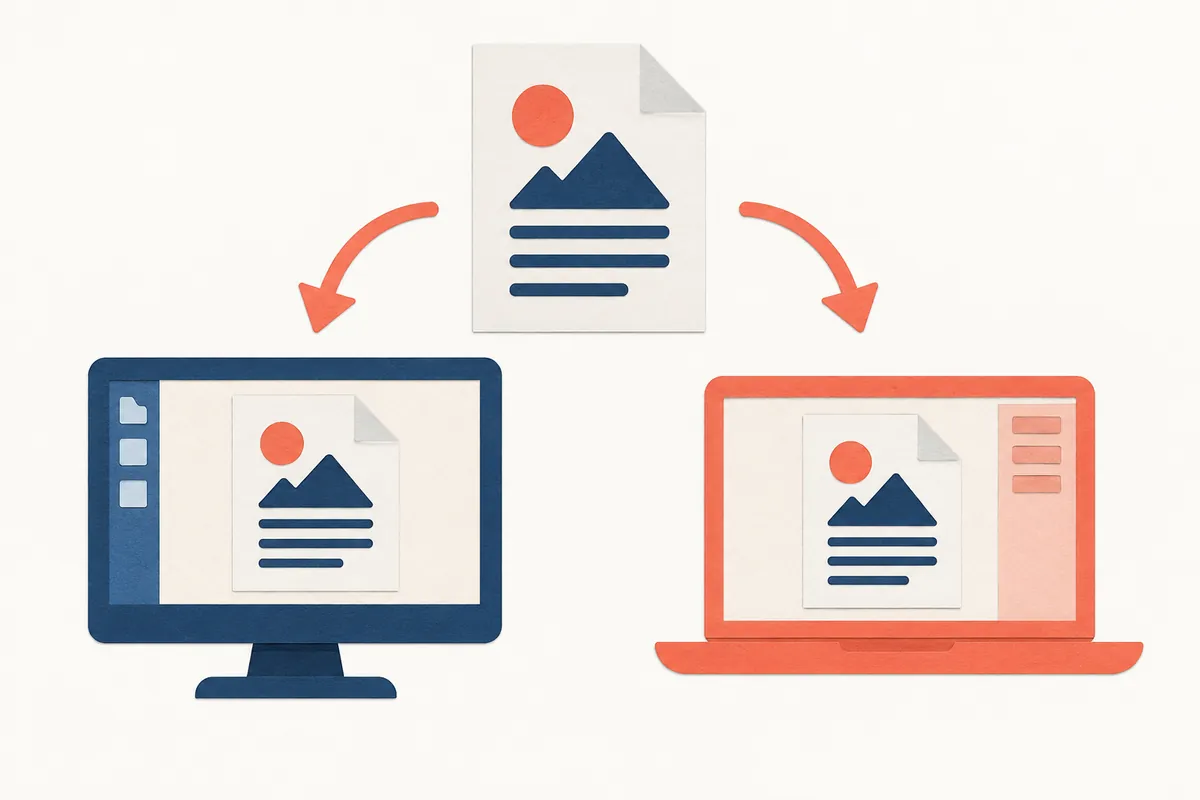
Even with a browser's Set default button, check how the intended link actually opens. Microsoft's guide describes Edge's default button and type-specific choices. For another browser, read installed-browser options and inspect required associations in Windows Default apps.
4. Distinguish Web Links from Downloaded Files
Links may use associations different from extensions. Microsoft explains defaults by link type, or protocol, as well as file format. When changing browsers, inspect its defaults screen and connected types together.
A PDF clicked on a site may remain displayed inside the browser. Do not equate this with double-clicking a downloaded PC file. Checking defaults with a saved file first clarifies where behavior differs.
Describe separately “opening the PDF in Downloads” and “clicking the document link on a webpage” so others understand. Clarifying reproduction before repeatedly changing settings helps.
Check Browser PDFs Separately from Saved PDFs
Microsoft Edge can open local PDFs, online PDFs, and PDFs embedded in webpages. These differences appear in Microsoft Learn's PDF reader explanation. A website displaying a PDF in-browser therefore does not establish failure of saved-PDF default settings.
- Save a trusted PDF to an easy-to-find PC folder.
- Open it in Explorer to check default-app behavior.
- Open the webpage PDF link and check browser behavior separately.
- Record which action differs from the intended result.
Instead of merely “PDF opens in Edge,” state “I double-clicked the Explorer file” or “I clicked a webpage link.” Different starting actions may need different settings. For browser display, inspect that browser's PDF options separately from file-association changes.
Also determine whether the PDF is an ordinary text document, a special form, or requires separate access. Specific-document features may need checks beyond default associations; consult the provider's instructions.
5. Three Checks After Changing
- Verify the actual intended file format.
- Check that the required app is installed and selectable.
- Open a file of the changed type anew and verify desired behavior.
One inaccessible file does not establish a default-app problem. Check another of the same type. Distinguishing universal from file-specific failures helps separate settings from file condition.
If the app is absent, check official guidance for format support. Do not install unknown programs or edit the registry merely to make it appear. Managed PCs may restrict installations and associations; check responsible staff's settings.
When Settings Behave Unexpectedly and How to Restore Them
| Observation | Check |
| Only another extension uses the old app | The actual format changed |
| Desired app absent from list | Installation and format-support guidance |
| Only online PDFs open in-browser | Browser's internal PDF display behavior |
| Only one file errors | Other valid files and the original material |
| Settings differ after next login | New app installations, updates, and organization management |
- Find the extension and previous app in your change record.
- Search that format again in Settings → Apps → Default apps.
- Select the previously used app.
- Open the same practice file anew and check behavior.
- If other types changed, restore only needed entries separately.
Precisely restoring changed items makes impact clearer than resetting all defaults. If one file still fails, inspect the original and file condition rather than repeatedly changing associations. If company-PC choices are blocked, check policy instead of installing bypass programs.
Record which file was opened in which way and which app actually launched. This helps decide whether future checks should begin with file type, web behavior, or app installation.
6. Frequently Asked Questions
Does changing default apps change file content? It chooses the app for opening, not format conversion. Editing or exporting documents happens separately inside the app.
I want another app only this once. Check the file's Open with menu. If an Always use option appears, read whether it matches a one-time opening before selecting.
What if the change is inconvenient? Select the previous app again in the same defaults screen and verify. Recording its name beforehand helps. Restore changed types before resetting all associations.
Official sources: Microsoft Learn — PDF reader in Microsoft Edge, Microsoft — Change Default Apps in Windows. Checked: 2026-10-03. Available apps and associations vary by installation and Windows environment.
Original illustrations created to help explain this article.
Original on Tistory ↗