Using Windows Clipboard History: Paste Previously Copied Content with Windows + V
This article was translated from its source language with AI assistance. Please check technical terms and equations against the original.
If copying another sentence after an address lost the earlier content, try clipboard history. Windows + V opens recently copied items so you can select what to paste. Frequently used phrases can be pinned too. However, history is not permanent document storage; save important content in separate files.
Before Starting: Distinguish Ordinary Pasting from History
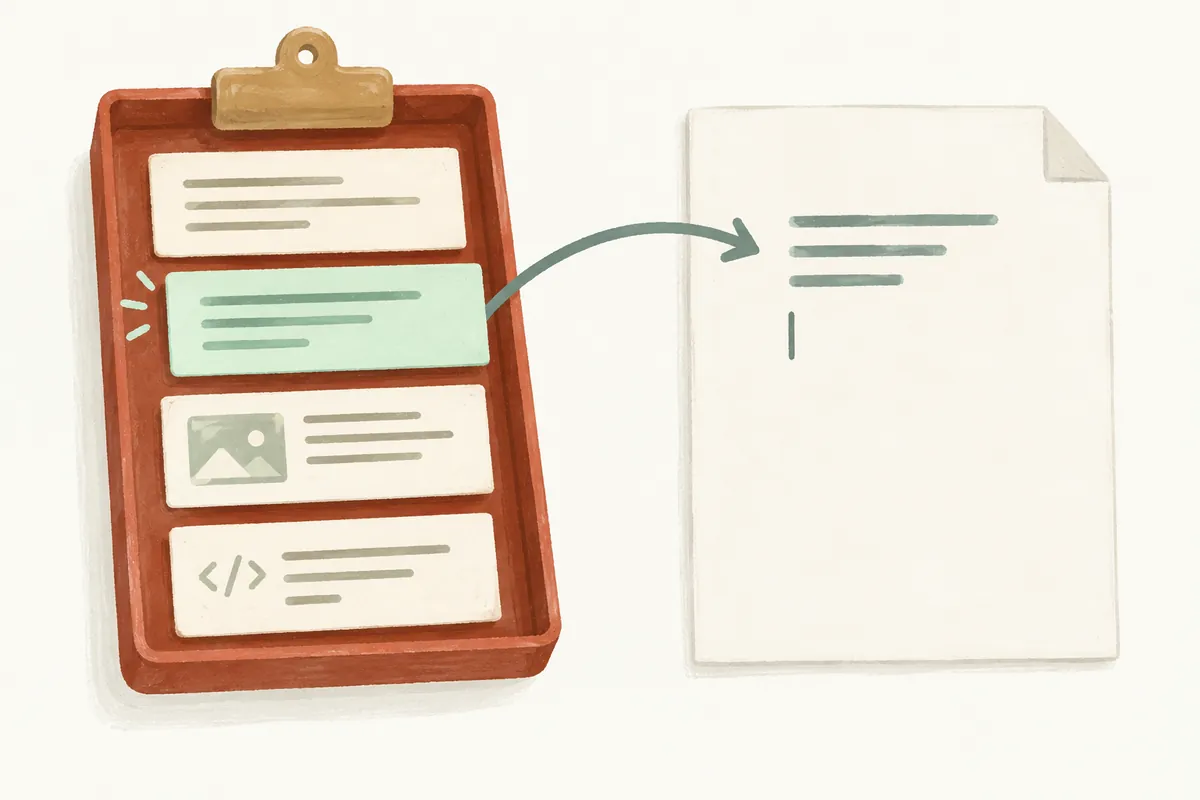
Ctrl + C and Ctrl + V are basic copy and paste shortcuts. Windows + V opens history for selecting recent copied items. Distinguishing them helps choose both the latest copy and earlier content.
| Desired task | Feature to check | Precaution |
| Paste the latest copied content | Ctrl + V | Select the input location first |
| Find earlier copied content | Windows + V | History must be enabled |
| Retain a short repeated phrase | History pinning | Recheck changed wording |
| Send text to another PC | Cross-device synchronization | Check account and automatic/manual options |
Practice with short publicly shareable sentences instead of passwords or addresses. Apps handle images and line breaks differently, so begin with simple text inputs like Notepad. Check that the clicked location is actually where you intend to type before opening history.
1. Enable History with Windows + V
- Press Windows + V.
- On first use, select the displayed Turn on button.
- Copy a short practice sentence, then another.
- Select a text input such as Notepad, then press Windows + V again.
- Choose the needed list item to paste.
Also check status in Settings → System → Clipboard. These steps follow Microsoft's official clipboard guide. Do not expect content copied before enabling history to be retained retroactively; test new practice sentences afterward.
2. Example of Collecting and Transferring Multiple Pieces
Suppose a meeting notice requires a location, schedule, and reference link copied separately. Instead of returning to the source each time, copy needed items first and choose them in order from history in the input field. For similar copied content, check context after pasting.
Copying both “2 p.m.” and “3 p.m.” does not make either the latest schedule merely because it appears in history. Clipboard stores copies but does not decide correctness. When materials change, inspect the original's current state and reread the final sentence.
For blog writing, use it to transfer candidate titles, source links, and short notes temporarily. Avoid entrusting the entire body solely to clipboard history. Manage drafts using document or editor saving, and use clipboard to transfer content between screens.
Practice Collecting and Pasting Three Items in Order
The three lines below form a fictional notice for learning, avoiding real personal or work information. Copy each separately and paste them in the desired order in a new Notepad document.
제목: 자료 제출 안내
일정: 목요일 오후 확인 예정
안내: 제출 전 파일 이름을 확인해 주세요.- Select and copy only the first line.
- Copy the second and third lines separately too.
- Press Windows + V in a new input field to inspect history.
- Choose the title item and insert a line break if needed.
- Choose schedule and guidance items in order.
- Read the completed text for missing or duplicated lines.
Compare copying the whole document selection at once. Already organized text is convenient to copy together; short materials scattered across screens may benefit from history selection. Choose the approach reducing switching and mistakes rather than using features for their own sake.
3. Pin Frequent Phrases and Save Important Originals Separately
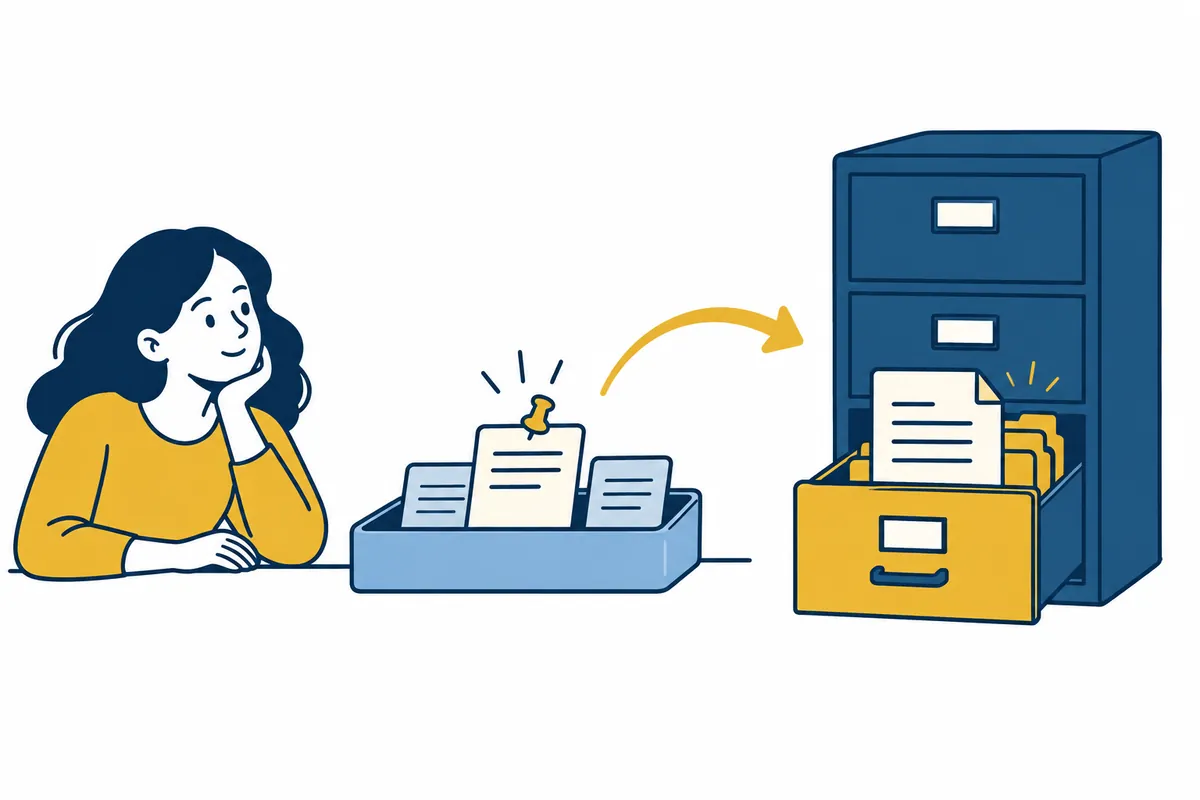
Pinning from an item's history menu retains frequent phrases. Microsoft explains that ordinary history clears when restarting the PC, except pinned items. Repeated guidance or public contact details are possible pin candidates.
Choose pinned content by asking whether accidental pasting during another task would cause trouble. Short greetings or frequently used public links suit this better than passwords, authentication codes, or personal identifiers. Review regularly, because outdated schedules or notices can be sent incorrectly.
Pinning and backup have different purposes. Save contracts, long manuscripts, and important work notes as files with defined names and locations. Avoid assuming future retention merely because content currently reappears in history.
Small Rules for Managing Pinned Phrases
Before pinning, check whether wording changes with time. “I will check and reply” is reusable; dated guidance becomes incorrect later. Judge whether the content will remain valid for long use first.
- Pin candidates: greetings, recurring guidance, public reference links.
- Manage in separate documents: long drafts, multiple answer versions, important work records.
- Do not pin: passwords, authentication codes, temporarily needed personal information.
- Regular checks: outdated schedules, changed contact details, rarely used phrases.
Even after pasting a pinned sentence, reread it for the recipient and situation. Repeated phrases speed input; they do not review answers. Edit names or dates as needed and recheck the actual message to send.
4. Distinguish One-PC History from Cross-Device Sync
History and cross-device sync are separate settings. Sharing copied text with another device requires checking synchronization and same-account conditions. Choose automatic or manual sync according to desired behavior.
First ask whether text copied on a work PC should be available on a personal laptop. Check permitted destination devices rather than enabling sync for convenience alone. Follow organizational rules on work devices; policies may restrict the feature.
For one-PC use, learn local history before deciding on synchronization. Changing both devices' settings together obscures which change caused behavior differences, so check one step at a time.
Checks When Cross-Device Sync Fails
- Check history use separately on both devices.
- Confirm whether cross-device sync is needed and inspect relevant options.
- Check that the same Microsoft or relevant work account is used.
- Read whether automatic or manual sync is selected.
- Test one newly copied line without personal information.
- For company devices, ask responsible staff whether policy restricts it.
Manual sync may not match merely copying and waiting for another device. Check whether the current settings require explicitly selecting an item's sync button. Local history visibility and transfer to another PC are separate checks.
If sync was unwanted, turn it off and inspect remaining history on each device. Disabling the option differs from cleaning existing records. Deciding destination devices before use reduces mixing personal and work material.
5. Clean History After Work
Delete individual items or use Clear all from Windows + V menus. History can also be cleared in Clipboard settings. Pinned items may remain after clearing, so inspect them separately.
After copying a shipping address, make cleaning that item a habit. On shared PCs, consider the next person viewing the screen or using the same account. Clearing history does not delete content saved in other apps or already sent messages; distinguish action scopes.
Decision Table When Items Are Missing
| Symptom | What to check |
| History asks to turn on | Enable it and test new text |
| Recent items present, older ones absent | History count limit, restart, and pin status |
| One large image absent | Supported formats and per-item size limit |
| Copied file absent | Difference between file storage and text history |
| Absent only on another device | Sync method and account status |
Check ordinary paste too. Distinguish new text that works with Ctrl + V but is absent in Windows + V from copying itself failing. Testing the same short sentence in another input provides clues about app-specific problems.
After work, delete unnecessary individual records and reread pinned ones. Remember that pins may survive Clear all. If important text disappears, find the original document or saved file rather than repeatedly manipulating history. History does not replace long-term original storage.
6. Frequently Asked Questions
Does every copied item remain? No. Official guidance describes per-item size, supported formats, and count limits. Current guidance limits history to 25 items and each item to 4 MB. Older ordinary items may disappear to make room for new ones.
I copied a file, but it is not in history. History supports formats such as text, HTML, and bitmaps. Do not treat it as a file cabinet for long-term storage of files copied in Explorer.
Can multiple sentences be pasted together? First choose needed items one at a time. Check location and order, then read pasted text to reduce wrong-item mistakes.
Official sources: Microsoft — Keyboard shortcuts in Windows, Microsoft — Using the clipboard. Checked: 2026-10-03. Menus and availability may vary by Windows version, account, and management policy.
Original illustrations created to help explain this article.
Original on Tistory ↗