Distinguishing Browser Login and Windows Login: Reducing Account Confusion
This article was translated from its source language with AI assistance. Please check technical terms and equations against the original.
You have entered Windows and a photo is visible in the top right corner of Chrome, but the blog management page may require a login. In this case, simply stating that you are "logged in" does not tell you which stage is normal. You need to differentiate between the user opening the PC, the browser's workspace, the online account connected to the browser, and the login status of individual websites. This article explains how to reduce account confusion, focusing on Chrome. Site actions, such as logging into the management page and scheduled saving, must be checked separately on the respective website screens.
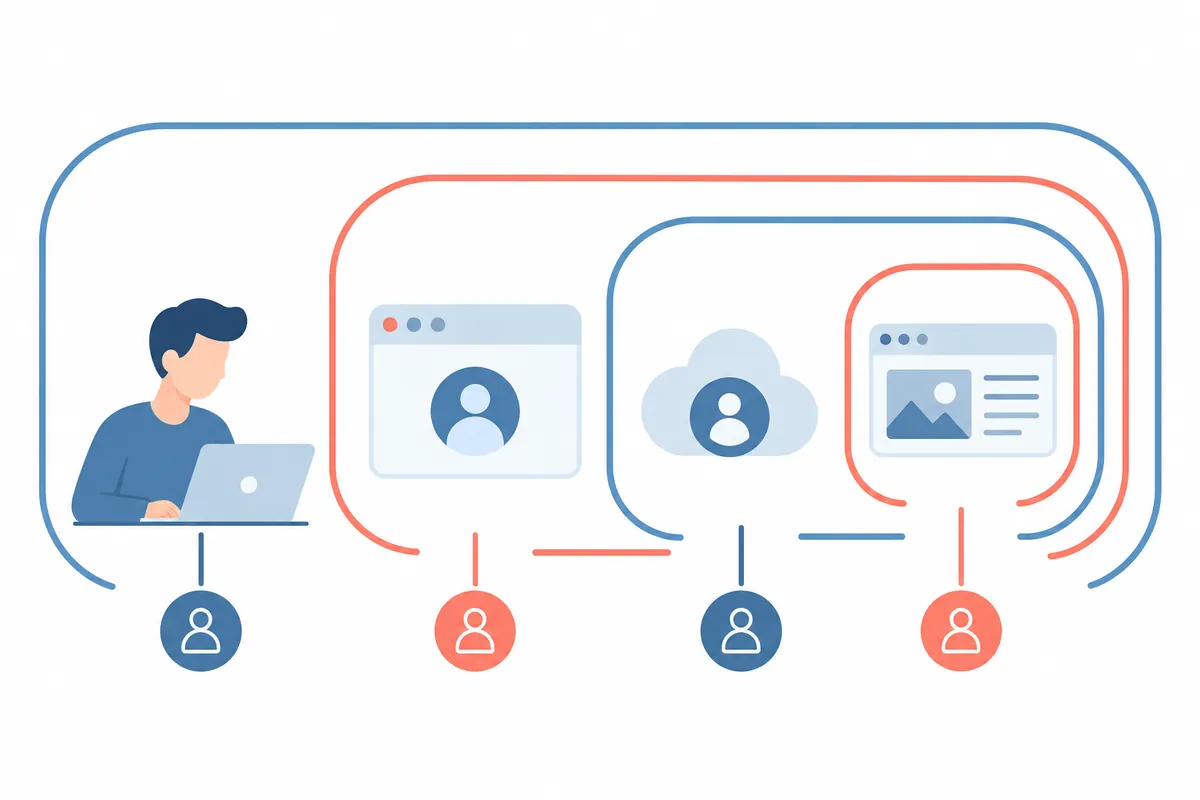
1. It becomes easier if you divide it into four layers.
First is the Windows user. This is the starting point for accessing the PC desktop and user-specific data. Second is the Chrome profile. This is the unit that divides the work environment within the browser, such as bookmarks and browsing history. Third is the Google account connected to Chrome. Fourth is the account currently used on each open website. Even if emails or photos look the same, the starting point for troubleshooting is not combining these four states into a single sentence.
For example, you can open work Chrome profile B on user A of your home PC, sign in to Chrome with Google account C, and then sign in to a separate site with account D. A through D are descriptive notations representing different roles. Just because C is working correctly does not mean that D has administrative privileges. Conversely, being logged out of a site does not mean your Windows password is incorrect. By narrowing down the failure layer, you can accurately select the settings that need to be changed.
2. Compare locations to check account status
| Check Target | Check location | Things that cannot be known from this alone |
| Windows User | Account/User Information in Settings | Current login and administrative permissions by site |
| Chrome Profile | Chrome profile selection menu | Whether the profile name matches the site account |
| Google account in Chrome | Show account in Profile · Chrome Settings | Login status on another company site |
| Individual site users | Site Profile·Account·Admin screen | Other site or Windows login status |
In the confirmation note, record the target and result instead of the actual password. You can write it like this: 'Windows user normal, Chrome work profile selected, Google account normal, log in to blog admin screen required.' If you attribute a blockage at the final step to a login issue for the entire PC, it is easy to proceed with unnecessary OS changes. Conversely, do not conclude that an account has publishing permissions based solely on a site's profile picture.
3. Chrome profiles are used to distinguish work environments
Google'sGuide to Managing Multiple Chrome Profilesexplains how to organize bookmarks, history, passwords, and settings by profile. You can select a profile to use or add a new one from the profile menu at the top right. It is easy to distinguish the current window if you set the name and color to match your work purpose. Including the role in the name, such as 'Personal Data', 'Blog Work', or 'Practice Environment', is easier to remember than using simple numbers.
The name of a profile may be a user-assigned designation and is not used as information to prove ownership of the online account. Opening a profile named 'Admin' does not make you an administrator on the site. You must verify your actual site account and permissions on the site screen. Additionally, since changing profiles can keep the previous window intact, distinguish between opening a new window and closing the wrong one. If there are multiple windows, view the address and profile together to select the appropriate action.
Profile separation is different from security boundaries on a public PC. Google advises that anyone with access to the device can switch to a different Chrome profile. If a family shares the same Windows user but only separates the Chrome profiles, do not assume that their browser data is strictly blocked. To separate data access, review the Windows user and device usage rules together. It is best to understand profiles first as a tool to reduce task confusion.
4. Also check the connection between Google login and Chrome login.
It is also inaccurate to describe Chrome logins and all website logins as completely unrelated. Google'sGuide on how to log in to a Google account in Chromeexplains the connection between Chrome login and Google web services. You can log in to Chrome from services like Gmail on your computer, and logging into Chrome also logs you into other Google web services. Therefore, you must consider the connection between Google services and authentication for other company sites separately.
Some browser data can be saved to your device even without signing in to Chrome, and data to be saved to your account and synchronization settings are managed separately. Do not assume that all browsing history and tabs are always shared in the same scope just because photos are visible. Select only the data you need and check your current settings. On public devices, you must determine what will remain or be shared before initiating a new account connection. Avoid the sequence of turning on all unnecessary data synchronization to resolve login status verification issues.
For example, if bookmarks are not visible on a different PC, you should first check your Chrome account and data storage settings. If a message prompting you to log in appears on the blog management page, you should check the account status for that site. Even if both symptoms occur simultaneously, you should not assume they share the same cause. By documenting the normal and failed parts for each, you can reduce the need to unnecessarily change your work environment while trying to fix one problem.
5. The Actual Order to Narrow Down Site Login Problems
First, verify that it is the intended Chrome profile window. Next, check the accessed site and path in the address bar. If the site directs you to a login screen, use the site's official login procedure. Finally, after entering, verify the site's account display and access to the desired management screen. Login success is not recorded based solely on the window title or profile nickname. You must be able to view the actual management screen to determine if you are ready to proceed with the next steps.
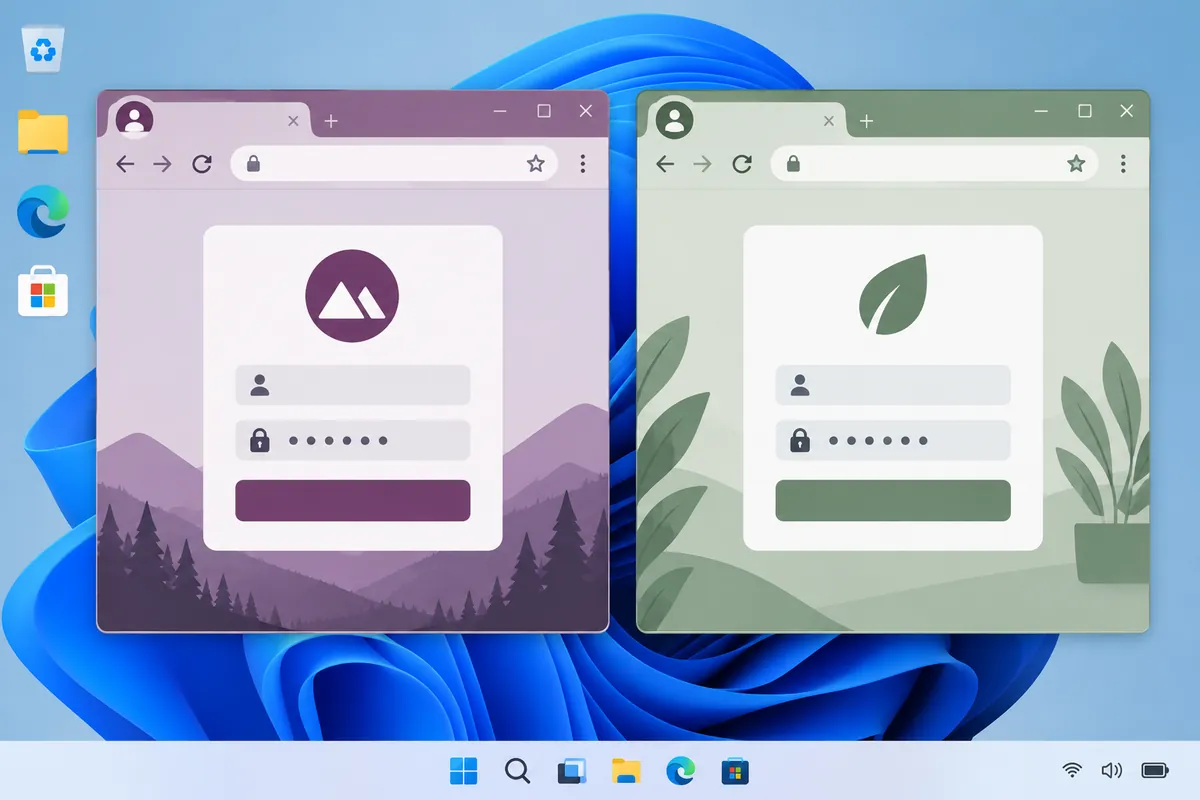
Even if you return to the original page after logging in, verify that the account is correct. In services that support multiple accounts, the desired project may not be available in the account you initially selected. In such cases, check the site account selection and project ownership information before deleting the account or changing the Windows user. If the account is correct but you do not have permissions, it may be an issue with administrator invitations or access rights, so distinguish this from resetting your password.
For illustrative purposes, consider a scenario where you have written a manuscript but your login status disappears from the admin screen before publishing. Save the manuscript first, verify the login screen, and then access the admin screen again with the intended account. If the previous save result is unclear, check the list to see if the same post already exists before deciding to create a new one. Login recovery and preventing duplicate saves are interconnected but represent different verification steps. This example is not a record of an actual save being performed on the site.
6. Incognito mode is a separate environment for diagnosis, not a panacea.
According to Google's guidelines, you cannot log in to Chrome itself in Incognito mode, but you can log in to Google Web Services. This difference alone demonstrates that the roles of browser login and site login are distinct. Accessing a site in an Incognito window does not modify your regular profile account or saved status. You must record which window the result was obtained in to avoid mixing it with issues in the standard window.
When investigating an issue, you can verify site access in a separate window if necessary, but there is no need to first delete data from the logged-in, normal window. Since deleting cookies and site data may alter your login status, preserve your manuscript or ongoing save and make decisions within the necessary scope based on the site's official troubleshooting guidelines. Do not make bulk removal of all site data the first step for all login issues.
If the results differ between the normal window and the separate window, record the result as, "General window allows access to management screen, separate window requires login." This difference is an observation that the current state of each window is different and does not, in itself, indicate account theft or a system error. You must verify the site's account information, access path, and error message in sequence to narrow down the cause. Distinguish between creating a diagnostic environment and changing the normal operating environment.
7. Things to check before cleaning up and deleting your profile
Deleting a Chrome profile is different from a light cleanup that simply hides the screen name. Google advises that deleting a profile erases its bookmarks, history, passwords, and settings from your computer. Therefore, do not delete your profile first to resolve login confusion. First, check the retention status of necessary data and the accounts you are using, and then review whether you can distinguish them simply by organizing names and colors.
Establishing criteria to check at the start of each profile reduces confusion, even if you don't end up deleting it. For example, you check the target site address and site account on a blog profile, and the personal account on a personal profile. Just before important external saving, review the current address, the site user, and the save destination. The actual item displayed on the screen is a more accurate standard than the feeling of familiarity with the browser photo.
8. A Short Checklist to Reduce Account Confusion
- Have you distinguished between the current Windows user and the Chrome profile?
- Did you verify the actual connected online account instead of the profile name?
- Have you verified the intended users and permissions on individual sites?
- Have login issues and unclear save results been handled separately?
- Did you preserve the necessary manuscripts and browser data before deletion or data cleanup?
The more difficult it is to explain the login process at once, the more useful it is to divide the verification targets into layers. You check, in order, whether the PC user is functioning correctly, the browser workspace is the right one, and the site account is intended. Finally, you verify the result of the operation on the actual list or screen of the site. This habit can be applied in the same way not only to blogs but also to tasks involving switching between multiple accounts, such as email, cloud documents, and development services.
Official Sources and Writing Standards
Data Verification Date: 2026-10-10. This explanation was generated by AI based on actual official data. Calculations, codes, and verification examples marked separately are for illustrative purposes only and are not the results of direct testing or actual measurements of the user environment. We will re-verify whether there have been any changes to the functions and data on the publication date.
Original illustrations created to help explain this article.
Original on Tistory ↗