Locking the PC when away: Distinguishing between auto-lock and logout
This article was translated from its source language with AI assistance. Please check technical terms and equations against the original.
Just because your PC screen turned off while you went to get coffee doesn't mean the lock is complete. If you can see a document simply by moving the mouse when you return, it's possible only the screen was turned off. Conversely, if you logged out to leave your desk for a moment, you may need to reopen the work you were doing. To choose the necessary action, you need to distinguish between the screen, the user session, and login verification. Here, we summarize the choices for short outings and wrapping up your workday on a personal Windows 11 PC.

1. Locking and logging out have different effects on operations.
Locking is an action that requires authentication upon reuse while maintaining the current working session. Since logging out is an action that terminates the user session, open apps are closed and unsaved content may be lost. Microsoft'sWindows User Access GuideYou can see this difference at . Locking is convenient for short outings, and once you have finished all your work, you can choose to save and log out.
Screen Off refers to the screen's output state, while Power Saving refers to the power management state. Using the same word as "Lock" for both obscures which setting needs to be adjusted. User switching also involves moving to another user's space, and the previous user's apps may remain. Checking the actual names of the menus you use before turning off the power can help reduce the mistake of simply seeing a black screen and assuming the task is finished.
2. Compare what to choose for each situation
| situation | Priority Action | Result to check |
| Move to a different seat for a moment | Direct Lock | Lock/Login screen displayed instead of document |
| Finish all tasks for today | Save file and log out | To use again, log in to a new session |
| Another family member using their account | Switch user or log out after saving | Check if you entered as the intended user |
| Monitor turned off briefly | Check separately whether a login is required | Check if the document is not visible immediately when the screen turns on |
Locking does not replace a backup. Even if the work session is maintained, it is not a feature that resolves app errors or power issues. Therefore, save important modifications even when moving around briefly, and do not interpret the fact that the document remains open after locking as meaning that the 'original has been safely backed up.' It is convenient to group locking and saving as habits that address different issues.
3. The fastest way is to lock it directly and check the result.
Lock the device by pressing the Windows key and L together just before leaving your seat. If it is difficult to use the keyboard, locate the Lock item in the Start menu. In the latest instructions, Lock is displayed in the Power menu; however, since it was located in the Account menu in previous Windows 11 versions, do not assume the function is missing simply because the location has changed. Verify separately the action of pressing the Lock menu or sending the shortcut, and the result that the screen is actually locked.
The verification sequence for this explanation is simple. Open and save a non-essential practice document, then execute the lock action. Check if the document content remains on the screen, and then return to authenticate to see if you can resume using the same workspace. On devices with facial recognition enabled, the authentication process can proceed quickly when the user returns. Do not conclude that the lock was not executed simply because it unlocks quickly; instead, observe the screen at the moment of departure and the authentication at the moment of return separately.
If the key combination does not respond, first check which PC you are currently operating. If you are viewing a remote screen, the lock on the local device and the remote session are separate issues. We will not provide a blanket explanation here regarding the key transmission methods that vary by remote program. It is more accurate to check the lock on the intended target using the Start menu and additionally verify the official instructions of the remote program. You do not need to change your account password first to resolve a lock failure.
4. Dynamic locking is an auxiliary means using a mobile phone
Windows features a dynamic lock that uses a Bluetooth-connected mobile phone. It works by automatically locking the phone when you move away and the signal drops below a certain level. Microsoft'sLogin Option DescriptionThe indicates that it locks within approximately one minute of moving out of Bluetooth range. However, if you understand it as a distance sensor that locks immediately the moment you step outside, your expectations will differ from the actual operation.
Check the Dynamic Lock item in the Accounts and Login options in Settings, and verify the Bluetooth connection status of your phone. First, confirm that your PC and phone are paired, then turn on Dynamic Lock. The displayed text or available options may vary depending on the device configuration. Since connecting a phone left behind by someone else or a device always sitting on a desk does not accurately reflect the "away from desk" situation, please select based on the device you actually carry with you.
Even if Dynamic Lock is enabled, it is best to maintain the habit of locking your phone manually just before leaving. If your phone is left on the desk or the Bluetooth connection is not functioning properly, you may not see the expected changes. Consider the automatic function as a backup when you forget to lock it manually; there is no reason to wait for it to activate while leaving important documents open. Dynamic Lock should also be distinguished from the standard unlock function that automatically authenticates when you bring your phone close.
5. Design a test to verify that the automatic lock works properly
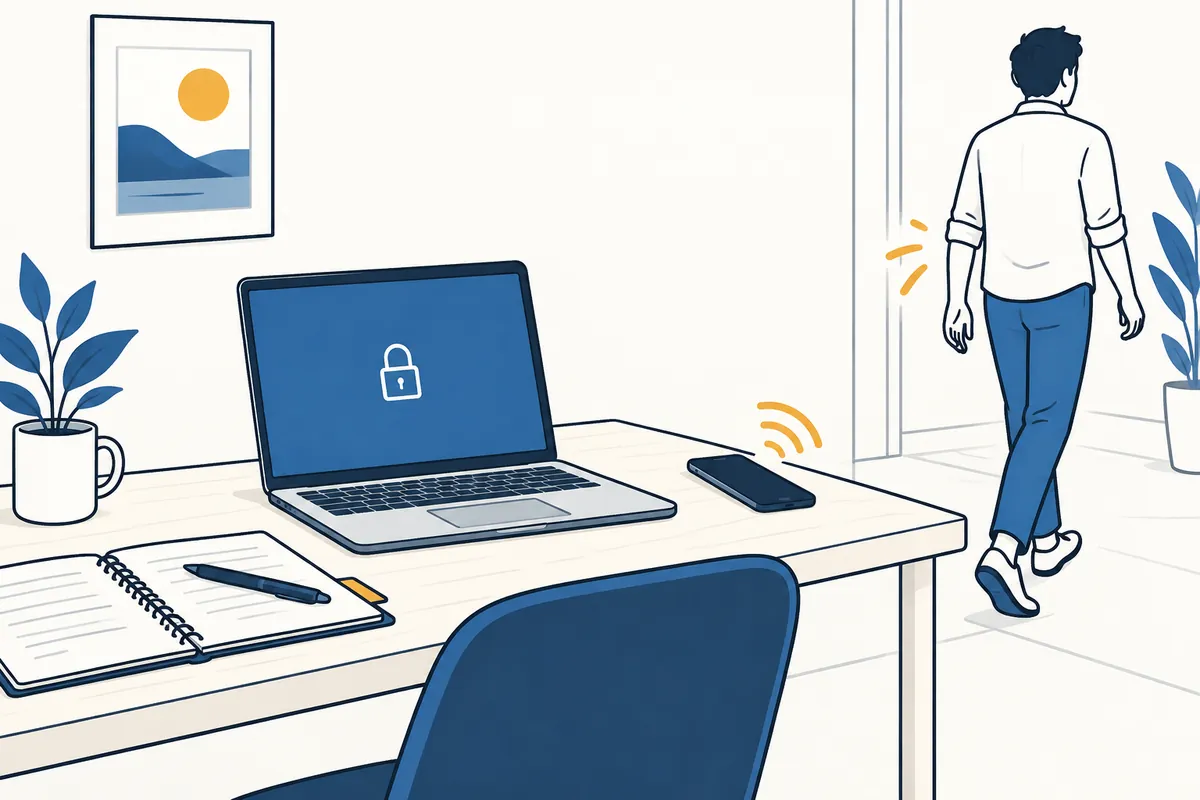
In a real-world environment, set a specific time to check once initially. In the example inspection log, record 'pairing confirmed, moving with the phone, time the screen was checked again, and whether authentication was required.' Rather than fixing a number for the locking point in meters, it is useful to observe whether the desired result is obtained along your usual travel route. Since building structures and device conditions vary, do not use another person's distance measurements as the guaranteed range for your PC.
Keep a practice file open instead of sensitive documents while verifying. If possible, test during short movements where you can verify directly, and if it does not lock, finish with a manual lock first. Do not consider moving far again and waiting when the automatic function has failed as a solution. The inspection sequence in this article is designed for illustrative purposes and is not a record of actual operating times on a specific PC.
In your log, keep separate columns for 'Settings turned on' and 'Lock confirmed during actual away.' The former indicates configuration complete, while the latter confirms operation. Also, just because you confirmed it locked automatically does not mean you should conclude it will always work the same way during every away. A brief re-verification may be necessary after replacing your phone, reconnecting Bluetooth, or changing Windows settings. By keeping this log, you can identify both the basis for trusting the automatic function and when it needs to be re-verified.
6. Case where the screen turns off but does not re-authenticate
First, distinguish whether the screen turned off or went into sleep mode. If the login options in Settings display an item that configures the device to log in again when waking from sleep, check the current selection. Since the available options may vary depending on the device and policy, do not assume that the absence of this menu indicates a malfunction. The key point is that simply shortening the screen off time in Power Settings does not mean the authentication requirement has been met.
For illustrative purposes, consider a PC where the screen turns off after 3 minutes and login requirements are configured separately. You cannot tell if user access has been blocked based solely on the result that the screen has turned off. On the other hand, the result of locking manually with Windows+L can be verified on the authentication screen. The 3 minutes in this example is not a recommended time or a standard measure. For tasks where the length of time away is difficult to predict, locking manually before leaving, rather than relying on automatic timers, reduces the need for judgment.
7. Rules to establish besides locking if sharing a PC
If family members share a password for an account, they can re-access that account's documents even after it is locked. If you want to divide different tasks, consider how to separate user accounts. Creating multiple Chrome profiles within the same Windows user is different from separating Windows logins. Lock settings will only be of practical help if you agree on who is working with which account and what screen to leave behind when you leave your seat.
When finishing work, check the results of documents being worked on, uploads, and app saves, then log out. You can use the lock function instead of logging out when you want to maintain a work session, such as during a brief absence. When handing over the PC to the next person or finishing a task, follow the shutdown procedures you have established. Since organizational PCs may have an auto-lock policy set by an administrator, rather than trying to find a way to disable it arbitrarily, specifically report any conditions that cause inconvenience to your work to confirm whether adjustments can be made.
8. Final check to verify execution results
- Did you save important modifications before departing?
- Did you check the authentication screen instead of the document after locking?
- Do you actually move the phone connected to the dynamic lock?
- Did you check the screen off and authentication requests separately?
- Do you choose to log out after finishing the work to be saved?
It is more useful to develop a habit of briefly checking results than to turn on many settings. If you establish a sequence of saving, locking, and viewing the screen once before leaving, you do not need to calculate the auto-lock duration every time. By checking automatic functions additionally and separating saving and logging out when finishing a task, you can start your PC from the intended state when you use it again.
Official Sources and Writing Standards
Data Verification Date: 2026-10-10. This explanation was generated by AI based on actual official data. Calculations, codes, and verification examples marked separately are for illustrative purposes only and are not the results of direct testing or actual measurements of the user environment. We will re-verify whether there have been any changes to the functions and data on the publication date.
Original illustrations created to help explain this article.
Original on Tistory ↗