Differences Between Local Accounts and Microsoft Accounts: Login and Sync Scope
This article was translated from its source language with AI assistance. Please check technical terms and equations against the original.
You may encounter situations where documents are not visible after logging into a new PC with the Microsoft account you used on your laptop, or where OneDrive runs even on a PC running a local account. This situation is difficult to understand if you assume that the account type and file storage location are the same. You must check the login that defines the PC user, the login for individual apps, and the synchronization that moves files separately. This article focuses on checking existing accounts on personal Windows 11 and deciding whether to switch. It does not cover methods to bypass account requirements during the initial setup process or organizational management policies.
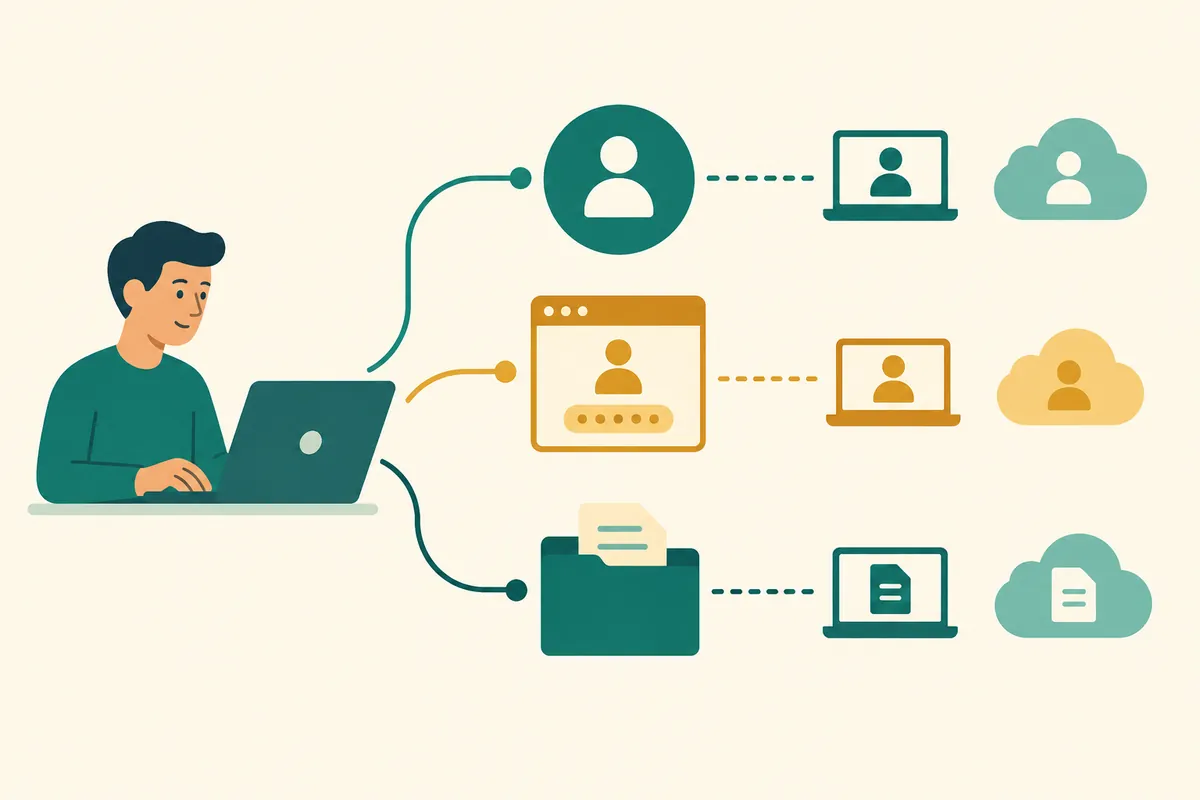
1. To what extent do the two accounts identify me?
A local account is a user created on that PC. A Microsoft account is an account used for various Microsoft online services in addition to Windows. While online account verification is not required when accessing the PC with a local account, it does not mean that logins for internet-enabled apps are removed. Conversely, logging into Windows with a Microsoft account does not mean that data from all services is automatically gathered in one place. Microsoft'sAccount Switching GuideYou can check the difference between the two types and the current user switching path at .
For example, the issue of separating documents and desktops on a family PC involves Windows user separation. The issue of continuing to use work files across two PCs involves file save locations and synchronization settings. If you switch accounts first to solve both at once, you might discover belatedly that what you actually needed was synchronization of specific folders. It becomes easier to make a choice if you first list your goal as one of 'Separating users on this PC,' 'Sharing settings with another PC,' or 'Using online services.'
2. Check account type in settings instead of screen name
Open User information in Accounts in Settings. Depending on your current account type, you will see a link to switch to a different type. If 'Sign in with a Microsoft account instead' is present, it helps determine if you are currently using a local account. Do not guess the account type based solely on the nickname displayed on the screen or the short name of your user folder. Since the display name is information intended for human viewing and the folder name is a file path, it may not be the same as the full email.
Next, verify the actual login account for each app. Note down the account for the OneDrive window, the Store profile, and the browser profile separately. Do not assume that turning off a single switch will log you out of all accounts, even if the same email address is repeated. In the checklist notes, simply record the roles instead of passwords, such as 'Windows: Personal Account A, OneDrive: Personal Account B, Work Apps: Organizational Account C'. There is no reason to post your full email address and recovery information together on public boards or screen sharing.
3. Organizing Selection Criteria into a Table
| Desired result | Items to view first | Points easy to miss when making judgments |
| Separate individual workspaces on one PC | Windows User Account | User-specific document management is required separately from account types |
| Continue writing some settings on a new PC | Microsoft Account and Windows Backup | Check if it is the same account and verify the selected backup item |
| Use work files on two devices | App account and file synchronization location | Not all folders are transferred with just a PC login |
| Do not leave personal data on public PCs | User · App Login · Save Location | Data retention cannot be prevented solely by the name "local account" |
This table is not a ranking indicating which account is unconditionally better. A PC used alone at home serves a different purpose than a shared PC in a library. Even after selecting an account type, you must verify where your data is stored; therefore, you should consider not only usage frequency but also who will be using the PC and what you intend to restore from other devices. For company devices, check the storage and recovery procedures established by the organization before personal backups.
4. File Practice for Distinguishing Between Synchronization and Full Backup
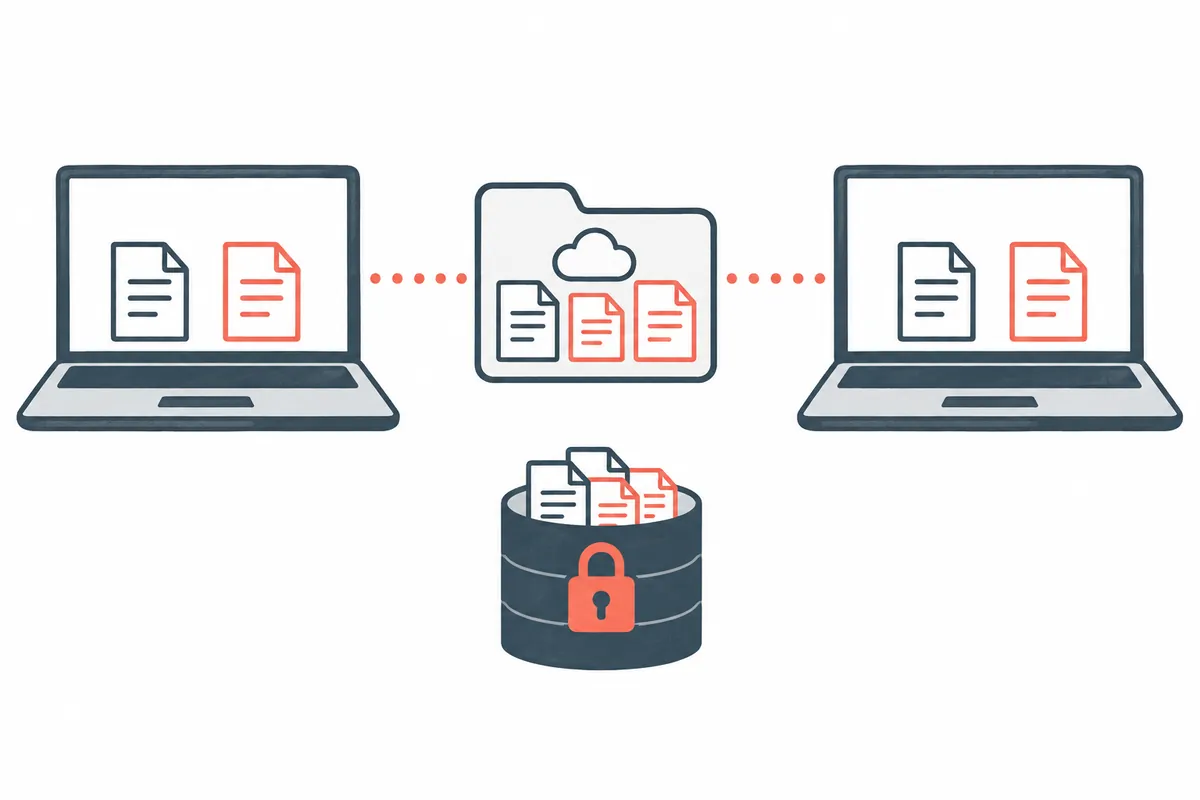
For illustrative purposes, let's assume there are three working files on Notebook A. One is on the desktop, one is in a project folder on a separate D drive, and one is in a Documents folder selected to sync with OneDrive. After logging into the new PC B with the same account, the goal is to verify whether the three files exist. The fact that the backgrounds look similar is not evidence that the three documents have been recovered. You must compare the file names, actual content, and last modified times for each.
In Windows Backup, select folders and settings. This applies to personal Microsoft accounts, and the same consumer app guidelines cannot be applied to work or school accounts. The specific range of selections isOfficial Windows Backup ExplanationPlease refer to . You must distinguish between remembering app lists or settings and restoring the entire program execution environment. Verify whether the project's separate tools, executable files, and data files must be prepared again to continue working.
In the actual test, a non-critical practice document is created in a selected sync folder, and after verifying that the app has finished transferring it, the content is opened on another device. If the upload is still in progress, the fact that the document is not on another device is not used to conclude that the account connection is incorrect. Cases of insufficient storage space or logging into the app with a different account are also checked separately. The examples in this article are for testing design purposes only and do not imply that the sync test was performed on a reader's device.
5. Records and preparations to keep before the transition
Write a single sentence explaining why you want to change accounts, and record the actual location of your current files and the login status of individual apps. If you plan to switch to a local account, set a new username and password and verify the login method. If you switch to a Microsoft account, first check if the account you will be using is for personal use and if you have access to recovery methods. If you log in to multiple apps consecutively with the wrong account selected, it becomes difficult to track which data is linked to which account later on.
Save open documents and keep necessary originals separately. Do not delete the only original just because you trust the explanation that synchronization is turned on. It is easier to identify the cause if you do not perform account switching, file cleanup, changing OneDrive accounts, and renaming user folders all on the same day. If a problem arises after switching, the scope of investigation is reduced if only one item has changed. Select a few frequently used documents and apps as check targets to quickly verify that operations are currently functioning normally.
6. The actual conversion proceeds from the current user information.
If you decide to switch on a personal PC, use the switch link in Accounts, User information in Settings and follow the instructions. When switching to a local account, specify new login information, and since you may need to log out during the completion process, check first to ensure you have no unsaved work. The displayed text may vary depending on the Windows version and account status. Reconfirm your current account type and whether you are managed by an organization rather than running scripts from unknown sources first to find a hidden button.
After completion, check the account on the login screen and the desktop, then try opening the original document and the necessary apps. Do not define a successful account switch as "closing the settings window," but rather as "being able to re-enter the intended account and use the work files." If an app requires a separate login, record it as an account issue with that app. You can reduce unnecessary resets by not treating changes to the PC login password and changes to the app's billing account as the same thing.
7. When expected settings or files are not visible
The first question is whether you are using the same personal account on both devices. The second is whether you have actually selected the item you wish to restore. The third is whether the file is in the selected folder and the transfer has finished. The fourth is whether the new PC is seeing the correct location of the file. Checking in this order can turn the broad question of "it’s a Microsoft account but it’s not working" into small, actionable issues.
For example, if the settings have been restored but the original on the D drive is missing, first locate the backup path of the file. This is not the step to log out of all Microsoft services or delete the account. Conversely, if the original exists in OneDrive but only the desktop settings differ, check the selected settings and their application status. Since attempting to fix the invisible file issue and login failures at once can alter normal functions, it is recommended to record the symptoms and verification results separately.
8. Checklist for Finalizing Account Selection
- Have you checked the current Windows account type in user information?
- Did you write down the online app account separately from the PC account?
- Do you know the location of the folders to synchronize and the sources to exclude?
- Have you prepared recovery measures and a new login method?
- Did you actually open the key files and check the results after the transition?
When selecting an account, the most useful criterion is the scope you can manage, rather than the number of features. If you want to continue using your data across multiple devices, clearly define the account to connect and the synchronization scope. If you plan to use it primarily on a single PC, maintain a separate file backup plan. Keeping in mind that file management does not end with simply switching accounts allows you to reuse the same checklist when moving to the next device.
Official Sources and Writing Standards
Data Verification Date: 2026-10-10. This explanation was generated by AI based on actual official data. Calculations, codes, and verification examples marked separately are for illustrative purposes only and are not the results of direct testing or actual measurements of the user environment. We will re-verify whether there have been any changes to the functions and data on the publication date.
Five steps to check before selecting an account
1. Goal: Separate users, share settings, move files
→
2. Check account type in Windows user information
→
3. Record app login account and file location separately
→
4. Select only the desired backup/sync items
→
5. Compare the login after conversion with the original file
This is an explanatory diagram summarizing the main text. It is not an actual product screen.
Original illustrations created to help explain this article.
Original on Tistory ↗