Checking Monitor Refresh Rate: Distinguishing Cables and Settings
This article was translated from its source language with AI assistance. Please check technical terms and equations against the original.
The maximum value of the monitor and the current output value are different.
Even if the monitor description states 144Hz, it does not mean your PC is currently outputting that value. You must check the current Windows settings, the output conditions provided by the monitor, and the connection path from the PC to the screen. This article explains how to read the refresh rate list and determine what to investigate when the desired value is not found.
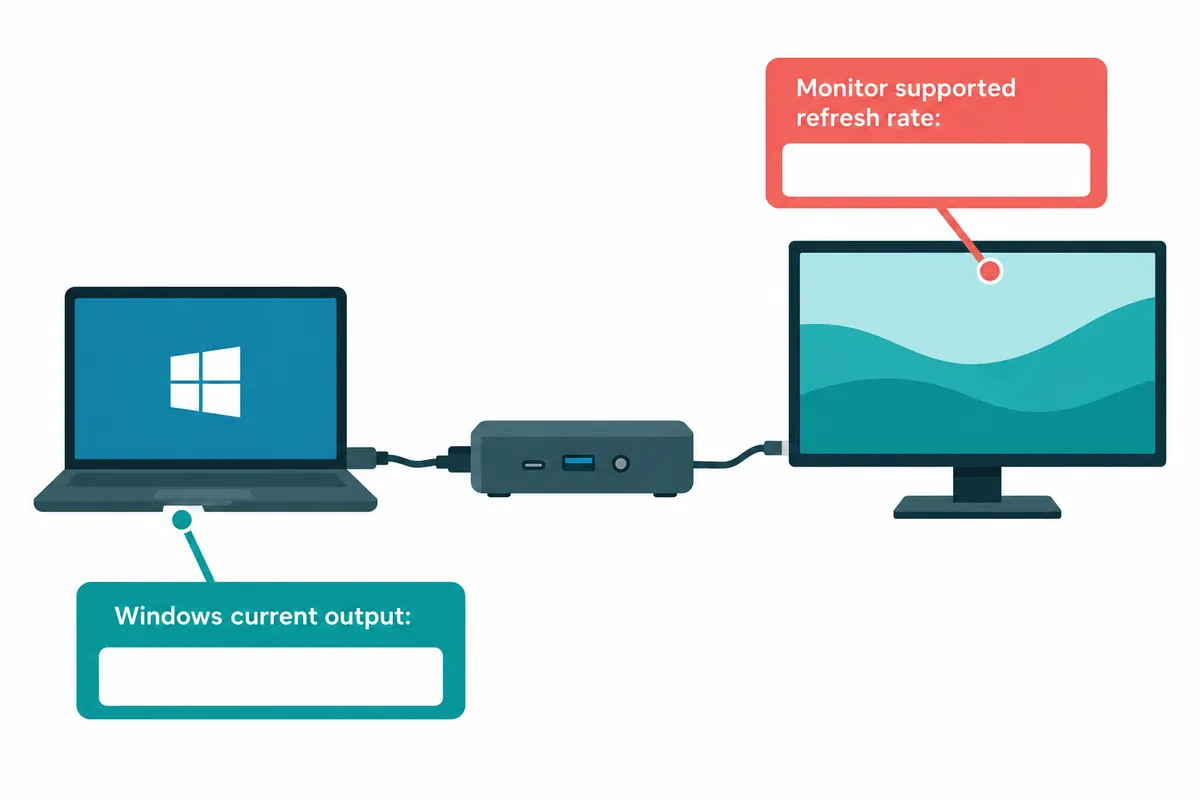
First, record the current resolution and refresh rate displayed in Advanced Display. If you have multiple screens, select the target screen first. Check the monitor's maximum supported values in the product manual, and read the current values from Windows Settings. Writing these two pieces of information in separate fields can help reduce confusion between "the monitor supports it" and "it is currently in use."
I have reviewed official Microsoft support documents and Dell's HDMI connection guide. The frequency and time calculations and connection examples below are for illustrative purposes only to aid understanding. They are not results of actual measurements of response time, latency, or power consumption taken on a user monitor. This is not an endorsement of specific cables or the purchase of new products; rather, it provides a sequence for checking current connection conditions.
1. Checking the current value in Windows 11
Go to Start → Settings → System → Display → Advanced Display. If you have an external screen, select the screen to check in Advanced Display and read the resolution and refresh rate. Note the current values and the monitor name before opening the change list. Reading the values for the laptop's built-in screen does not determine that the external monitor is incorrectly configured.
Check the actual value provided in the refresh rate selection list. Microsoft instructions explain that items not matching the current resolution may be marked with an asterisk, and selecting that value may change the resolution. Do not look only at the frequency number; read the additional information displayed as well. You should also verify that the resolution is maintained after changing to the desired value.
Leaving the current value and the selectable list makes the next comparison easier. For example, you can record it like this: “External B, current resolution 2560×1440, list shows 60 and 120.” The numbers here are hypothetical examples. This does not mean that the same list will appear on an actual monitor, and supported combinations may vary depending on the device.
2. Try changing Hz to the screen refresh interval
The refresh rate is the number of times the screen is updated per second. For illustrative purposes, at 60Hz, one refresh interval is 1/60th of a second, or approximately 16.67 milliseconds. At 120Hz, it is approximately 8.33 milliseconds, and at 144Hz, it is approximately 6.94 milliseconds. The calculation was performed by dividing 1000 milliseconds by each frequency. This value explains the concept of the refresh interval and is not equivalent to monitor response time or actual input lag.
| Frequency for explanation | 1000 ÷ Frequency | This value is unexpected |
| 60Hz | approx. 16.67ms | Actual input delay total |
| 120Hz | approx. 8.33ms | Pixel response time |
| 144Hz | approx. 6.94ms | The actual frame rate of the game |
3. Distinguishing between Refresh Frequency and FPS
FPS is used to refer to the number of frames generated by content, while Hz is used to refer to the screen refresh rate. Just because a virtual game generates 60 new frames per second and the monitor operates at 120Hz does not mean the game automatically generates 120 different frames. You must examine the conditions of the content, output, and screen display separately.
Checking whether scrolling feels smooth in a browser is a different task from checking performance metrics in a game. If the goal is document work, we compare the conditions of actually scrolling the document; if the goal is gaming, we examine the game's settings and frame rate displays separately. We do not extend observations of performance improvement in one task to all apps.
When comparing identical tasks, maintain window size, content, and other running apps as much as possible. Changing screen resolution and refresh rate all at once makes it difficult to distinguish the cause of the result. Write down the conditions before and after the change, and record what has changed separately. Instead of saying "it is faster," use expressions that match the actual scope of verification, such as "the ghosting effect felt different when scrolling through the same document."
4. If the desired value is not available, write the connection path
Draw the connection in the order of PC output port → cable → conversion adapter or docking device → monitor input port. Note that if there is no intermediate device, that fact is noted. Just because the monitor at the end of the connection supports the highest refresh rate does not mean the entire path provides the same resolution and refresh rate. Dell's HDMI guide also explains how to check the support conditions of both the port and the cable.
Check the combination of resolutions and frequencies supported by the corresponding port in the actual product manual. The connector name "HDMI" alone does not determine the range of support for all devices. Record the PC and monitor models, the ports used, identifiable cable specifications, and the docking device model. If no conditions are specified in the manual, do not rely solely on sales text to determine support.
Let's assume a virtual monitor provides the desired value from one input but not from another. In this situation, there is a reason to compare the input-specific conditions in the monitor manual with the actual connection. However, this does not establish a general rule that a specific input is always better. We verify based on the output mode provided by the actual device combination rather than the name of the connection specification.
5. When comparing docking and direct connection, there is only one thing to change.
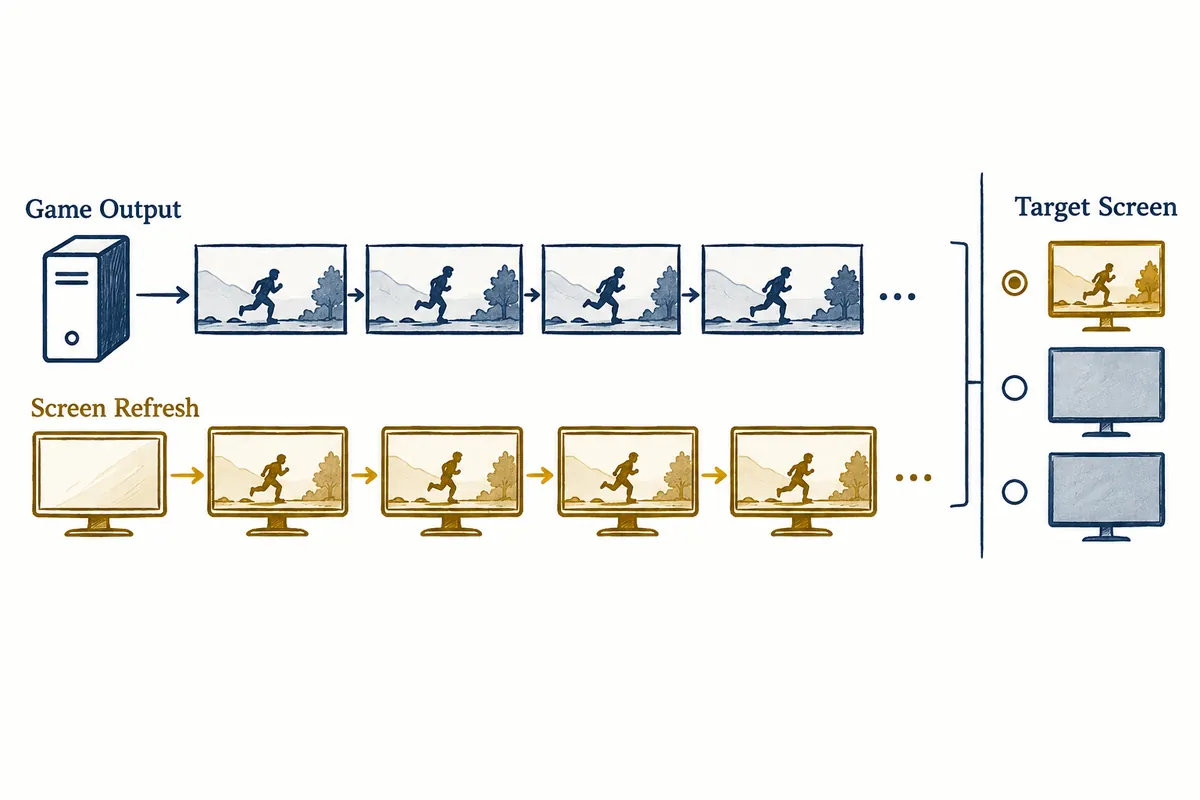
If the desired value is not found only with the docking connection, you can compare it with a direct connection path within the available range in the product guide. Save your work and record the original connection state before comparing. If you lower the resolution and change apps while switching to a direct connection, it is difficult to determine which changes had an impact. Compare the list based on the same monitor and target resolution.
Descriptive records can be written as, “Only 60 appeared in the list of target resolutions in the docking path, and the direct connection list has not yet been checked.” Do not record a success by predicting the result before execution. If a comparison was actually made, record the port and cable, the selected resolution, and the list of occurrences. If a new value appeared, read it along with the fact that the connection path was different.
If two or more monitors are connected, the number of connected screens and the duplication/extension method are also recorded. Even with the same device, comparison conditions may differ in different configurations. If you share only a single sentence stating “144Hz works with this cable” without this information, other users may not obtain the same results. For possible combinations, you must provide the actual product manual along with the verified conditions.
6. Dynamic refresh is a separate function to read
Dynamic Refresh Rate in Windows 11 is a feature that adjusts the refresh rate based on the task. Microsoft documentation states that it requires supporting hardware to be enabled and describes conditions such as VRR support and a minimum of 120Hz. The phrase "high refresh rate monitor" alone does not mean that this feature is available. You must verify the actual advanced display screen and device conditions.
Selecting dynamic settings and selecting fixed values are different comparison conditions. If the maximum frequency appears to be limited in a certain app, read the official guidelines and the current selected value to review whether to make adjustments. We do not claim that the frame rate of all games has increased simply because the feature has been enabled. We record the verification separately regarding whether it concerns the state of the settings or the actual output of the content.
If your purpose is to compare document work and battery life, you must distinguish between whether power consumption was actually measured and the usage environment. We do not misrepresent the warning that low frequency can affect power usage as your device's power saving time. We do not create figures like "battery lasted two hours" without actual measurement. This article does not provide such performance guarantees.
7. Things to check after change and criteria to revert
After selecting the provided values from the list, re-check the resolution and frequency display. Verify that the screen appears stable and that the necessary documents are readable in the application you are working with. If the display is unstable or differs from expectations, revert to the previously recorded settings and product support conditions. We do not cover the procedure for creating and inputting custom output values whose support range is unknown.
You can also check on the next connection whether the selected value was maintained. If a different list appears after docking, record the connection path and screen configuration together. It is more useful for investigation to first note which connection caused the list to change, rather than concluding that “Windows forgot the settings.” Do not record that it automatically restored to the original value without verifying the actual behavior.
If symptoms persist, check the exact model information provided by the PC and monitor manufacturers. In your support inquiry, include the current resolution, frequency, selection list, and full connection path. When adding photos, distinguish between the observation point in time of the monitor information screen and the Windows settings. If you compared values from different points in time, you must indicate this fact.
8. Output logging organized into three lines
Write the device and connection path on the first line, the current resolution and refresh rate on the second line, and the target combination and actual selection list on the third line. Writing it this way makes it easy to follow the difference between the supported specifications and the current settings. For example, you can write, “External B connected to the docking device port, current 2560×1440 at 60Hz, need to check the manual for target combination support.”
The 16.67ms or 8.33ms calculated from Hz are mathematical examples of update intervals. The table title is not changed to "Actual Input Latency" or "Monitor Response Time." The figure depicts the sequence from checking the current value to investigating the connection path and recording the results. It is an explanatory figure for inspection purposes, not a capture of an actual monitor screen or data from performance measurements.
Selecting the frequency does not end with simply choosing the largest number. It is recommended to verify if the combination is supported along with the required resolution, compare it during actual operation, and record the results. Knowing your current settings allows you to narrow down the scope of investigation sequentially, rather than guessing at cables, docking, and app performance all at once, even when the desired value is unavailable.
Official Sources and Writing Standards
Data Verification Date: 2026-10-09. This explanation was generated by AI based on actual official data. Calculations, codes, and verification examples marked separately are for illustrative purposes only and are not the results of direct testing or actual measurements of the user environment. We will re-verify whether there have been any changes to the functions and data on the publication date.
Original illustrations created to help explain this article.
Original on Tistory ↗