When HEIC photos won't open: Check file format and supported features
This article was translated from its source language with AI assistance. Please check technical terms and equations against the original.
Key Summary: If HEIC photos do not open, first check if the file transfer is complete and determine if the app you are using supports the format and codec. Keep the original and consider exporting to an officially supported or compatible format. Simply changing the extension is not a conversion.
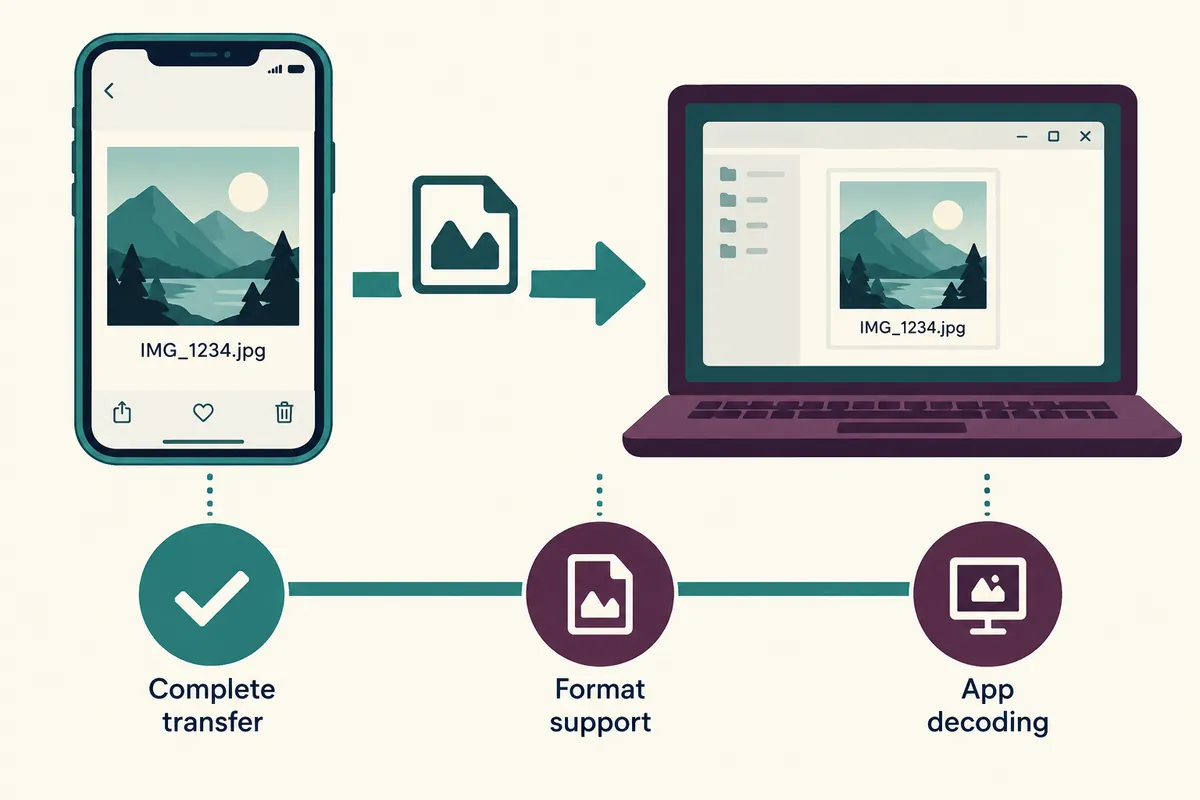
Order at a Glance
This is an illustrative diagram. It is not a screen capture or an actual test result.
1.Check file and transfer status
2.HEIF Format/App Support Classification
3.Official extension or original device review
4.Convert to a separate copy
5.Check image quality, size, and metadata results
What is visible in a file name is different from how a photo is read.
Even if photo files appear in the folder, the app may not be able to read the format or the transfer may not be complete. Do not assume the file is corrupted simply because HEIC is visible. Checking whether it opens on the original device, whether the copied file size matches expectations, and what error messages appear in the app will clarify the next steps.
This article did not open or convert actual user photos. Filenames and sizes are fictitious values for illustrative purposes, and uploading photos containing personal information to public conversion sites is not recommended as a standard procedure. It describes a workflow where you first review the conversion functions of official support and tools you manage while keeping the originals intact.
First, distinguish between the names HEIF and HEVC.
Apple describes HEIF as a photo format and HEVC as a video coding format. When dealing with photos that appear to have the .HEIC extension, it is necessary to distinguish between the file format, the encoding within it, and the app's support requirements. Do not assume that all devices and all apps can open it in the same way simply by looking at the name HEIF.
Microsoft's official Photos guidance explains situations where extended support may be required when using HEIF or HEVC files. Since the guidance includes contexts from the past Video Editor, you must check the actual message for your current version of Photos and Windows together. It does not state that the guidance is a direct reproduction of the screen from all the latest apps simply because they share the same name.
| phenomenon | Candidate to check first | Meaning of the verification result |
| Open on the original device | Copy/Transfer Status and Target App Support | Distinguishing between the existence of the source and the problem of reading the target |
| Does not open on all devices | Original File · Transfer · Error Message | Not concluded solely due to a lack of extension support |
| Extension Required Notice | Current app's official format and codec support | Check the displayed official support path |
| Only the preview is not visible | Show Explorer and Actually Open App | Separation of thumbnail issues and file reading |
| The photo opens but the color is different | View App/Export Conditions | Format read success and display match separation |
| Only changed the name to .jpg | Whether the actual file content is converted | Changing the extension is not encoding conversion |
| The new file is very small | Dimensions·Quality·Content·Transmission Status | Same image quality is not guaranteed just because it is small |
Checks if the transferred copy is complete.
If the file was transferred via cloud or messenger, you can check whether the actual file has been downloaded to the device and whether the copying process is complete. Read the file size and the normal download/transfer completion indicators, and compare them with the file on the original device. The mere fact that a filename exists in a folder does not lead to the conclusion that it is a copy with the same total bytes.
If a virtual IMG_example.heic is 2 MB in the source but 0 bytes in the copy, you should investigate the copy transfer before installing format support. Conversely, even if it is a normal size and opens in the source, target app support may be a separate issue. These numbers are examples to illustrate the scope of inspection, not values obtained from inspecting actual photos.
Records the current app's error message exactly as it is.
Messages such as "File format not supported," "Extension required," or "Unable to open file" are information that narrows down the next candidates. Record the error message along with the app name and version. Rather than repeating the installation process by simply following menus from other versions found online, it is better to compare with the official help provided by the current app.
If results differ across multiple apps, the support scope for each app is listed separately. The fact that it opens in one app does not mean that it supports all editing and saving functions of other apps. This text does not present actual experience with purchasing or installing specific extension products, and users should determine what support is required by reading the official guidelines for their user environment.
Check the prerequisites and current information for official extension support.
The Microsoft guide provides a path to reviewing HEIF and HEVC support extensions. If installation is required, please check the product name, requirements, and current display on the official Microsoft Store page. As pricing, regional, and device conditions may vary, this article does not provide unverified free availability or pricing.
The scope of installation may be restricted on devices managed by companies or schools. You can explain the displayed policies and necessary app support to the person in charge, and disabling security features or arbitrarily installing codecs from other sources is not considered the default solution. After verifying the necessary support, you must separately check whether the actual file opens.
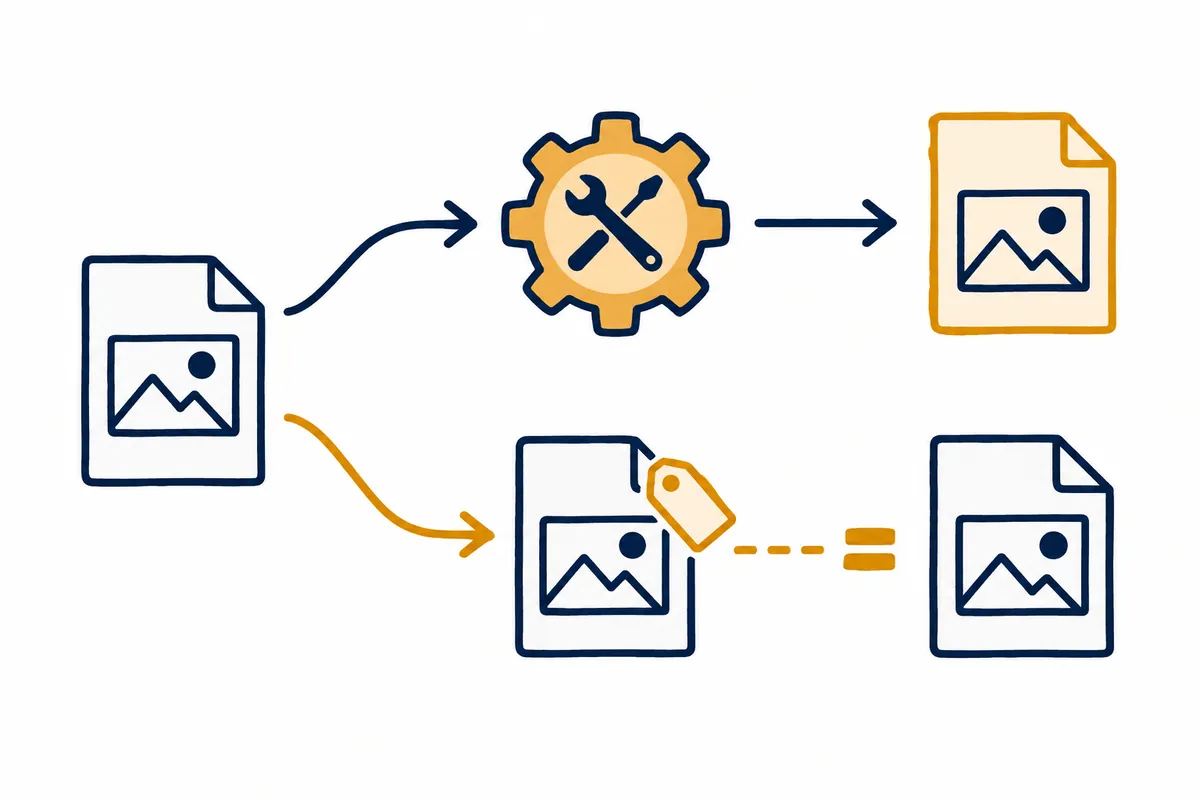
How to export from the source device to a compatible format
Apple's guide covers how to share and convert HEIF and HEVC files. If the source device provides official export or conversion features, review whether you can create a copy in a compatible format. Determine whether the conversion is for photos or videos, and check the save location and new filename.
When creating a new copy, do not delete or immediately overwrite the original. Since the original and the copy are different files, you must verify that both formats, dimensions, visible content, and necessary information have been preserved. If there is an option for automatic conversion during the sending process, do not write "verified" until the actual receiving file has been read to confirm the format in which it was transmitted.
설명용 사진 작업 기록
Original: IMG_example.heic
Original device opens it: yes / no / not tested
Transferred copy: IMG_example_copy.heic
Transfer complete: observed / unknown
App and version: record actual value
Error message: record exact visible message

Conversion candidate
New copy: IMG_example_export.jpg
Keep original: yes
Pixel width × height: before / after
Visual content: subject, orientation, cropping checked
Metadata needed: capture time / location / other
Metadata preserved: checked / unknown
Actual target app opens new file: checked / not tested

이는 가상 양식입니다. 파일을 실제로 열거나 변환한 증거가 아닙니다.
Changing the extension is not converting the file content.
Even if you rename IMG_example.heic to IMG_example.jpg, the actual data of the file is not saved again in JPEG format. If the app expects the format based on the extension, it can actually make it difficult to read the cause. To convert, you must use a support feature that reads the format and exports it to another format.
If you already have a renamed copy, make a note of the original filename and what operations were performed. Do not mark the JPEG conversion as complete without checking the actual content format. If you have the original, creating a copy in the correct format from it helps maintain a basis for comparison.
| Item after conversion | Questions to check | Failure or Unidentified Handling |
| Actual Open | Does the copy open in the app to be used? | If it does not open, review the conversion and support scope |
| file format | Is the export result in the target format? | Prohibit judging completion based on name alone |
| pixel dimensions | Was the desired width and height maintained? | If reduced, distinguish from the original |
| Direction·Crop | Can you see the necessary parts of the photo? | Compare representative area in other display apps as well |
| Color·Brightness | Is the marking correct for the intended purpose? | Do not claim identical picture quality before verifying it yourself. |
| Time of shooting | Is there any necessary date information remaining? | Unidentified are kept with the original |
| Location Information | Is it in a state suitable for the purpose of sharing? | Do not write that it was automatically removed without viewing the records |
| file size | Does it meet the transmission limit? | Does not interpret size reduction as information preservation |
| Preserve Original | Is there an original remaining to recover? | Do not delete before verifying copy |
Image quality and metadata opened successfully. Next task
If the photo opens, you have confirmed one part of the support issue, but you must also review whether the necessary information was preserved during the conversion process. Dimensions, orientation, color, and shooting information are important conditions depending on the purpose. The fact that the file size has been reduced does not guarantee that the visual quality or metadata is identical.
For example, you can check if the necessary text is legible for photos used as documentary evidence, and if the time of capture needs to be preserved for photos used for organization. If the purpose is not to share location information, you must check the information status of the actual copies. This article does not claim that the removal of personal information or the preservation of metadata has been performed automatically.
The next shooting setting change is different from past file conversions.
Apple guides you through selecting the shooting format and sharing/converting existing media separately. You may review shooting settings later to ensure photo compatibility, but this is not the same as re-encoding all existing HEIC files simply by changing past settings. Please record new shooting and the processing of existing files in separate entries.
Screen display and support conditions may vary depending on the device model and operating system, so please follow the official instructions for the device. If you have changed the settings, you can check the results by opening the newly created representative file in the target app. Do not assume that the format of the previous and new photos is the same; read the actual file information.
The completion status checks the original and the available copy together.
The final record includes the preservation of the original, the transfer status, the support conditions of the app used, and the actual result of opening the copy. If the issue remains unresolved, please note which steps you checked and what errors remained. Do not mark the photo usage as complete simply because only a preview appeared or the installation finished.
Official Microsoft and Apple materials serve as the basis for formats, support, and conversion paths, while the work forms and examples were written personally. We do not promise pricing, support for all codec environments, or identical image quality. Protecting the original and verifying it step-by-step makes it easy to distinguish between support issues and problems with the file itself.
Official Source and Verification Scope
Official Data Verified Date: 2026-10-08. Items Re-verified on Publication Date: Current support conditions and actual errors for Windows, Photos, and the Store, and the conversion menu for the source device. Check pricing and installation requirements by environment.
AI Authoring Assistance. The examples, figures, and work records in this text are self-created illustrative examples. They are not presented as experiences performed in actual user environments or measurement results.
Original illustrations created to help explain this article.
Original on Tistory ↗