Saving a Webpage as PDF: Checking Page Truncation and Links
This article was translated from its source language with AI assistance. Please check technical terms and equations against the original.
Key Summary: When saving a webpage as a PDF, check the print preview and the actual file separately. Check for truncated tables and images, the last paragraph, links, and selectable text, and save the source URL and verification date.
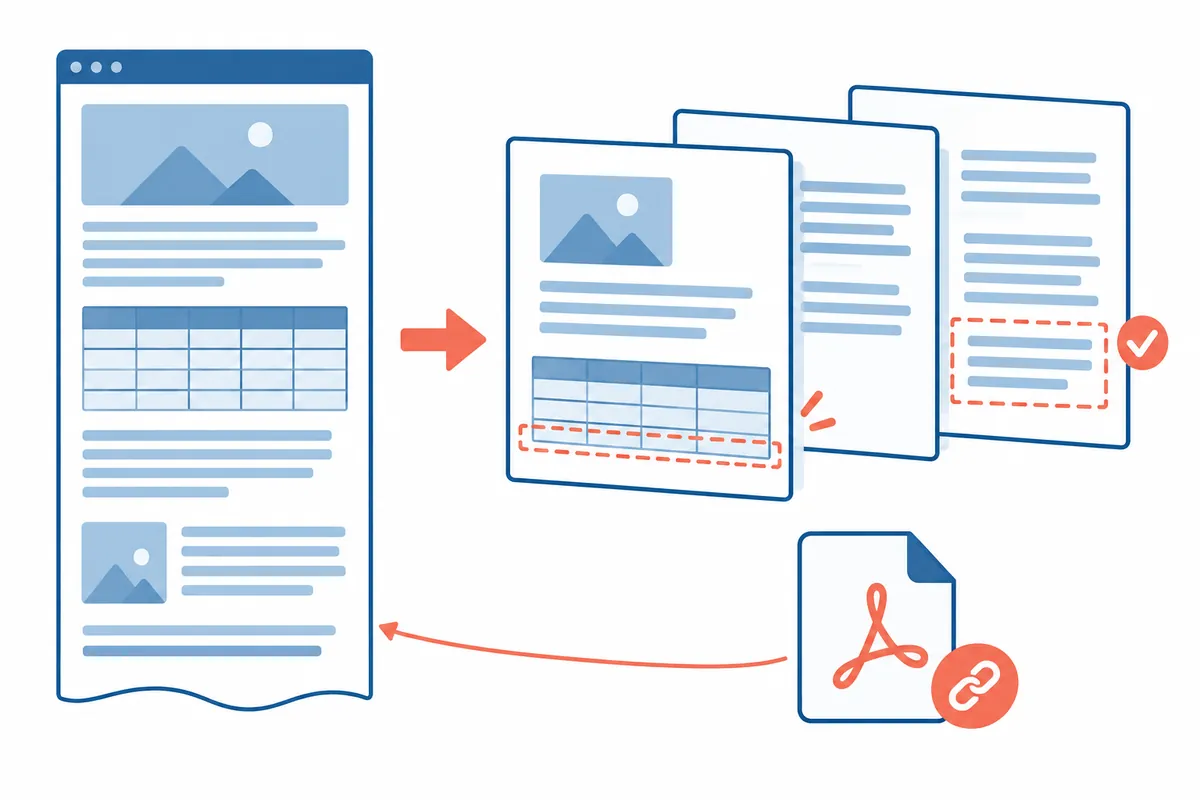
Order at a Glance
This is an illustrative diagram. It is not a screen capture or an actual test result.
1.Check original text display status
2.Select PDF destination in print
3.Page · Paper · Scale Preview
4.Save as a separate name
5.Recheck file content, tables, and links
The screen currently displayed and the PDF may not be in the same format.
Web pages are arranged to fit the screen width, but when printed as a PDF, they are divided by paper and page. Due to print styles provided by the site or folded areas, parts of the screen may appear differently in the PDF. Do not assume that pressing the save button preserves all the content of the original document.
This article explains the document archiving procedure and is not a report on generating or verifying actual PDFs from the site. The document title, page number, and inspection results below are in a hypothetical record format. Since materials saved as PDFs represent their past state even if the original text is subsequently modified, recording the original URL and the actual verification date together makes it easier to understand the timeline.
First, open the range to be saved and check.
If necessary content is divided into sections, such as collapsed descriptions, "See More" buttons, and tab-based tables, determine the save range first. Examine the entire page to the end to ensure that the required paragraphs and tables are displayed on the current screen. Simply scrolling down to the bottom does not guarantee that all data from the dynamic page is included.
Interactive charts or materials provided after logging in may not retain the same functionality in print. Saving a web tool that operates by pressing a button to a PDF is typically different from preserving the tool's execution environment. If an official downloadable PDF is provided, you can separately verify whether the material is suitable for your purpose.
Reads PDF targets from Chrome print screen
Google guides you on how to open a preview in Chrome using Ctrl+P or the Print menu and select a destination. If you intend to save as a PDF, check the PDF save options displayed in the output destination and distinguish them from selecting a paper printer. Then, manually read the file name and save location. If the menu names on the screen are different, follow the instructions for the current version.
Re-configuring printer settings or connecting a sharing service is not always necessary for PDF archiving. First, please check the destination and save result of the current print screen. This article did not investigate the printer list of a specific PC, nor does it state that it verified which PDF destination is actually displayed before reading it on that device.
| Preview Item | Questions to check | Virtual adjustment direction |
| Output Target | Is it a PDF file or a paper printer? | Select the appropriate destination for PDF saving purposes |
| Page Range | Is it the whole thing or a necessary part? | Comparison of the position of the table of contents and the last paragraph |
| Paper Size | Is the width compatible with the document table? | Record current paper size and width/height values |
| magnification | Are the text and tables not getting cut off while being read? | Adjust little by little to check the same page |
| Margin | Does it hide the content or reduce the width? | Compare required space and print range |
| Background Element | Do you see the colors and graphs needed for the information? | Actually verify the effect of the current option |
| Header·Footer | Is it necessary to include the address, date, or page number? | Determine original text records and document markings separately |
| Hidden content | Is a collapsed description or another tab missing? | Check the required scope in the original text first. |
Horizontally long tables are compared based on one page.
Check if both the first and last columns of the table are visible and if numbers or units are not cut off on the right. You can review the orientation or scale in the preview, but reducing the size too much can make the text difficult to read. You must evaluate both whether the width appears correct and whether it is readable.
Assuming the virtual table has eight columns, check the representative page to see if the values in the header row and the last column are visible together. Just because the original table has a scrollbar does not mean the PDF will have the same scrolling functionality. If the table continues to be truncated, review the formula export function or other methods for saving the original table, and do not mark it as a full save.
Finds not only the middle of the text but also the last paragraph
With long pages, it is easy to overlook missing endings by only checking that the beginning is complete. Read the page count in the preview and look for the final paragraph or references from the original text on the last page. Do not assume that all content has been included simply because there are many pages. Also, check for blank pages or truncated headings.
If the original document contains multiple tables or images, you can select a few important items and compare their locations. To claim that the entire document content has been transferred, you need to verify the actual scope. If there are items not included in the save, you can record which content is missing and supplement it with a separate file or a link to the original document.
설명용 PDF 점검 메모
Source URL: https://example.com/report
Source checked at: 2026-10-22 10:00 KST (example)
Saved file: report_20261022_example.pdf
Browser version: record actual version
Destination: PDF option shown in the print UI
Page range: all / selected pages
Paper orientation: portrait / landscape
Scale and margins: record actual values

Checkpoints
[ ] First heading and opening paragraph
[ ] Wide table: first and last columns
[ ] Figure captions and units
[ ] Final paragraph and reference list
[ ] Representative links opened safely
[ ] Text selection or search checked
[ ] Missing interactive content noted

가상의 기록 양식이며 실제 저장 성공을 의미하지 않습니다.
After saving, try opening the file again.
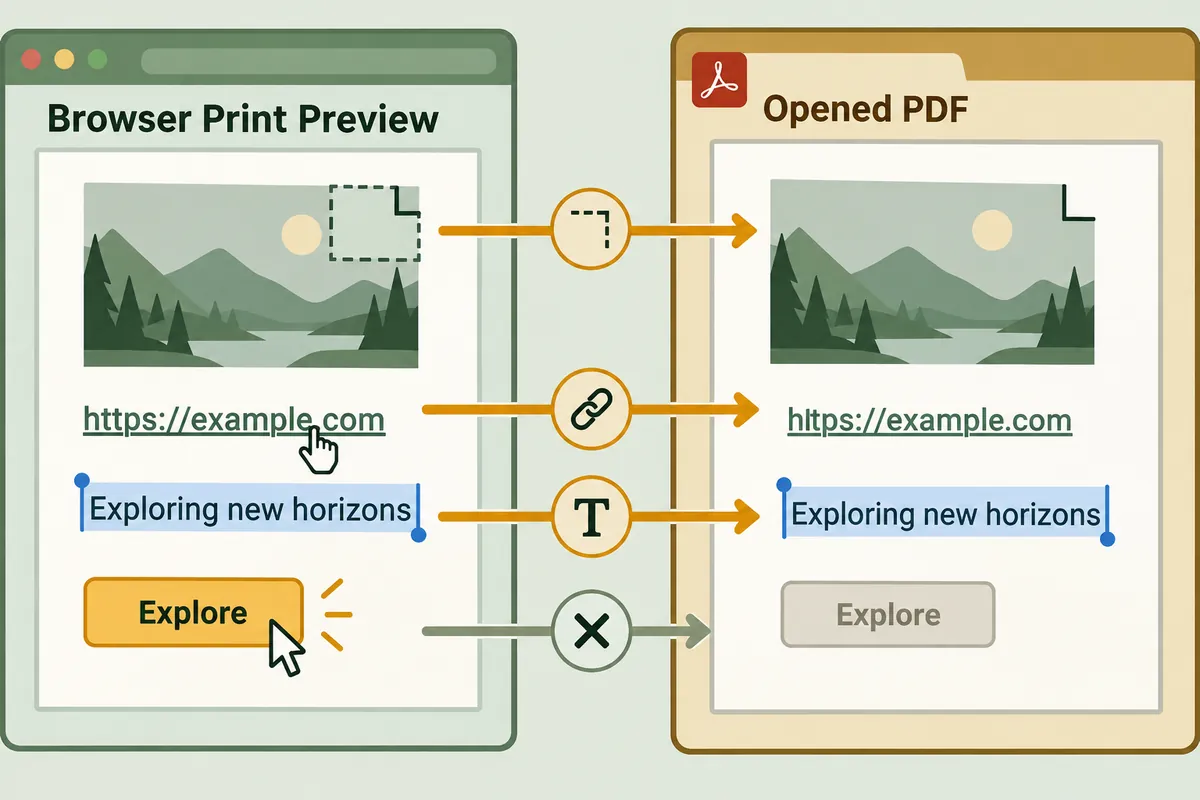
Open the saved file in a PDF viewer and compare the content checked in the preview with whether it appears in the actual file. The existence of the file and the accuracy of the content are separate conditions. Since selecting the wrong save location or opening a previous file with the same name can confuse the results, the filename and modification time are also read.
Google's PDF guide explains how to use the document, such as viewing and navigating it. In this step, it checks the first, middle, and last pages and important tables, and compares them with the original text if any content is missing. It does not report that links, text searches, and image preservation have all been verified simply because the PDF has opened.
distinguishes between selectable text and screen images.
You can select text or search for necessary words within the PDF. The fact that selection is not possible does not necessarily mean the file is corrupted; it may simply be content contained as an image. Conversely, the fact that text search works does not guarantee that the meaning of all tables and figures has been correctly preserved.
If you are using a viewer with character extraction or OCR functions, verify separately whether the recognition results match the original text. In particular, for materials where the number 0, the letter O, decimal points, and units are important, you can compare them with the original table on the screen. This article did not run actual OCR or measure recognition accuracy. Please record only the range where the search function was verified.
| Save and confirm | Range that can be written as success | Things That Can Still Remain |
| file opened | The file is readable | Check for missing text/tables |
| First page normal | Check display on first screen | Middle/Last Page |
| All columns of the table are visible | Preserve the width of the target table | Other tables and units/line breaks |
| Text selection available | Select text in the corresponding area | Recognition accuracy of the entire area |
| One link works | Verify the operation of that link | Change remaining links and original text |
| Last paragraph visible | Check for inclusion at the end | Collapsed content or range of other tabs |
| Display chart figure | Preserve static appearance | Not preserving filter, tooltip, or calculation functions |
The link checks the representative item in the actual file.
You cannot assume that all clickable links are preserved simply because underlines or addresses are visible in the PDF. Check the necessary representative links in the actual file and verify that the destination address matches the original text. Use external links only after confirming that the address is valid, and distinguish between documents requiring a login status and public links.
When publicly sharing a PDF containing a private document link, you must also consider the scope of the recipient's viewing. Even if the archived original document is provided after logging in, the PDF file becomes a separate resource. This article does not investigate data sharing permissions or guarantee the safety of the links. Please determine the purpose of storage and sharing separately.
When saving again, preserve the previous file.
If you want to save the file again with a changed scale or range, you can include the version or the reason for the change in the new filename. If you overwrite the previous file directly, it is difficult to compare how the table changed due to adjustments. Please distinguish them, such as with a hypothetical example like report_v01.pdf and report_v02_landscape.pdf, and specify the file that was the last one verified.
If multiple files have been created, separate the verified files from the archived historical files when naming them. Rather than simply repeating the word "final," noting the verification date and differences is useful for review. The filenames in this post are for illustrative purposes only and did not involve actual browser downloads or folder cleanup.
Limitations of the expression "saved as PDF"
You cannot say that the execution of web tools, video playback, data from other tabs, or future modifications are all included in a PDF. Indicating what was saved and what was omitted allows readers to understand the scope of the document. When re-citing important facts, distinguish between the document at the time of archiving and the current original text to find the evidence relevant to the question.
The completion record includes the source address, verification date, file name, save range, representative checks, and unverified details. Official Google sources serve as the basis for Chrome's print and PDF viewing functions, while the truncation, link, and range checklists are procedural suggestions created manually. Do not mark a record as complete without verifying actual successful saving or the consistency of all pages.
Official Source and Verification Scope
Official material verification date: 2026-10-08. Items re-verified on publication date: Actual PDF save destination, print options, file display, links, and missing scope. If an official download is provided by the source, verify consistency with the purpose.
AI Authoring Assistance. The examples, figures, and work records in this text are self-created illustrative examples. They are not presented as experiences performed in actual user environments or measurement results.
Original illustrations created to help explain this article.
Original on Tistory ↗