Understanding Absolute References in Spreadsheets: Cells to Fix When Copying Formulas
This article was translated from its source language with AI assistance. Please check technical terms and equations against the original.
Key point: Leave cells that should move when a formula is copied as relative references, and fix reference cells that should remain in place using the $ symbol. Distinguish column-only references such as $A1 from row-only references such as A$1 to fill a table horizontally and vertically.

The sequence at a glance
This is an explanatory illustration, not a screenshot or an actual test result.
1. Check the direction in which the formula will move
2. Separate changing inputs from the common reference
3. Choose the row and column $ positions
4. Copy one cell and compare references
5. Check calculations at the last horizontal and vertical cells
Why copied formulas produce different results
If copying the same formula downward produces zero or an unexpected number, first examine how its references changed. Excel's ordinary A1 cell reference can change according to the relative position to which the formula moves. Adding $ to every reference may temporarily hide an error, but it can conflict with the purpose of calculating with different inputs on each row.
Instead of checking only the first formula, examine the formulas in the next and last rows as well. “Fixing” here means which part of an address remains unchanged when copying or filling formulas. It does not mean locking a cell against editing or keeping its value unchanged forever. Other operations, such as inserting rows, must be checked separately.
| Notation | When copying across columns | When copying across rows | Use |
| A1 | Column moves relatively | Row moves relatively | Individual inputs in each row and column |
| $A$1 | Column A remains fixed | Row 1 remains fixed | One common reference value |
| $A1 | Column A remains fixed | Row moves relatively | Row-specific references collected in the left column |
| A$1 | Column moves relatively | Row 1 remains fixed | Column-specific references collected in the top row |
| $H$1 | Column H remains fixed | Row 1 remains fixed | Common rate or conversion value outside the table |
| $A2*B$1 | Left-hand column fixed / upper column moves | Left-hand row moves / upper row fixed | A combination table of row and column references |
Make a small table separating inputs and reference values
In a hypothetical table, column B contains quantities, column C unit prices, and H1 an illustrative rate of 0.1 applied to every row. When column D calculates quantity × unit price × rate, quantity and unit price vary by row, while H1 must refer to the same cell. The first formula is therefore =B2*C2*$H$1. This is not an example applying actual tax or fee regulations.
A note explaining why the reference value is outside the table helps others understand why only one cell is fixed. Hiding the reference cell somewhere difficult to find or entering the same value in several places can result in only some instances being changed later. Referencing the common value in one place and labeling its name and units nearby helps maintenance.
설명용 표
B2=3, C2=4000, H1=0.1
D2 = B2*C2*$H$1 → 1200

B3=5, C3=2000
D2를 D3으로 복사
D3 = B3*C3*$H$1 → 1000

고정하지 않은 비교
D2 = B2*C2*H1
D3 = B3*C3*H2
H2가 빈칸이면 공통 기준을 사용한 계산과 달라질 수 있음
Copy one cell downward and compare the formulas themselves
After copying D2 to D3, look beyond the result and check in the formula bar that B2 changed to B3 and C2 to C3. $H$1 should remain unchanged. If the addresses are correct but the result differs, next examine input values, number storage types, and decimal display. Do not try to fix reference and value problems simultaneously.
Use deliberately different inputs in the rows being checked. If quantities and unit prices are identical in both rows, even an incorrectly fixed formula can produce the same result. Values that can be checked by hand, such as 3 and 4000 versus 5 and 2000 in the example, make the movement of the formula visible. Before editing a real document, check a small range in a copy or recoverable version.
Read column movement when copying horizontally
Copying one cell to the right also moves the column part of a relative reference such as A1. Some tables vary inputs by row, while others vary periods by column. Memorizing relative and absolute references without deciding the copying direction can lead to fixing parts that need to move. To maintain a common reference even when copying horizontally, fix both its column and row.
Draw the formula's intended path as a small grid on paper. Use downward arrows for row movement and rightward arrows for column movement, then decide whether each reference needs that same movement. This illustration explains actual cell behavior conceptually. For another spreadsheet program, consult its guidance to confirm that it supports the same notation.
Mixed references combine row and column criteria
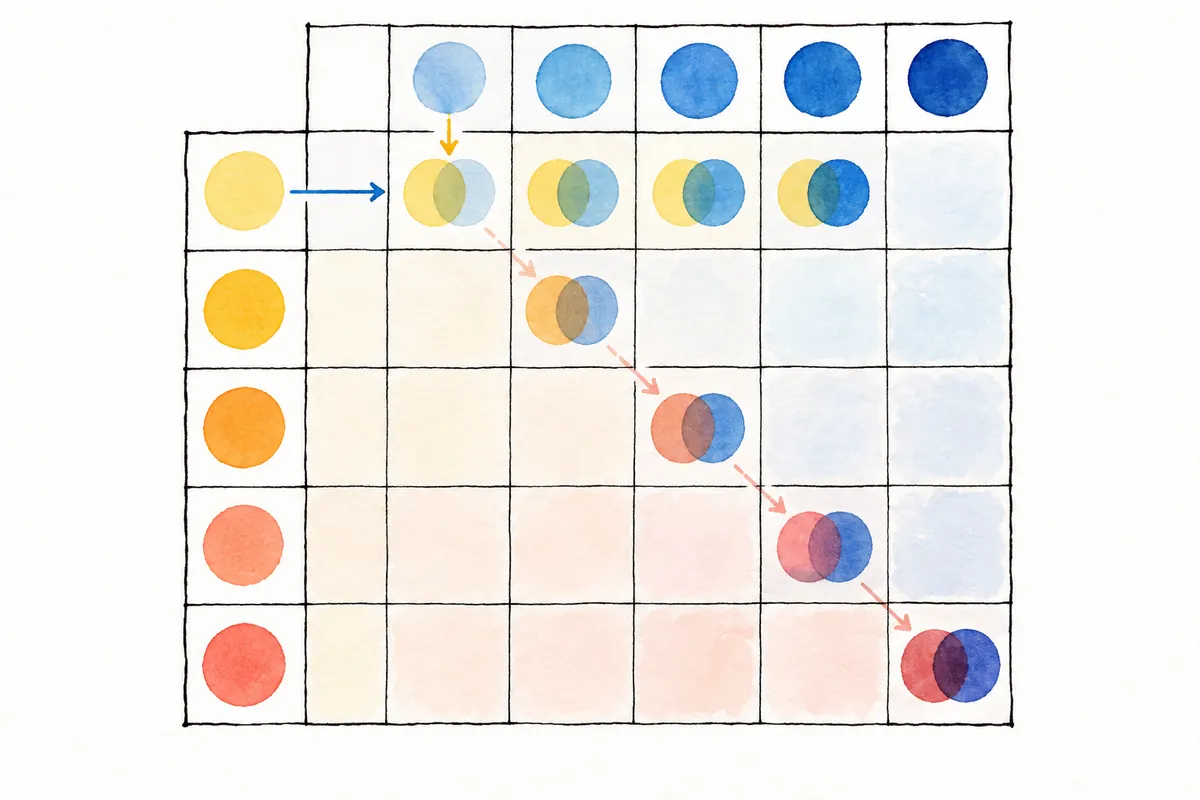
Assume a multiplication table with row-specific numbers in column A and column-specific numbers in row 1. Entering =$A2*B$1 in B2 keeps column A fixed while its row number moves downward, and keeps row 1 fixed while its column name moves rightward. Copying it to C3 produces =$A3*C$1. The key is to read separately which part of each reference is fixed.
For example, with A2=2, A3=3, B1=10, and C1=20, the results are B2=20, C2=40, B3=30, and C3=60. If one cell is incorrect, check whether it reads a cell other than the header in the intended row or column. Making every reference absolute can cause the entire table to calculate only the first combination, so judge the purpose of fixing each individual address.
| Hypothetical cell or movement | Intended formula | Expected value or check |
| D2: quantity 3, unit price 4000, rate 0.1 | =B2*C2*$H$1 | 1200 |
| D3: quantity 5, unit price 2000, rate 0.1 | =B3*C3*$H$1 | 1000 |
| Mixed-reference table B2 | = $A2*B$1 (spaces are unnecessary when entering the actual formula) | 2 × 10 = 20 |
| Mixed-reference table C2 | =$A2*C$1 | 2 × 20 = 40 |
| Mixed-reference table B3 | =$A3*B$1 | 3 × 10 = 30 |
| Mixed-reference table C3 | =$A3*C$1 | 3 × 20 = 60 |
| Change only the value in H1 to 0.2 | Formula addresses remain unchanged | Results referencing the same criterion recalculate |
| Cell protection and the $ symbol | Separate purposes | Fixing an address does not prohibit editing |
Use F4 after checking the editing position
Microsoft explains switching reference types with F4 while a reference in a formula is selected. Before pressing the key, identify which reference you are editing. If a laptop's function-key behavior or the program handles the key differently, you can enter $ directly in the address. A shortcut not working does not change the formula rules.
After switching, read the actual characters to see whether $ appears before the column or the row. Checking the current state rather than memorizing that one press produces the desired state reduces mistakes in repeated entry and editing existing formulas. Do not interpret F4's other behavior outside cell editing as the reference switching described here.
Distinguish a change in the reference value from address movement
An absolute reference continues reading the same reference cell, so changing that cell's contents can change the result. Changing H1 from 0.1 to 0.2 makes formulas with fixed addresses use the new 0.2 as well. Documents that must preserve previous calculation results need separate management of reference-value versions or calculation times. $ does not store past values for you.
Moving a reference cell or adding rows changes the sheet differently from copying. These copying examples do not guarantee that addresses remain identical strings through every edit. After changing the table structure, recheck the reference position and representative results. Before converting formulas into values to preserve results, determine the purpose and a way to undo the operation.
Investigate formulas and inputs separately when results look wrong
If every result is identical, check whether row-specific inputs were also fixed. If lower rows return zero, check whether the common reference moved to an empty cell. If only some results are wrong, identify the copying range or rows where formulas were manually edited. For reference errors such as #REF!, also check whether the addresses are valid. Several causes can produce identical results.
Cells may contain text that looks numeric, or results may appear identical because too few digits are displayed. After confirming that the addresses fit the purpose, compare actual inputs and displayed values. Rather than rewriting an entire column at once, note the differences between the first incorrect cell and a correct one to make the cause easier to explain. This article is not a report of editing an actual file.
| Symptom | Reference to inspect first | Small check |
| Every row has the same result | Whether the row numbers in columns B and C are also fixed | Compare formulas in two different rows |
| Only the first row is correct; later rows return zero | Whether the common H1 reference moved to H2 and H3 | Read the final reference in the second row's formula |
| Only horizontal copying is wrong | Check the $ positions in columns that should remain fixed or move | Copy just one cell rightward, then check |
| Only vertical copying is wrong | Check the $ positions in rows that should remain fixed or move | Copy just one cell downward, then check |
| Changing the reference value changes everything | Contents of the absolutely referenced cell | Distinguish fixing an address from preserving a value |
| Reference errors after structural changes | Referenced targets that were deleted or moved | Compare formula targets with a pre-change copy |
Final checks before expanding to a large table
First compare formula addresses and hand calculations across two rows or columns. If they match the purpose, fill the desired range. Check that the reference cell remains fixed in the last row and column as well. For thousands of real values, choose representative inputs to verify the same rule rather than trying to remember every number. Recording the meaning of the reference cell and the copying direction provides a basis for future changes.
If an incorrect formula was filled into many cells, identify the original formula and copying range, then reapply it in a recoverable copy. Use Undo or a previous version if needed, while considering whether other changes have already followed. First distinguishing what must remain fixed from what must change is more practical than memorizing one reference notation.
Official sources and verification scope
- Microsoft — Overview of Excel formulas and references
- Microsoft — Switching between relative, absolute, and mixed references
Official references checked: 2026-10-08. Recheck on publication: Excel reference movement, F4 behavior, and the program's keyboard environment. Inputs and copying directions in an actual workbook require separate verification.
AI writing assistance. The examples, figures, and working records in this article are original illustrative examples. They are not presented as experiences or measurements from an actual user environment.
Original illustrations created to help explain this article.
Original on Tistory ↗