Keeping a Laptop Working with Its Lid Closed: Power Settings and Heat
This article was translated from its source language with AI assistance. Please check technical terms and equations against the original.
You may want a laptop on an external monitor as a desktop, or close its lid during file work. Closing it alone does not establish continuing work or sleep. Check lid action, automatic sleep timing, display connections, and manufacturer conditions separately.
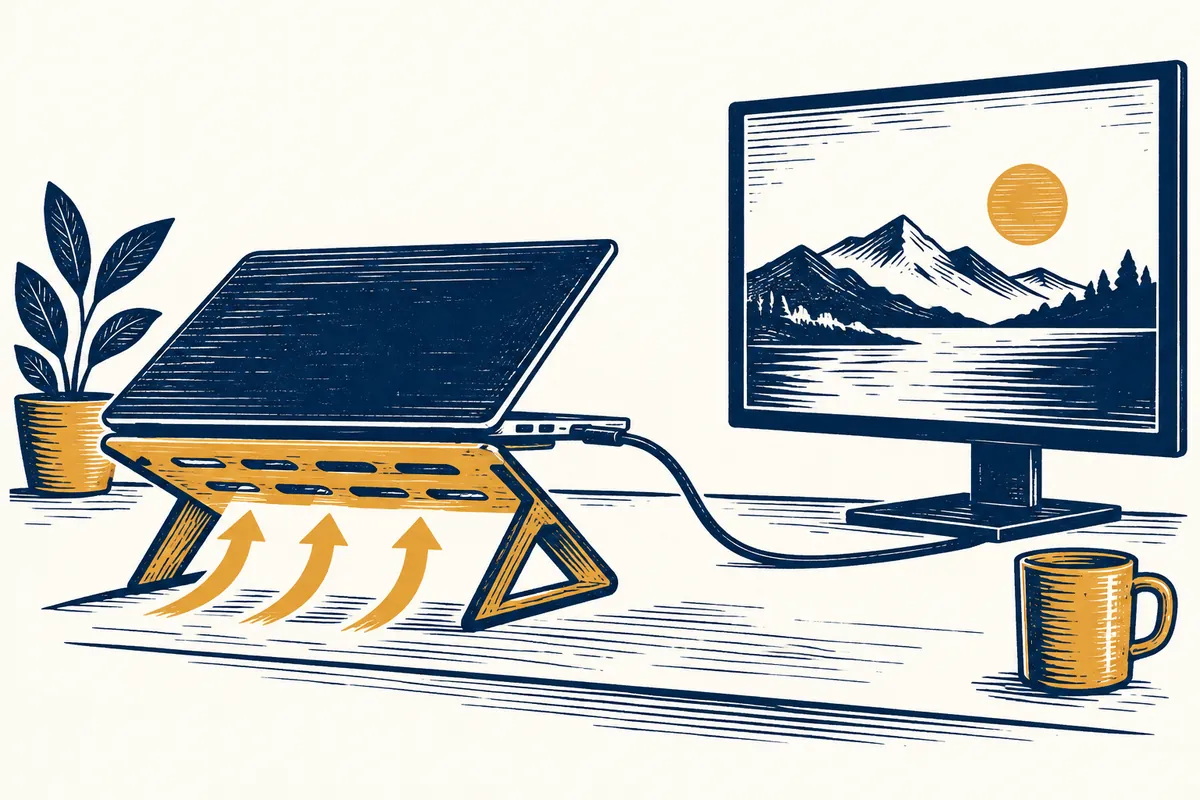
This checks a laptop in use on a desk, not continued running inside a bag. Tasks and tables are hypothetical, not actual temperature, transfer, or display tests. Change settings only within device and management permissions.
Checks before and after closed-lid use
1 → Record desk-work purpose and original settings
2 → Distinguish battery and plugged-in columns
3 → Check external display and model-specific ventilation
4 → Observe actual behavior in a short sample task
5 → Verify completed files, restore settings, and prepare for travel
1. Specify desired behavior by task and place
Define why it should stay on: reading documents on an external monitor, confirming file-processing completion on a desk, or briefly hiding the work screen. Different purposes need different display, power, devices, and checks.
An invisible internal display with the lid closed is expected, not proof the program stopped. Conversely, fan movement or lights do not prove file completion. Define separate criteria for program state and outputs.
For a hypothetical conversion, use completion message and output existence. For external-display use, check reading and keyboard/mouse control. Clear goal-specific outcomes support before/after comparison better than “seems still powered.”
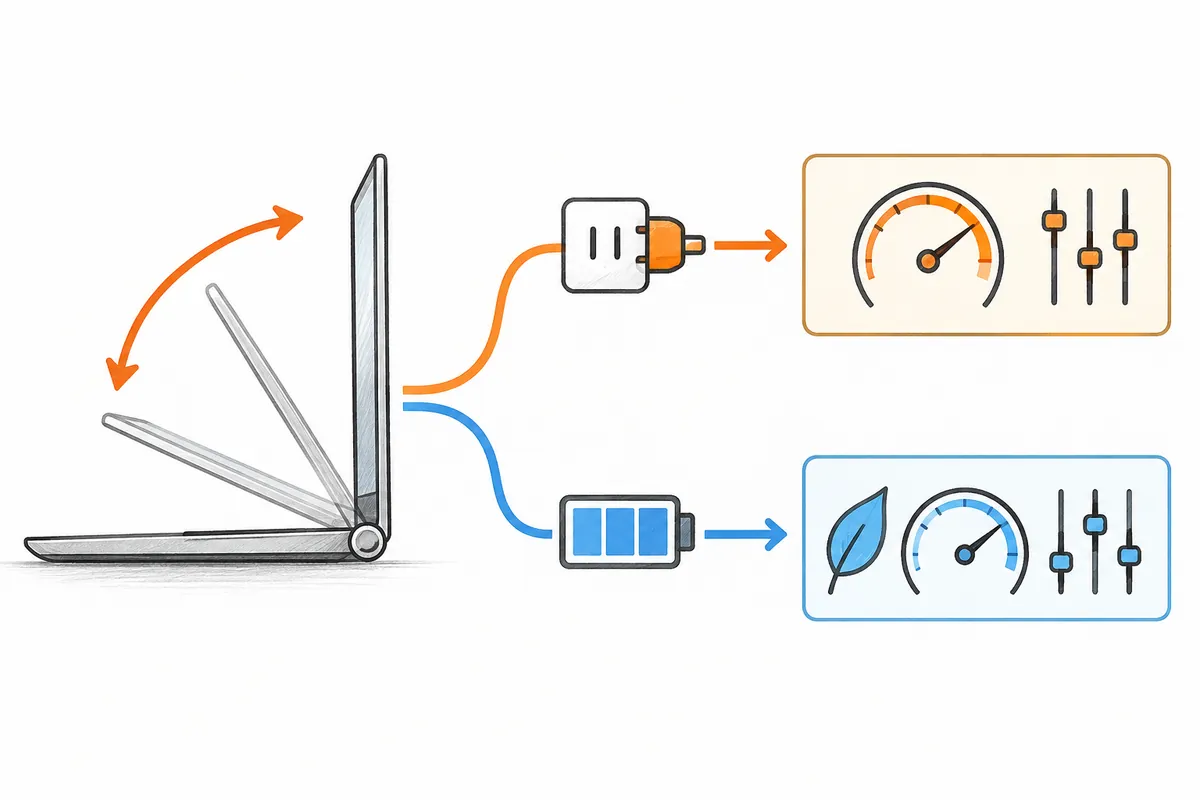
2. Check plugged-in and battery lid settings
Microsoft describes Control Panel Power Options, Choose what the power buttons do, and separate battery/plugged-in lid-action columns. Current Settings search may also find lid options. Builds differ, so inspect the actual “When I close the lid” item and both power conditions.
Record both original values. For continued plugged-in desk use, check whether that column offers Do nothing. Battery need not automatically match. Original and changed items enable restoration afterward.
Save changes after selection. If unavailable or organization-blocked, do not try to recreate another device's screen. Consult manufacturer and organizational support. Understand supported behavior before forcing absent choices through registry or firmware changes.
| Check item | Record | Next verification |
| On-battery column | Original lid action | Does it match travel use? |
| Plugged-in column | Original and new values | Does desk work actually continue? |
| Save | Whether changes were saved | Reopen settings and compare |
| Restore | Both original values | Restore only needed items after use |
3. Do not confuse lid action with automatic sleep timing
Changing lid action governs closing the lid. It does not disable inactivity sleep or program stopping conditions. If work starts continuing but stops later, record immediate and later states separately.
Suppose status updates immediately after closing, but no result is confirmed after 15 minutes. This does not prove settings failed to save. Compare observation time, power connection, sleep settings, and actual program state to narrow the changed stage.
Separate “immediately after closing,” “after planned task duration,” and “after reopening.” For online tasks, inspect connections and errors too. Keeping the device on does not guarantee permanent server or program operation. Leave unchecked stages unknown.
4. Check external-monitor output separately
Verify external display before closing. If absent even with the laptop open, address display connection first. Repeated lid-setting changes cannot solve cable or input problems.
A sample check can open a shareable document externally, use external keyboard/mouse, briefly close the lid, and inspect the same document. Saved examples make states clearer than testing settings for the first time during important work. Enter results only after actual observation.
If the picture disappears, reopen and inspect the original state. Separate external power, selected input, Windows recognition, and PC sleep. Calling all four merely “black screen” encourages repetitive setting changes.
5. Check heat with model-specific ventilation conditions
Dell advises keeping vents unobstructed and airflow adequate. Lid changes do not alter manufacturer installation or use requirements. Inspect model intake/exhaust positions and instructions when choosing laptop and stand placement.
Do not give every laptop the same answer about prolonged closed-lid use. Check supported placement and whether the lid impedes vents or devices. Desk use differs from airflow-restricted storage. Save work and choose appropriate power state before travel.
This article sets no universal safe temperature. Unknown-model numbers can differ from actual manufacturer criteria. For unusual heat, recurring shutdowns, or deformation, stop using the device and consult its manufacturer rather than continuing setting changes. This response applies when symptoms actually occur.
6. Black screens are not always sleep issues
Dell describes some Alienware models where particular NVIDIA drivers, GPU-only display mode, and Do nothing together produce a black internal screen after reopening. This has defined affected models and driver conditions. Do not apply it to every laptop before confirming yours matches.
The case shows why display and power-state issues need separation. Record whether external display continues, only internal disappears, and outputs remain. Model, failure stage, and external status find support better than the broad phrase “lid problem.”
For confirmed driver changes, use official support matching the model. Do not import other-model drivers or arbitrary forum settings. Record versions and symptoms before/after, and leave unapplied stages incomplete. This article reproduced neither the Alienware issue nor its update.
7. Include shutdown and restoration in the procedure
After work, verify completion and saving, then decide whether to restore lid action. Note a plugged-in change meant only for desk use. Travel requires checking battery settings and actual power state; closing the lid does not itself establish shutdown.
| Illustrative stage | Result to verify |
| Before starting | Original settings, power, display, and ventilation |
| Short check | Same document and input behavior before/after closing |
| After work | Completion message and actual output file |
| Before travel | Saved work and selected power state |
| Restoration | Restore and compare only the changed column |
Maintain existing locks and organizational policies during absence. External displays can show work with the lid closed, so check locking separately. Continued execution and other people's visibility are different concerns. Convenience does not require reducing access protection.
Final notes should state purpose, changed power column, work actually verified, remaining problems, and restoration values. Reuse these to reduce searching all settings again, but recheck when devices or connections change; prior success does not validate the new environment.
Official guidance and writing standards
- Microsoft: Shut down, sleep, or hibernate your PC
- Dell: How to Troubleshoot and Fix Computer Fan Issues
- Dell: Black Screen After Closing and Reopening Alienware Lid
References checked: 2026-10-06. This explanation was written with AI assistance after checking the official guidance below. Cases and records are illustrative, not direct measurements or tests on a particular PC. Windows builds, manufacturers, and management policies can alter screens and menu names. Current official guidance was rechecked during publication preparation.
Original illustrations created to help explain this article.
Original on Tistory ↗