When Windows 11 Plays Through Speakers Despite Connected Earphones: Selecting the Output Device
This article was translated from its source language with AI assistance. Please check technical terms and equations against the original.
Earphone output checking sequence
| STEP 1 | Lower volume and check the connection type |
| STEP 2 | Select the Windows output device |
| STEP 3 | Check the app's output device |
| STEP 4 | Use a short sound to verify the actual playback location |
| STEP 5 | If it fails, narrow down recognition and driver issues |
This explanatory diagram organizes the reading sequence. It is not an actual program screen or measurement result.
If sound comes from laptop speakers with earphones connected, check whether connection status and playback routing match. Wired earphones, USB headsets, and Bluetooth headsets may be recognized differently by the PC. Separating “earphones are connected” from “the current app sends audio to them” clarifies which settings to check.
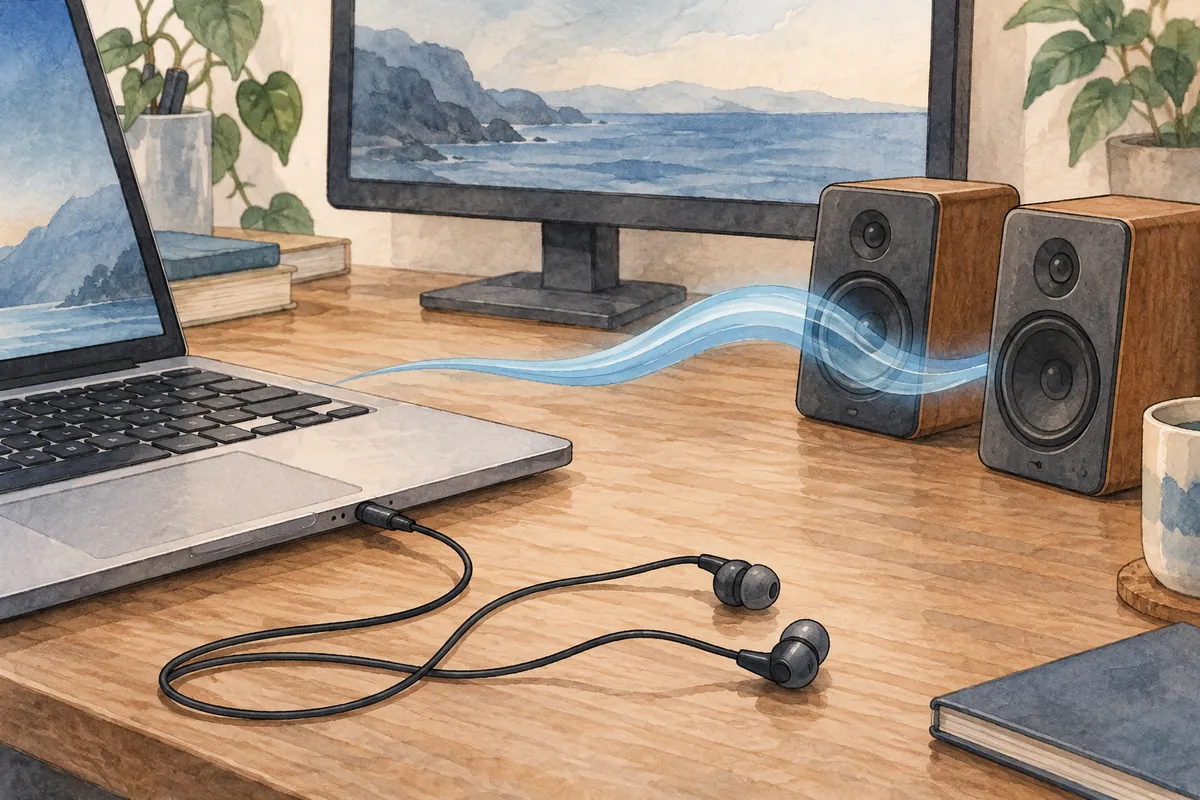
First stop playback or lower volume and inspect the output device name. When meeting or video audio is escaping into the surroundings, avoid checking by increasing the overall volume. This article explains connection, output selection, app-specific checks, and verification after changes in order.
1. Which connection method are you using?
| Connection method | First check | Important distinction |
| Earphones using an audio jack | Jack symbol, contact, and manufacturer guidance | Headphone output versus microphone input |
| USB headset | USB connection and device name | Whether it is selected as a separate audio device |
| Bluetooth headset | Power, connection indication, and output selection | Registered versus currently connected |
| Monitor or TV connection | Output list after connecting a display via HDMI or similar | Whether the new display becomes the audio output |
If sound changes after connecting a monitor, check whether the monitor or TV appears in Windows output. Whether that display has speakers and which route is selected require separate checks. If a device name is unfamiliar, compare it with the connected product's model.
Analog-jack earphones do not always appear under a separate product name. They may be controlled under the laptop's audio device name, so absence of a distinct name alone does not establish recognition failure. Follow the PC manufacturer's guidance for specific jack behavior.
2. Select the current Windows output device
- Open the taskbar sound area and lower volume.
- Open the output device selection list. Item names and button shapes may vary by build.
- Select the intended earphones, headset, or corresponding audio device.
- Alternatively, check devices under Settings → System → Sound → Output.
- Play a short sound without sensitive content and check which device actually produces it.
Select an output device, not an input device. Choosing a headset microphone as input does not change the listening path to the same device. If your voice reaches a meeting but sound comes through speakers, checking both paths separately explains the situation.
After changing output, verify where sound actually comes from. A screen record of a changed selection does not establish that surrounding speakers are silent. Recheck the list after connecting or disconnecting an external display or dock too.
3. Check plugs and jacks without excessive force
Check wired earphones for a loose connection. Headphone-marked output and microphone jacks can serve different purposes, and devices with a combined jack differ from PCs with separate jacks. Read jack symbols and manufacturer instructions instead of relying only on color.
A connected cable does not necessarily mean the PC recognizes it as expected. If using an adapter, check its supported functions. Rather than forcing an ill-fitting plug or touching the jack interior with metal objects, check compatibility under product guidance.
Testing the same earphones on another device can narrow the problem. However, different connection standards or output functions mean different comparison conditions. “Works on another PC” does not mean “the earphones work under every connection method.”
4. Does only one app play through a different device?
If Windows sounds reach the earphones but one app uses speakers, check that app's audio settings. Meeting, game, and media apps may have separate output selection. Read whether the speaker or audio device name in the app matches Windows' selection.
| Comparison | Likely direction | Next check |
| All sound comes through speakers | Prioritize Windows output and connection | Overall output list and jack state |
| Only one app uses speakers | App-specific route or settings | App output device and volume |
| Earphones play sound, but speech is not transmitted | Output and input are different issues | Microphone selection, permissions, and mute |
| Device changes with each connection | Relationship between connection changes and selected state | Record dock, external display, and headset names |
Record the original output before changing app settings. Some apps require restarting playback to verify a change, so read current guidance. Changing app routing and overall device selection simultaneously makes it hard to identify which mattered; compare one stage at a time.
You can also check app mute and volume in Volume mixer. This article focuses on device routing; different volume across apps requires separate assessment. If the correct device is selected but silent, distinguish a volume issue from incorrect output selection.
5. Distinguish Bluetooth connection from audio playback
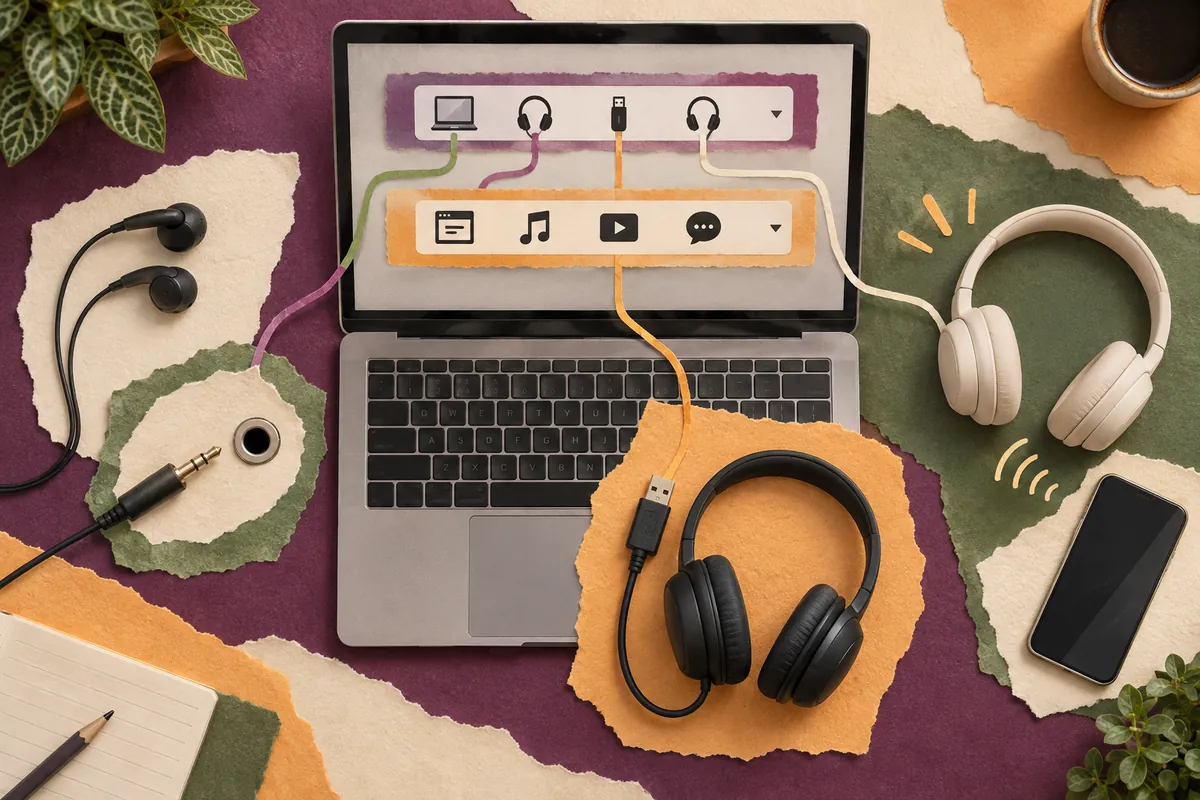
Check the Bluetooth headset's current connection in Windows devices, then select it in sound output too. If only an old registration remains, first check power, battery, and connection to another device. Repeatedly searching the output list for a disconnected device can miss the cause.
If the same headset is used with a phone, check its multipoint or switching procedure. Changing PC audio alone may not resolve connection to another device. Before removing its Windows registration, confirm pairing instructions and actual connection state.
If connection is normal and it is selected for Windows output but only one app fails, narrow the investigation to app settings. When registering again, read the name accurately to avoid removing other Bluetooth devices such as keyboards or mice.
6. Check unrecognized devices and drivers
If a USB headset is absent from output, check its port and device state. You can use audio troubleshooting in Windows' Help app. Read the target device and diagnostic result and verify resolution through actual playback.
Record whether the issue began after an update and whether it affects only one device. Check driver guidance through Windows Update or official PC/audio device manufacturer support. Choose instructions matching the manufacturer, model, and Windows version.
There is no need to immediately remove every audio driver to resolve output selection. Removal, reinstallation, and rollback are larger changes; first check the current driver and necessary recovery method. For managed work PCs, follow the administrator's procedure.
7. Choose a test sound and record the result
Play a short familiar sound once. Sensitive calls or videos containing personal information may be unsuitable test material. Start quietly, verify that sound actually comes from the earphones, and then adjust to the needed level.
| Record item | Illustrative example |
| Connection method | USB headset connected directly to a PC port |
| Windows output name | Device A identified in the list |
| App output selection | Device A selected separately in the app |
| Actual result | Test sound heard through earphones |
This table is a format for your own records, not a measured case. Recording which device produced sound, rather than merely “changed output settings,” helps when using the same dock environment or meeting app next time.
With several browser tabs open, check which tab plays the test sound. Mixing it with ads or other videos can mislead you about the change's result. Temporarily pause other playback, compare one sound in one app, and then resume needed work.
8. When returning to speakers or encountering recurring failure
After using earphones, select the desired output again. Do not assume unplugging them makes every app switch as expected; check before the next playback. Compare list changes and actual sound after connecting a new external monitor too.
- Did you check connection type and jack purpose?
- Did you read Windows and app output selections separately?
- Did you distinguish microphone input from listening output?
- Did you verify the actual device with a test sound?
- Did you record settings to restore and continuing failure conditions?
If the device and connection are correct but failure recurs, give support the app name, audio device model, Windows version, failure time, and comparison results. A record of sound routing helps distinguish target-selection problems from recognition problems.
Official sources and writing basis
- Microsoft — Troubleshoot sound and audio
- Microsoft — Update audio drivers
- Microsoft — Pair Bluetooth devices
Sources checked: October 5, 2026. Written by AI using official Microsoft guidance, with content and sources reviewed. Cases and inspection records help readers assess their situation; they are not measurements or tests on a particular PC. Screens and menu names may differ with the Windows build, manufacturer, and management policy.
Original illustrations created to help explain this article.
Original on Tistory ↗