When Windows 11 Cannot Connect to a Bluetooth Device: Checking Pairing Records and Device State
This article was translated from its source language with AI assistance. Please check technical terms and equations against the original.
Four stages of Bluetooth connection
| STEP 1 | PC support and Bluetooth enabled |
| STEP 2 | Device power, battery, and pairing mode |
| STEP 3 | Discovery and selecting the exact device |
| STEP 4 | Check registration and connection status |
| STEP 5 | Check actual functions and audio routing |
This explanatory diagram organizes the reading sequence. It is not an actual program screen or measurement result.
Assuming a device name in Windows means it is currently connected makes troubleshooting harder. An old pairing record and an actual connection are different states. Distinguish a device not appearing, one listed but unable to connect, and one connected but unable to perform the needed function.
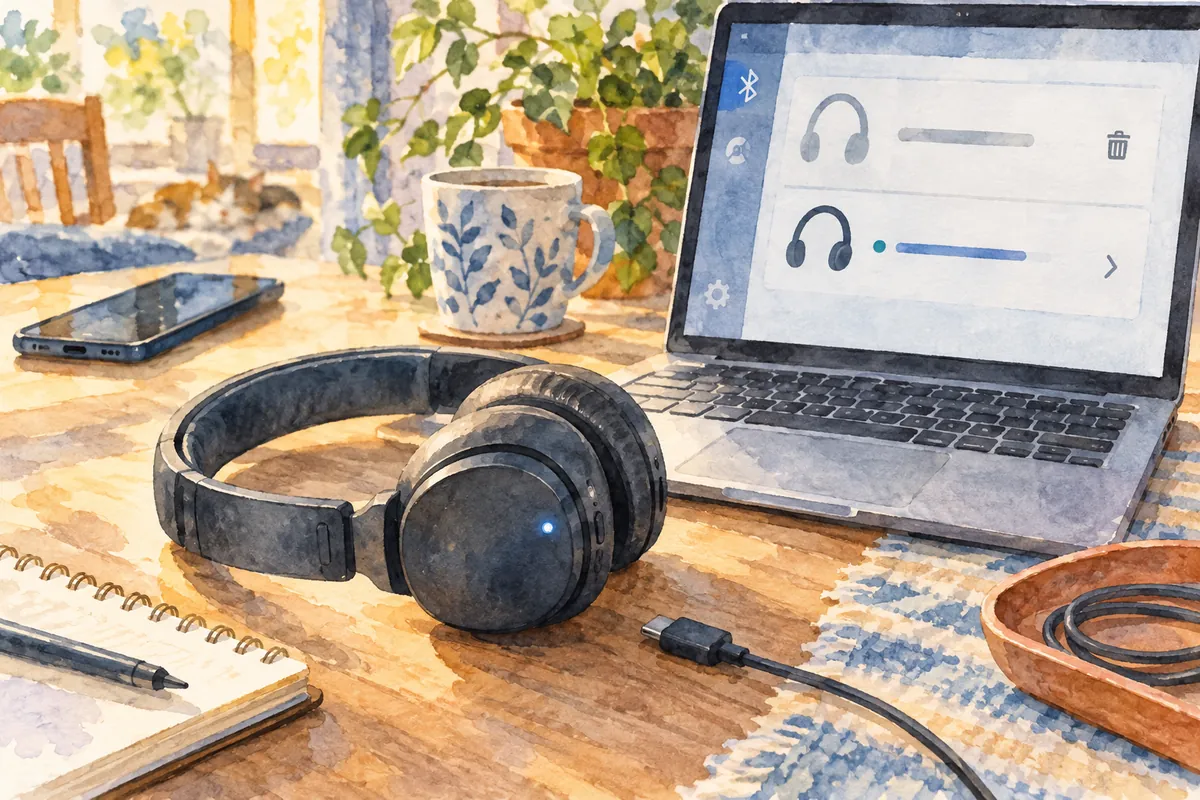
First check PC Bluetooth support and its enabled state, then peripheral power, battery, and pairing mode. Remove and recreate an existing registration afterward. If you remove registration without knowing how to pair again, reconnecting the device in use may be difficult.
1. Distinguish discovery from connection failure
| Observed state | First target to check | Problem to distinguish |
| No Bluetooth entry in Windows | PC specifications and adapter state | Whether support or recognition is involved |
| Absent from new device discovery | Device pairing mode and distance | Whether it is discoverable |
| Registered name exists, but connection fails | Device power, other connections, and registration state | Whether connection is currently possible |
| Shown as connected but produces no sound | Output device and app audio settings | Distinguish Bluetooth connection from audio routing |
Describe your symptom using one table state. “Headset not discovered in Add device” and “Connecting to an already registered headset fails” are different records. Record the screen state and device name before changing settings so you can compare the outcome of registration changes.
2. PC support and Bluetooth enabled state
Not every desktop PC includes Bluetooth. If this is your first use, check PC specifications or the installed adapter's model. Names alone cannot distinguish absent functionality from functionality hidden by a driver problem.
Check the Bluetooth switch under Settings → Bluetooth & devices. Quick settings can also show whether it is enabled. Check Airplane mode and any manufacturer physical wireless switch guidance. Ask the administrator about work PC restrictions.
If using an already connected keyboard or mouse, toggling all Bluetooth can affect it too. Prepare an alternative input method and save work first. There is no need to remove other devices together merely to check one connection.
3. Peripheral power and pairing mode
Being powered on may differ from pairing mode for connecting to a new PC. Check pairing instructions for the headset, speaker, keyboard, or other device. Button hold times, lights, and messages differ by product; do not apply one combination to every device.
Low battery can prevent stable discovery or connection. Check charge and bring the device near the PC. If it is already connected to a phone or another PC, consult manufacturer guidance on multipoint support and switching. Connection to another device does not mean Windows is faulty.
An illustrative comparison record might say “Not discovered before charging; pairing light on after charging; name appears in Windows discovery.” This shows how to organize observations, not an actual experiment. Distinguishing power, charge, and pairing states explains device-side and PC-side issues more clearly.
4. Basic sequence for adding a new device
- Place the device in pairing mode according to manufacturer guidance.
- Select Add device under Windows Settings → Bluetooth & devices.
- Read the connection type and results, then select the exact device name.
- If a code or confirmation appears, verify matching instructions on both devices.
- After connection completes, use the required function to check the result.
Several similar models nearby can make identifying your device by name difficult. Check its pairing indication and name together and identify the target to avoid sending requests to someone else's device. If codes do not match or a confirmation is unexpected, stop and check the target again.
Discovery settings may be available depending on Windows build and device type. If basic discovery does not show the device, review discovery settings in Microsoft's guidance. Expanding discovery alone does not guarantee a powered-off or non-pairing device will appear.
5. Checks before removing and recreating registration
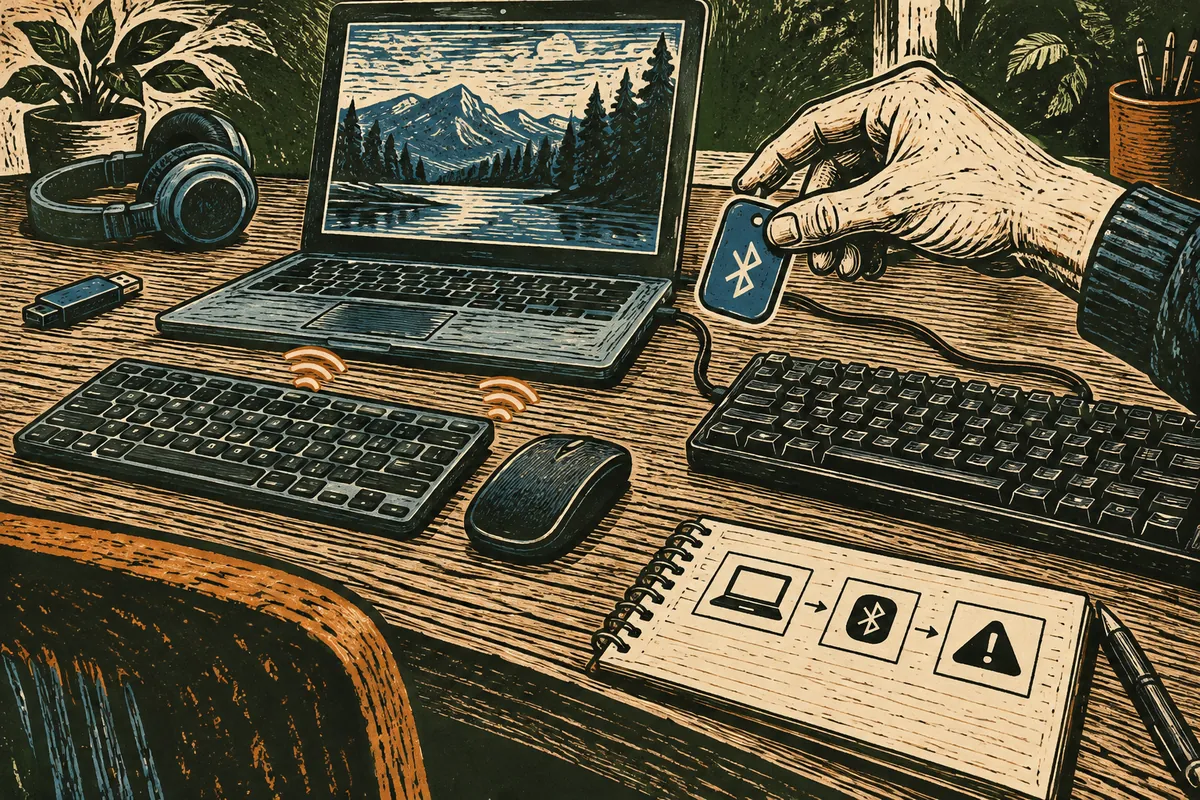
If a registered device repeatedly fails to connect, consider removing only that device and adding it again. First record its exact name and pairing method. Resetting a headset's user settings and deleting its Windows pairing record are different actions.
| Check before registering again | Reason |
| Name of the device to remove | Avoid removing another device such as a keyboard or mouse |
| How to enter pairing mode | You must be able to add it again after removal |
| Battery and currently connected device | Distinguish causes other than registration |
| Alternative input method | Continue checking settings if an input device disconnects |
You can remove the relevant entry through its More menu in Windows devices. Then place it in pairing mode again and add it. Record separately whether the name appeared, connection completed, and the needed function worked.
If removal and addition repeatedly fail at the same stage, organize the error and conditions instead of increasing repetitions. Resetting the device each time can lose settings and continually change comparison conditions. Check official manufacturer reset procedures separately when actually needed.
6. Connected, but no sound
If a headset is connected, check whether it is Windows' selected sound output. Apps may also choose a separate output. Inspect device and app volume too. Connection indication and audio playback are different stages, so sound problems alone do not require deleting pairing again.
Distinguish input and output devices too. A selected headset microphone does not guarantee the headphone output follows the intended route. In meeting apps, inspect microphone and speaker separately and use a short checking function.
For changed sound quality or behavior during microphone use, check the device's supported audio functions and app guidance. This connection checklist does not guarantee every headset's simultaneous audio functions or quality.
7. Windows diagnostics and driver checks
You can use Bluetooth troubleshooting in the Help app. Read guidance matching the current symptom and verify through actual connection. Recording whether one device or every Bluetooth device fails helps narrow the scope.
If drivers need checking, identify the Bluetooth adapter in Device Manager and review Windows Update or official manufacturer support. Drivers must match PC model and Windows version. Microsoft describes available rollback options for problems beginning after updates, but restoration to a prior version is not available for every device.
Driver removal is a later step that can affect all wireless functionality. Do not remove several adapters simultaneously without checking necessary drivers and reinstallation instructions. For work devices, give the administrator current versions and errors first.
8. Comparing intermittent disconnections
If connection succeeds once but frequently drops, reduce distance and check again in the same place. Microsoft also notes possible relevance of nearby USB devices and placement; before removing or moving devices for comparison, check saved work and peripherals in use. Changing both low battery and distance at once makes the cause difficult to distinguish.
Record disconnection time, apps running, and approximate PC/device positions. Distinguishing “always fails to connect” from “disconnects only in a particular place” makes it easier to assess whether to recreate registration or inspect the environment.
9. Recording the failure stage speeds up further support
| Information to retain | Example record |
| PC and device models | Exact names checked in product information or manuals |
| Failed stage | Discovery, code confirmation, connection, or actual function |
| When it began | First connection, after an update, or after switching devices |
| Comparison results | Whether other peripherals connect and the current device's power state |
If normal connection returns, check discovery options changed for testing and unnecessary registrations. Read names and purposes before removing unused devices too. Actual failure stages and changing conditions, rather than presumed faults, help manufacturer support select the next necessary check.
Official sources and writing basis
- Microsoft — Troubleshoot failed Bluetooth connections
- Microsoft — Pair Bluetooth devices
- Microsoft — Update Bluetooth drivers
- Microsoft — Troubleshoot Bluetooth
Sources checked: October 5, 2026. Written by AI using official Microsoft guidance, with content and sources reviewed. Cases and inspection records help readers assess their situation; they are not measurements or tests on a particular PC. Screens and menu names may differ with the Windows build, manufacturer, and management policy.
Original illustrations created to help explain this article.
Original on Tistory ↗