Checking an Offline Windows 11 Printer: Connection, Queue, and Default Printer
This article was translated from its source language with AI assistance. Please check technical terms and equations against the original.
Offline printer checking sequence
| STEP 1 | Check printer readiness and model |
| STEP 2 | Check USB or the same network |
| STEP 3 | Check the app's print target and default |
| STEP 4 | Read the queue and remove unnecessary jobs |
| STEP 5 | Verify by actually printing one page |
This explanatory diagram organizes the reading sequence. It is not an actual program screen or measurement result.
If a printer is powered on but shown as offline in Windows, check the printer's own state separately from the route used by the PC. Power alone does not establish readiness or connection to the same network. Likewise, a name in the printer list does not mean a current connection to that device.
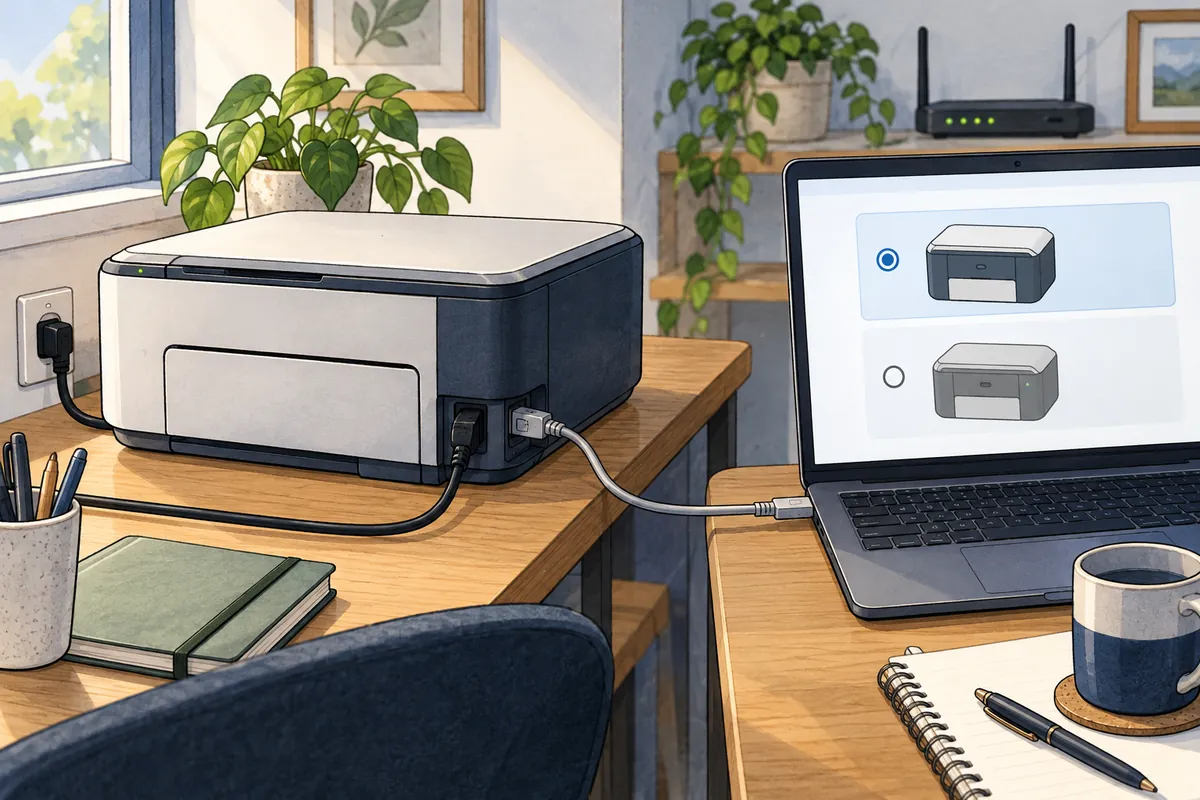
Start with device name, connection method, and queued jobs. Repeatedly clicking Print may produce multiple copies once the connection recovers. This article explains how to stop unnecessary resubmission while preserving needed work and narrowing connection and selection problems.
1. Distinguish the printer's state from Windows' display
Check printer errors, paper, toner or ink, and closed covers. If manufacturer guidance provides a device status page or test function, use it to see whether the printer works independently of the PC. Changing the Windows default printer alone will not resolve a printer-body error.
| Observation | First check | Next step |
| The printer itself shows an error | Device guidance for paper, consumables, covers, and similar issues | Resolve the error and recheck from the PC |
| Printer is ready, but Windows says offline | Connection method and selected device | Check USB or network routing |
| Document goes to another printer | App print target and default printer | Reselect by exact name |
| Connection is normal, but jobs accumulate | Older jobs in the queue | Check owners and document names before needed cancellations |
Record “Printer ready, device A offline on PC, USB connection” rather than “printer does not work.” For a shared printer, you can check whether other users have the same problem, but do not arbitrarily cancel their documents. The first goal is distinguishing your PC's problem from a shared-device problem.
2. For USB, check the cable and target device
Distinguish printer power cables from data connections. Power alone or a loose cable can leave it unavailable to the PC. Inspect the PC/printer connection and check for ongoing print jobs before trying another USB port.
A PC where the same model was installed repeatedly may retain similarly named entries. Do not rely solely on numbers or “copy” labels; verify which entry matches the currently used device. Recording the link between the physical printer and Windows entry makes future checking easier.
Change one condition at a time when testing cables. Changing the port, cable, and driver together before success leaves the needed change unclear. An illustrative record might compare “offline at original port” with “recognized at another port.”
3. For wireless printers, check the same network
Microsoft advises checking that printer and PC are on the same Wi-Fi network. Inspect the printer's network name through its menu or manual and compare the PC's connection name. A lit wireless indicator alone does not establish the same network as the PC.
Guest and company networks can have device-to-device communication policies. If communication is restricted, do not start by turning off the entire Windows firewall. Ask the administrator about permitted printing routes and network policy.
If failure began after replacing the router, check for retained old connection information. Connecting a printer to a new network varies by manufacturer. Follow official guidance for the model rather than guessing from remembered names and passwords.
4. Check the default printer and app print target
Select a printer under Settings → Bluetooth & devices → Printers & scanners. To choose a default manually, check “Let Windows manage my default printer.” When enabled, a manual Set as default button may not appear.
When Windows manages it, it may choose the last-used printer as default. If you always want the same device, understand the setting and set the desired default. Note the original value so you can restore it after testing.
| Item | Role | When to check |
| Default printer | Device prioritized for new printing | Check its name in Windows settings |
| App print target | Actual selection receiving this document | Immediately before clicking Print |
| PDF save device | Creates a file instead of paper | Check the target when the physical printer does not operate |
| Another entry for the same model | May represent a separate installation or connection | Compare with the currently connected printer |
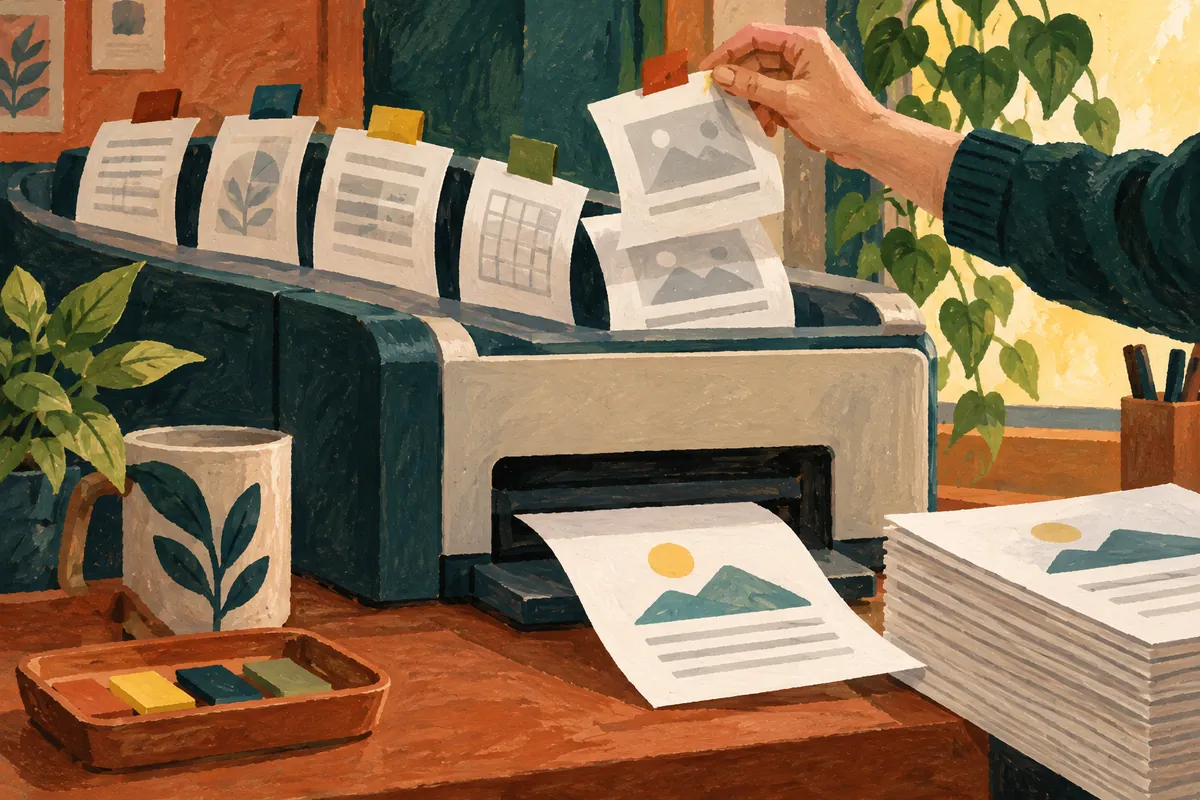
Even after changing the default, an already open app's print screen may select another device. Recheck the final target in the document's print dialog. The default printer setting makes selection convenient; it does not resolve every physical connection problem.
5. Read the queue and cancel only necessary jobs
Open the printer's queue in its settings. Check document names, submission times, and status to distinguish needed jobs from older repeated submissions. For a document still needed, first confirm that the original file remains available.
You can cancel unnecessary jobs or use Cancel all, but shared queues may contain other users' jobs. Read the targets before canceling everything and follow the responsible person's procedure. A cancellation request and the moment printing stops may differ, so inspect actual printer state too.
Once the queue is empty, do not repeatedly resend documents before connection checks are complete. Assess with one small test job and then send the full needed document. This sequence reduces paper and duplicate printing; it is not a measured success rate.
6. Roles of restarting and troubleshooting tools
Windows 11 provides printer troubleshooting in the Help app. Read diagnostic results and change instructions, then verify through actual output. “Ran diagnostics” and “a page came out of the printer” are different records.
Restart the printer after checking manufacturer guidance and current usage. Microsoft's documentation also describes turning power off and back on after a short wait. For a shared device, first check ongoing jobs and effects on others.
The print spooler manages the queue. If basic checks fail, review the service restart procedure in official documentation. Repeated service restarts do not automatically fix physical connections or incorrect targets, so retain earlier observations.
7. Record necessary information before removal and reinstallation
Before removing or reinstalling a printer entry, record its name, model, connection method, current settings, and needed work options. Duplex and paper settings may need rechecking afterward. Start with connection and selection rather than immediately reinstalling for a simple queue issue.
Microsoft also provides guidance about manufacturer installer issues on some ARM PCs. Check your system type and printer support conditions and follow current official guidance. Do not assume installation used on an ordinary PC fits every ARM device.
| Record before reinstalling | Why it is needed |
| Printer model and displayed name | Reselect the correct device |
| USB, wireless, or shared connection | Identify the needed installation route |
| Windows version and system type | Check compatible installation guidance |
| Paper, duplex, and other used options | Compare actual output conditions after reinstalling |
8. Verify the result with one page
After checking connection and queue, print one page of a non-sensitive test document. Check that it came from the intended printer, no pages were missing, and unnecessary old jobs did not print again. Choose a test page or document method according to printer guidance.
- Did you distinguish printer errors from Windows' offline indication?
- Did you check current connection method and network or cable state?
- Does the app's target name match the intended printer?
- Did you check cancellation targets and originals to reprint?
- Did one page actually come from the intended device after changes?
For recurring failure, provide the exact error, device name, occurrence time, and attempted actions. Observable results such as “not even one page printed after connection” help choose further support more than merely “cleared the queue.”
Official sources and writing basis
- Microsoft — Troubleshoot offline printers
- Microsoft — Set the default printer
- Microsoft — Add and install printers
Sources checked: October 5, 2026. Written by AI using official Microsoft guidance, with content and sources reviewed. Cases and inspection records help readers assess their situation; they are not measurements or tests on a particular PC. Screens and menu names may differ with the Windows build, manufacturer, and management policy.
Original illustrations created to help explain this article.
Original on Tistory ↗