Extracting ZIP Files in Windows and Checking Before Submission: Missing Files, Nested Folders, and Wrong Final Versions
This article was translated from its source language with AI assistance. Please check technical terms and equations against the original.
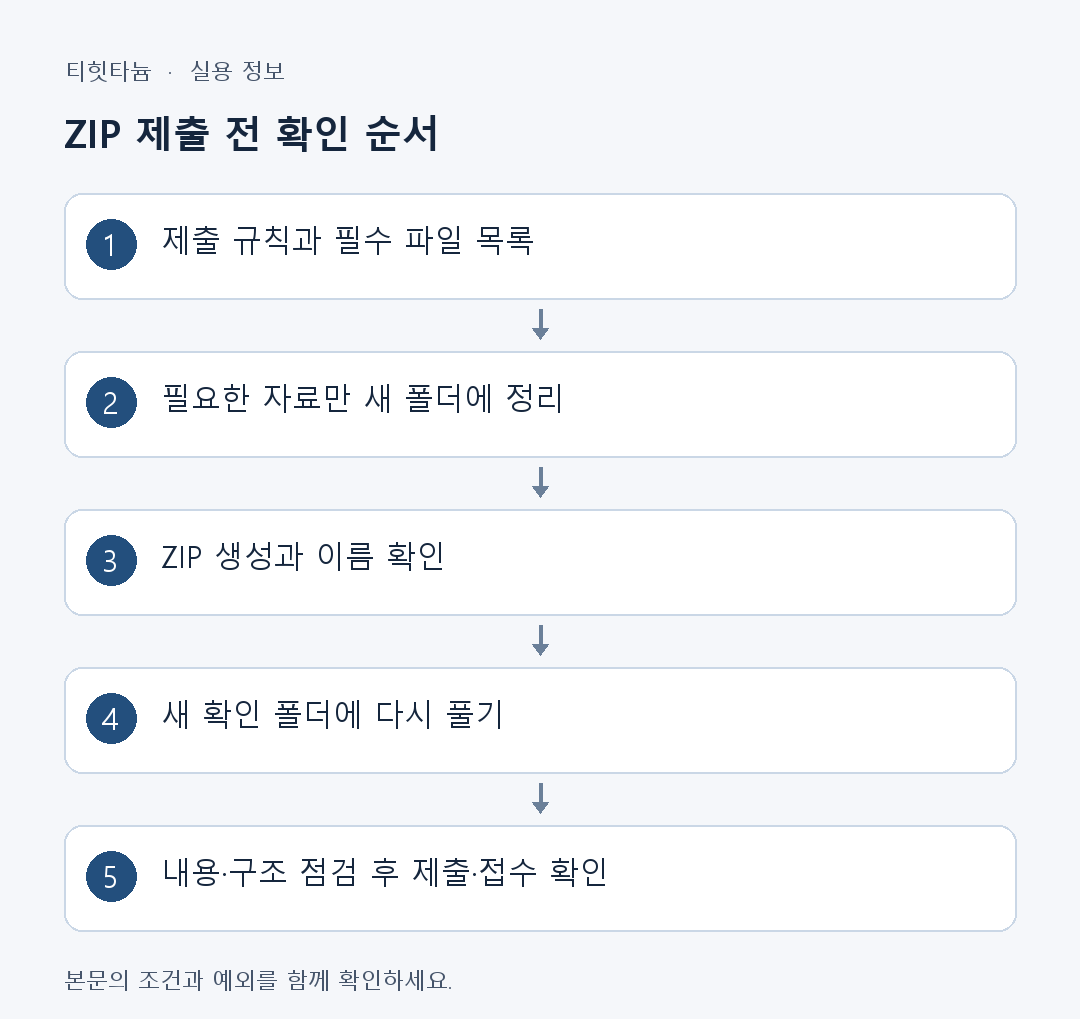
ZIP files conveniently deliver several materials together. But creating an archive does not establish that all necessary materials are included or that recipients can open the required structure. For submission, extracting the completed ZIP into a new folder and checking it matters more than compression itself.
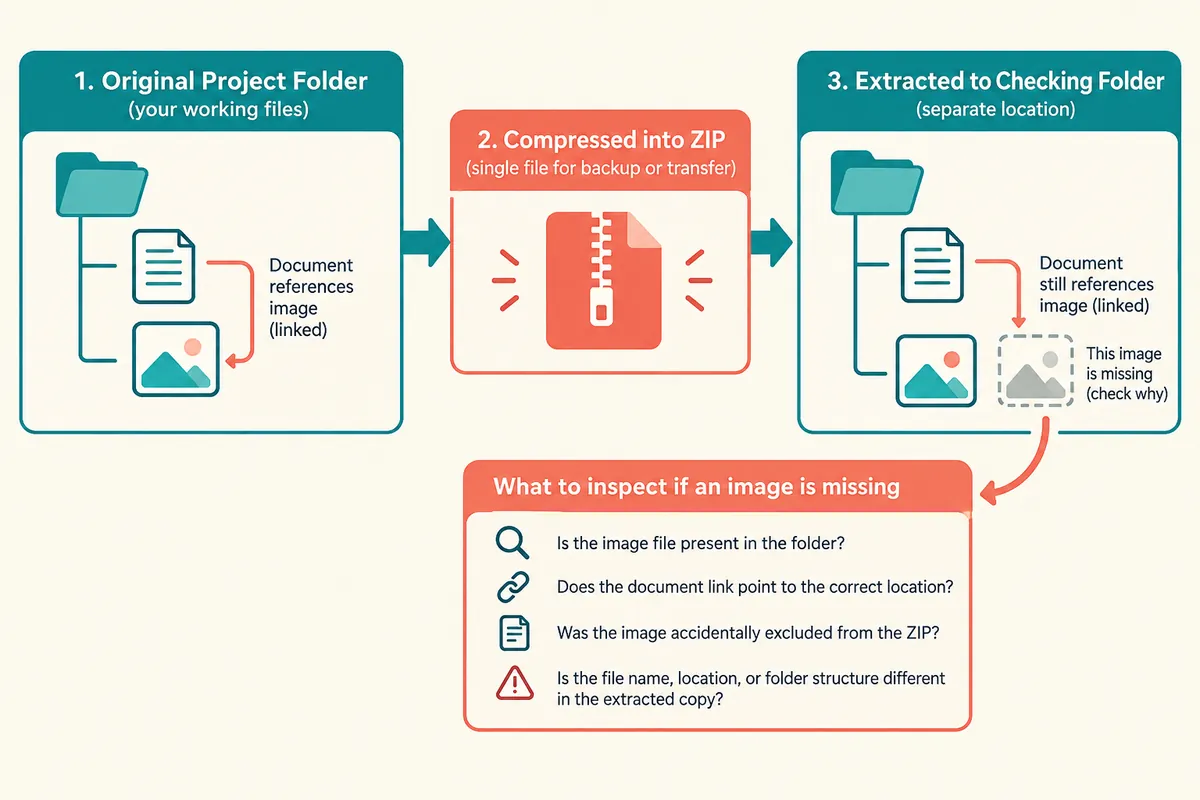
This article covers creating and extracting ZIPs with Windows' built-in features, then checking missing files, unnecessary folder nesting, and wrong final versions. Password-protected archives and other formats can have version-dependent support and need separate checks.
1. Opening a ZIP and extracting it are different stages
Double-clicking a ZIP shows its file list. Visible contents do not mean every needed file has been extracted to an ordinary working folder. For interdependent files or submitted folder sets, extract everything to a designated folder and inspect there.
| Action | What it shows | Separate check |
| Open ZIP | Archive name and listing | Whether contents open normally after extraction |
| Extract all | Take all contents into the selected location | File count, folder structure, and content |
| Take out one file | Inspect one necessary file | Other materials needed alongside it |
| Create a new ZIP | Bundle selected materials | Files omitted from selection and submission criteria |
For example, opening one document in a received folder of photos and documents can seem sufficient, but referenced photographs may be missing. Check relationships in the extracted location and distinguish “listed” from “usable.”
2. Extract a received ZIP into a new folder
- Check the received file's name and saved location.
- Right-click the ZIP in File Explorer and selectExtract All.
- Choose a new folder that will not mix with other work.
- Wait for extraction to finish and read any errors.
- Open the new folder and check file names, subfolders, and document contents.
A separate destination reduces confusion with existing same-name files. If extracting into an existing folder prompts overwriting, first identify necessary originals. Rather than replacing everything, extract separately and compare.
For one needed file, you can open the ZIP and drag it elsewhere. But submissions or projects composed of several files may need the others too. Recording partial extraction separately from full extraction makes omissions easier to identify.
3. Create a ZIP in Windows
Gather materials in one folder and right-click files or folders. Microsoft's basic route is Show more options → Send to → Compressed (zipped) folder. Some Windows builds show a shorter compression menu. Verify the selected target and use the current ZIP item.
Name the new ZIP according to submission rules. “Report_Name_20261004.zip” is illustrative; actual institutional or company rules take precedence. Ambiguous names such as “final.zip” and “final2.zip” cause confusion later.
Check that necessary subfolders are included in selection. Selecting only a document differs from selecting the whole folder containing it and reference images. Do not immediately delete the original work folder after compression.
4. Submission structure: why nested folders appear
Compressing a “Report” folder and then bundling it inside “Submission materials” can create several folder layers. This is not always wrong, but differs from instructions requiring documents immediately at the top level. Read the requested structure and inspect the archive's top-level view.
| Example submission instruction | Expected appearance when opening ZIP | Common mistake |
| Submit one document compressed | Requested document appears immediately | Compressing an empty folder or selecting another final version |
| Preserve folder structure | Relationships between documents and related folders remain | Images or references omitted separately |
| Submit a folder with the specified name | Exactly named folder appears | Several layers of same-name folders |
| Submit the specified file format | File with required extension and contents | Assuming renaming changes format |
These instructions illustrate general checks. Actual school, institution, or competition requirements need checking in their own notices. Do not assume every submission site handles ZIP structures identically.
5. Checklist for extracting your ZIP again
Extract the submitted ZIP somewhere other than the working folder. Keeping the original open can hide omissions because missing archive files remain visible there. Check completeness using only the newly extracted folder.
- Write a short list of required files.
- Extract the ZIP completely into a new checking folder.
- Compare required documents, images, and subfolders with the list.
- Open key documents and check final-version criteria such as title, author, and latest changes.
- Record the ZIP's name and location separately to avoid confusing it with another file.
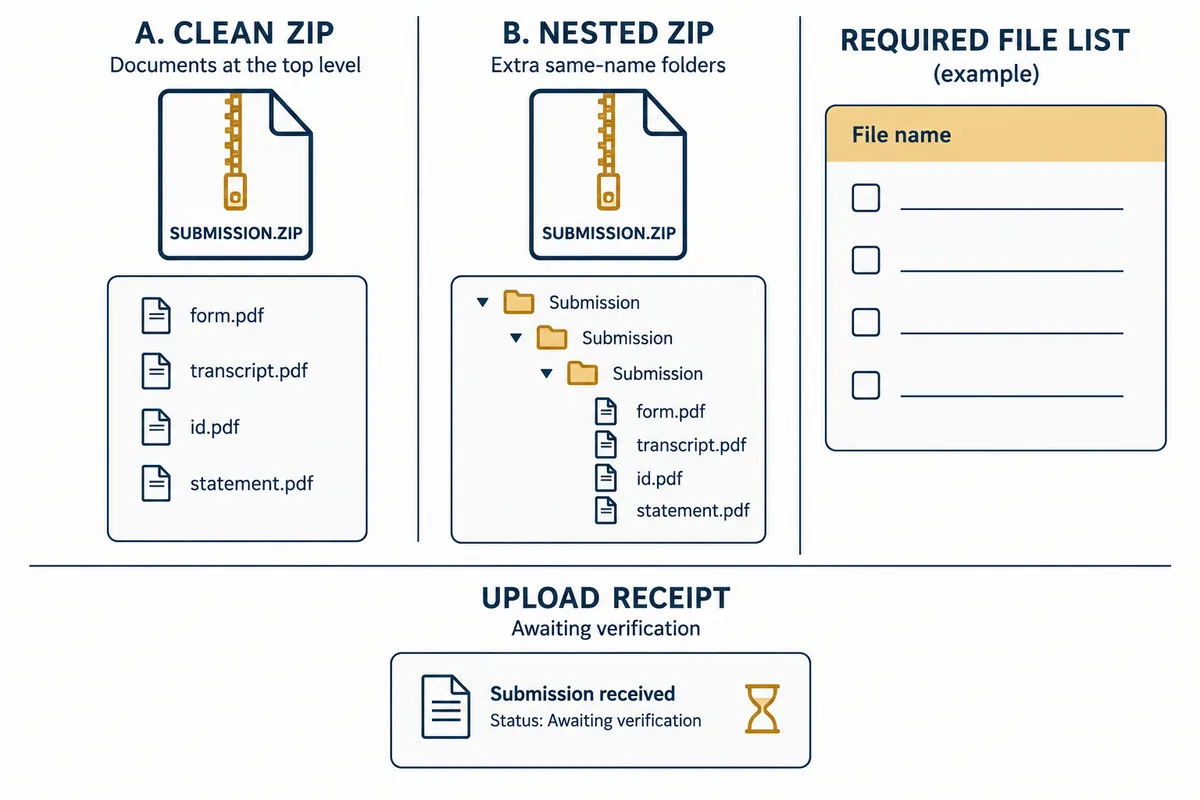
Matching counts do not guarantee matching contents. One missing required document plus one temporary file can preserve the count. Compare names and contents together and mark the submission list if needed.
Modification dates are supporting information, not definitive versions. Copying and saving can affect their meaning, so do not choose solely by latest date. Opening the document to inspect actual final changes and format is more direct.
6. Little size reduction is not necessarily unusual
ZIP also bundles files. Already compressed formats such as JPEG may not shrink substantially. Low compression does not establish creation failure or justify repeatedly wrapping the same files in ZIP.
If the submission size limit is exceeded, identify large files instead of wrapping again. Image resolution, video length, and duplicates need separate assessment for the submission purpose. Keep originals before reducing material and recheck required quality and content.
Compression and simplifying contents are different tasks. Bundling a report does not summarize it. Arbitrarily deleting important figures to meet size can change required submission conditions.
7. Check extensions, passwords, and errors
Hidden extensions can make ZIP, RAR, and 7z difficult to distinguish. Enable extensions in File Explorer and inspect the actual suffix. Renaming another format to .zip does not convert it.
Microsoft describes several archive formats supported in Windows 11 24H2 but limitations for encrypted archives. Check version and format; for password-protected material, ask the provider about the required format and supported tools. Do not assume built-in Windows handles every archive.
| Symptom | Record to retain | Next check |
| Extraction fails midway | Exact error and file name | File completeness and destination |
| Password-related message | Format, Windows version, and provider guidance | Encrypted-archive support |
| Required document missing | Extracted folder listing | Compare original ZIP list and ask the sender |
| Same-name collision | Locations of originals and extraction targets | Compare separately in a new folder |
If errors occurred, do not record complete success because some files appear. Identify failed and missing files before further work. Keeping the original ZIP preserves comparison material for receiving it again or explaining errors.
8. Personal material and final submission checks
Submission folders can include unwanted temporary or personal documents. Positively list intended files and bundle only those for easier checking. ZIP does not automatically make information safe for public disclosure.
After submission, check the site's file name and acceptance state if possible. Compare the uploaded ZIP with the one you created. A record of extraction checks helps but does not prove upload or acceptance completion.
- Do required files match archive contents?
- Do folder structure and names follow submission rules?
- Do documents and related materials open normally in the extracted folder?
- Are personal files, temporary files, and other final versions excluded?
- Did you check the actual uploaded file and acceptance state afterward?
Official sources and writing basis
Sources checked: October 3, 2026. Written by AI using official Microsoft guidance, with content and sources reviewed. Cases and inspection records help readers assess their situation; they are not measurements or tests on a particular PC. Screens and menu names may differ with the Windows build, manufacturer, and management policy.
Original illustrations created to help explain this article.
Original on Tistory ↗