Missing or Excessive Windows 11 Notifications: Distinguishing App Notifications, Do Not Disturb, and Focus
This article was translated from its source language with AI assistance. Please check technical terms and equations against the original.
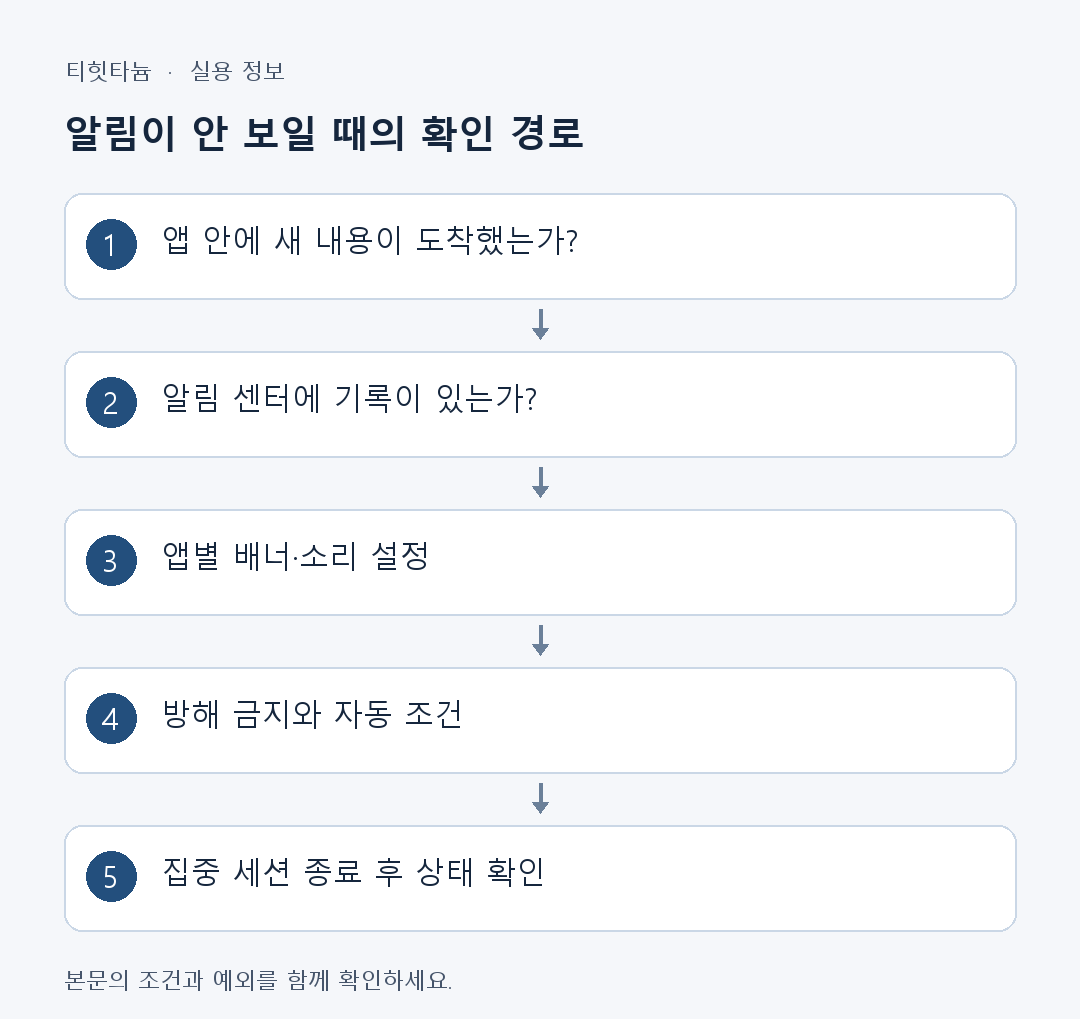
If a messenger has a new message but no lower-right banner, check receipt separately from Windows notification display. If unwanted notifications keep interrupting work, choose display methods per app instead of turning everything off. App notifications, Do Not Disturb, and Focus sessions are related but different settings.
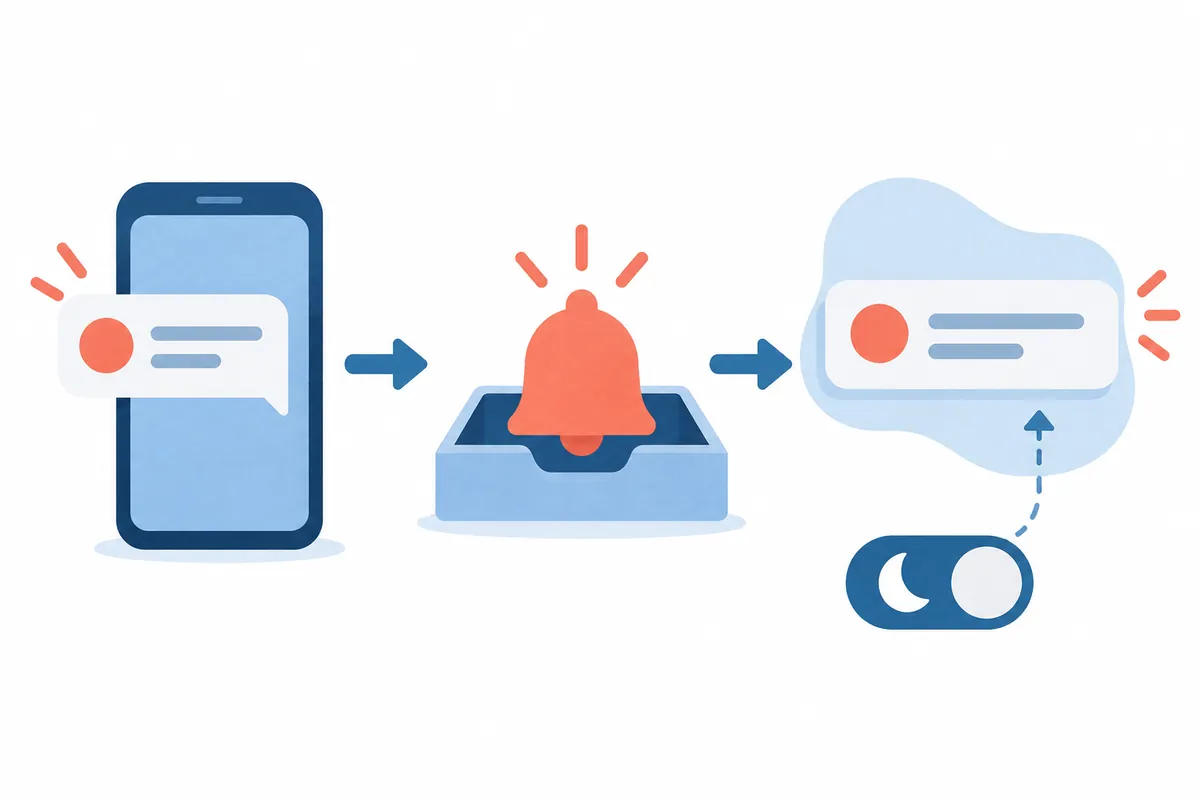
This guide addresses both missing banners and which notifications to retain. Avoiding missed important contact does not require every sound always enabled. Distinguish items kept in Notification Center from immediate on-screen display and verify actual receipt for your work.
1. Separate receipt failure from display failure
Open the app and check whether the message or event actually arrived. If content is absent there too, Windows banner settings alone may not help. Accounts, networks, synchronization, or app-specific notifications may be involved.
| Observed state | First location to check | Next judgment |
| No new content inside the app | App receipt, account, and connection | Check receipt before banners |
| Present in both app and Notification Center | Banner and Do Not Disturb settings | May have arrived without immediate display |
| Present in app but not Notification Center | Per-app Windows and app-specific notifications | Check whether the display path is disabled |
| Notifications quiet only during focus | Focus sessions and automatic Do Not Disturb | Distinguish scheduled behavior from faults |
Repeatedly sending the same notification quickly can confuse which setting produced the result. Record one test's time, arrival in the app, banner, and Notification Center. Prefer your own event or app test function, if available, over asking others for repeated contact.
2. Check overall and per-app Windows notifications
- Open Settings → System → Notifications.
- Check that the overall switch is intentional.
- Select the affected app in notifications from apps and other senders.
- Read app notifications, banners, Notification Center, and sound separately.
- Change one needed item and observe a test notification.
“Notifications are enabled” does not guarantee banners. Banners and Notification Center are separate display options. You can retain items for later without immediate banners. For disruptive apps, consider reducing banners and sounds while keeping records.
If the app is absent or names differ, check the current Windows build and app guidance. Browser website notifications can also require site permissions or browser settings. One Windows screen does not manage every website permission.
3. Behavior with Do Not Disturb enabled
With Do Not Disturb in Windows 11, most notifications go to Notification Center rather than immediate banners. Allowed apps, alarms, and reminders have separate settings. Some banners still appearing does not alone establish faulty behavior.
Check Do Not Disturb through Notification Center or system settings. If necessary notifications appear normally when briefly disabled, you have distinguished receipt from display behavior. Restore the original state or configure it for your work hours afterward.
Do not equate Do Not Disturb priority notification settings with app notification ordering such as top, high, or normal. Choosing exceptions during Do Not Disturb and ordering Notification Center entries are separate tasks.
4. If it turns on again, check automatic conditions
If Do Not Disturb reactivates after manual disabling, expand its automatic conditions. These can involve schedules, screen duplication, games, or full-screen apps. If it occurs only during presentation duplication or full-screen slides, check that condition.
| Common situation | Condition to inspect | Question before configuring |
| Quiet from a particular morning time | Time schedule | Does it match work hours? |
| Quiet during external-screen presentations | Screen duplication | Should banners be hidden during presenting? |
| Quiet only during videos or games | Full-screen or gaming conditions | Did you check app-specific settings too? |
| Quiet when a timer starts | Focus session | Did you choose contact allowed during focus? |
Disabling every condition together may produce unnecessary work interruptions. Inspect the condition matching the symptom first and adjust for that time or activity. Combining schedules and exceptions can suit differing needs in meetings and individual work.
5. Focus sessions versus Do Not Disturb
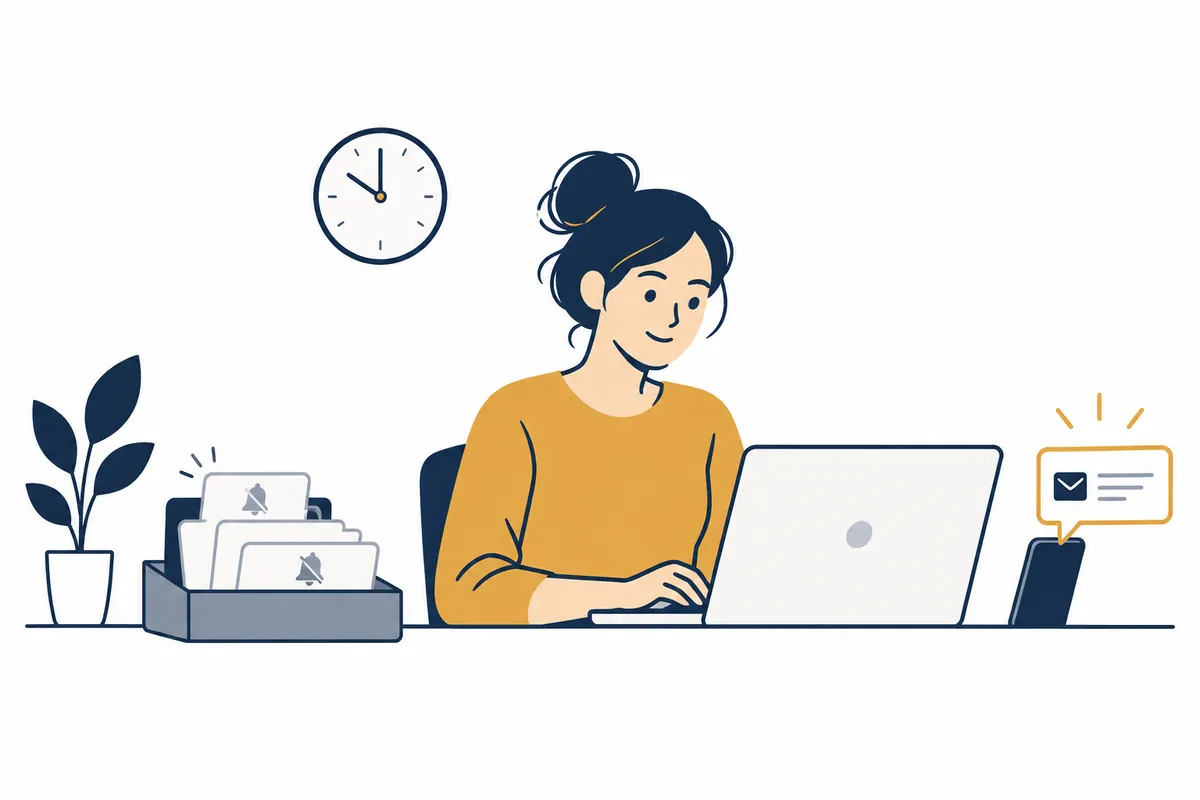
Focus sets work duration and reduces distractions. Default behavior can enable Do Not Disturb and temporarily reduce taskbar badges or flashing. Do Not Disturb adjusts notification display; Focus combines time and display behavior.
Check session length, timer, badge/flashing hiding, and Do Not Disturb under Settings → System → Focus. Since it relates to Clock, you can check that app too. Names can change with updates; read current descriptions first.
If Do Not Disturb remains after Focus ends, check whether it was already on before starting. Microsoft explains it may persist in that case. Timer completion is not a reset of every notification setting.
6. Example workplace configuration
This is illustrative, not actual usage results. Allow necessary team-app banners, disable shopping banners and sound while keeping records, and use Focus for writing with time afterward to check Notification Center. Decide important-contact exceptions according to your work.
| Notification type | Display approach to consider | Check afterward |
| Time-sensitive work contact | Banners, sound, and Do Not Disturb exceptions | Both app receipt and Windows display work |
| Information that can wait | Keep in Notification Center and reduce banners | Records remain findable later |
| Unwanted promotion | Disable app notifications or review subscriptions | Whether it also arrives on other devices or email |
| Personal messages during presentations | Check banners and lock-screen contents | Whether screen sharing exposes personal content |
Check important schedule lists directly as well as relying on banners. App closure or lost connectivity may not be fixed by exceptions. Selecting an exception and actually receiving a reminder are separate records.
7. Reduce content exposure on locked or shared screens
Check where contents appear. Configure lock-screen message hiding if provided and appropriate. Shared meetings can also reveal in-app popups or browser contents, so inspect the window to share beforehand.
Mask accounts, contacts, and messages before sharing setting screenshots. App name, Windows version, check time, and Do Not Disturb state often suffice. Follow administrator guidance for managed workplace options.
8. Verify changes and restore settings
Record changed item, original value, and result on separate lines. For example, “Team app banners enabled / previously off / arrived in app and banner displayed.” This reduces repetition next time. Restore changes with no effect before checking other routes.
- Did the message or event actually arrive in the app?
- Did you distinguish banners from Notification Center?
- Did you check automatic Do Not Disturb and Focus?
- Did you select needed and unnecessary apps separately?
- Can you check pending notifications after Focus?
If one app still fails despite correct settings, check its guidance on permissions, synchronization, and updates. Recording whether one or all apps fail distinguishes app-specific from overall Windows problems.
Official sources and writing basis
Sources checked: October 3, 2026. Written by AI using official Microsoft guidance, with content and sources reviewed. The cases and inspection records help readers assess their situation; they are not measurements or tests on a particular PC. Screens and menu names may differ with the Windows build, manufacturer, and management policy.
Original illustrations created to help explain this article.
Original on Tistory ↗