Installing Claude Code on Windows: Official PowerShell Route and Error Checks
This article was translated from its source language with AI assistance. Please check technical terms and equations against the original.
Key takeaway: To start Claude Code CLI on Windows, first check the Windows section of current official installation guidance and verify that your terminal is PowerShell. Running installation, checking version, authenticating, and working on a project are separate stages. This organizes official routes, not a report of completed installation on a particular PC.

1. Choose native Windows or WSL
Official installation guidancedescribes native Windows and WSL. Consider native execution for Windows tools and folders or WSL conditions for Linux projects. This article explains direct PowerShell installation.
Documentation checked October 3, 2026 lists Git for Windows as optional and describes PowerShell tools without it. Do not accept older claims that installation is impossible without Git Bash as current conditions. Compare required tools and system requirements with current official documentation.
2. Check the shell and official address first
Windows Terminal hosts multiple shells. PowerShell and Command Prompt use different commands even inside the same window. The command below is for PowerShell; verify that tab, often indicated by PS in the prompt.
The installation command downloads and executes a script from the official site. Rather than trust this article's string alone, compare its address withthe official Quickstart's Windows PowerShell sectionbefore use. Company or school installation policies also apply. Avoid changing unfamiliar settings together to bypass errors.
3. Run the PowerShell installation command
irm https://claude.ai/install.ps1 | iexThis is the native command in official documentation at the check date. Actual results depend on connectivity, OS, and organizational policy. Read output and record failures exactly. Distinguish a displayed version string from absence of errors.
Official documentation also provides WinGet. Recording one selected method and results narrows troubleshooting more than trying several simultaneously. This article's basic flow is native PowerShell; for another method, check its official update and management procedure.
4. Check version in a new terminal, then open the project
After installation, open a new PowerShell window and check executable availability with the following command.
claude --versionA displayed version differs from completed Claude authentication. Move to the actual project folder, run claude, and follow authentication instructions. Check supported accounts and methods in official documentation. Do not post passwords or authentication codes publicly.
cd "C:\경로\내프로젝트"
claude
The path above is illustrative. Replace it with the real folder; for an unfamiliar project, first ask “Explain structure and execution only; do not modify files yet.” Version checking verifies installation, not project build or test success.
5. Check common errors one at a time
- irm not found: Check whether a PowerShell command was entered in Command Prompt.
- claude not found: Check a newly opened terminal and compare installer output with PATH guidance.
- 403 or download error: Record error and environment and consult the matching official installation issue.
- Command runs but authentication fails: Separate installation from account authentication.
For the exact cause, search error wording inofficial installation and login troubleshooting. Provide OS, shell, method, and error while masking private paths and accounts as appropriate. Repeated settings-folder deletion or reinstalling can obscure the original state.
6. Consider project location before installation method
Rather than change methods because commands are shorter, note where projects normally run. For C-drive projects managed with Windows tools, native PowerShell is natural. For dependencies and execution inside a Linux distribution, continuing in that WSL terminal makes the environment clearer.
| Choice | Suitable situation | First record |
| Native PowerShell | Primarily Windows folders and tools | PowerShell tab, installation output, version in a new window |
| WinGet | Programs normally managed through WinGet | Package result, actual executable, update route |
| Inside WSL | Projects executed in a Linux distribution | Distribution, Linux project path, version within WSL |
For WinGet, use the documented winget install Anthropic.ClaudeCode with that method's instructions. At the check date, native installation provides automatic updates; WinGet generally requires separate updating with winget upgrade Anthropic.ClaudeCode. Recording installation and update methods together helps later version questions.
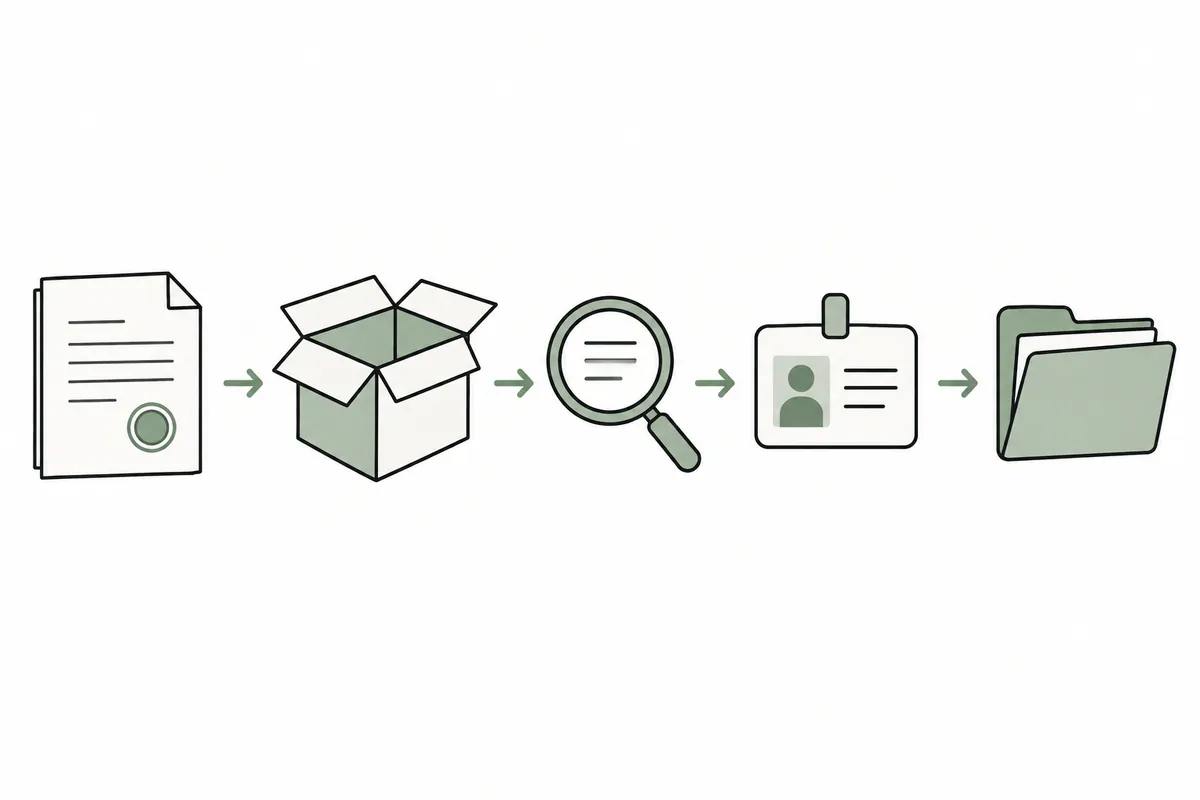
Distinguish the installation shell from the shell used by Claude Code for work commands. PowerShell installation does not establish that every task always uses it. Current environment, including Git for Windows, matters; inspect the actual shell for the failing command.
7. Read-only checks when the executable is not found
These commands illustrate diagnosis, not execution performed here. First try claude --version in a new PowerShell, expanding investigation only if unavailable. The native default path beneath the user folder comes from official troubleshooting. Another method lacking a file there is not automatically a failure.
Get-Command claude -ErrorAction SilentlyContinue
where.exe claude
Test-Path "$env:USERPROFILE\.local\bin\claude.exe"| Observed result | What it establishes | What remains unknown |
| Get-Command shows an executable path | Current window can locate the command | Authentication or project execution success |
| where.exe shows several paths | Several executables are locatable | Which installation to retain |
| Test-Path returns True | An item exists at the specified native path | Whether current PATH runs it |
| Test-Path returns False | No item exists at that location | Other installation methods and failure causes |
If the file exists but the command is unavailable, compare installer PATH guidance with the current window. If absent, return to download and installation errors. Read the official PATH section and identify the user path before changing it. Overwriting the entire PATH with an arbitrary string complicates causes.
If the command runs, claude doctor can diagnose installation and settings. Official guidance describes it as read-only diagnosis without starting a session. Check suggestions against your installation method. Keep version-only availability separate from actual session usability.
8. Turn a hypothetical error into a diagnostic request
Suppose native PowerShell installation was attempted, a new window still cannot find the command, but Test-Path returns True. This is hypothetical, not observation of a particular PC. Describing separate states rather than “installation fails” lets support inspect file existence and search paths independently.
Windows 직접 실행 환경이며 PowerShell을 사용 중입니다.
설치 방법: 공식 PowerShell 네이티브 명령.
설치 출력: [민감한 값은 가린 실제 마지막 오류·안내]
새 창의 claude --version: [실제 출력]
Get-Command / where.exe: [실제 출력 또는 출력 없음]
기본 파일 위치 Test-Path: [실제 True 또는 False]
이 기록에서 관찰된 사실과 가능한 원인을 나눠 설명해 주세요.
현재 상태를 바꾸지 않는 다음 진단 한 가지부터 제안해 주세요.
재설치·설정 삭제는 원인과 영향이 설명되기 전에는 제안만 해 주세요.
For download errors, provide code, address, and network before file checks. For authentication errors, add the displayed version and login message. Required information depends on the failed stage. There is no need to paste authentication tokens or all environment variables.
9. Record initial project use and subsequent updates
- Check the real project path and quote it if it contains spaces.
- Enter the folder and check ongoing file edits. Do not delete arbitrary project files to verify installation.
- Start Claude Code, follow authentication, and initially request structure and execution guidance.
- Check commands, then choose one small task. Do not merge build completion into installation completion.
현재 프로젝트의 설명 파일과 실행 설정을 읽어 줘.
어떤 종류의 프로젝트인지, 시작 명령과 검증 명령의 근거 파일을 알려 줘.
파일 수정과 의존성 설치는 아직 하지 마.
모르는 명령을 추측하지 말고, 확인할 파일이나 질문을 제시해 줘.
If problems follow an update, record method, prior version, current version, and failed command. “This input produced this error after updating” starts diagnosis more accurately than “the update broke it.” Separate other commands that still work to narrow scope.
What if changing terminals changes results?
Compare shell types and executable paths first. Windows PowerShell and WSL may use different paths and installations. Identical command names do not establish the same executable. Choose the intended environment, then record its paths and version.
Frequently asked questions and common mistakes
Is an administrator window required? At the check date, official native Windows guidance says administrator execution is unnecessary. Check environment policies separately.Does WSL use the same PowerShell command? Follow official Linux/WSL installation instructions inside WSL.How should I record installation success? Distinguish the actual displayed version, authentication state, and project behavior not yet checked.
Official sources and check date
Official documents checked: October 3, 2026. Screens and availability can change afterward.
Original illustrations created to help explain this article.
Original on Tistory ↗