Using Claude Artifacts: How to Build and Review a Small Tool
This article was translated from its source language with AI assistance. Please check technical terms and equations against the original.
Key takeaway: When using Claude Artifacts, specify what to create, inputs, outputs, and how to check it. Moving from a draft document or small tool to a result suitable for sharing requires revision and review. The study-planning tool below is a planning example for explanation, not something actually generated or tested.
1. Decide What to Request with Artifacts
Artifacts are outputs you can open, edit, and reuse beside the conversation. The official guide gives documents, designs, dashboards, and small interactive tools as examples. Delivery methods and feature conditions can change, so check the official Artifacts documentation alongside the current interface.
For a first topic, choose something easy to review, such as a planner with few numeric inputs, explanatory cards, or a quiz using only public material. Requesting membership management, payments, and multiple service connections immediately makes completion difficult to judge. Define one core feature first, then add necessary features.
2. Fictional Example: A Study-Time Allocation Tool
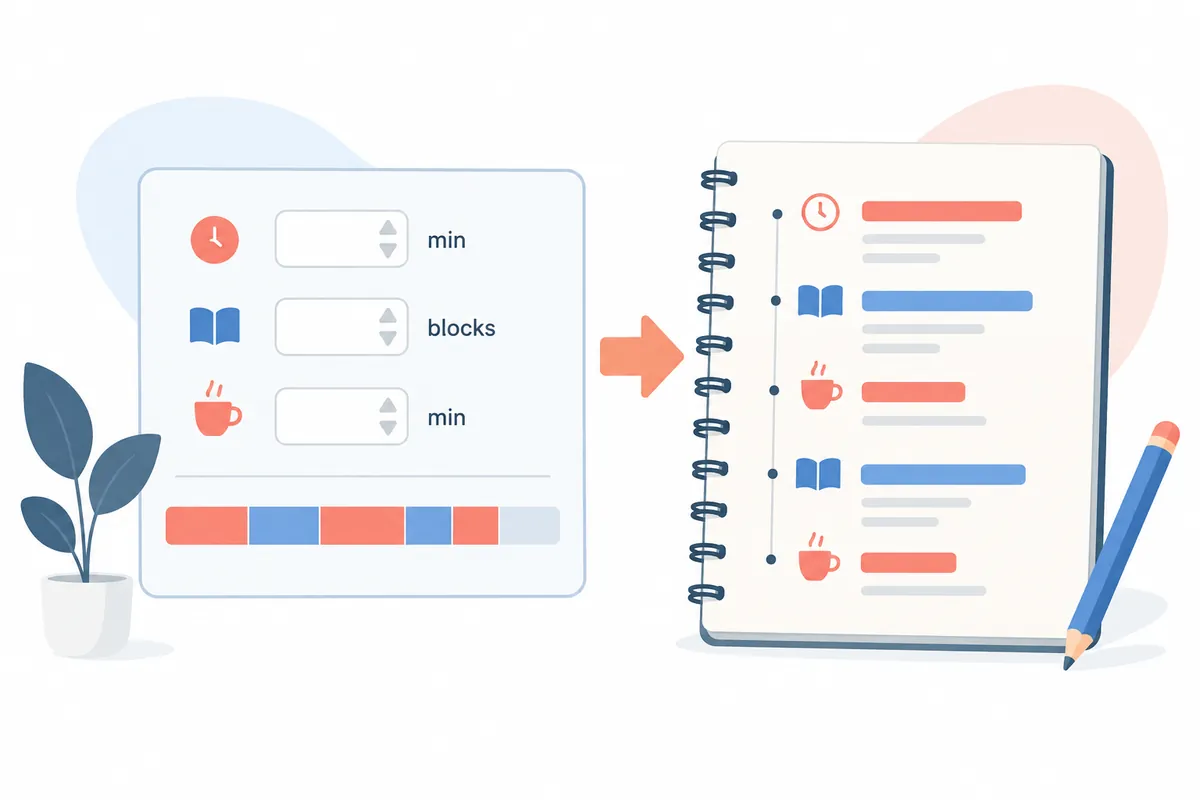
Suppose you are building a tool to divide daily study time among subjects. Inputs are total study time and each subject's share; outputs are allocated minutes per subject. This defines what to enter and display more clearly than “a pretty study app.” First write the calculation rules so the criteria remain consistent when changing the screen.
공부 시간을 나누는 작은 도구를 Artifact로 만들어 줘.
입력: 전체 시간(분), 국어·영어·수학 비중.
출력: 과목별 시간과 전체 합계.
비중 합계가 100이 아니면 이유를 보여 주고 계산하지 마.
전체 시간이 0 이하이거나 비어 있으면 입력 안내를 보여 줘.
정수 분으로 표시하되 반올림 차이가 있으면 따로 설명해 줘.
실제 학습 효과를 보장하는 표현은 넣지 마.
먼저 계산 규칙과 확인할 예시를 보여 줘.
Error handling and totals matter more in this question than colors or layout. Automatically adjusting incorrect share totals and stopping calculation are different rules, so explicitly choose your preferred behavior. Allocated time is a planning figure and does not imply improved grades.
3. Revise One Kind of Thing at a Time After Generation
Simply asking “make it better” after the first result may change calculations and design together. Separate revision purposes: “Change input labels to Korean while preserving the calculation,” “Show error guidance beneath inputs,” or “Adjust the layout so the table is not clipped on mobile.”
Listing what must remain before editing makes comparisons easier. For example, preserve total checking, empty-value handling, and rounding guidance while changing only font size. Apply the same principle to documents: ask to revise only titles and paragraphs while preserving dates and facts.
4. Distinguish Attractive Results from Correct Results
Consider review inputs of 120 total minutes and shares of 25, 25, and 50. Simple proportional calculation gives expected allocations of 30, 30, and 60 minutes. This is the article's calculation example, not a claim that a generated tool actually produced these values. Compare the result screen with the expected values yourself.
- Check for appropriate guidance for blanks, zero, negative numbers, and nonnumeric values.
- Check whether share totals of 99 or 101 are handled according to the chosen rule.
- For small total times, examine how the total appears after rounding.
- Check whether inputs and results are readable on a phone-sized screen.
- Check whether information you expect to be saved actually remains after refreshing or reopening.
Persistence must be checked against the artifact's implementation and feature conditions. Do not assume data is permanently stored merely because inputs appear onscreen. Describe only verified features in the explanatory text too.
5. Check Access Scope and Contents Before Sharing
Drafts may contain example names or internal material. Before sharing, identify and clean up personal information, work notes, unreviewed claims, and links. Check the permissions recipients receive and what they can see in the official sharing guide and actual sharing screen.
When publishing a small tool, briefly describe its purpose, sample input, calculation rules, and known limitations to help readers assess it. “A planning tool that divides study time according to entered shares” describes its actual function more accurately than “a learning tool that provides correct answers.” Keep records of later revisions and the date checked too.
6. Choose Between a Document and a Small Tool
Although Artifacts can present the same content in multiple forms, choose the result that fits the purpose. First distinguish reading a fixed explanation from changing numbers to compare results. A document is simple for sharing a fixed study plan; a small tool may fit a plan that changes with inputs.
| Purpose | Requested output | Completion criterion |
| Explain the usage sequence | Short guide document | Includes necessary steps and exceptions |
| Change a plan based on numbers | Tool with inputs and results | Correct calculation rules and error handling |
| Explain during a presentation | Presentation divided by content | Appropriate amount to read on each screen |
| Review layout and colors | Design draft | Fits target screen size and wording |
The official documentation distinguishes document, presentation, and design templates from account-specific availability. To use Artifacts, also examine conditions for related code-execution and file-generation features. Check these against the official link above; this does not mean every template is available in a particular account.
If the interface differs from an older explanation, check the artifact's creation date and type. Current official documentation distinguishes legacy artifacts from new outputs. Apply the official guidance for the artifact currently open rather than expecting an older output's export and sharing buttons to appear in a new task.
7. Write a More Specific Study-Tool Specification
To put a usable plan into the tool above, define time units, empty-value handling, and decimal display. The following detailed specification was created for this article. After copying it, adapt the subjects and input ranges to your situation.
공부 시간 배분 도구를 만들어 주세요.
목적: 오늘 사용할 시간을 과목별로 나누어 보는 계획용 초안.
사용자: 한국어를 읽는 초보자. 설명은 화면에 짧게 표시.
입력:
- 전체 공부 시간: 분 단위의 양의 정수.
- 세 과목의 비중: 각각 0~100의 정수.
계산:
- 비중 합계가 100일 때만 계산.
- 배정 시간 = 전체 시간 × 해당 비중 ÷ 100.
- 내부 계산에는 표시용 반올림 전의 값을 유지.
- 소수점 한 자리 반올림은 화면 표시 단계에서만 적용.
- 전체 합계는 반올림 전 과목별 계산값을 합한 뒤 표시.
- 반올림한 표시값을 다음 계산이나 합계 계산에 다시 사용하지 않음.
- 표시된 과목별 시간의 합계와 전체 시간이 다르면 표시 반올림 차이를 안내.
- 정수로 바꾸는 기능은 이번에는 만들지 않음.
처리:
- 빈칸이나 잘못된 값은 입력 위치별로 이유 표시.
- 오류가 있는 동안 이전 계산 결과는 '이전 결과'라고 표시.
- 과목 이름과 전체 합계를 결과에 같이 표시.
범위:
- 로그인·외부 연결·데이터 저장은 이번 요청에 포함하지 않음.
- 실제 학습 효과나 추천 비중을 보장하지 않음.
먼저 구현할 동작 목록과 아래 사례의 기대값을 정리해 주세요.
내가 그 규칙을 읽은 뒤 화면 초안을 만들어 주세요.
If integer-rounding rules are undecided, the first version could show one decimal place. Even then, rounding each row can make displayed row values sum to something different from total time. Include rules preserving internal calculation values and explaining the display difference. If integers are required, separately decide the order in which leftover minutes are allocated.
For a fictional check, applying shares of 33, 33, and 34 to one total minute gives unrounded values of 0.33, 0.33, and 0.34 minutes. Displaying each to one decimal gives 0.3, 0.3, and 0.3 minutes, summing to 0.9 minutes, while the unrounded total is one minute. Beside a displayed total of 1.0 minutes, the screen could explain, “Display rounding makes the sum of displayed subject values appear 0.1 minutes below the total.” This is an author-calculated review example, not an actual Artifact execution result.
8. Review Calculations and Errors with a Fictional Input Table
The values below are expected results calculated by the author from the specification above. They are not test results from a Claude-generated screen. Compare the actual artifact's behavior against this table.
| Input | Expected result under the specification | Error to look for |
| 120 minutes / 25·25·50 | 30.0·30.0·60.0 minutes | Whether subject order changed |
| 45 minutes / 20·30·50 | 9.0·13.5·22.5 minutes | Missing decimal values |
| 100 minutes / 0·40·60 | 0.0·40.0·60.0 minutes | Whether a 0% subject incorrectly triggers an error |
| 120 minutes / 25·25·40 | Stop calculation because the total is 90 | Whether shares are automatically changed |
| Blank total time | Guidance to enter time | Whether a blank is calculated as zero |
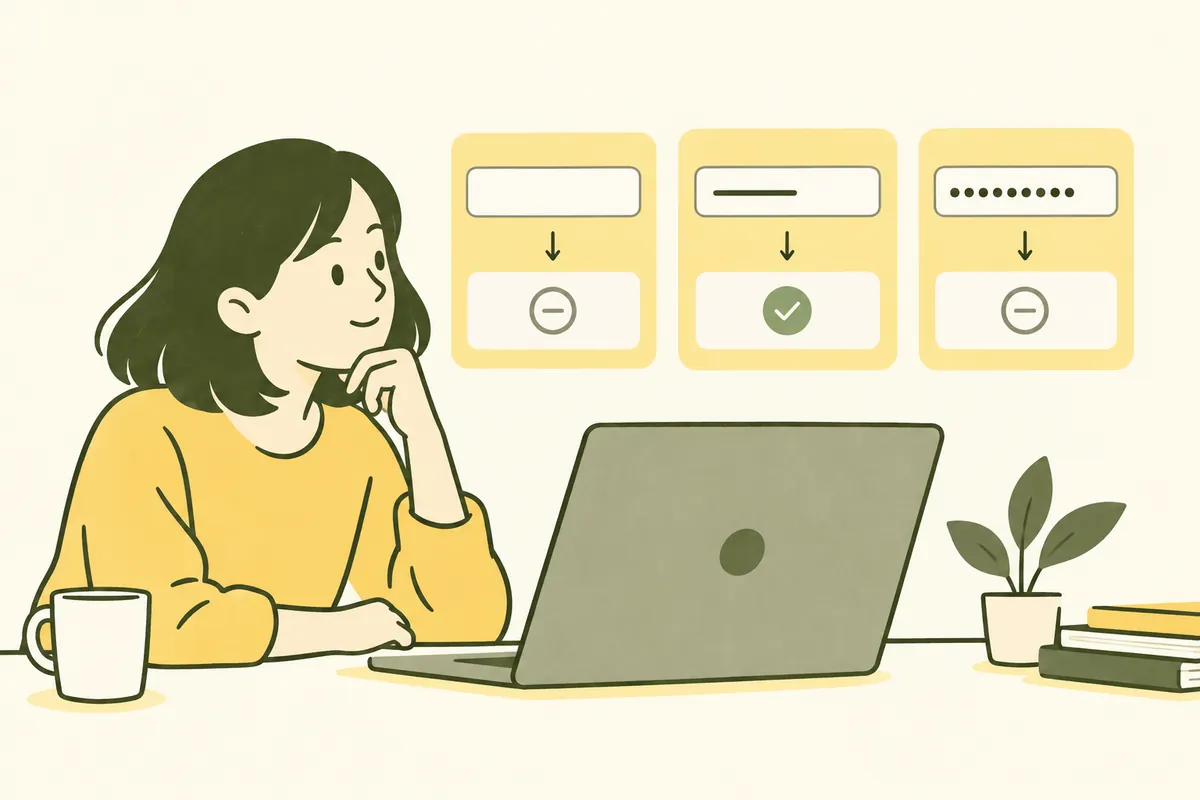
Using only valid inputs can make the screen seem well built. Try clearing values, changing share totals, and pressing Calculate. In particular, if an old result remains displayed as current after an error in new inputs, users may misread it. Request a correction to display rules in that case.
전체 시간을 지웠을 때 기존 120분 결과가 그대로 보입니다.
기존 결과는 유지하되 '이전 결과: 현재 입력은 미완성'으로 표시하세요.
현재 입력이 유효할 때 계산한 결과와 구분해 주세요.
계산식과 과목 순서는 바꾸지 마세요.
수정 후 빈칸 → 정상 값 → 비중 합계 오류 순서로
살펴볼 항목을 목록으로 알려 주세요.
When reporting an actual error, record what you entered and what appeared. The wording above is a fictional example of a correction request. Do not present an unobserved phenomenon as an existing error; ask “Check whether this condition is handled” instead.
9. Distinguish the Version to Share from the Working Draft
- Compare valid and erroneous inputs to check agreement between specification and results.
- Look for fictional names and data and internal notes in the screen and description.
- Briefly explain the purpose, input units, and calculation rules.
- Choose an export format or sharing method available for the current artifact.
- Read sharing scope and access permissions, and separately check whether recipients can open it in their environment.
You can also create a document explaining the tool. Requesting “Summarize one input example, handling of invalid input, persistence, and known limitations in four paragraphs” provides a draft for sharing. Do not claim persistence if it is unimplemented; even if implemented, check actual saving and reopening behavior.
Additional Questions about Planning and Use
Should I specify the output format first? If you intend to edit in another app, state the required format first and compare it with what is actually offered. Can I change colors first? Change colors freely, but specify what must stay consistent so error indicators and calculation criteria do not change simultaneously. Do I need an app connection? A tool calculating solely from specified inputs can be planned without external connections. For tasks requiring connections, separately define target material and reading or writing purposes.
Frequently Asked Questions and Troubleshooting
What if Artifacts are not visible? Check official documentation for account availability conditions and settings, and name the desired artifact type directly in your question. What if an error appears? Provide the error message, triggering input, and expected result together. Does sharing make it a finished service? Check separately for features needed in actual use and operation. Generating a draft does not complete review.
Official Sources and Date Checked
Official documentation checked: October 3, 2026. Screens and availability conditions may change afterward.
Original illustrations created to help explain this article.
Original on Tistory ↗