When Windows 11 Updates Fail: Troubleshooting Steps Before Resetting
This article was translated from its source language with AI assistance. Please check technical terms and equations against the original.
When Windows Update fails, identify the failure stage before finding and running reset commands. The next action depends on downloading, installing, or awaiting restart. Windows 11 also offers an update troubleshooter in Get Help. The sequence below guides basic checks on a personal PC.
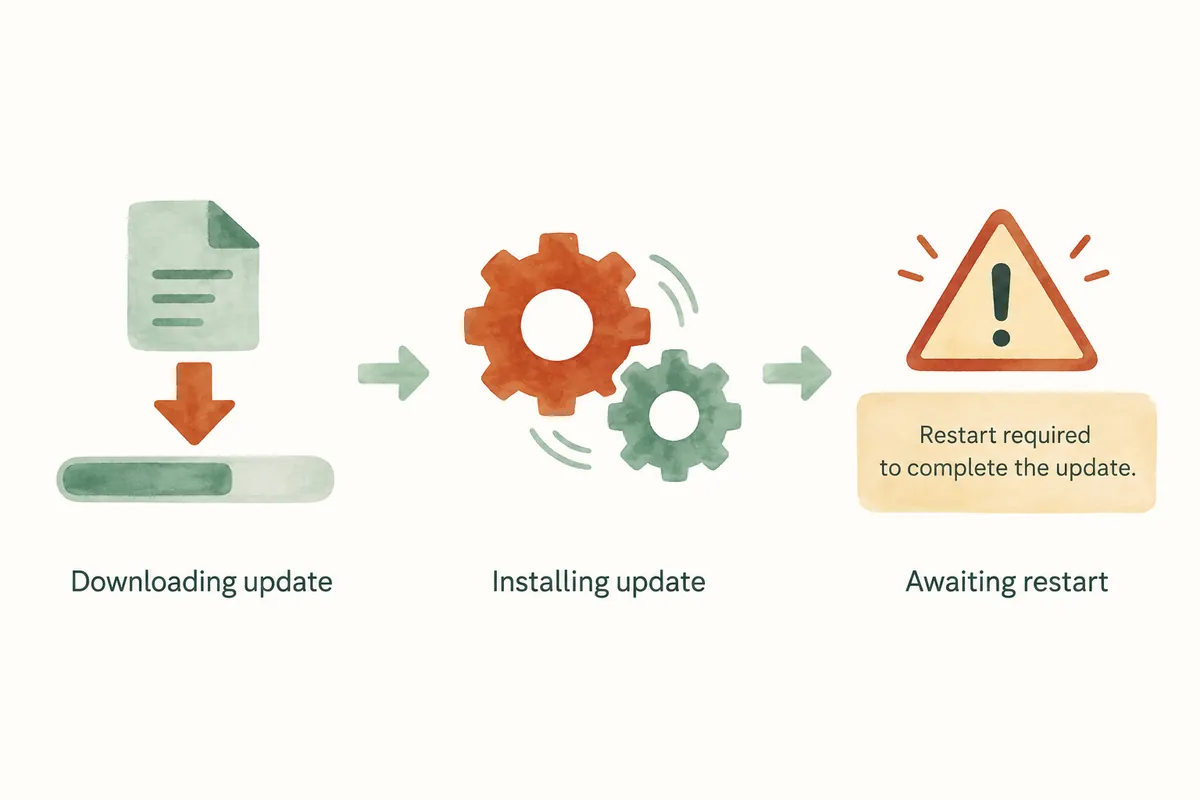
First Choose Actions for the Current Stage
| Current screen | First action | Avoid |
| Checking or downloading updates | Check internet and record displayed errors | Changing many settings simultaneously |
| Installation fails on the normal screen | Record code, update name, and failure time | Running reset commands from unknown sources |
| Restart required | Save work and check restart timing | Starting with unsaved work |
| Installation progress after restarting | Maintain power and read onscreen guidance | Arbitrarily disconnecting power |
| Company-management notice appears | Check administrator policy and support channels | Changes intended to bypass policy |
Separating slow downloads from post-installation errors clarifies next actions. Record the latest stage and exact wording rather than “it has not worked since yesterday.” If no error appears and progress changes, continue observing instead of declaring failure.
Prepare laptop charging and a stable connection; save urgent documents or meeting work first. This does not guarantee resolution, but reduces interruption from power or scheduling. Checking separate copies of important material on external storage also helps assess recovery choices during later support.
1. Record Error Codes and Current Status
Open Settings → Windows Update and read displayed text. Copy error codes exactly or capture the screen, and record update names or KB numbers if shown. “Installation failed after downloading with this code” narrows the issue better than “updates do not work.”
Do not declare failure immediately because a percentage appears unchanged. Download and installation durations vary with connection and update. Distinguish lack of progress over time from error messages. Especially on post-restart installation screens, avoid arbitrary power disconnection and follow instructions.
Workplace or school update policies may differ from personal settings. Checking administrator guidance first reduces time spent attempting prohibited changes.
Collect Windows Details and Update History
Check installed edition and version under Windows specifications in Settings → System → About. Refer to Microsoft's device-information guide. Even within Windows 11, check whether documentation concerns your version.
Settings → Windows Update → Update history shows installed updates and dates, as described in the official Windows Update FAQ. Record update names and status, and compare apparently failed entries with today's error.
History checking initially collects evidence. Do not remove an update merely because its name has a recent date. Removal requires separate judgment and is unavailable for some updates. Distinguish installation failure from other problems occurring after successful installation.
2. Check Internet and Storage
- Check whether ordinary webpages open.
- Inspect Wi-Fi or wired connection stability.
- Look for low-space warnings in Settings → System → Storage.
- If space is insufficient, inspect cleanup targets using Windows features while preserving required documents.
Network and space checks also appear in Microsoft's update troubleshooting guide. Do not manually delete system folders to free space. Follow Windows' displayed requirements and warnings rather than prescribing one universal capacity number.
If every webpage fails, resolve connectivity before repeatedly retrying updates. If the web works but one update repeatedly fails, focus on its code and name. These distinguish possible situations and do not establish a definitive diagnosis.
Checks Before Retrying After Connection or Storage Changes
- Check ordinary webpages and observe recurring disconnections.
- If C drive shows a low-space warning, inspect deletion candidates.
- Preserve needed material and clean only clearly scoped items.
- Check whether available space changed in Storage.
- Check updates again and compare with the previous error.
If interrupted downloads and inaccessible webpages improve after restoring connectivity, observe whether the next download advances. If files downloaded but installation keeps failing, repeatedly changing networks may not help. Connect results from each stage when interpreting them.
For VPN or company networks, check required work-access conditions before changing connections. Use permitted connections rather than automatically choosing public Wi-Fi. Meet stable internet and organizational security requirements together.
3. Save Work and Restart Normally
If the update screen requests restart, save open documents and work and follow guidance. For errors on the normal work screen, a normal restart can clear pending work before rechecking. Distinguish this from forcibly shutting down by holding the power button.
Consider important meetings and file transfers first. Allow enough restart time and ensure laptop power. Checking urgent work before choosing update retry timing reduces unexpected interruptions.
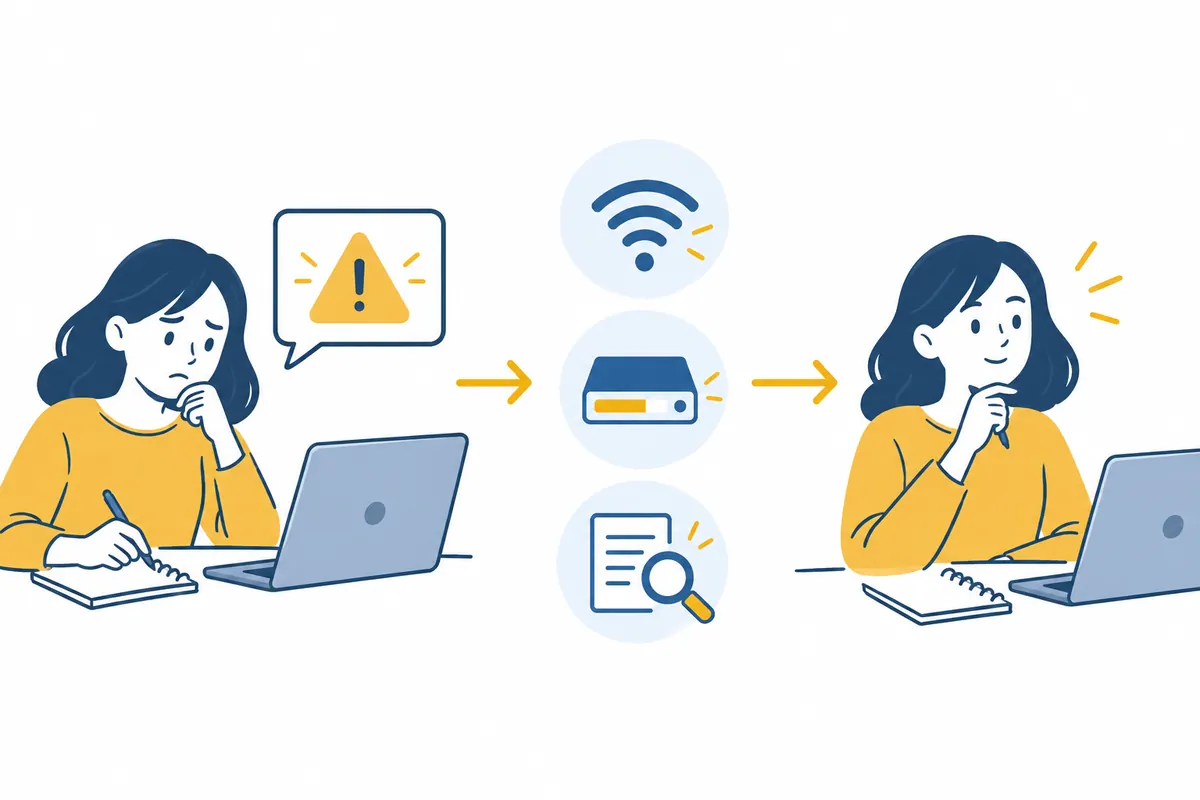
After restarting, inspect the same screen for changed status. Record whether errors disappeared, restart remains pending, or new codes appeared to compare with earlier stages.
4. Run the Official Update Troubleshooter
Microsoft recommends first running the automatic Windows Update troubleshooter in Get Help on Windows 11. Open the app, find Windows update issues, and follow guidance. Related options may also appear under Settings → System → Troubleshoot → Other troubleshooters.
Follow additional actions or restart instructions afterward. Then recheck Settings → Windows Update → Check for updates. Treat this as basic diagnosis and recommended actions rather than a guarantee of fixing every error.
Record “troubleshooter run, guidance shown, and result after restart” together to explain prior actions during support. Do not record unperformed actions or assume resolution; retain actual displayed results.
What to Check in Troubleshooter Results
Answer additional Get Help questions according to the actual screen. Record detected problems or recommended actions and read completion messages. “Troubleshooter ran” and “update succeeded” are separate outcomes; the final check belongs in Windows Update.
- Did diagnosis finish, or are further actions pending?
- Was restart requested and performed after saving work?
- Did actual installation results change after checking updates?
- Is the error code the same, or did new wording appear?
Compare repeated attempts in one line each. If wording and stages remain identical, you now have evidence for code-specific official guidance or support. Mark unperformed recommendations “not executed.” Distinguish attempted from planned work so support staff understand correctly.
5. If Failure Continues, Narrow It with Error-Specific Guidance
Compare repeated codes and update names with official documentation. Avoid running internet reset-command collections without identifying the cause. Update-component reset, system-file repair, and driver changes differ in scope and results, so select after identifying the issue.
Before system changes, retain important files elsewhere and record current settings. For work VPNs, security software, or company-managed environments, seek responsible staff guidance. Changing multiple settings together without knowing the blocker makes helpful changes hard to identify.
Support requests should include visible Windows details, update name, error code, initial occurrence, and attempted basic actions. Exclude screenshots containing personal information and provide only wording necessary to understand the situation.
Error Codes Are Clues to Candidate Causes
| Example code in official documentation | Cause category described | Next check |
| 0x800f0922 | Storage or component-related issues | Current space and guidance for that code |
| 0xC1900101 | Driver compatibility issues | PC model and recent driver changes |
| 0x8007000d | Update-file or cache-related issues | Official code-specific procedure and diagnostic results |
This table does not establish causes from codes alone. Additional conditions need checking; use it to begin the official procedure for that code. Driver removal, component reset, and repair installation need different preparation and have different impacts. Completing basic checks does not require executing all together.
A Record Format for Support Requests
Windows 에디션과 버전:
PC 제조사와 모델:
실패한 업데이트 이름 또는 KB 번호:
현재 단계와 정확한 오류 코드:
처음 발생한 시점:
인터넷 연결 확인 결과:
공간 부족 경고와 여유 공간:
문제 해결사 안내와 실행 결과:
다시 시작 후 변화:
실행하지 않은 조치:
Read model and version from the actual device rather than guessing missing values. Keep account addresses and personal documents out of error captures. Use these records to define scope in subsequent recovery stages. Record dates and details for additional changes not already listed.
6. Frequently Asked Questions
How long should I wait at the same percentage? A universal time for every PC is difficult to define. Check stage and guidance. Do not treat forced shutdown during installation as ordinary troubleshooting.
Will disabling security software fix it? Disabling security without identifying the cause is not recommended as a basic step. Check whether official guidance for a particular error is needed, and follow administrator instructions on company PCs.
Isn't resetting fastest? Resetting is a separate action affecting apps and settings. Narrow causes using error records, basic checks, and official troubleshooters before choosing recovery procedures.
Official sources: Microsoft — Windows Update: FAQ, Microsoft — Find information about your Windows device, Microsoft — Windows Update Troubleshooter, Microsoft — Troubleshoot problems updating Windows. Checked: 2026-10-03. Error causes and menus vary by device environment and management policy.
Original illustrations created to help explain this article.
Original on Tistory ↗