Showing File Extensions in Windows 11: Why Renaming Is Different from Conversion
This article was translated from its source language with AI assistance. Please check technical terms and equations against the original.
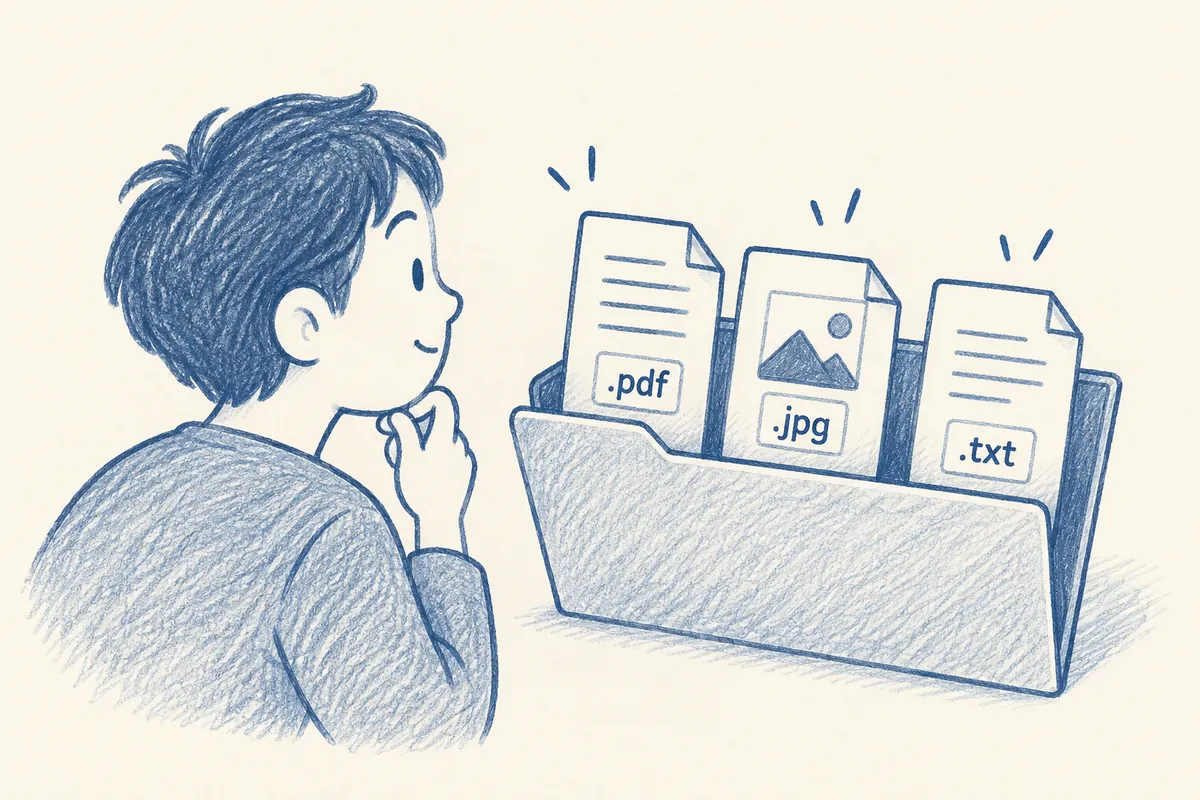
Without .pdf, .jpg, or .txt at the end of filenames, similarly named files are hard to distinguish. Windows 11 can show extensions through File Explorer's View menu. They help identify files, but changing the ending alone does not convert formats. This guide covers display settings and safe renaming.
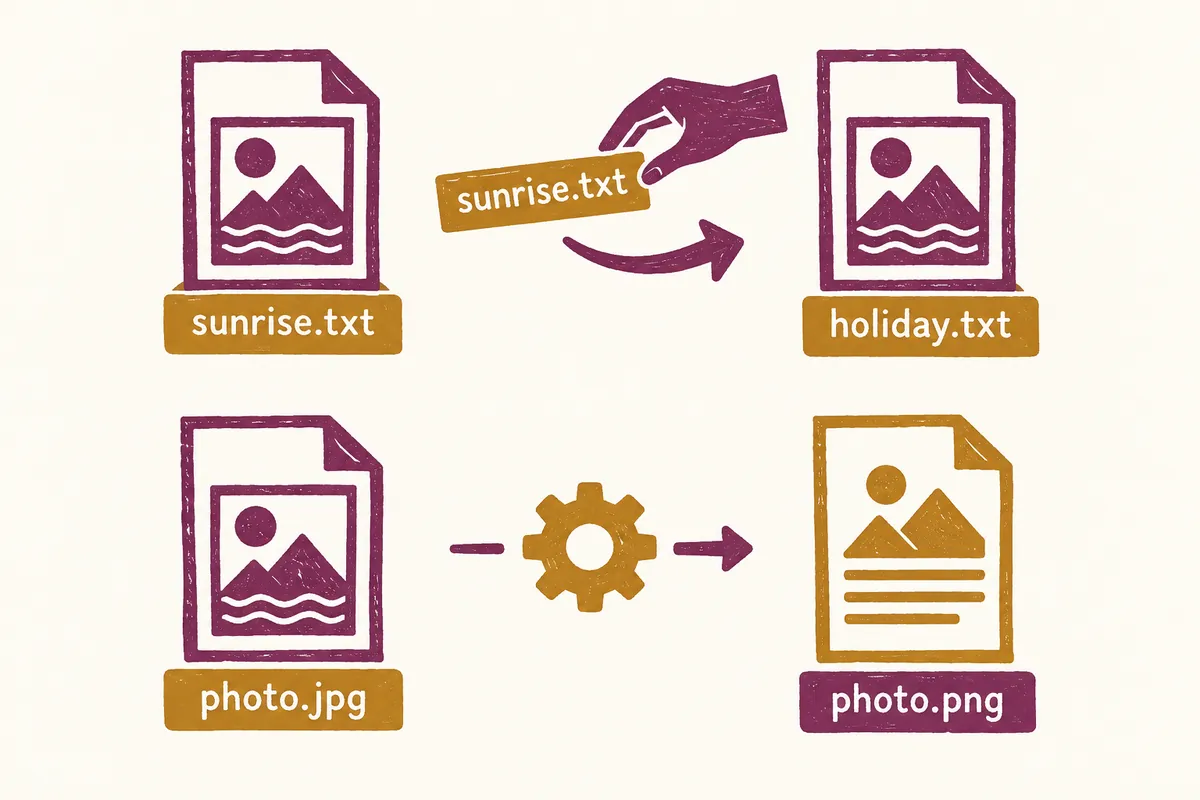
Check Whether You Want to Change the Name, App, or Format
File organization usually involves three goals: clearer names, opening the same file with another app, or creating a new file in another format. These may look similar onscreen but need different menus. Choose your purpose in the table below.
| Purpose | Example | Appropriate action |
| A name describing contents clearly | document1.pdf → meeting_notice.pdf | Rename while preserving the extension |
| Open with another app | View a PDF in your preferred viewer | Open with or Default apps |
| Submit another format | Create a PDF from Word | App saving or export features |
| File type looks suspicious | Received document's final extension differs from expectations | Check sender and original material |
Make one copy of important files first. Record the original name and extension and practice on the copy to retain a comparison baseline after mistakes. Changing every extension in a folder is unnecessary for basic practice. Verify the intended result on one file first.
1. Show Extensions in File Explorer
- Open File Explorer.
- Select View at the top.
- Enable Show → File name extensions.
- Check whether document or image names now end in extensions.
This path follows Microsoft's file-extension guide. Labels may differ by display language. Showing extensions does not alter file content, and the same menu can hide them again.
First inspect a familiar material folder. Files previously shown as “presentation” become distinguishable as presentation.pptx and presentation.pdf, making the editing original and distribution file easier to choose. This is why display should be checked before batch changes.
2. Read Names and Extensions
In meeting_notes.txt, “meeting_notes” is the name and the final “txt” the extension. Names identify contents; extensions help distinguish types and associated apps. Same-named files with different endings may be different kinds of material.
Consider a folder containing report.docx and report.pdf. Extensions alone cannot establish which is current: inspect modification dates and contents. They at least clarify differing formats. Name, extension, and content each provide necessary information.
You need not memorize every extension. Start reading endings of common documents, images, and archives. Check whether unfamiliar types are what the sender intended before opening.
Reading Order for Similar Files
- Check that Explorer shows extensions.
- Read after the final dot to identify type.
- Check modification date and size.
- Open contents to confirm the needed version.
- Give originals, distribution copies, and revisions clear names.
Suppose meeting_material.docx, meeting_material.pdf, and meeting_material_revised.pdf share a folder. Editing may require the original document; sharing needs the PDF with correct contents. Do not assume the last-created file is always final: check content.
Names including purpose as well as dates help organization, such as 20261003-meeting_material-distribution.pdf. “Distribution” is your management label, not a conversion feature. Check agreement between actual content and management name.
3. Why Changing Extensions Does Not Convert Formats
Renaming photo.jpg to photo.pdf does not make a PDF document. Microsoft also explains that extension changes are not format conversion. Unchanged internal content labeled as another type may fail to open or launch the wrong app.
Think of putting a different type label on a book cover: the contents do not change. For required formats, find Save as, Export, or Convert in an app capable of opening the original.
Retain the original after conversion and check that the new file opens normally. Inspect pages and text in documents, and image contents and display. A filename ending in the required extension alone does not establish submission compliance.
Actual Conversion Example: Save a Word Document as PDF
With the Windows Word desktop app, open the original and choose PDF under File → Save a copy or Save as. Menus differ by saving status and version. Follow Microsoft's Office PDF-saving guide.
- Open the original document and check contents.
- Choose Save a copy or Save as from File.
- Use Browse to select a destination.
- Select PDF in file types and choose a new filename.
- Open the saved PDF and inspect pages and contents.
- Retain the editable original too.
Before sharing, inspect long-table pages, image pages, and the last page as well as the first. For submissions, check missing pages and unnecessary revision markings. PDF creation does not mean recipients can never edit it, so distinguish edit prevention from format requirements.
4. Keep the Extension When Renaming
For organization, changing only the part before the extension often suffices. document1.pdf → 2026-10-meeting_notice.pdf preserves type while clarifying content. Check the extension after the final dot remains unchanged.
If an extension-change warning appears, reconsider whether the goal was renaming or actual conversion. Restore an accidentally removed extension if known; if unknown, do not guess. Check the original or sender's instructions.
Practice on one copy rather than an important original. Distinguishing clearer names from situations requiring conversion reduces unnecessary trial and error in file organization.
A Short F2 Renaming Exercise
Select a practice copy in Explorer and press F2 to begin renaming. Key behavior appears in Microsoft's shortcut documentation. The mouse menu's Rename works too.
- Record the original filename with its visible extension.
- Select it and press F2.
- Change the part before the extension for your purpose.
- Check that the final extension matches the original.
- Finish and verify that the same app opens it normally.
Immediately after an incorrect rename, rename back if the original is known. If its extension is unknown, do not repeatedly try arbitrary names and openings. Compare a retained original or originally sent material. Name-only correction and rebuilding file content require different recovery approaches.
5. Check the Final Extension of Downloaded Files
Do not identify material solely by icon or the beginning of its name. In notice.pdf.exe, the final extension is exe, which the official list identifies as an executable program. Check whether this is the expected document before handling it.
This example does not establish that all similar files are malicious. However, if awaiting a PDF notice, find why the received type differs. Compare email or message descriptions with the actual filename and examine whether the delivery source is trustworthy.
Sequential Checks When a File Does Not Open
| Situation | Next check |
| Fails immediately after renaming | Whether the original final extension was preserved |
| Only the newly converted file fails | Conversion completion and saved location |
| All files of one type open another app | Default association |
| Only one received file fails | Original file and download completion |
Compare one normally opening file of the same type. If it works in the same app but one file fails, changing association alone may not help. If many files open incorrectly the same way, inspect associations. This comparison narrows causes; it does not confirm corruption.
Before submission, verify name, final extension, contents, location, and actual attachment. The original may be correct while the wrong file is attached. Showing extensions helps distinguish editable originals from submission copies in this final check.
6. Frequently Asked Questions
Does showing extensions also show hidden files? Extensions and hidden items are separate options. For type checking, only extension display needs changing; no connection to finding and deleting system files is necessary.
Should I rename a PDF that opens in the wrong app? Check default associations first. Changing the app for an unchanged type differs from changing the extension. If the PDF fails in other apps too, inspect the file itself.
Are two extensions always suspicious? Dots can appear in the name itself, so their count alone is insufficient. Check the final extension against the expected material type.
Official sources: Microsoft — Keyboard shortcuts in Windows, Microsoft — Save or convert to PDF or XPS in Office Desktop apps, Microsoft — Common file name extensions in Windows. Checked: 2026-10-03. Example filenames are fictional and provided for understanding.
Original illustrations created to help explain this article.
Original on Tistory ↗